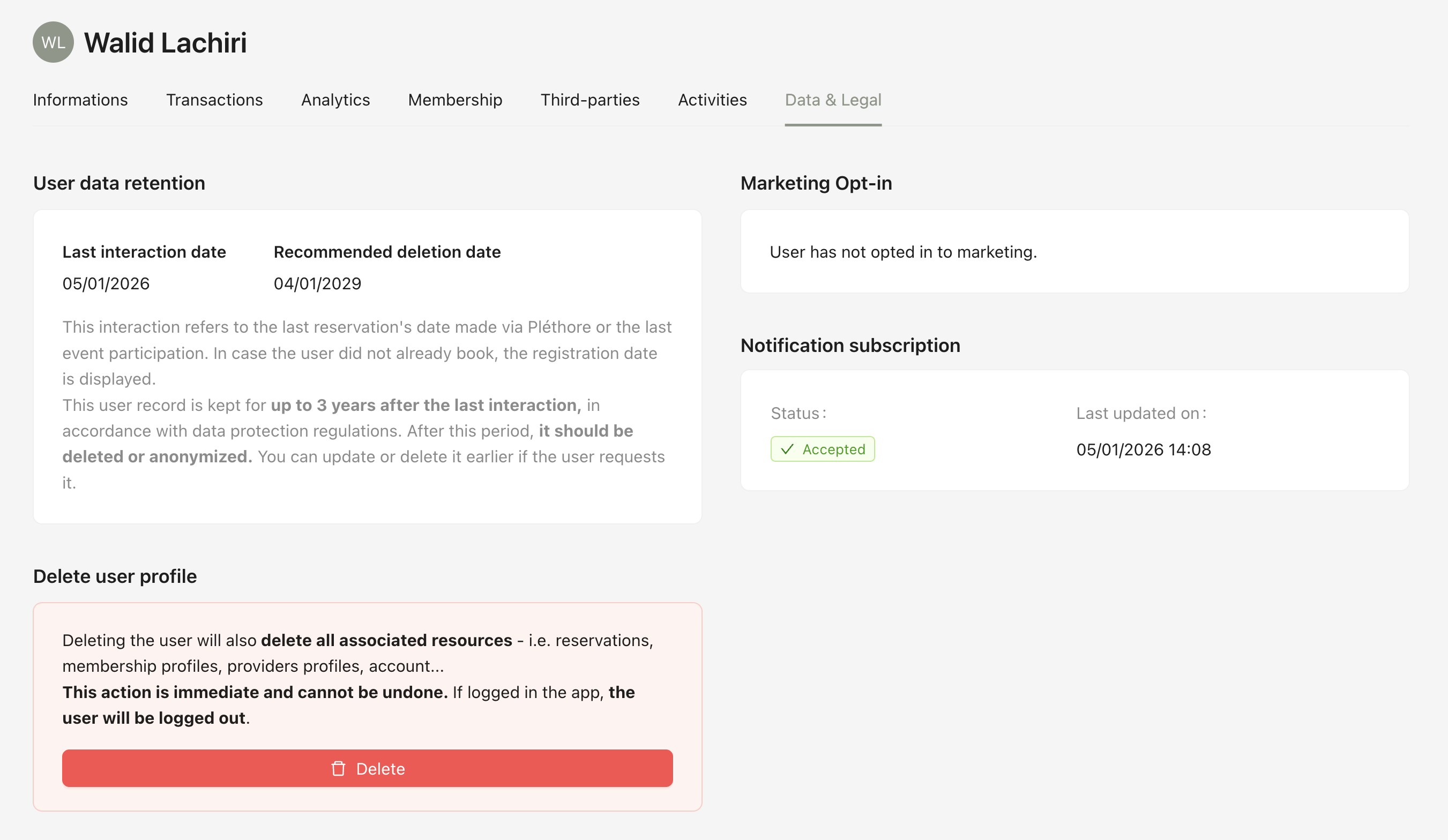
Finding and reviewing a user profile allows administrators to understand user activity, manage data, and access key information such as bookings, analytics, memberships, and integrations.
The following roles are allowed to view the user list and access individual user profiles:
Admin
Head of Project
Marketing
Communication
Membership
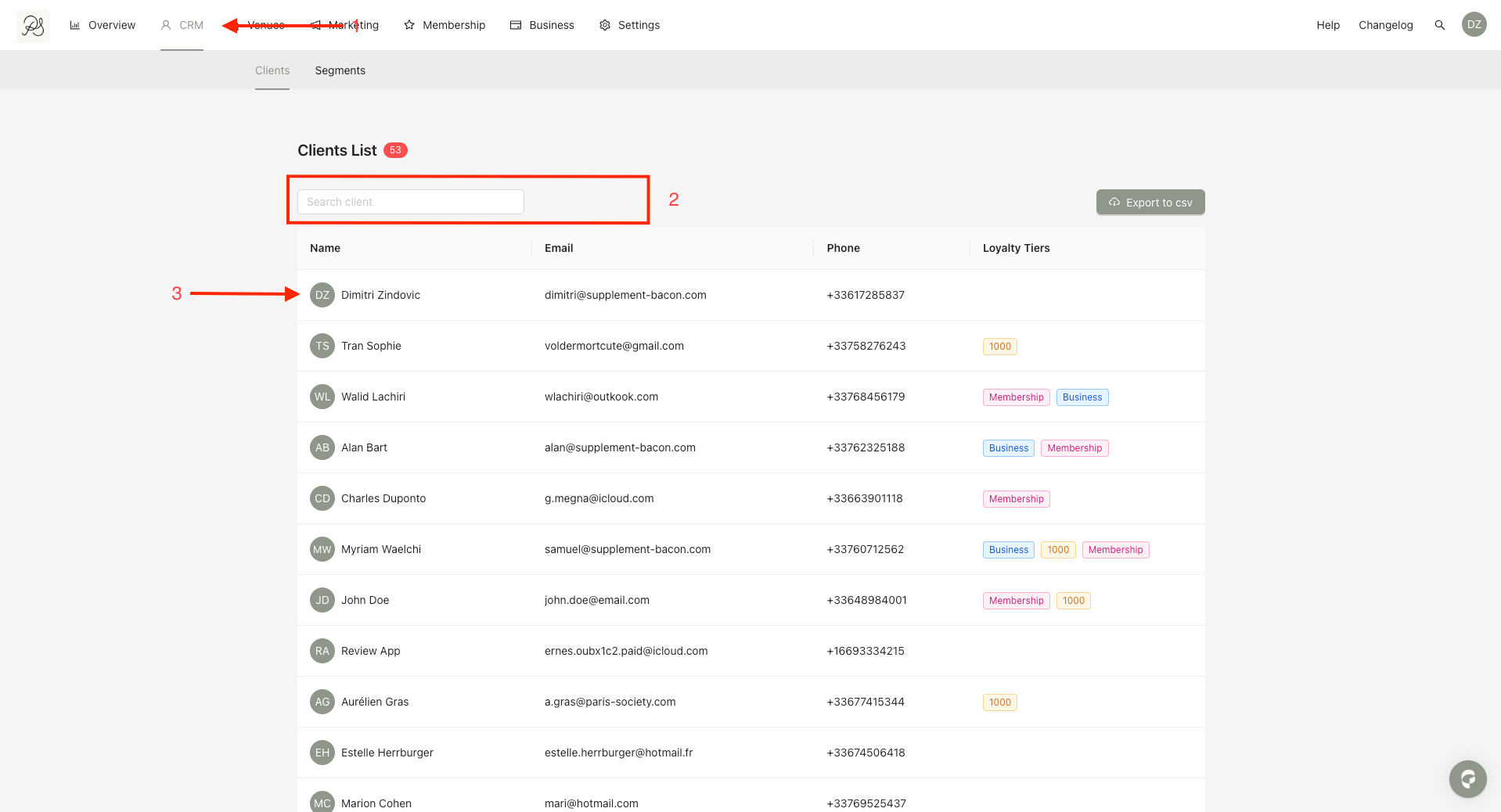
Step 1: From the homepage, click CRM (1).
Step 2: Use the search and filter field to find users by: First name, Last name, Phone number, Email address (2).
Step 3: Click on the user’s name to open their profile page (3).
Once on a user’s profile page, you will find a submenu with the following sections:
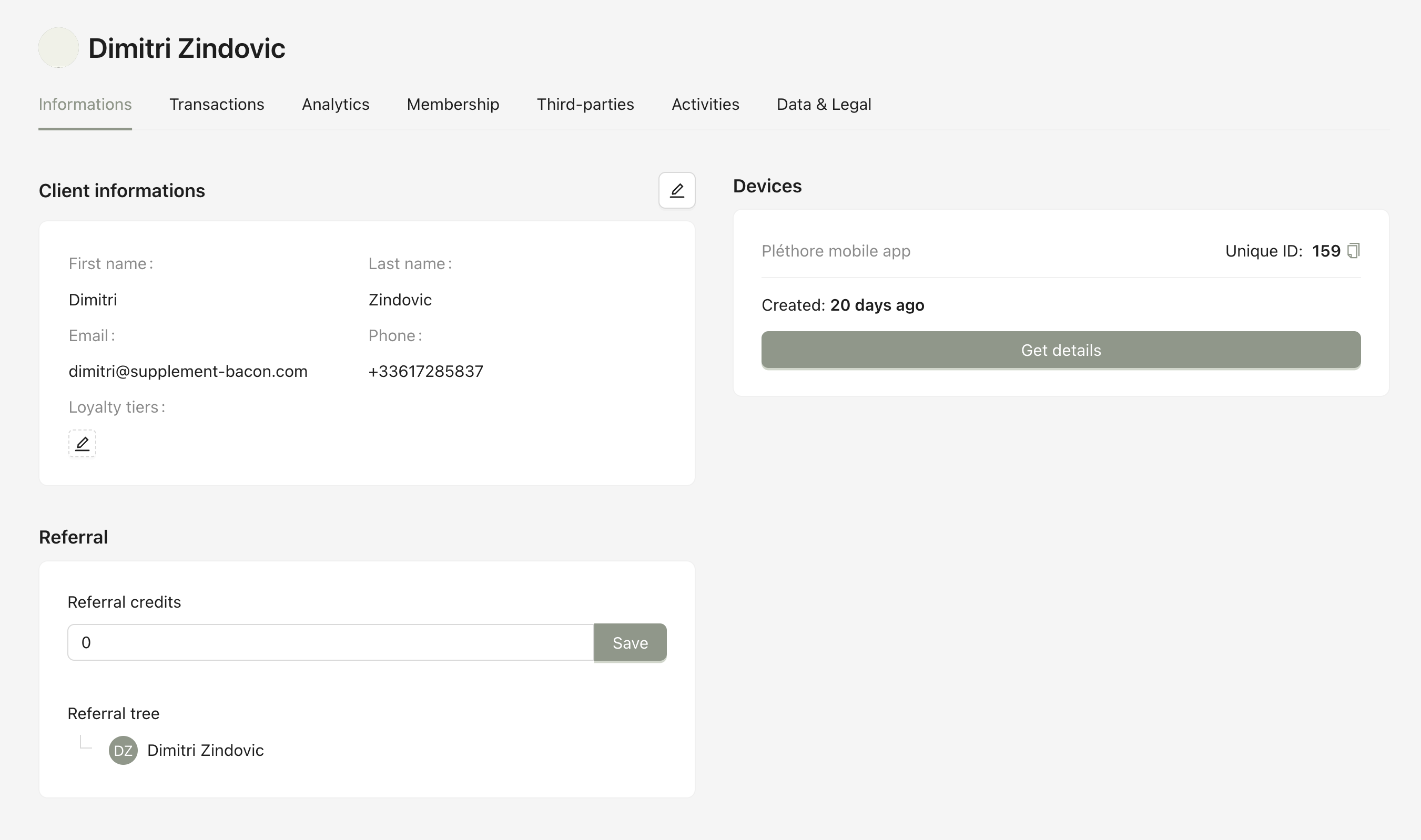
2.1. Informations
Displays the user’s main profile details (as shown on the screen).

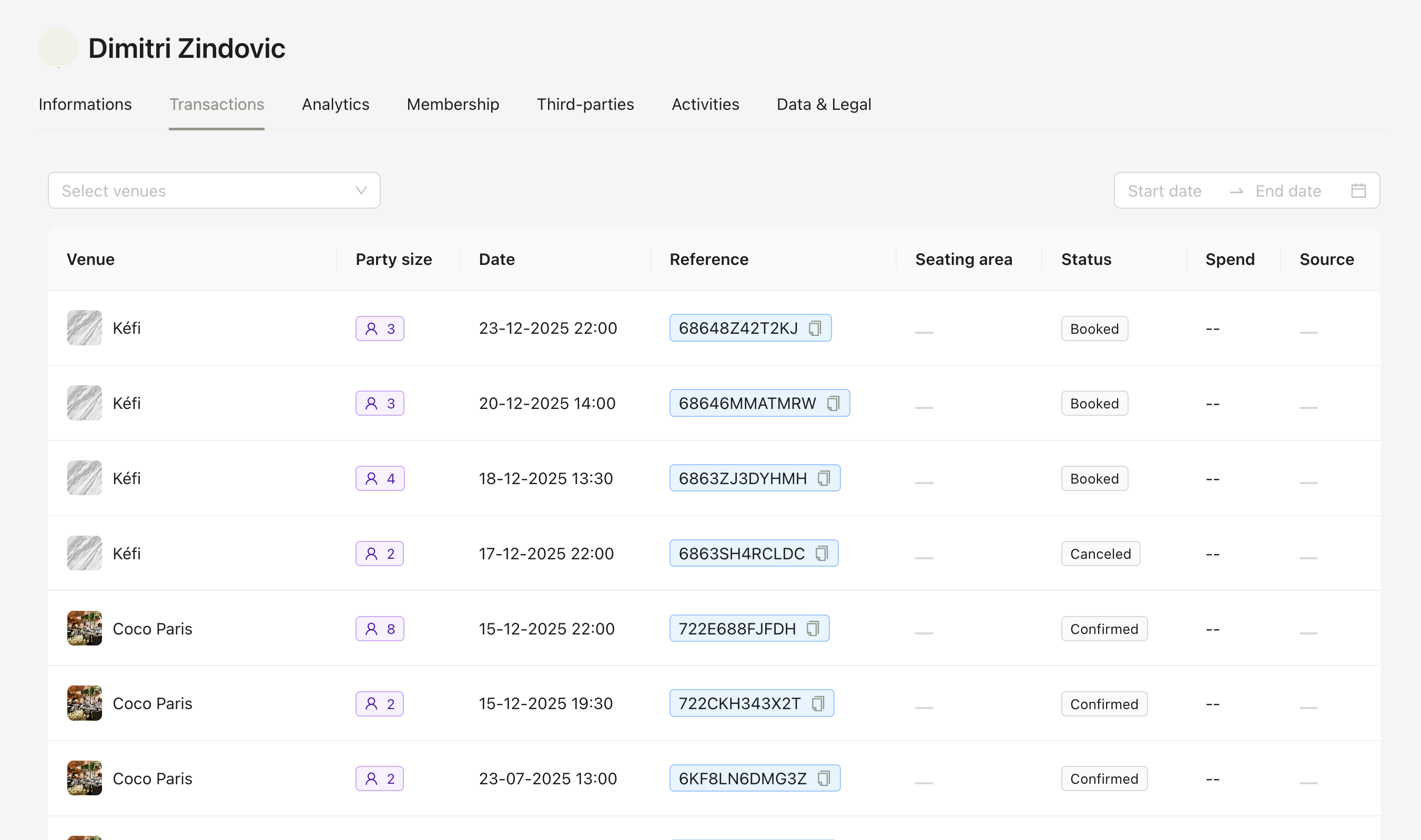
2.2. Transactions
Lists all bookings made by the user.
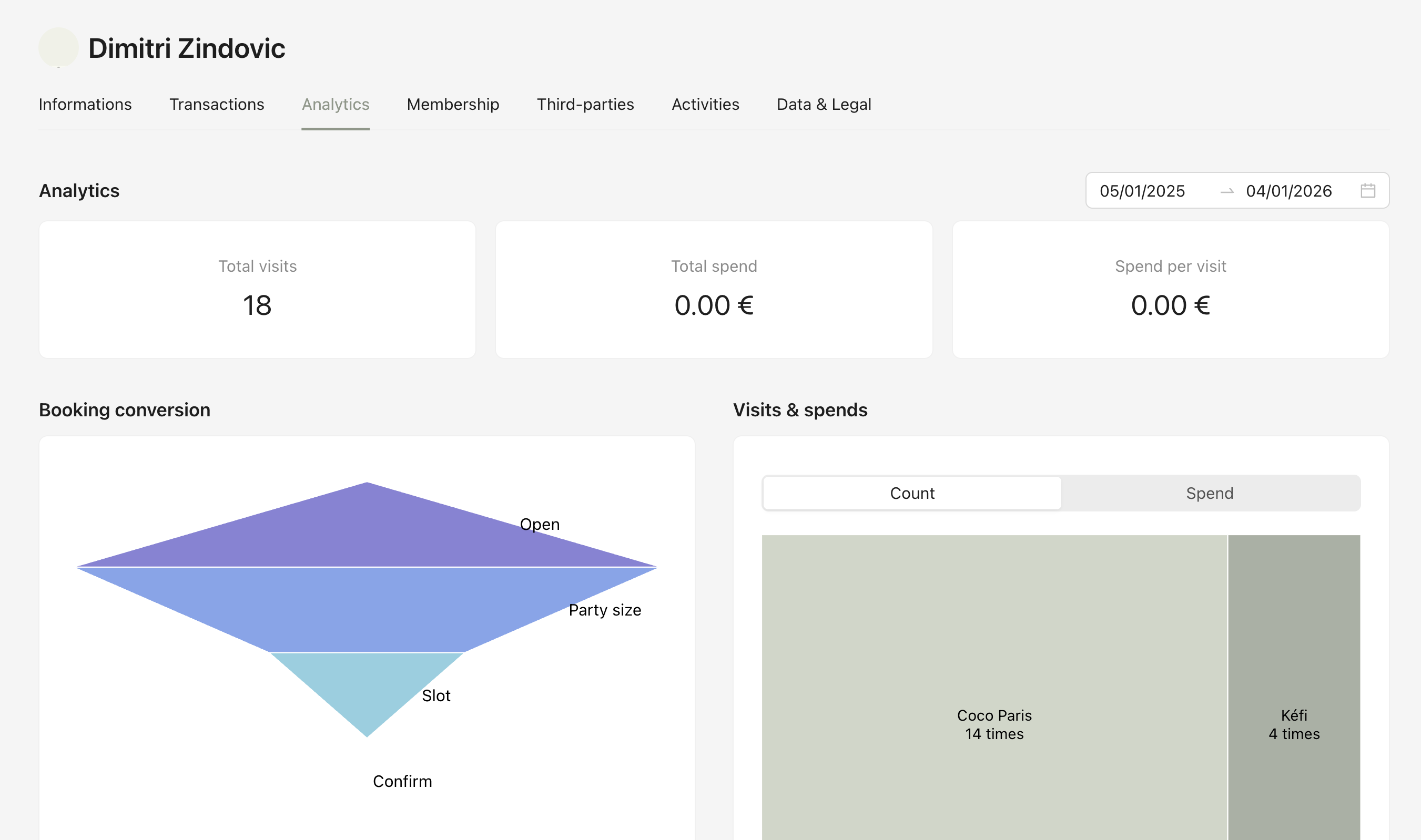
2.3. Analytics
Shows analytics such as booking conversion, visits and spend, home availability searches, analytics events, and aggregated statistics (total visits, total spend, and spend per visit).
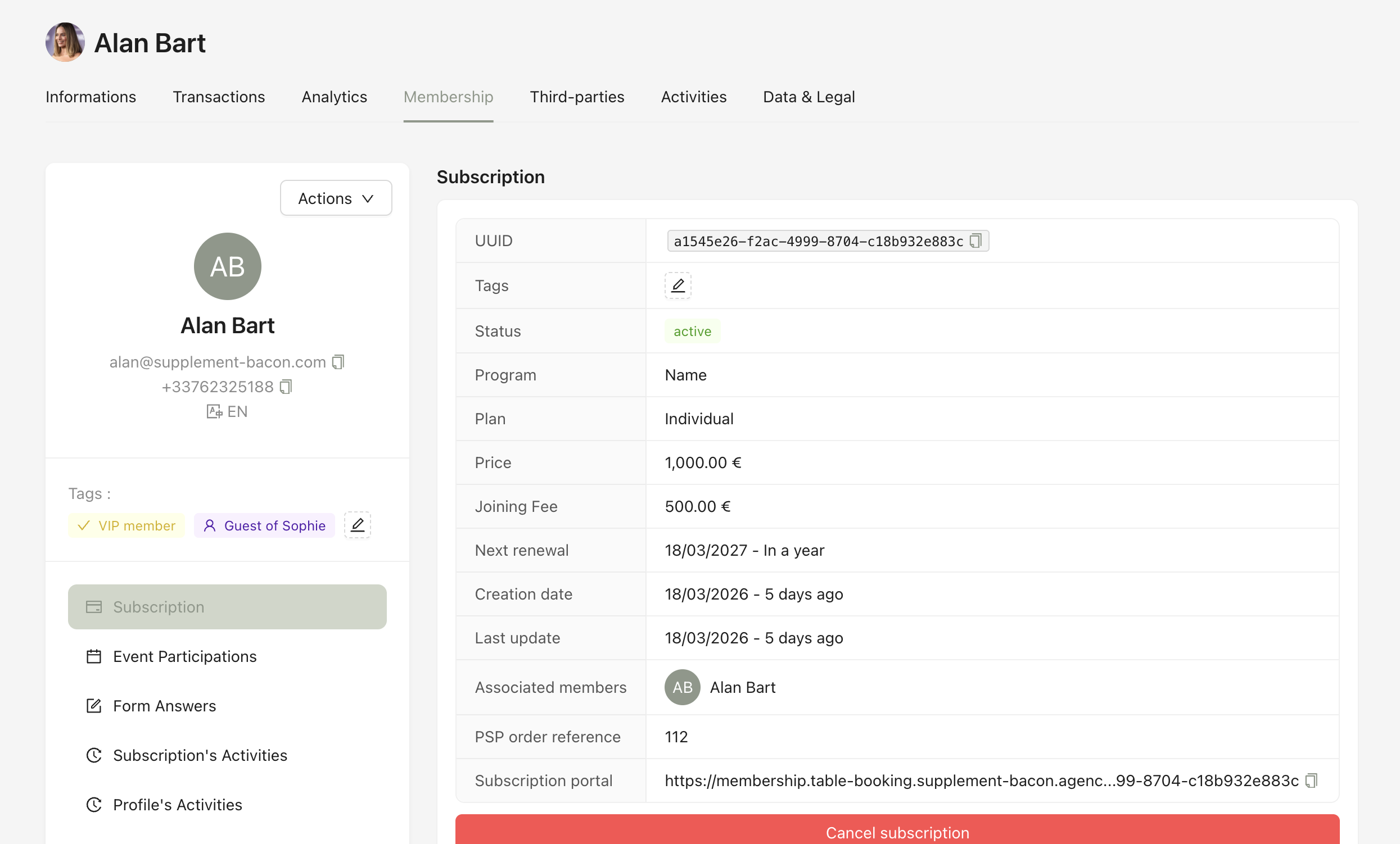
2.4. Membership
Contains all membership-related information, including subscription details, events, member tags, onboarding form answers, complementary items, subscription activity, and profile activity.
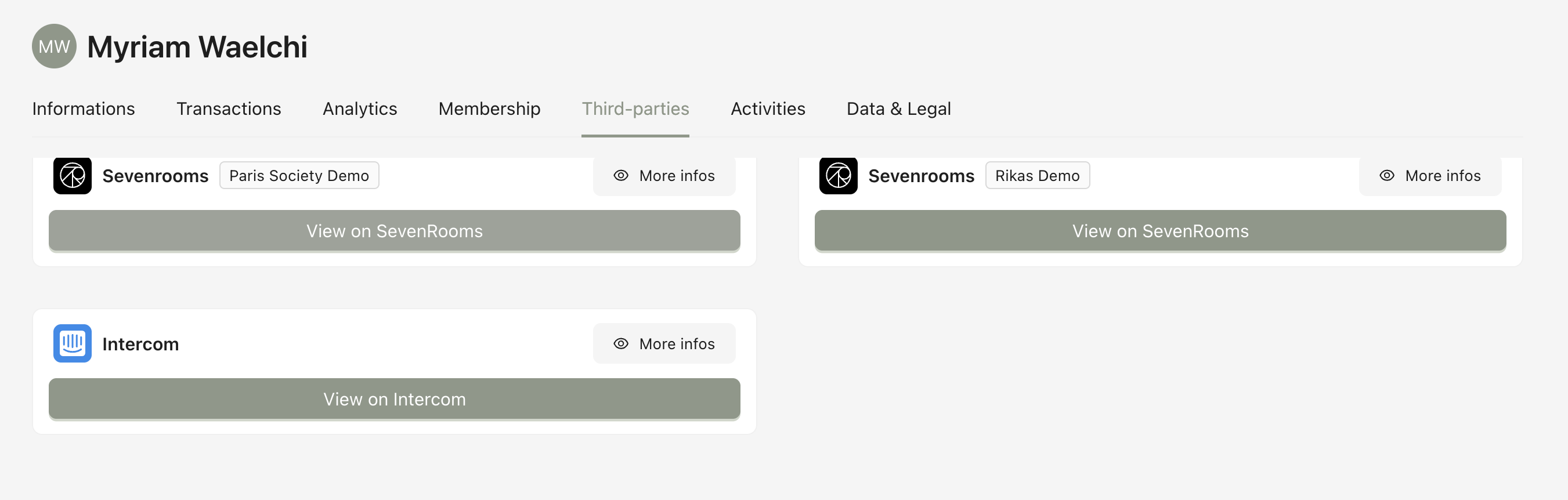
2.5. Third Parties
Lists all third-party services connected to the user via the mobile application (e.g. SevenRooms, Intercom).
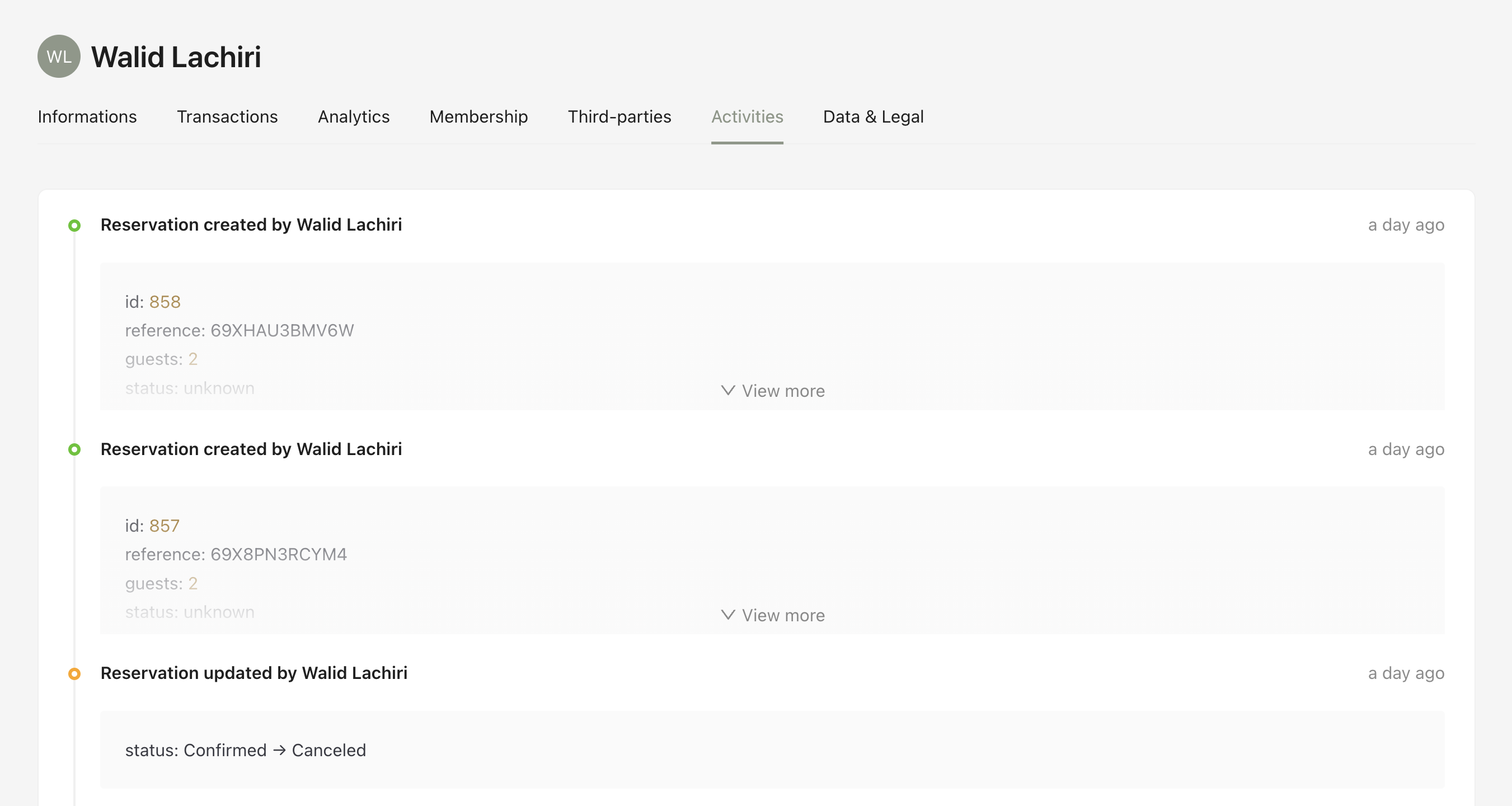
2.6. Activities
This section displays the activity history of a user, showing all actions performed on their account, such as reservations created, updated, or canceled, along with timestamps and key details for each event.
2.7. Data & Legal
Provides access to legal and compliance-related information, including the option to delete the user account, marketing opt-in date, last user interaction, and notification subscription details.