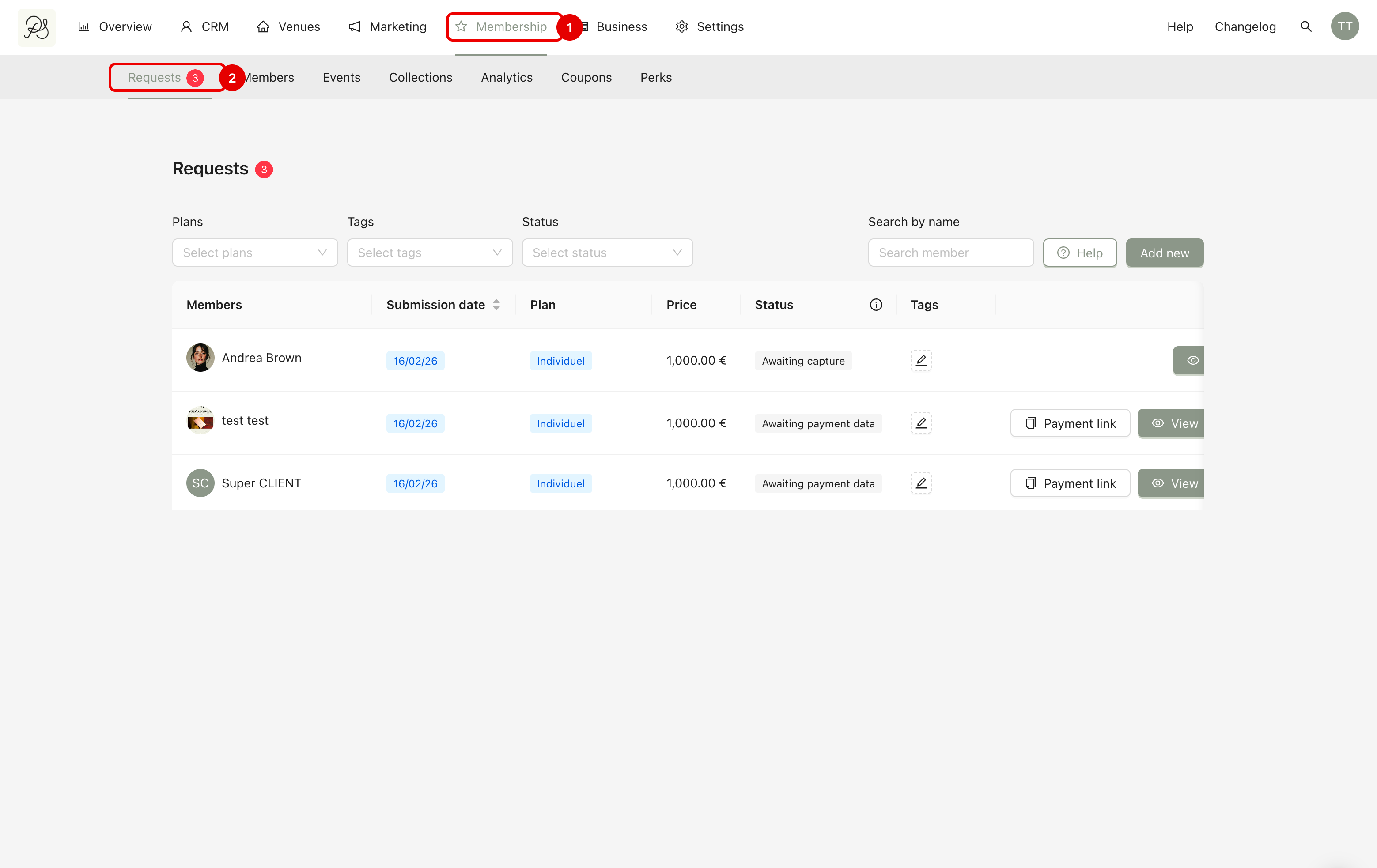
The Membership Requests tab allows you to manage all membership applications before they become active members. This tab is mainly used during the onboarding and approval process.
Go to Membership (1) → Requests (2). This page displays all membership requests, whether they are waiting for payment, under review, approved, or failed.
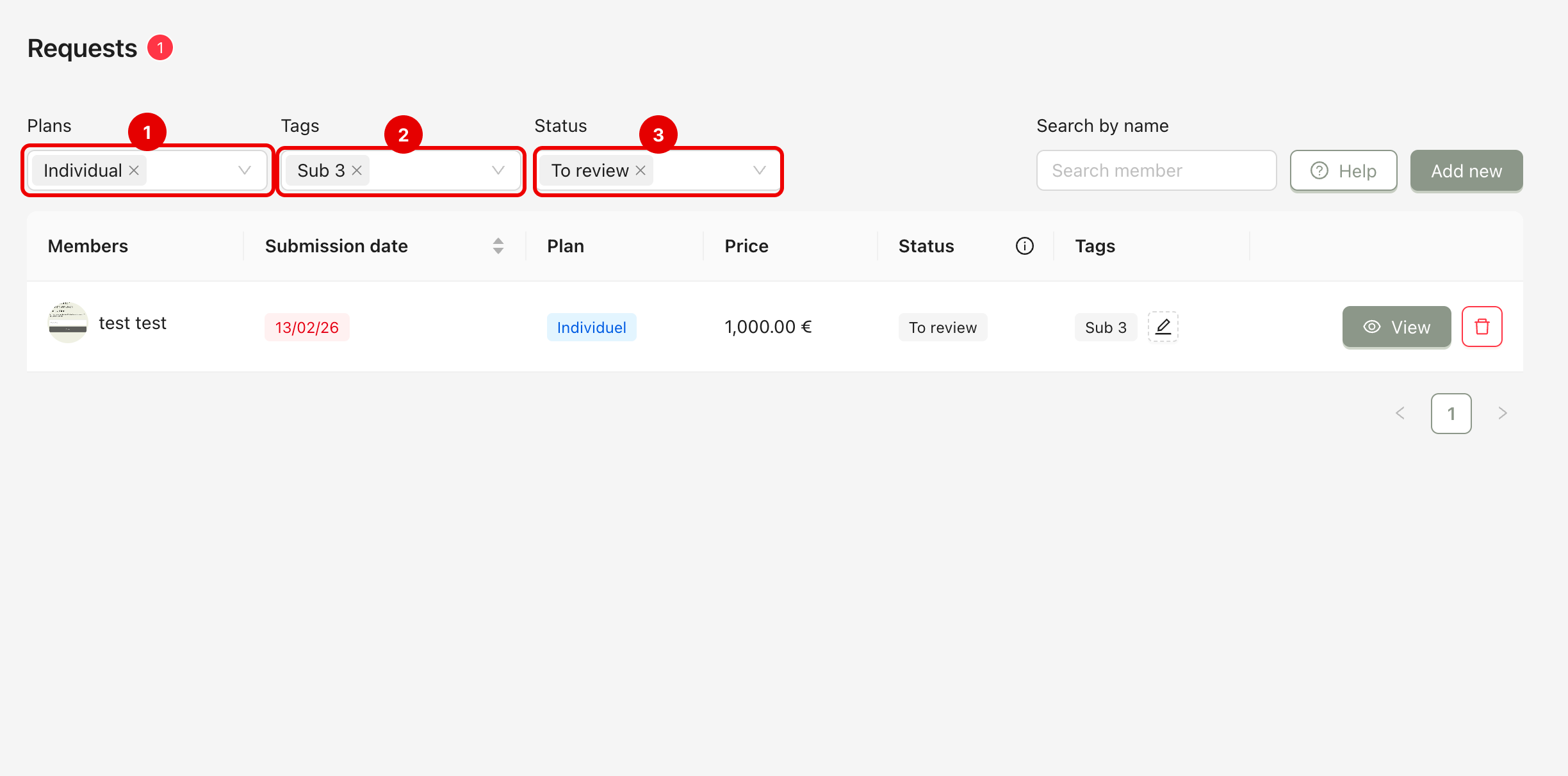
At the top of the page, you can filter requests to quickly find specific applications.
You can filter by:
Plan (1): show requests for specific membership plans.
Tags (2): show only requests with selected tags.
Status (3): filter by request status (for example: Awaiting payment data, To review, Awaiting capture, Payment failed).
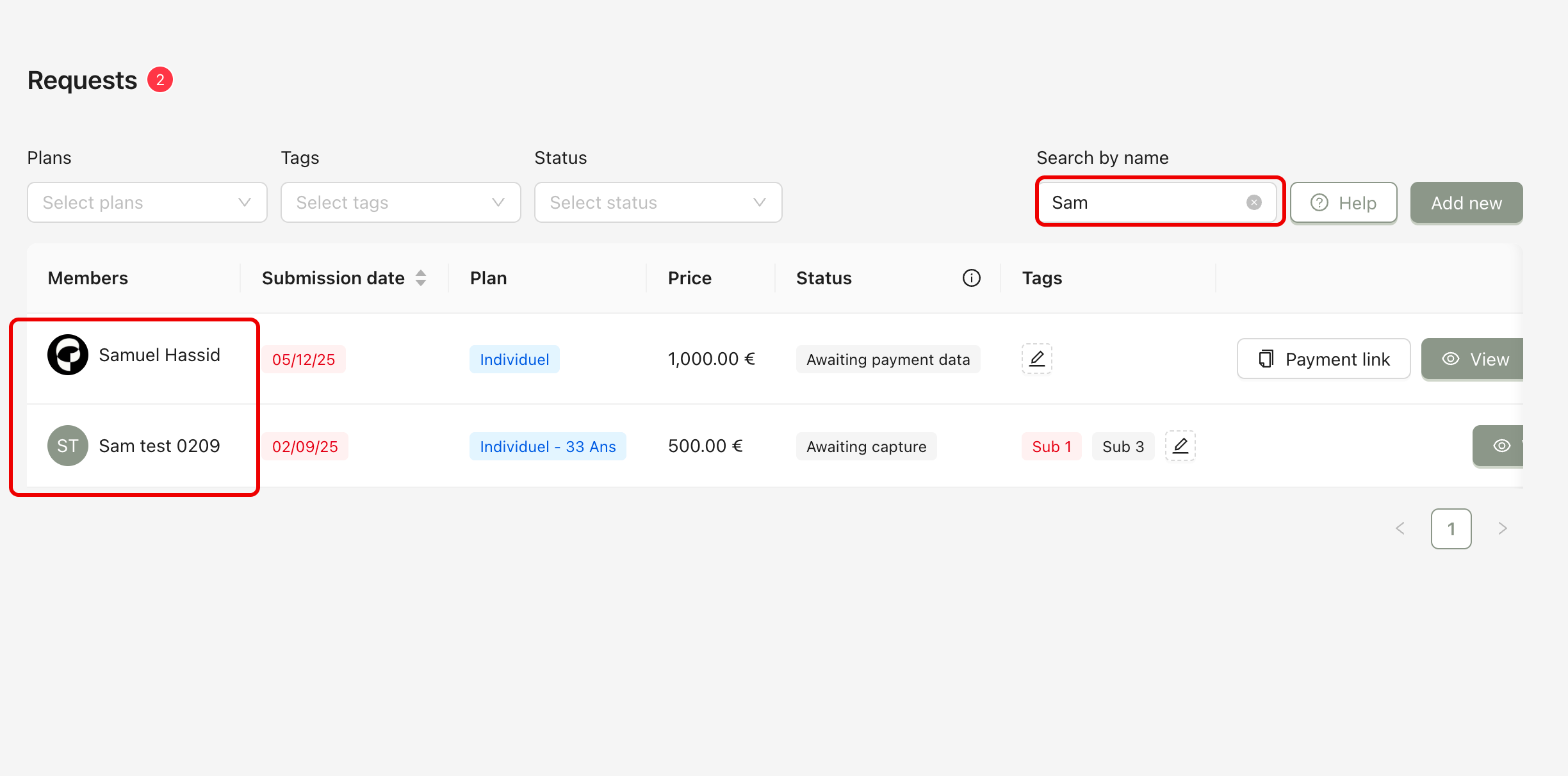
You can search for a request by typing the customer’s name in the search bar. The list will automatically update to show matching results.
To manually create a new membership request, click Add New.
You will be asked to select a program and plan, fill in the customer’s information, and decide whether payment is required.
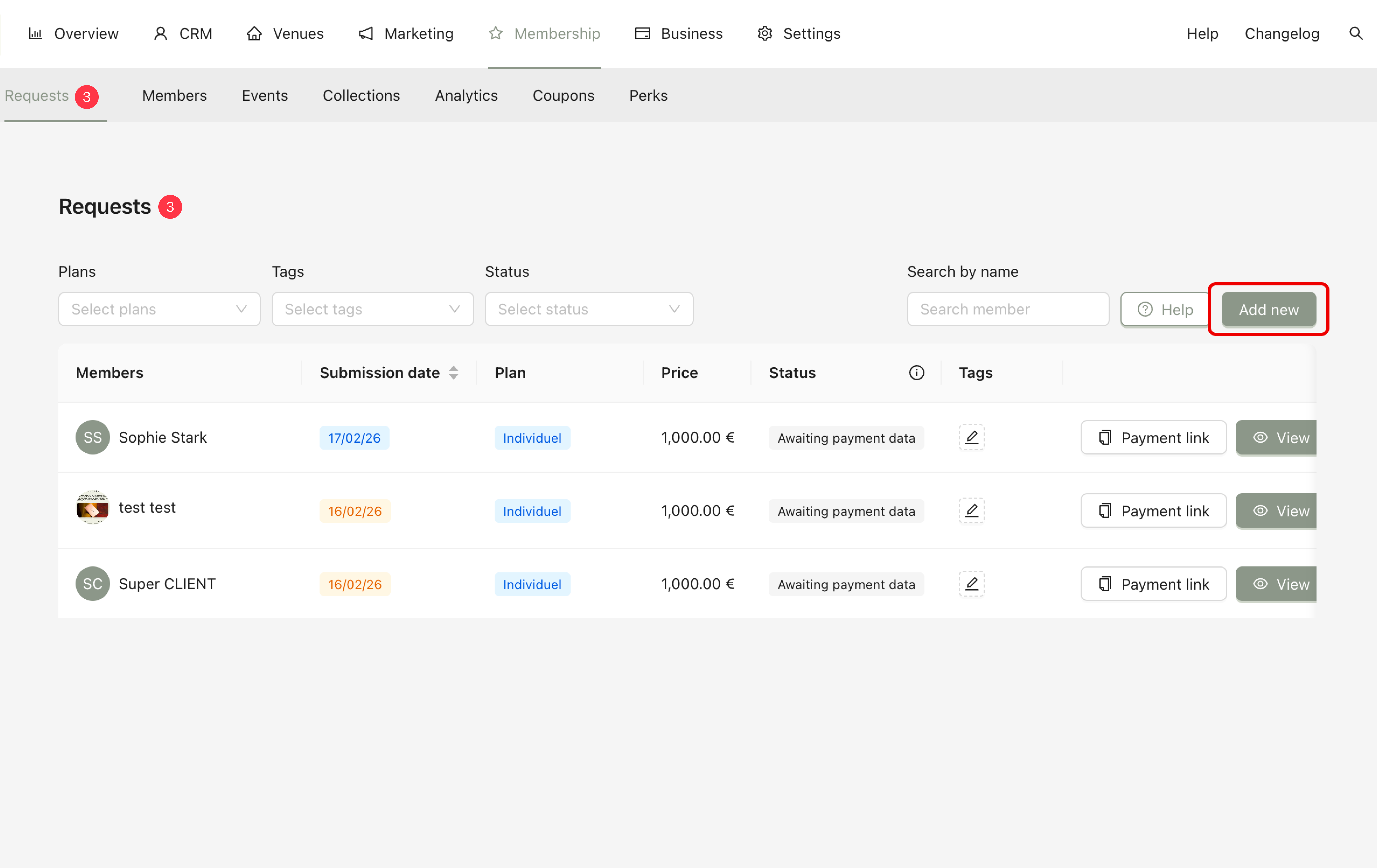

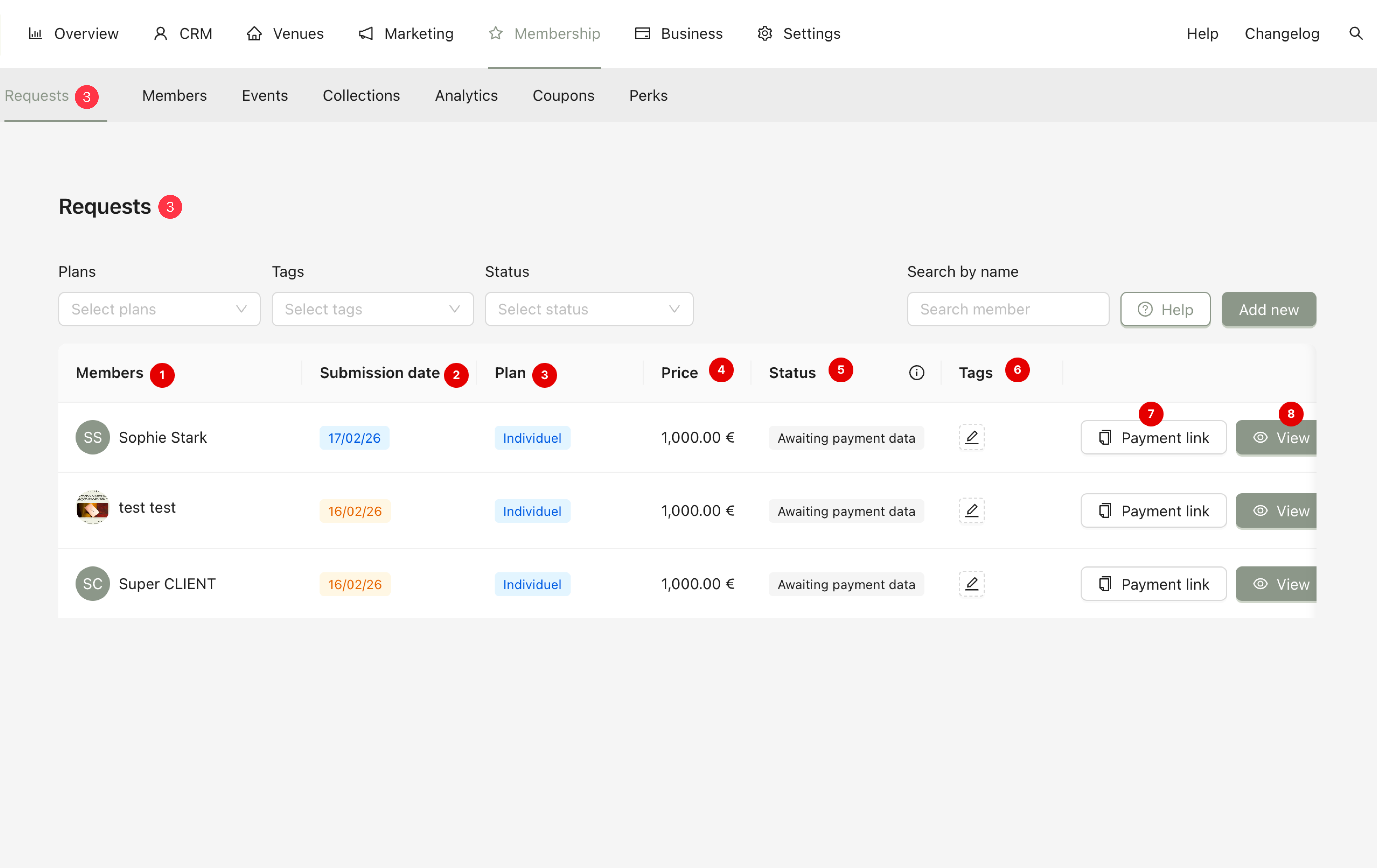
Each row in the Requests tab shows key information about a membership application.
Name (1): Displays the customer’s name.
Submission Date (2): The date the customer completed and submitted the registration form.
Plan (3): The membership plan selected by the customer.
Price (4): The price of the selected plan.
Status (5): Shows the current stage of the request. There are four possible statuses: Awaiting payment data, To review, Awaiting capture, Payment failed.
Tags (6): You can assign tags to requests for better organization and filtering.
Payment Link (7): This appears when the customer has not finalized their payment. You can copy and send this link to the customer so they can complete or retry the payment process.
View (8): Click View to open the full details of the request.
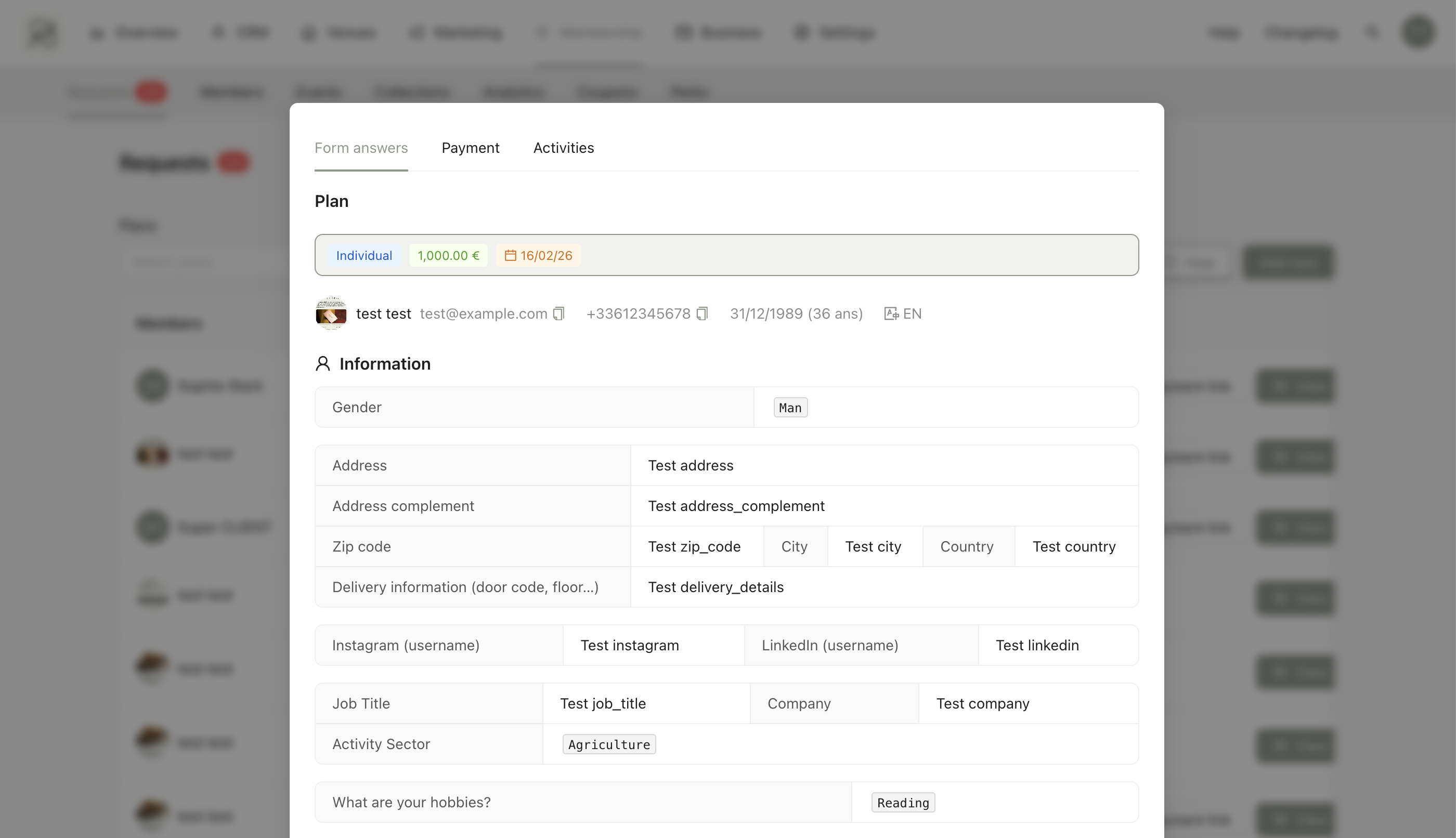
When you click View, a modal window appears. This modal contains all the information submitted by the customer, including:
Contact details
Answers to the registration form
Selected plan
Tags
Payment information
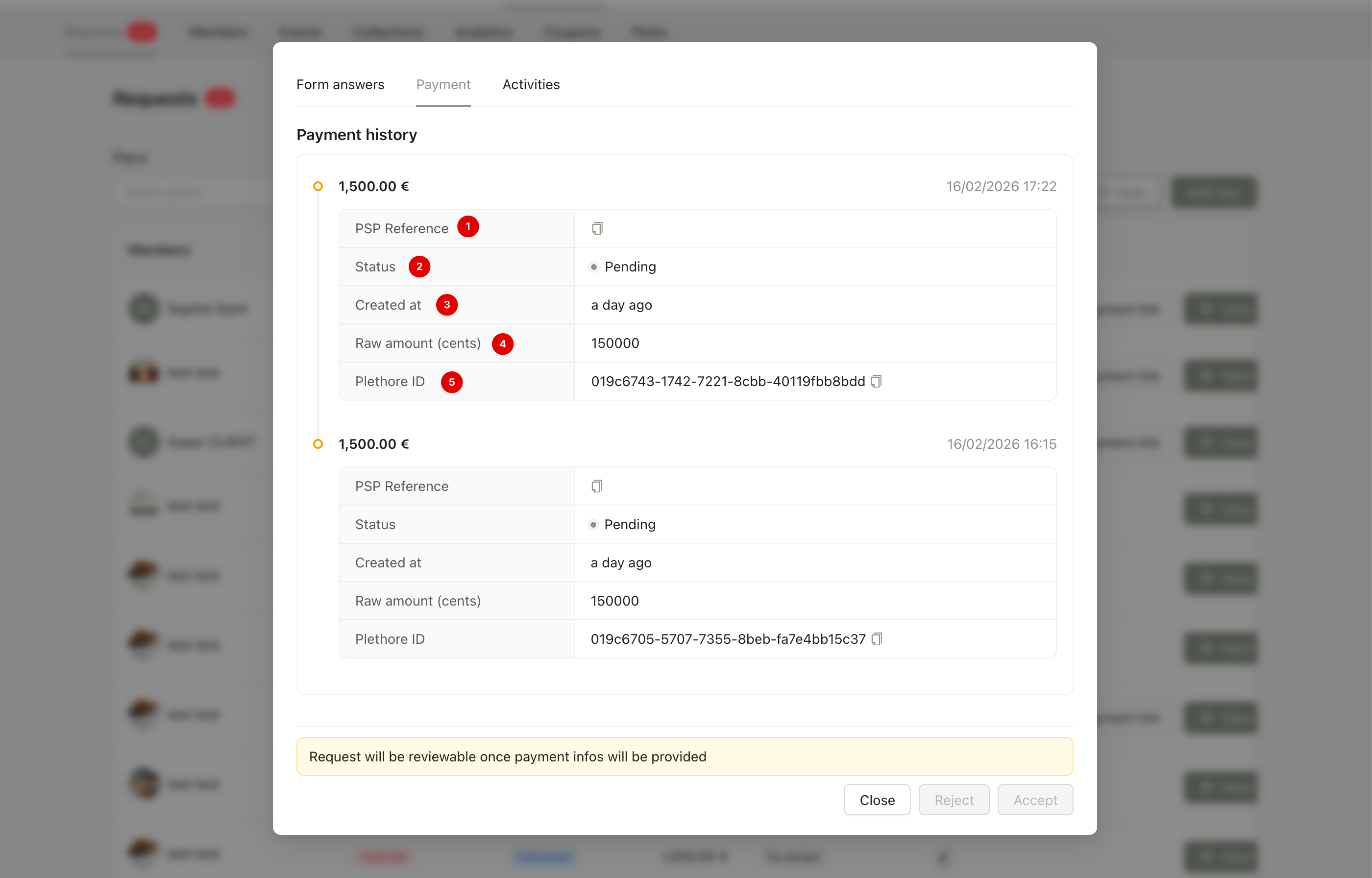
In the modal, the Payment tab shows the payment history related to this request. For each payment attempt, you can see:
PSP Reference (1): The unique transaction reference provided by the Payment Service Provider. This is useful for tracking the transaction with your payment provider.
Status (2): Indicates whether the payment is pending or complete.
Created at (3): The date and time when the payment attempt was created.
Raw amount (cents) (4): The payment amount in cents.
Pléthore ID (5): The internal transaction ID generated by the system for tracking purposes.
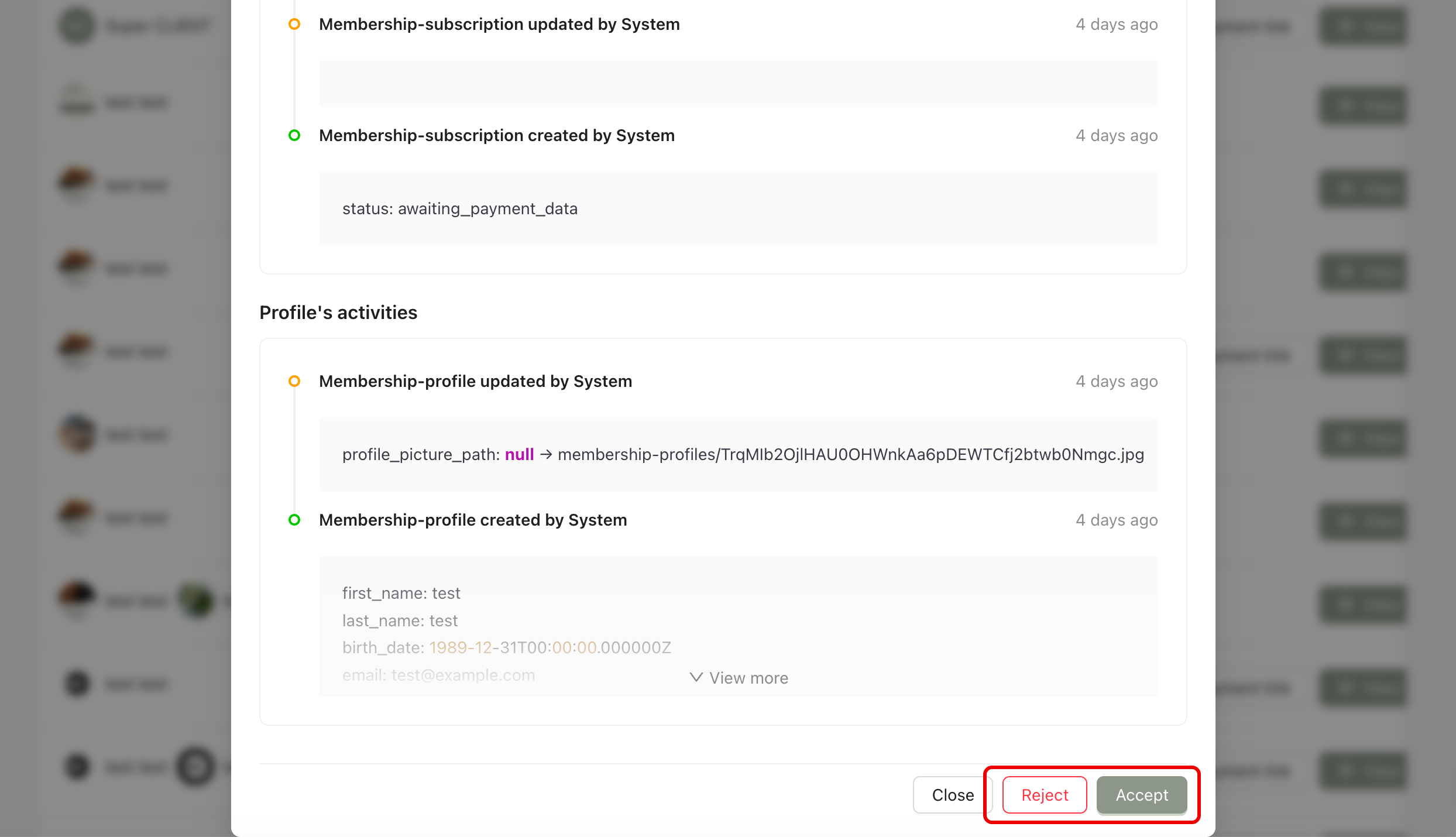
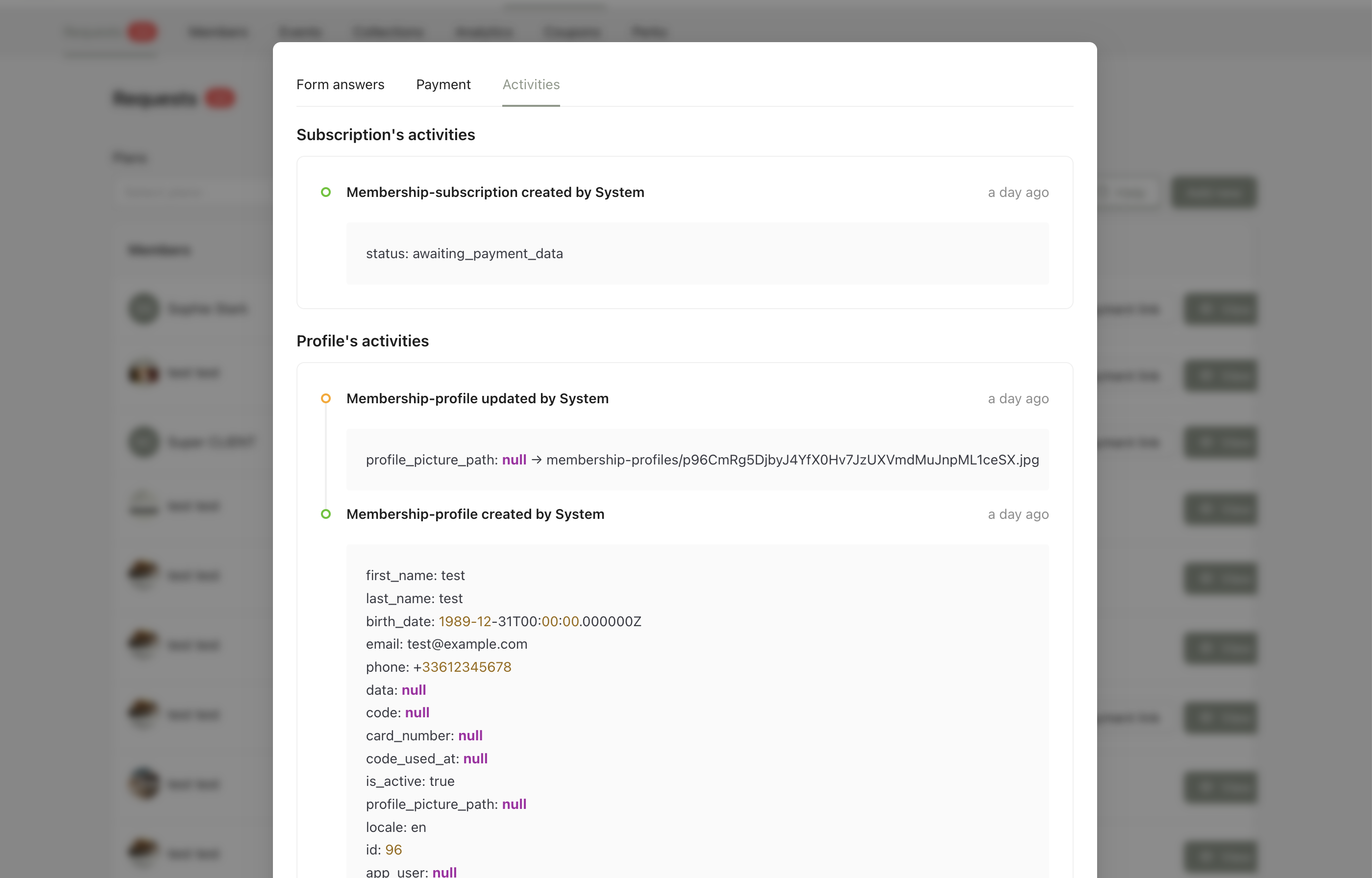
In the Activities tab, you can see a timeline of system, user or admin actions related to the membership request and profile. This includes:
Creation of the subscription
Status changes (for example: awaiting_payment_data → to_review)
Profile updates
System-triggered actions
If the request status is To review, you can accept or reject the application directly from the modal.