There are two ways to create a membership request in Pléthore:
The user creates it themselves via the customer registration form.
The admin creates it directly from the dashboard.
Both methods lead to the same goal: creating a membership request that can then be validated and activated.
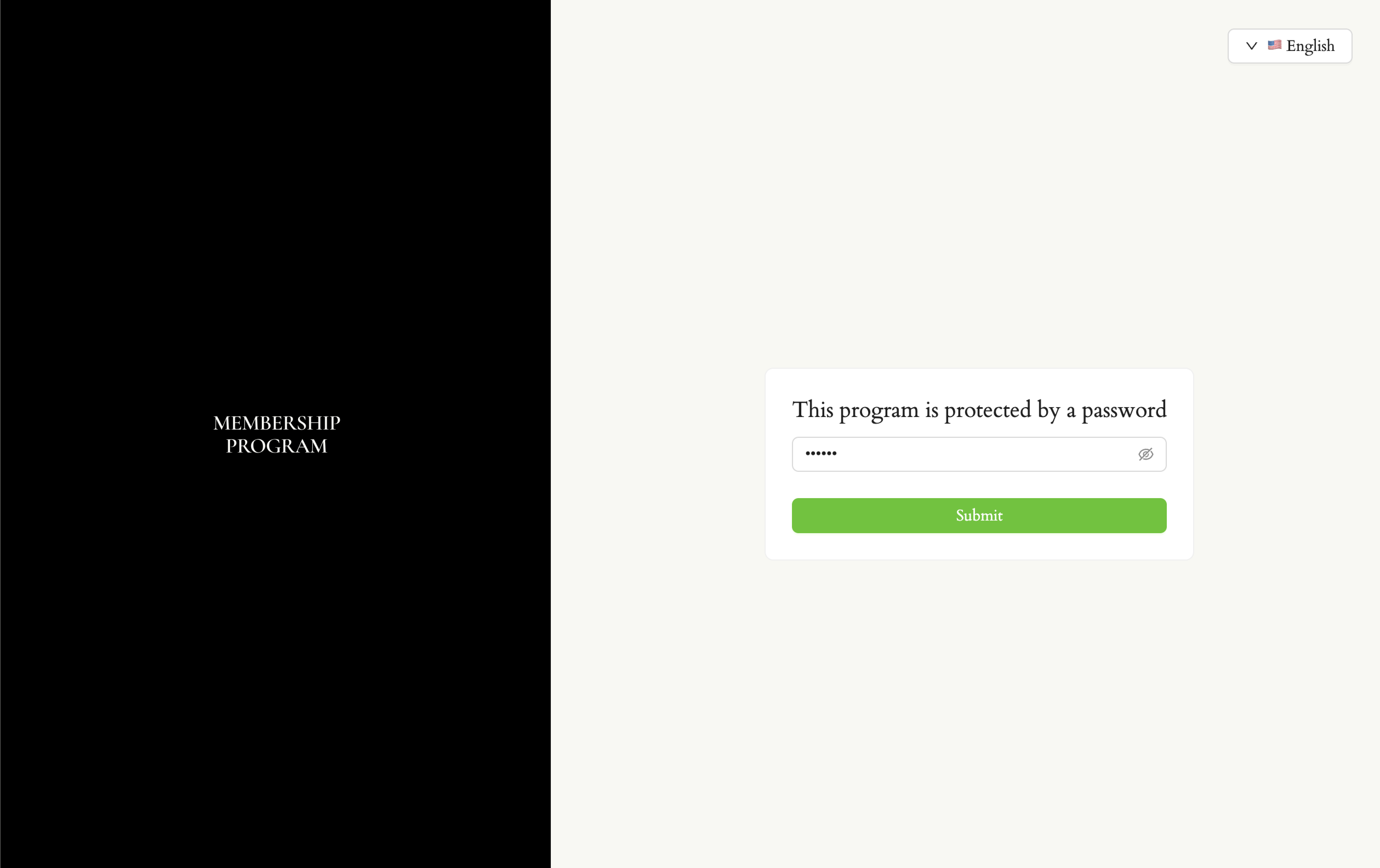
Step 1: First, you must send the registration form link to your customer. Once they click the link, they enter a multi-step form. (Optional) If the form is password-protected, customers must enter the password to access the form questions.

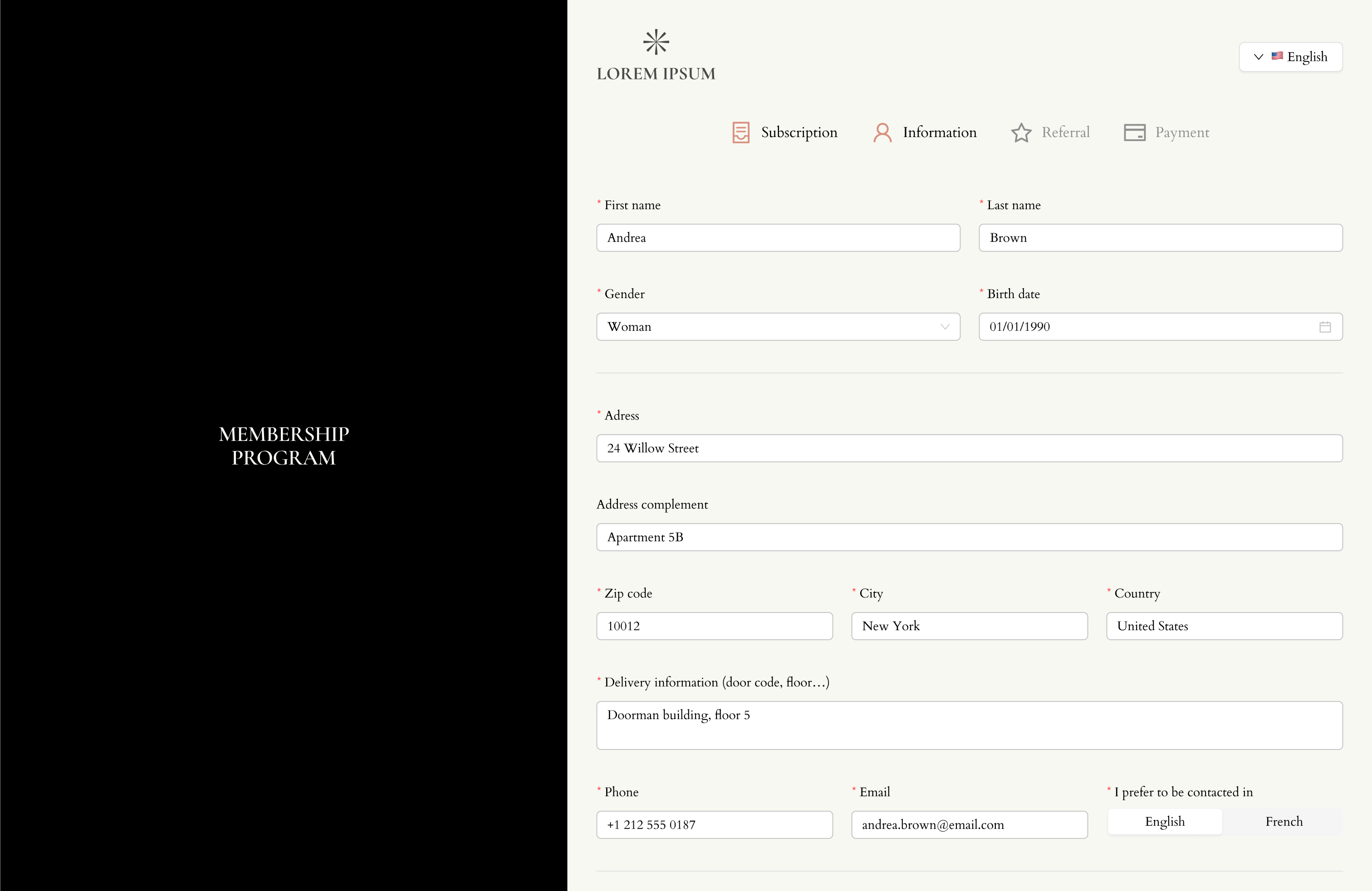
The form can include:
The membership plans to choose from
Their detailed information (name, contact details, job, interests, lifestyle, etc.)
Referral information (how they heard about your brand, who referred them, etc.)
All questions could be personnalized by contacting Pléthore Support team by chat.
The customer must complete and validate each step before moving to the next one.
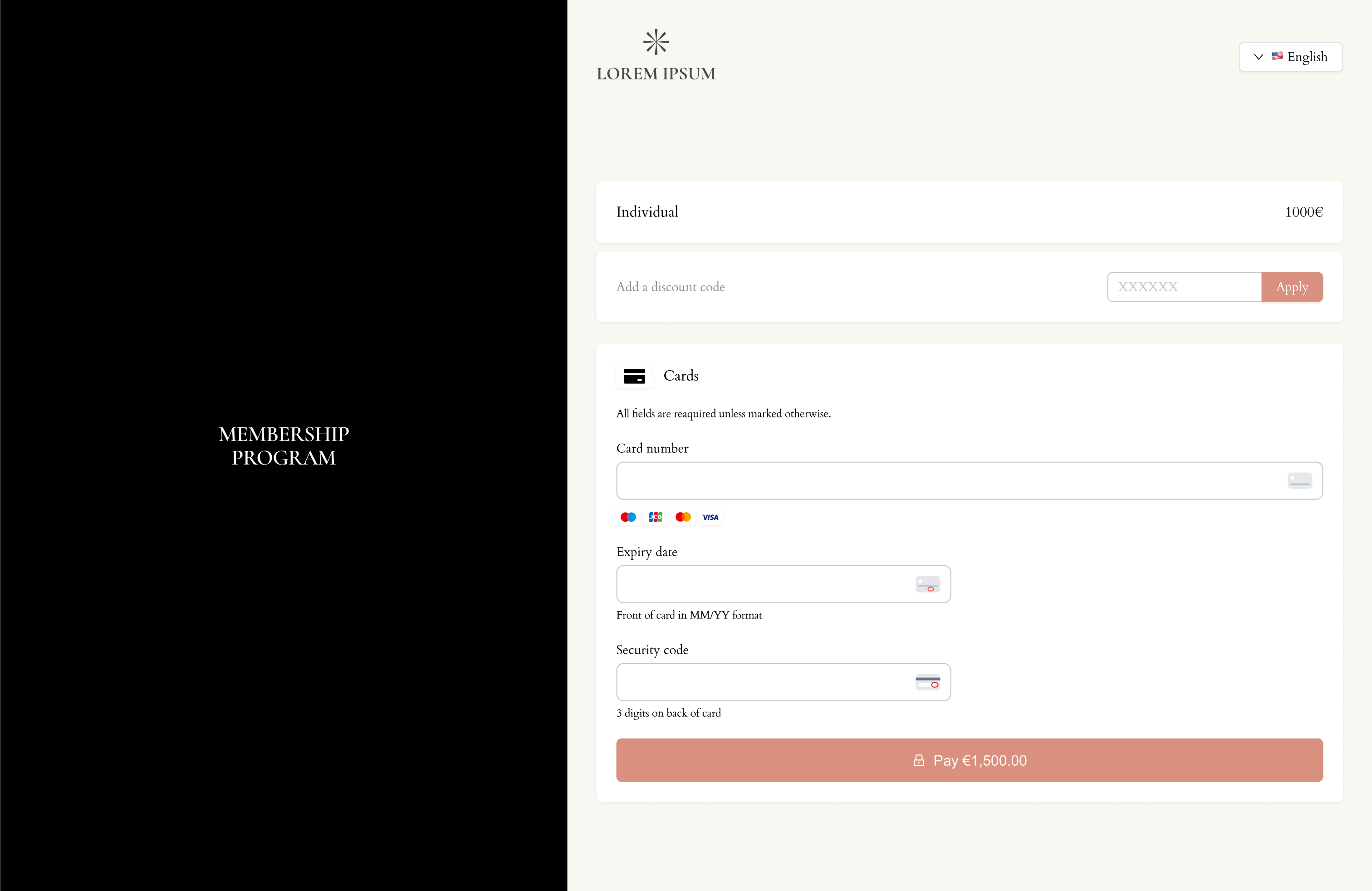
Step 2: In the final step, the customer enters their payment information.
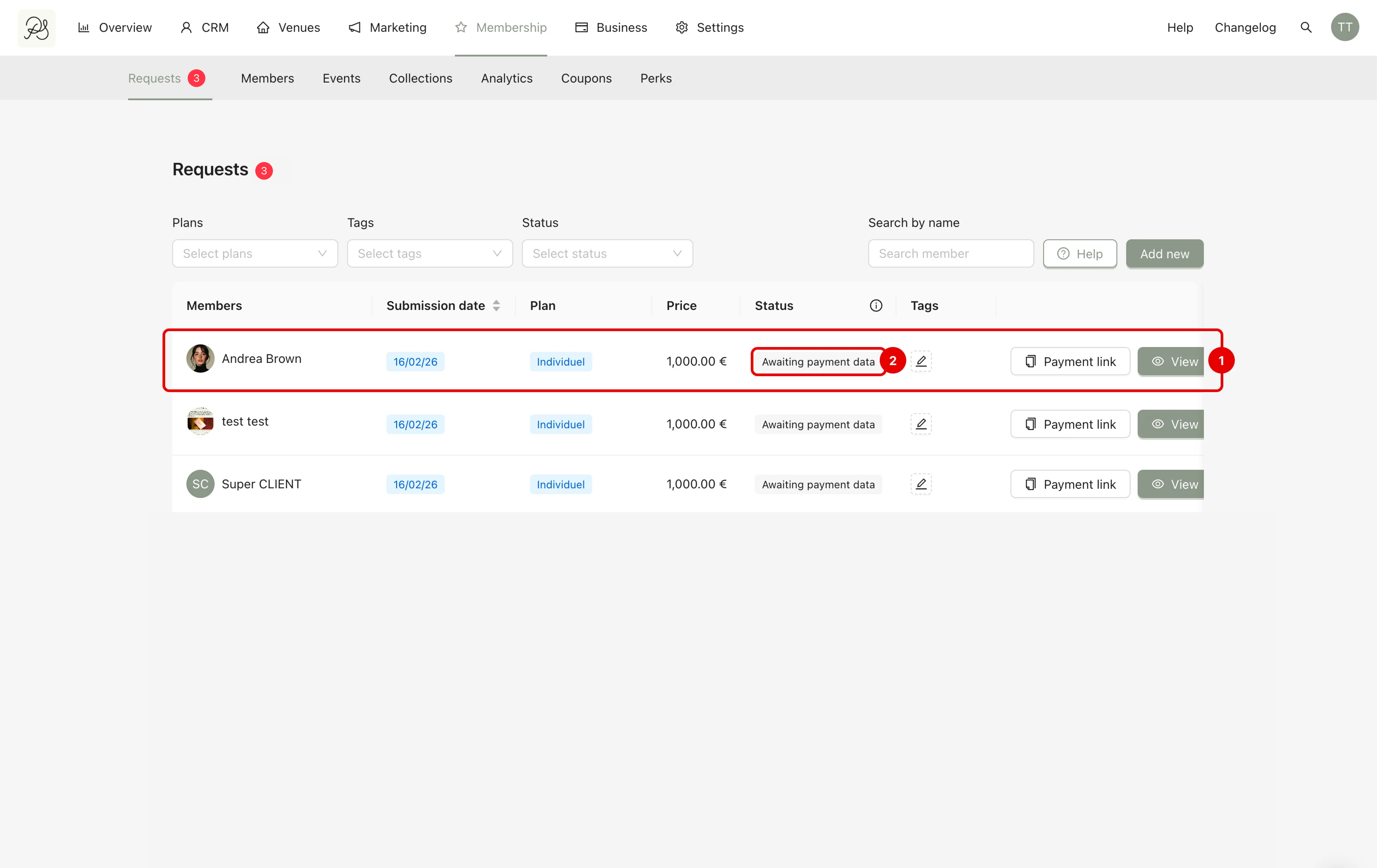
As soon as they reach the payment step, the request appears in the dashboard:
In the Requests list (1)
With the status Awaiting payment data (2)
This status means the system is waiting for the customer to submit their payment details.
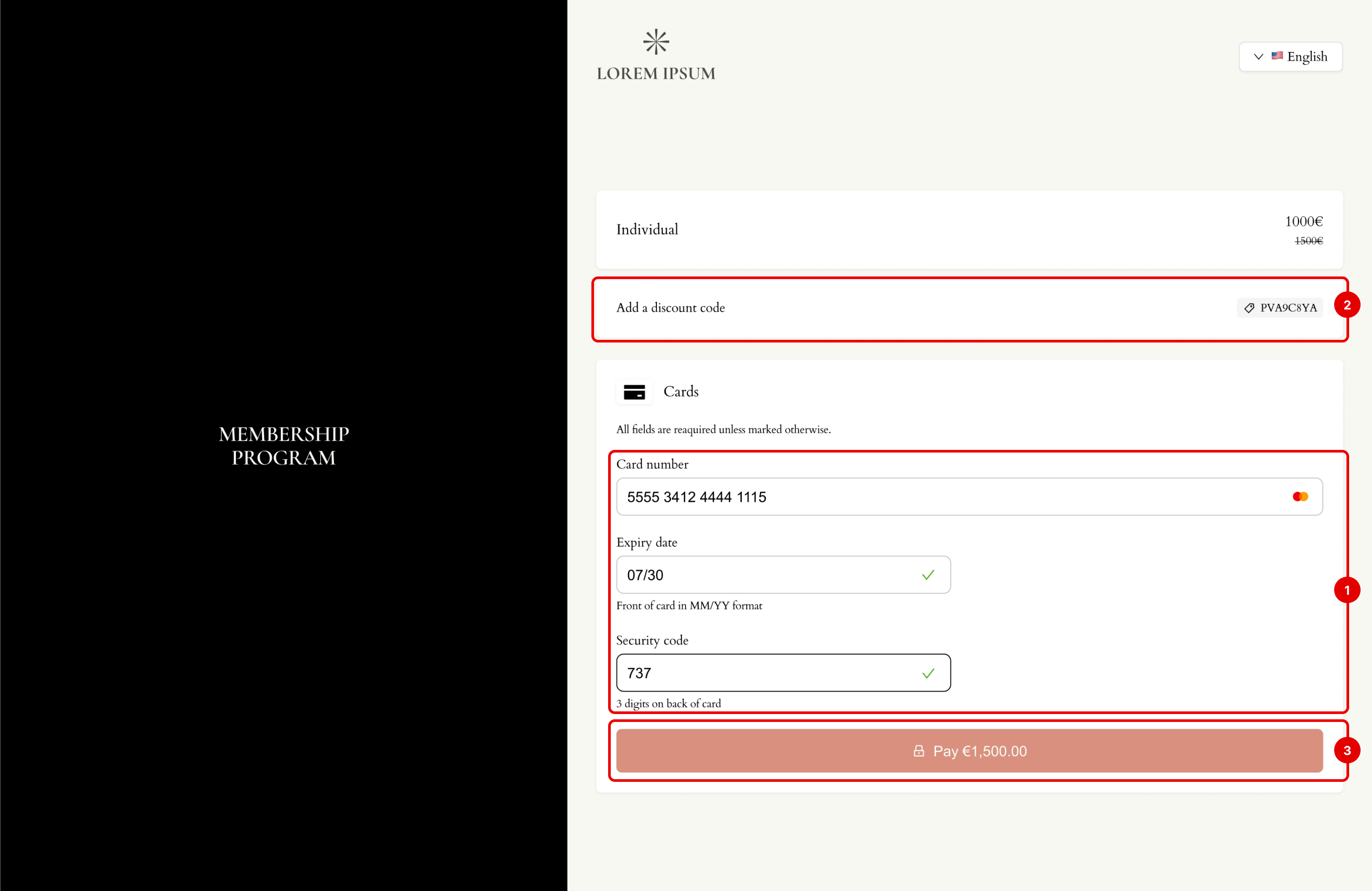
Step 3: On the payment page:
The customer enters their card information (1).
They can enter a discount code if available (2).
Then they click Submit (3).
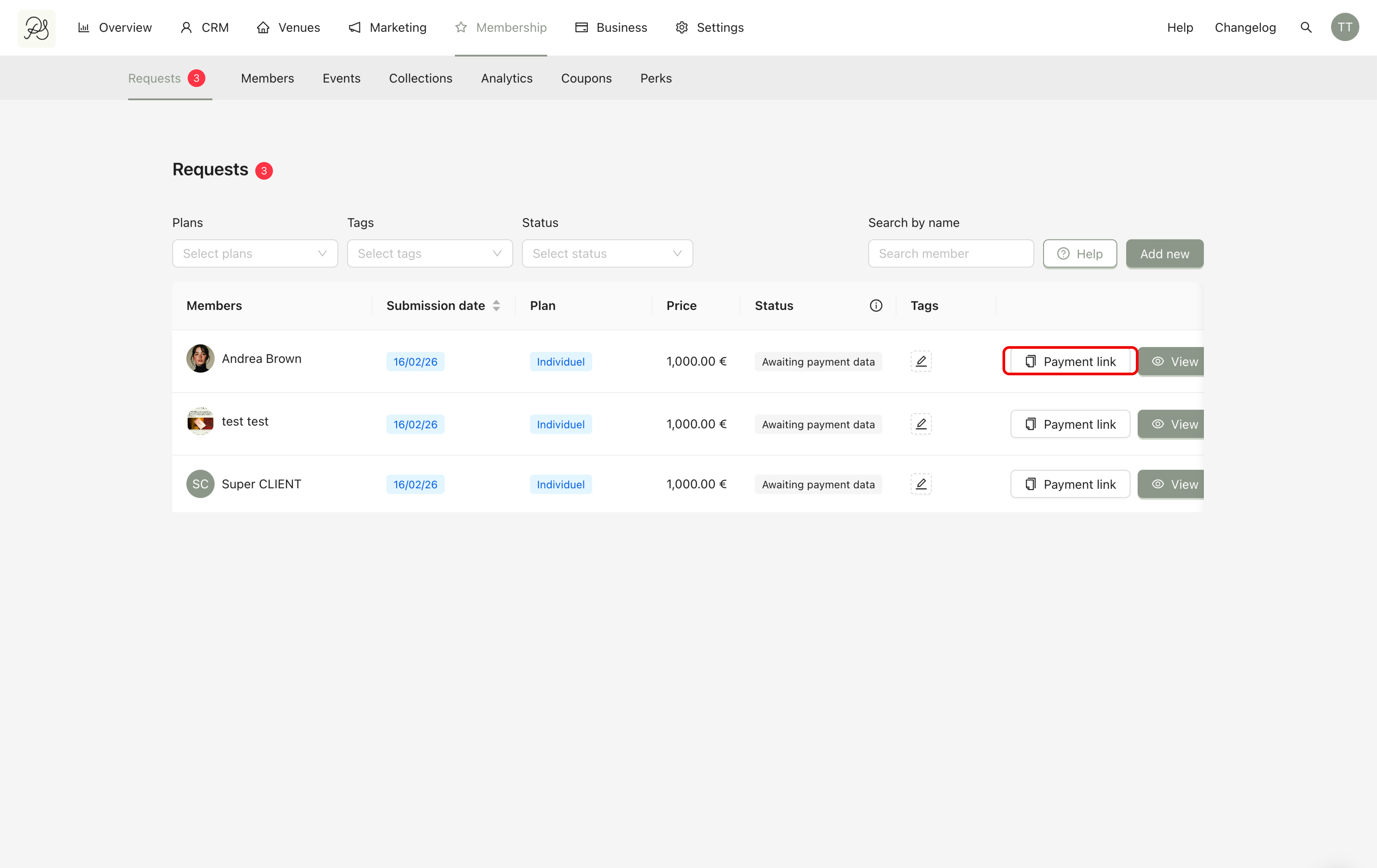
If the customer does not complete the payment, you can find the payment link in the dashboard, inside the corresponding request. You can send this link directly to them.
This way, all the information they previously entered is saved. They are redirected directly to the payment page to complete the process.
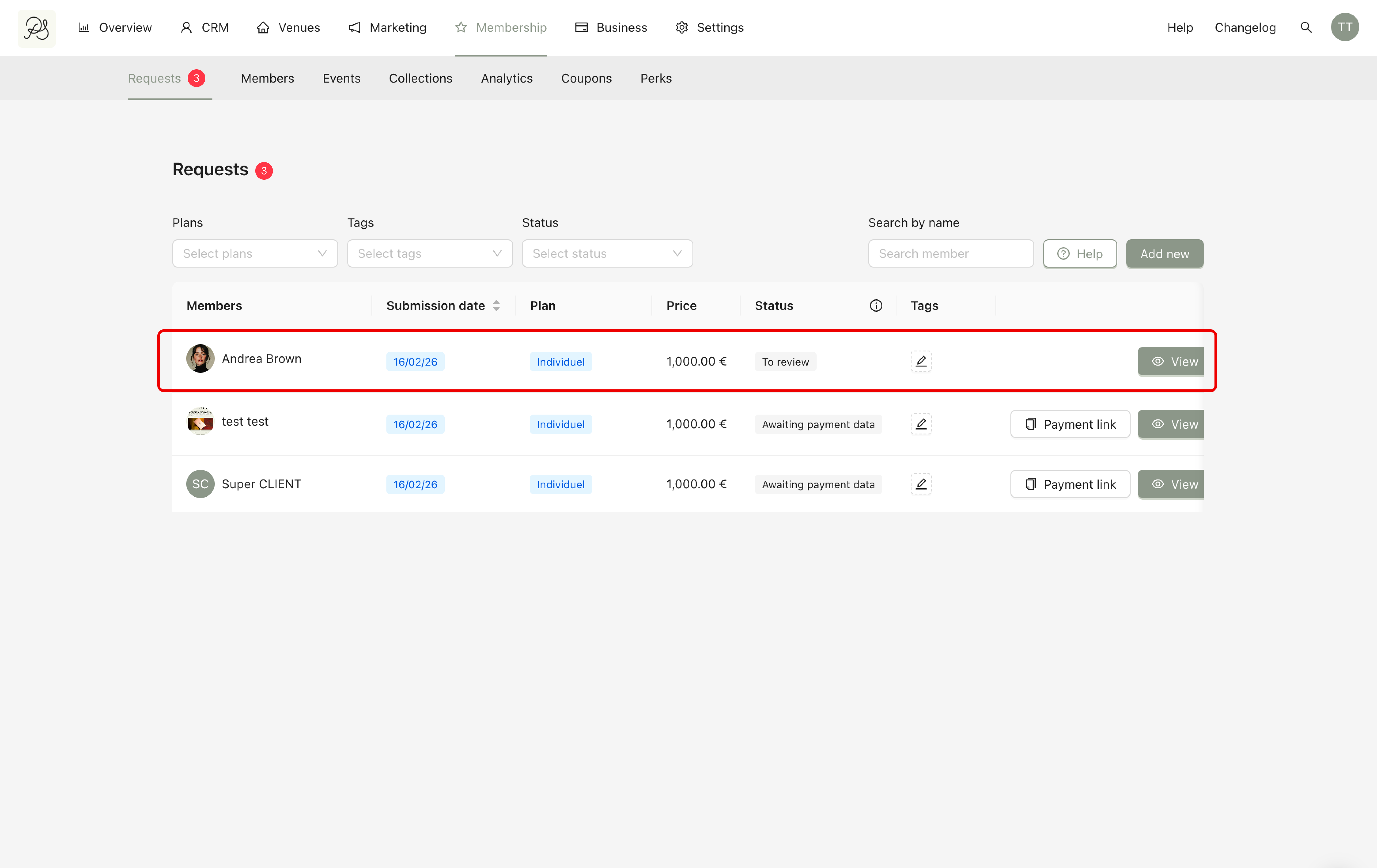
 Final Result
After the customer submits their payment details, the status changes to To review. A membership request is officially created and you can now approve or reject the request.
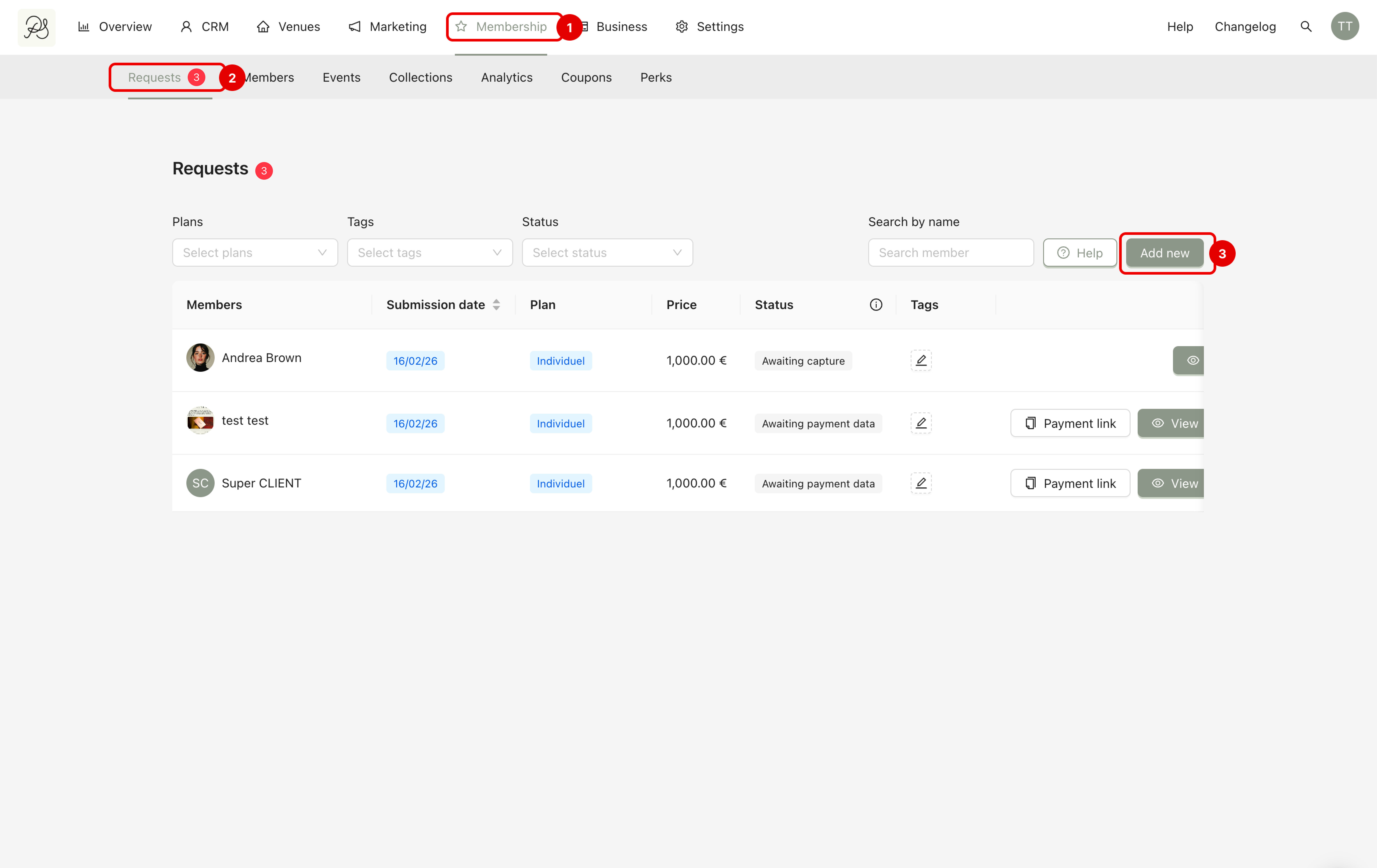
Step 1: Go to Membership (1), Go to tab Requests (2). Click Add new (3).
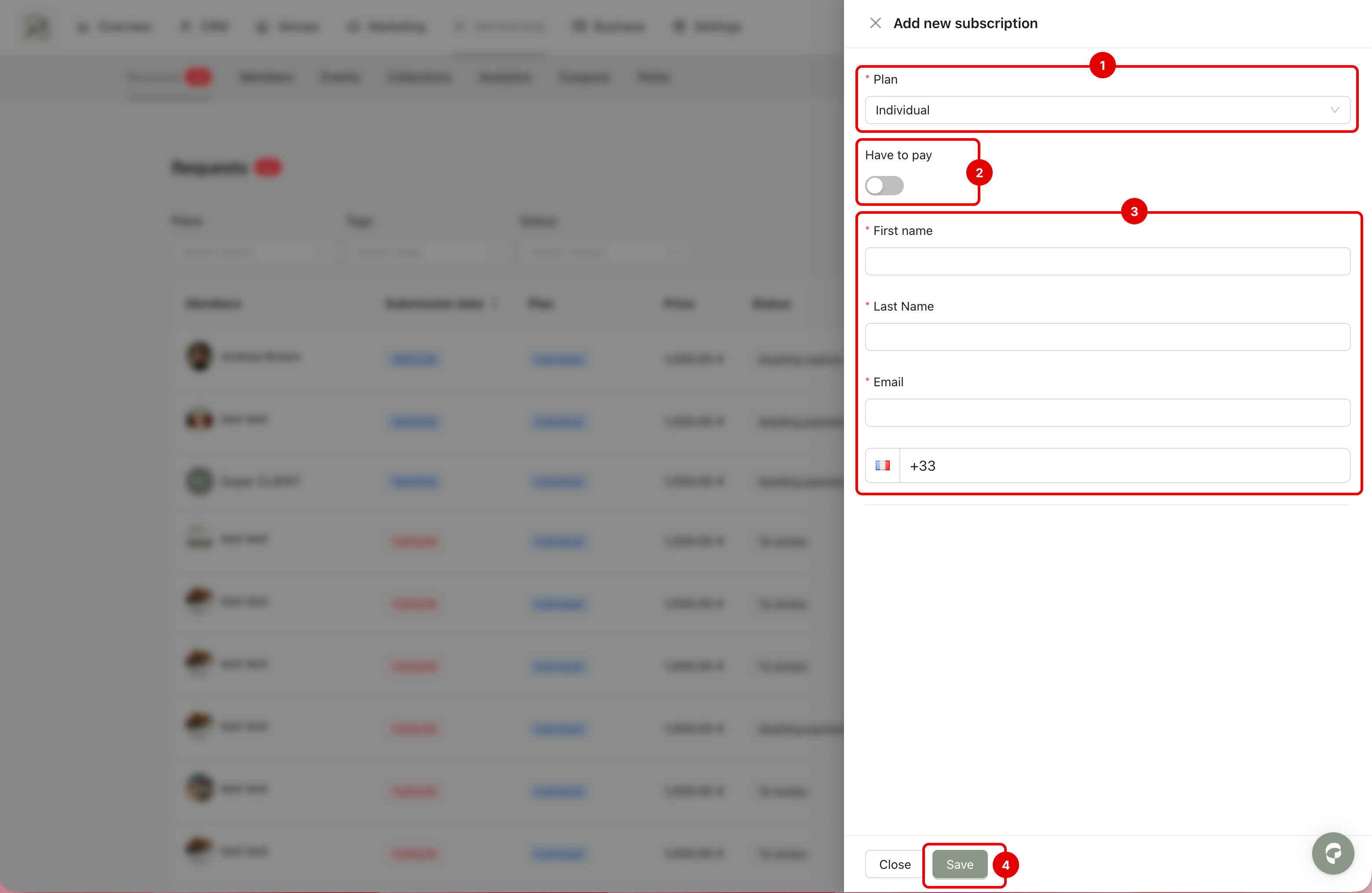
Step 2: A side modal will appear. You must choose the program and plan (1), choose whether the customer has to pay or not (2), fill in their contact information (name, email, phone number) (3) and click Save (4).
Final Result
If Have to pay toggle is ON, the client appears in the Request list. A payment link is generated for you to send to them and the status will be Awaiting capture data.
When the customer submits the payment, the system captures the payment immediately (no pre-authorization step). This means you have already accepted the membership. If payment is successful, the customer becomes a member immediately.
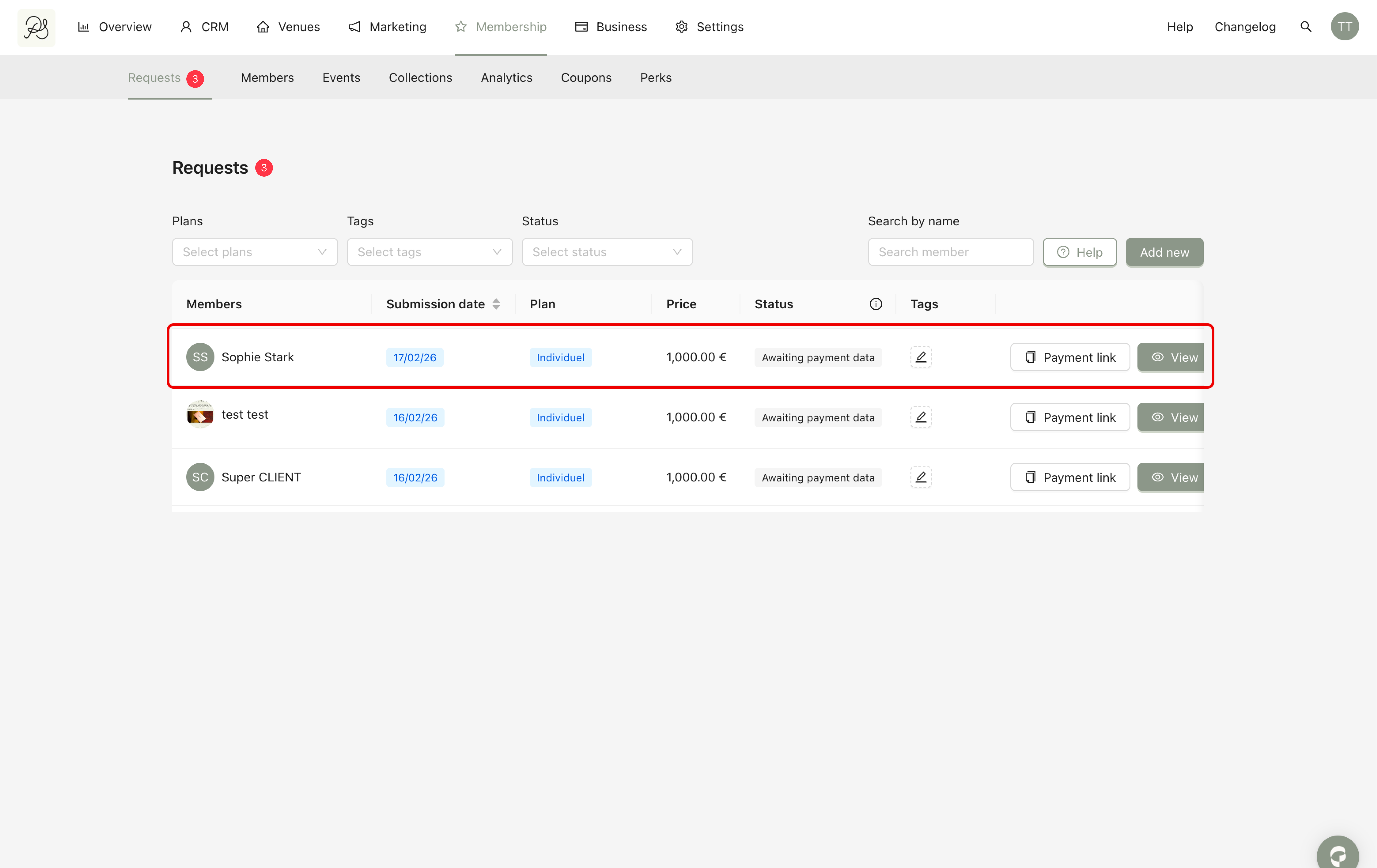
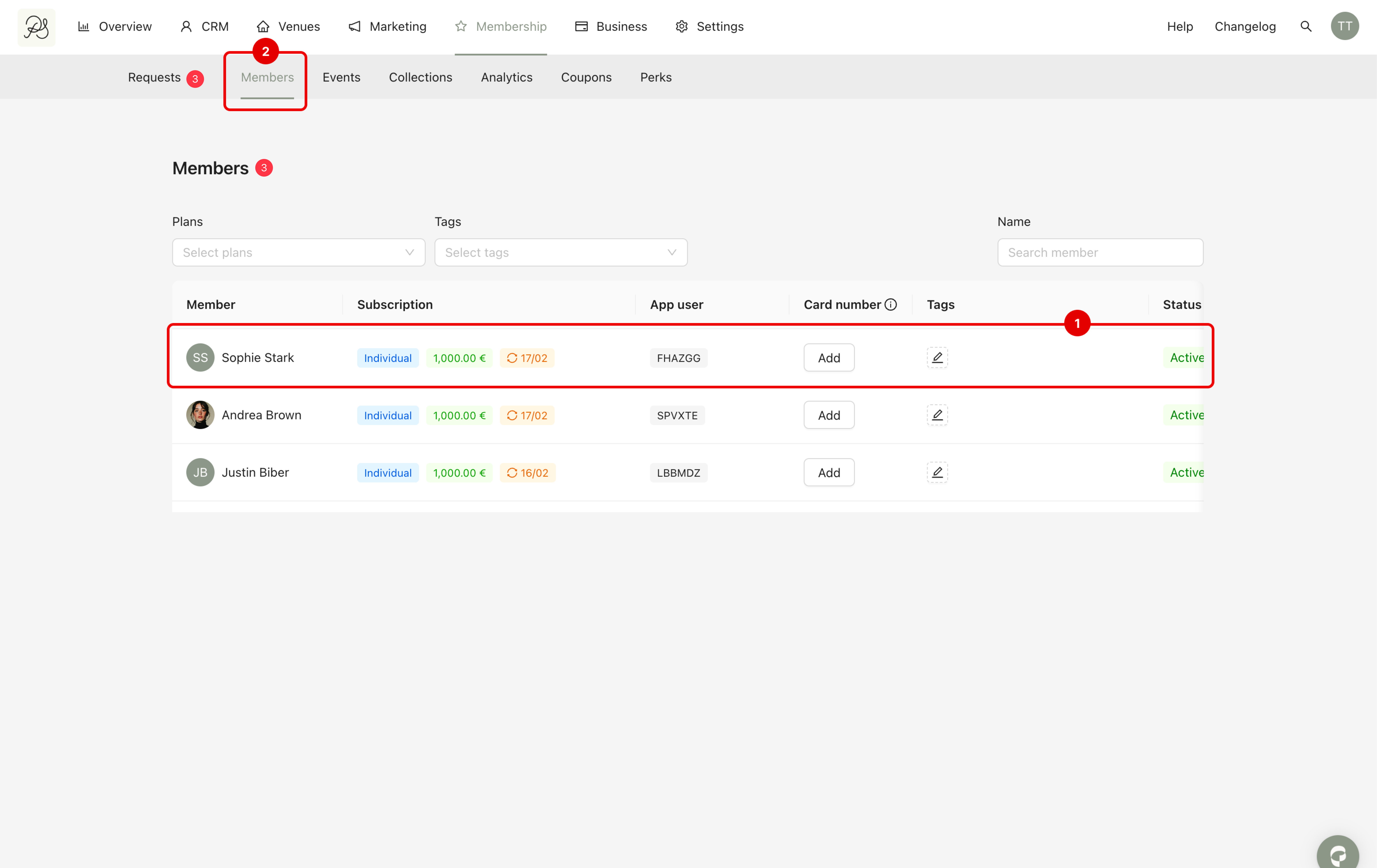
If Have to pay toggle is OFF, meaning the customer does not need to enter payment details, they become a member immediately (1). No payment step is required. You can find them in the Members tab (2).