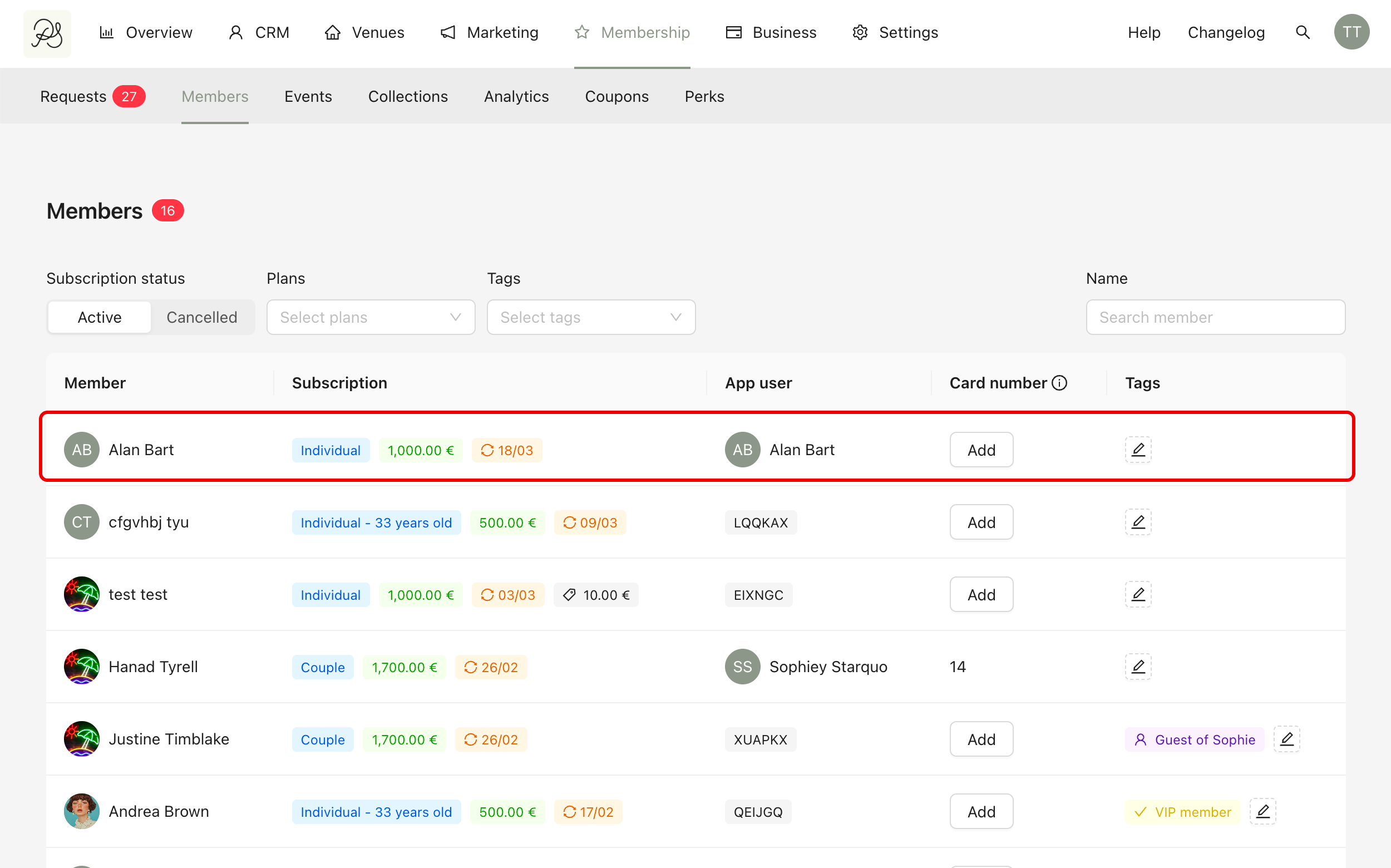
The Members tab provides a summary view of all active and inactive members. From this page, you can quickly access key subscription details, check account connection status, assign tags, and manage membership status.
This tab is designed to give you a clear operational overview without needing to open each member profile individually.
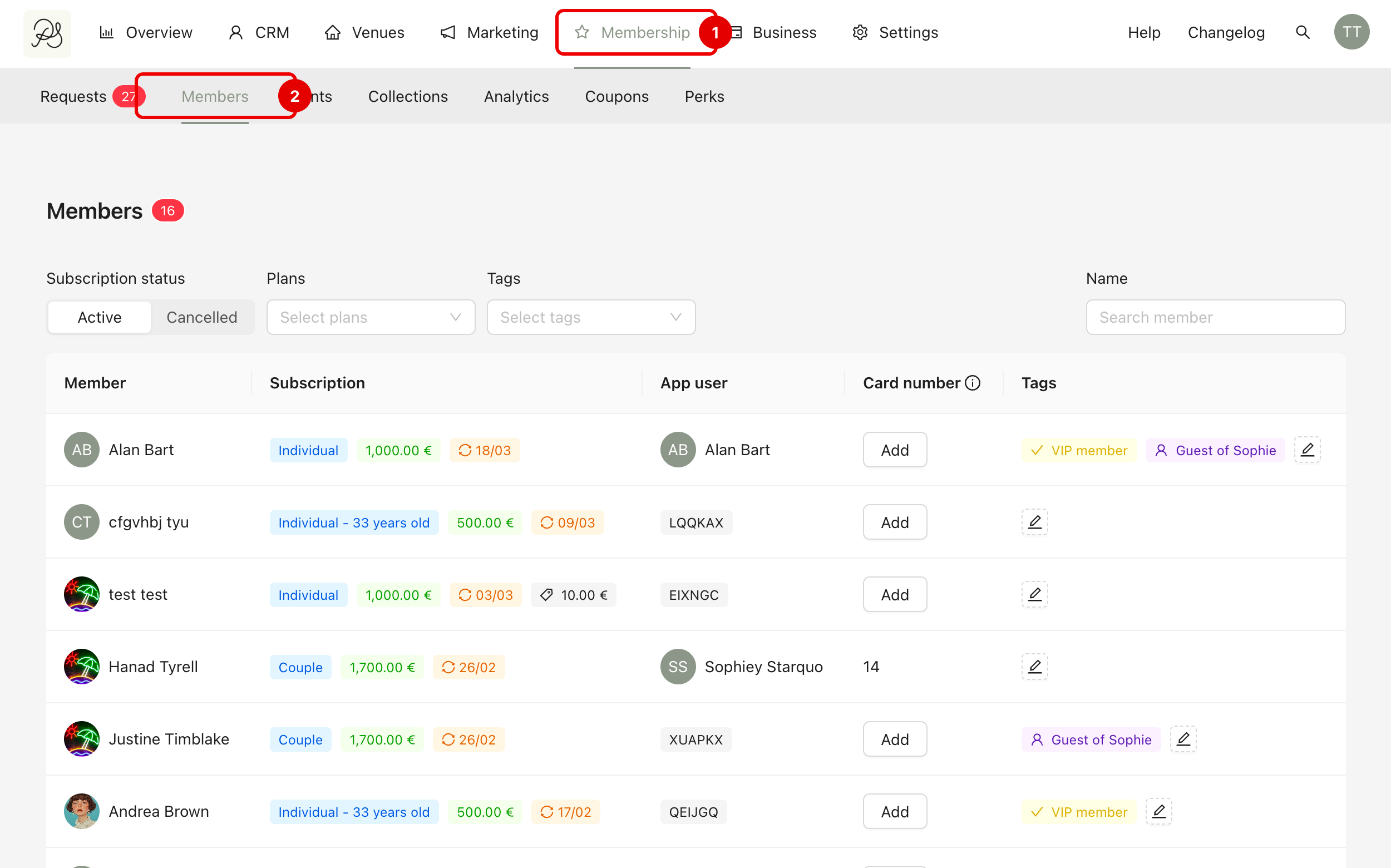
To access the member list, go to Membership (1) → Members (2). This page displays all members associated with your programs.
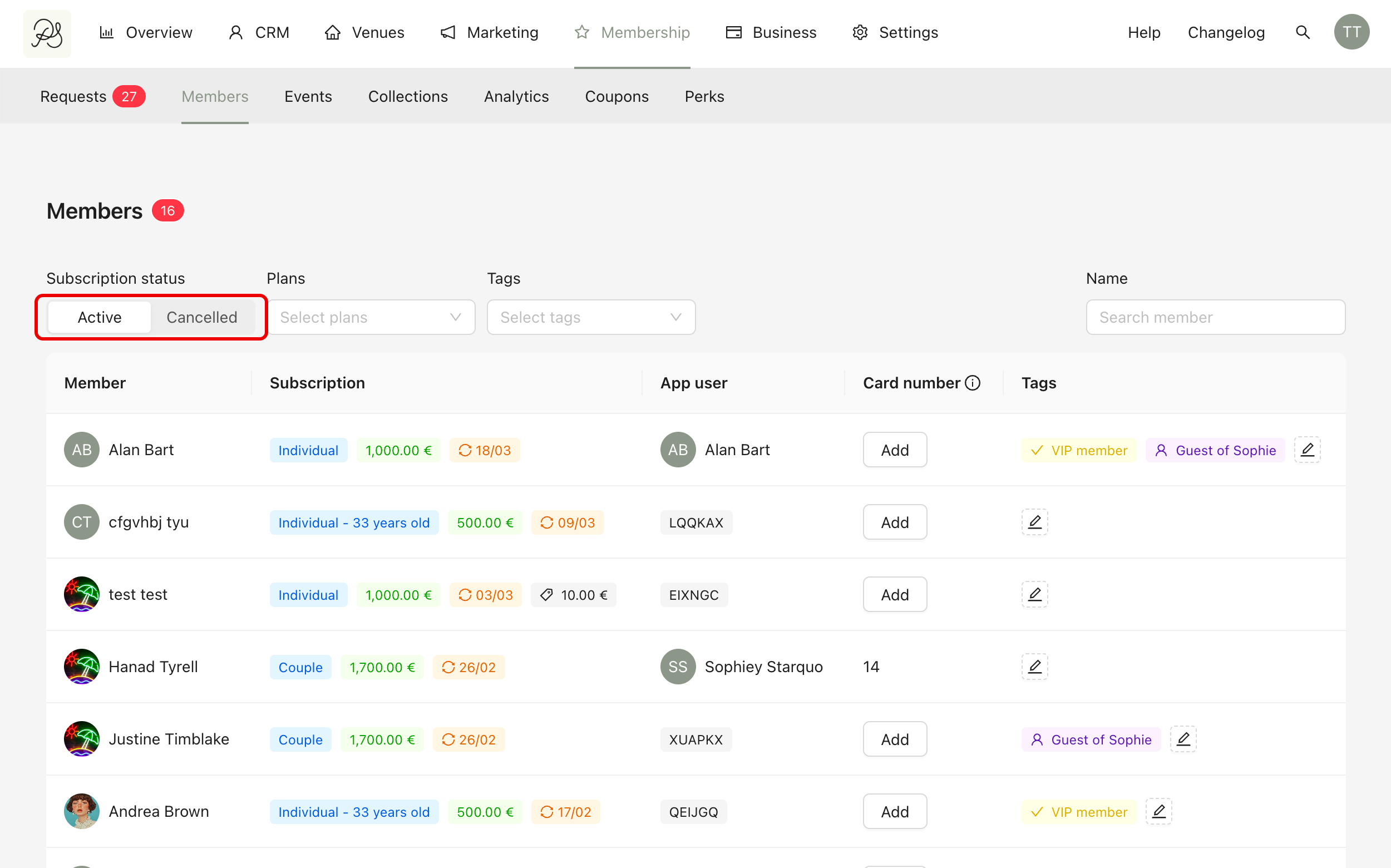
At the top of the page, you can use filters to narrow down the list and focus on specific groups.
Subscription Status: You can use this field to filter members by their subscription status. There are two subscription states available for filtering: Active and Cancelled.

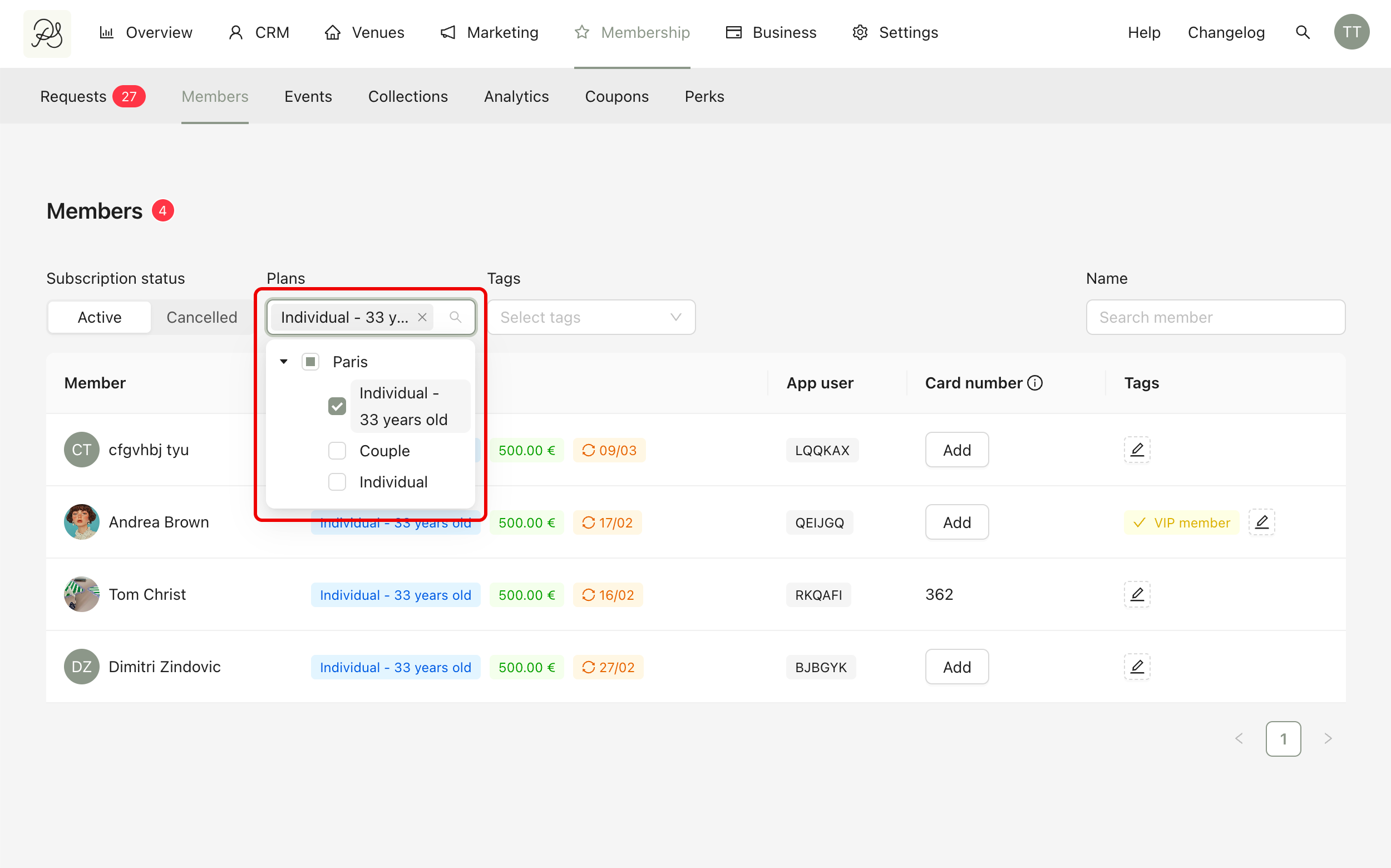
You can filter by program and plan by selecting the desired program or specific plans within it. Once selected, only members subscribed to those programs or plans will appear.
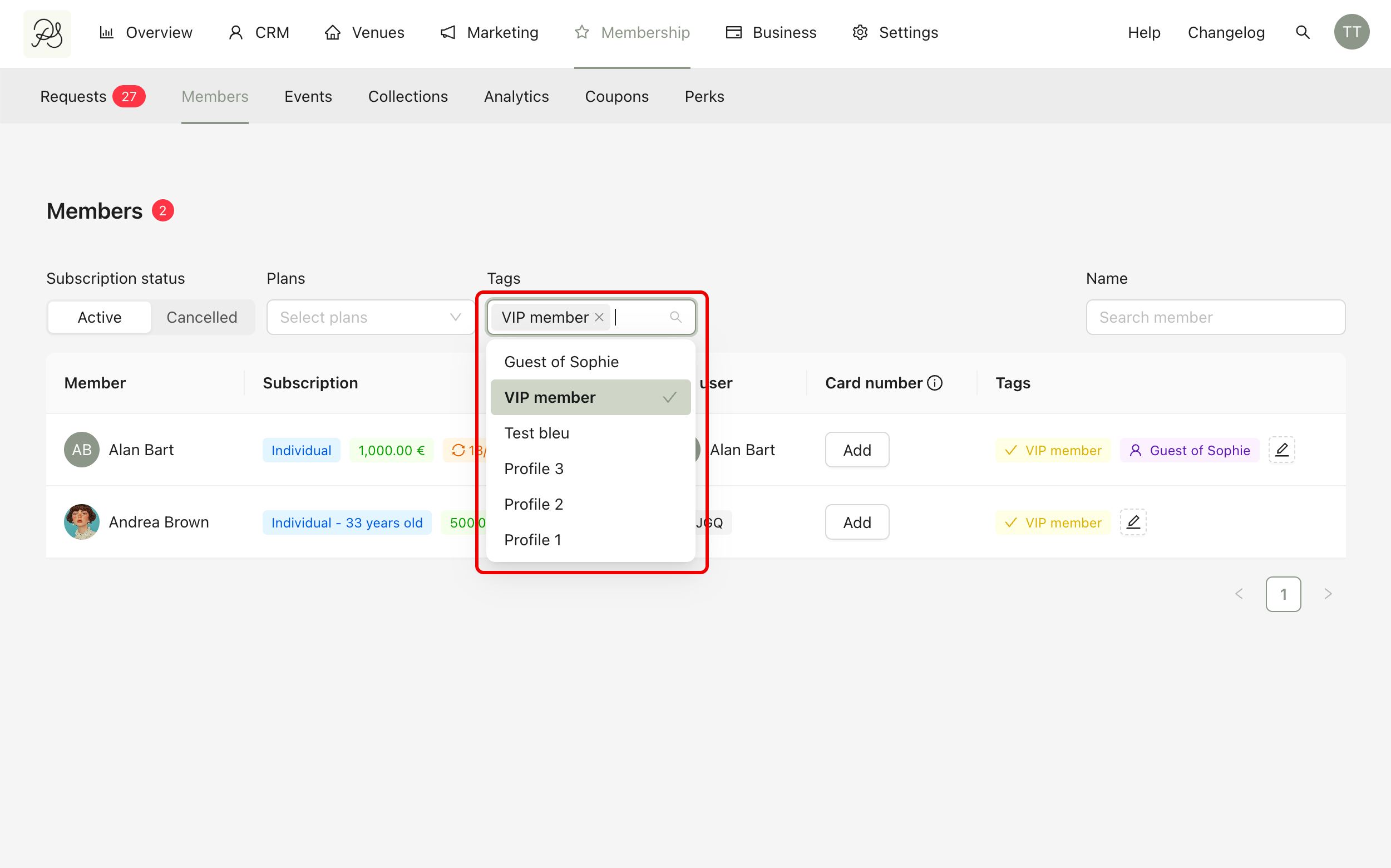
You can also filter by tag. Selecting a tag will display only the members assigned to that tag.
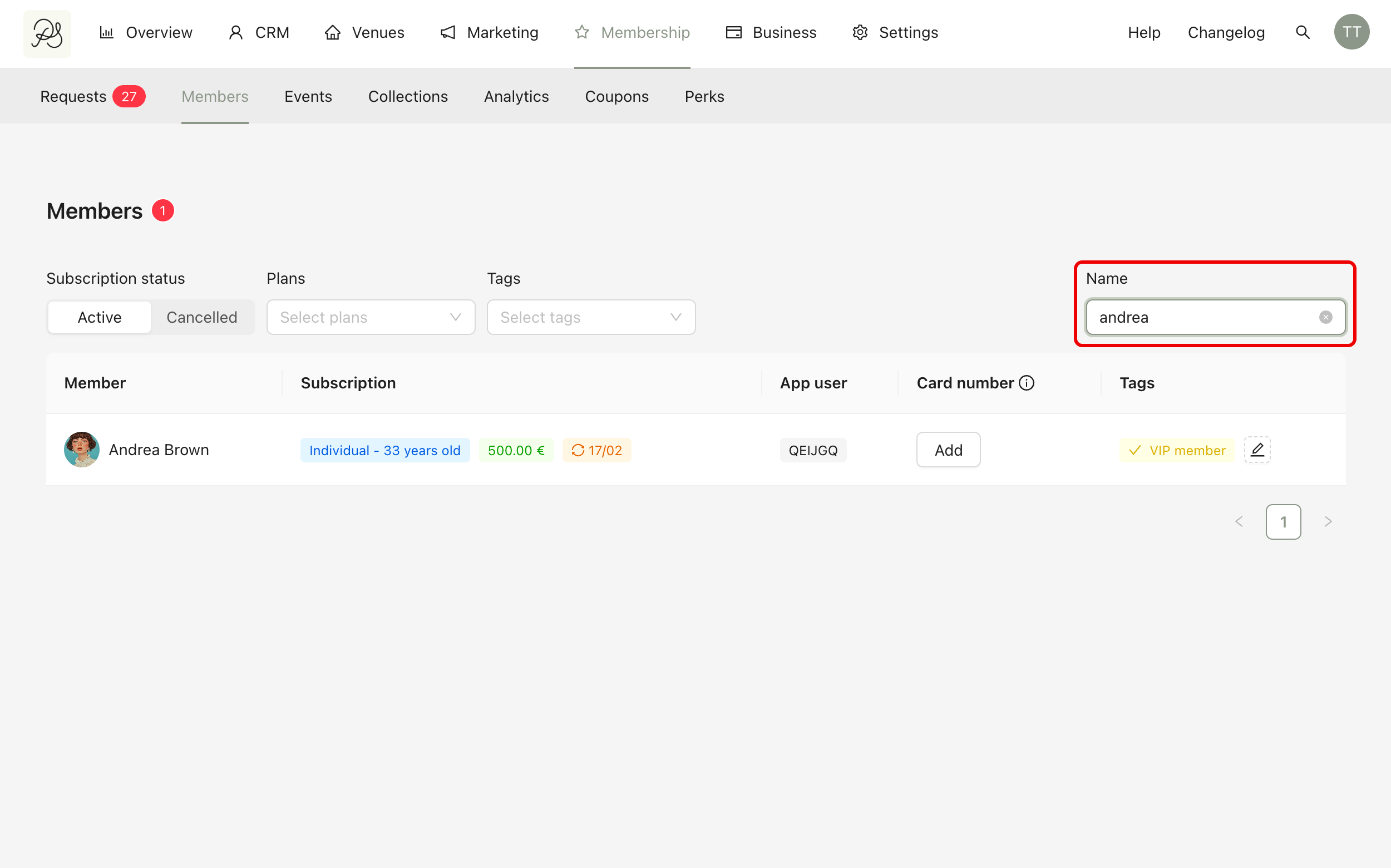
You can search for a specific member by typing their name in the search field. The list will automatically update to show matching results.
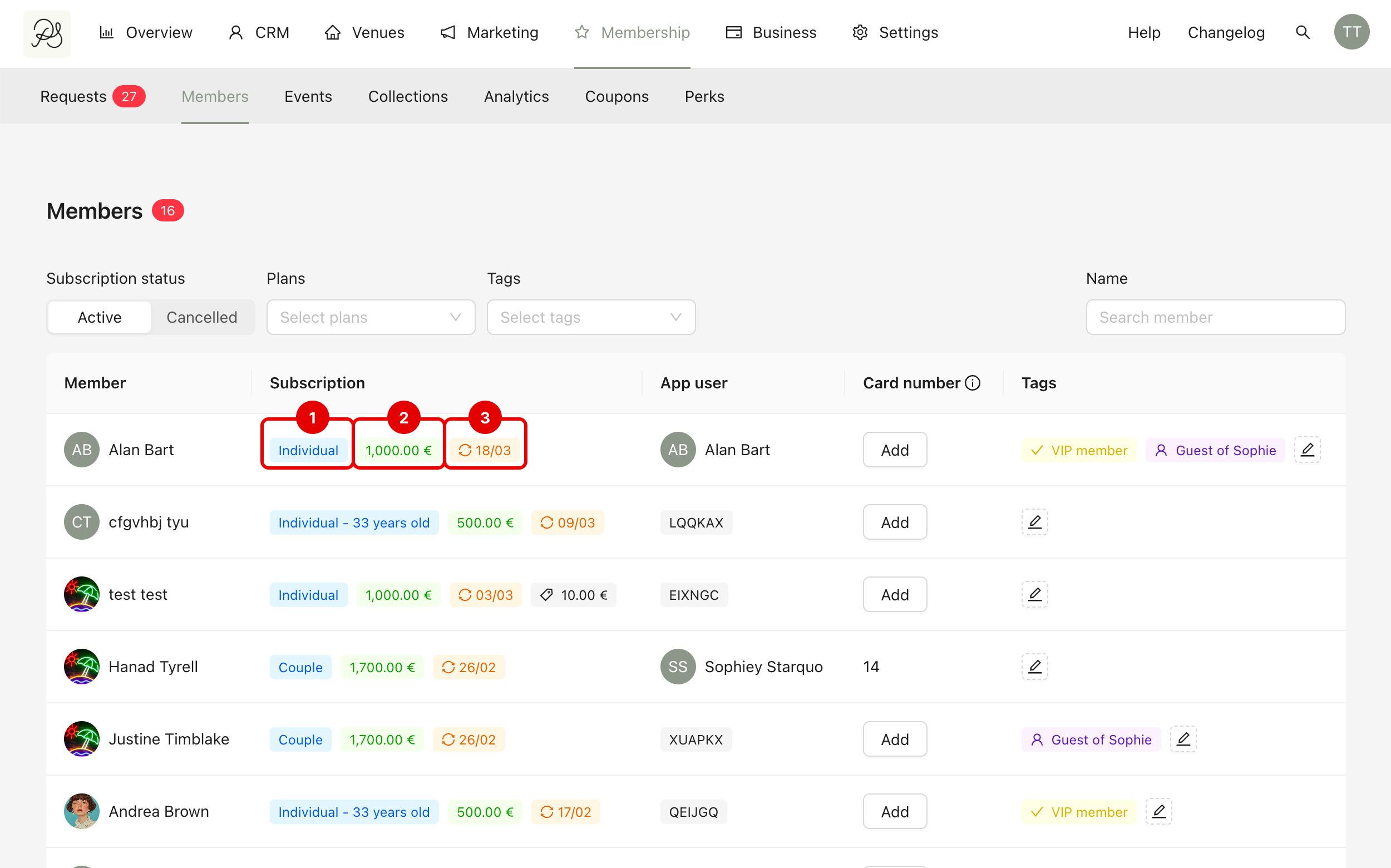
The Members tab displays general subscription information for each member.
Each member row shows:
(1) The Plan (blue badge): Indicates the subscription plan the member has chosen.
(2) The Price (green badge): Shows the annual subscription price of the membership (excluding joining fees).
(3) The Renewal date (orange/red badge):This is the subscription anniversary date. If the badge is orange, it means automatic renewal is enabled and the subscription will renew on that date. If the badge is red, it means automatic renewal is disabled and the subscription will be cancelled on that date.
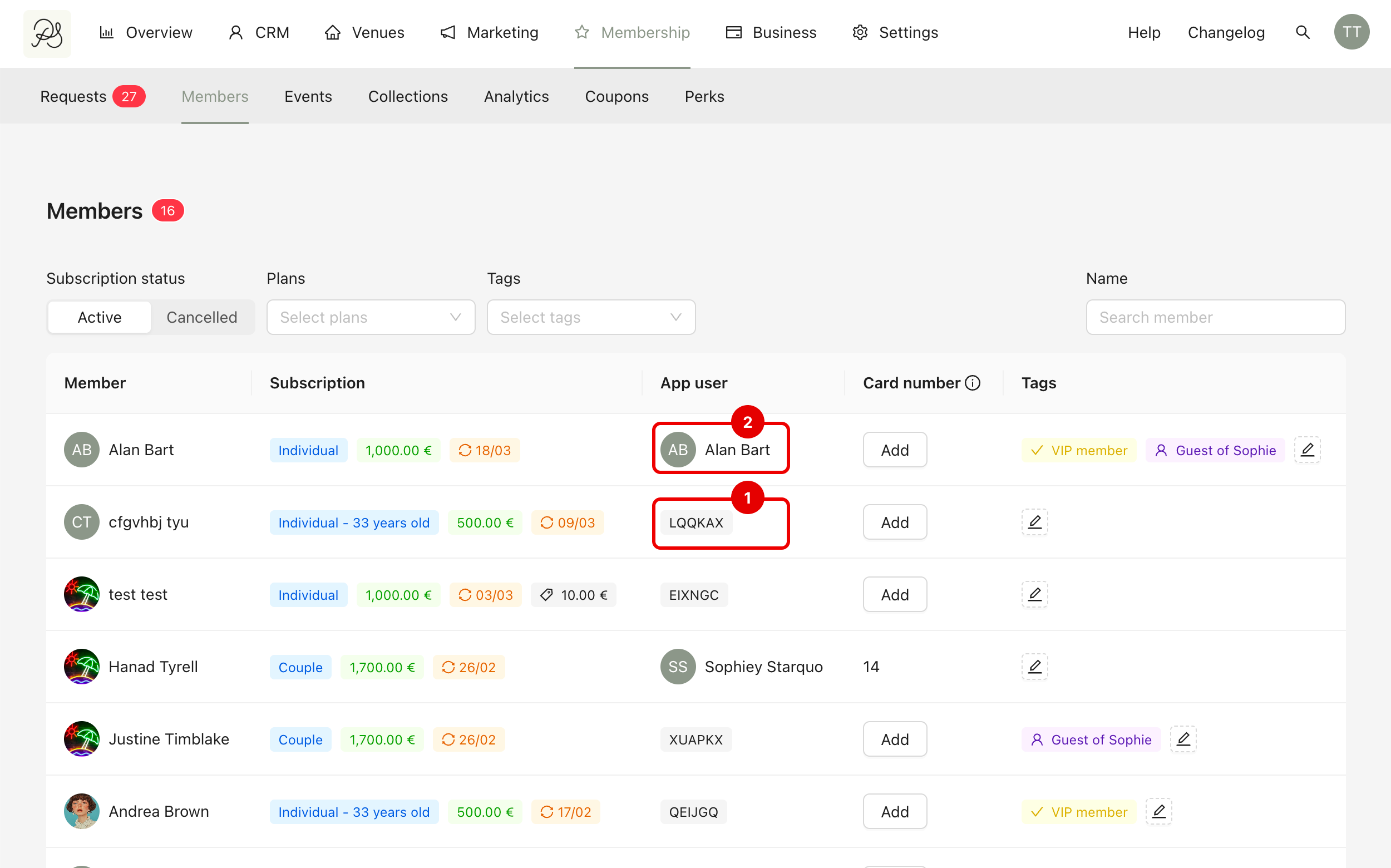
This column shows the application account linked to the membership.
If the member has not yet activated their membership using the activation code, the code will be displayed instead (1). Once activated, the membership will be connected to the user’s profile in the application (2).
You can assign a card number to each member for internal tracking. If added, the card number will appear in this column.
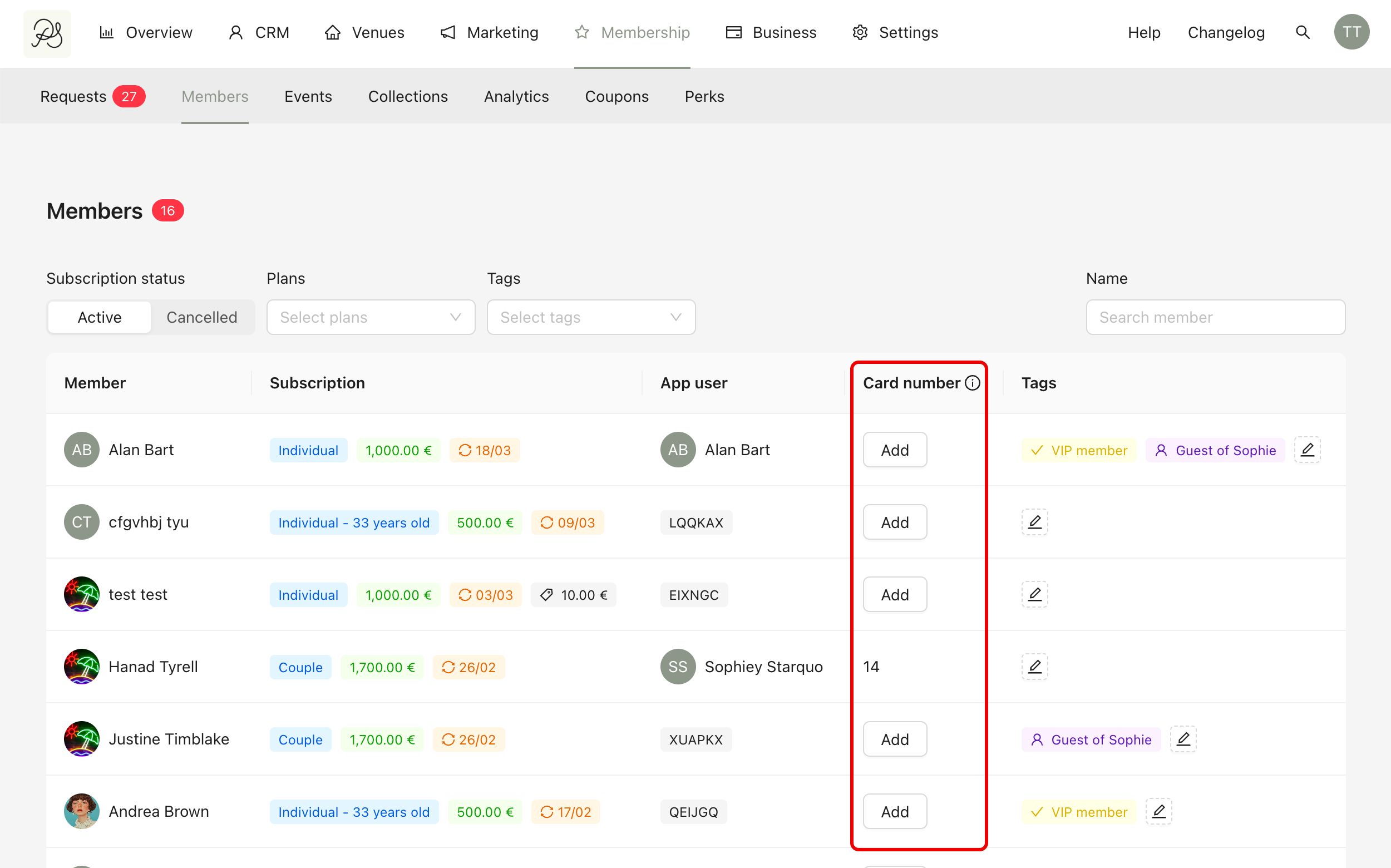
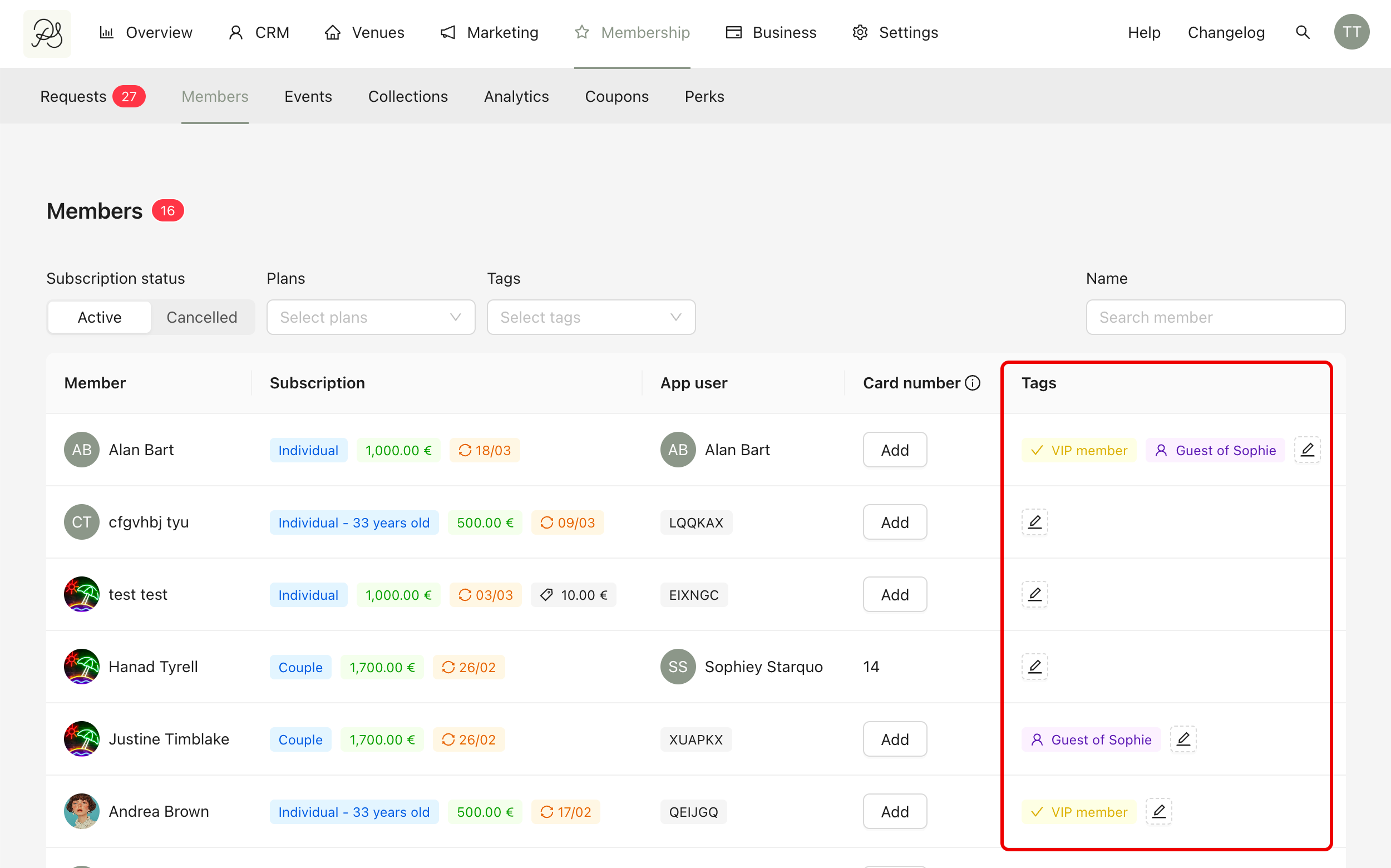
Tags can be assigned to members for categorization and filtering purposes.
To add tags, find the member in the Members tab and click Edit in the Tags column. Select the desired tag(s) and click Save.
The Members tab shows summary information only. To view complete details, click on a member’s row to open their profile page.