You can cancel a membership subscription either immediately or at the end of the current billing period.
By default, subscriptions automatically renew on their anniversary date. However, from the dashboard, you can manually manage cancellations and control exactly when access to the membership ends.
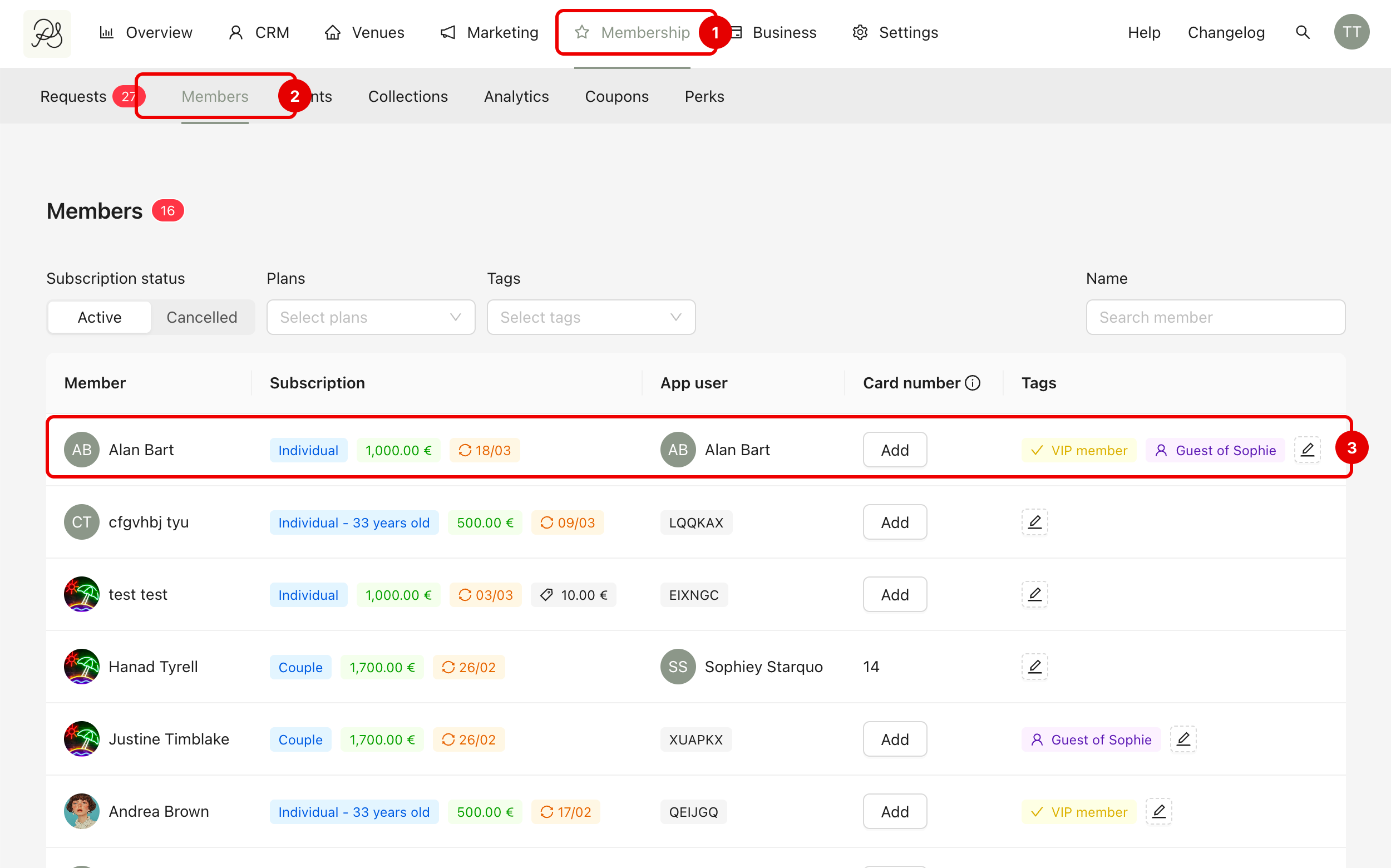
Step 1: Go to Membership (1) → Members (2), then select the member you want to manage (3).
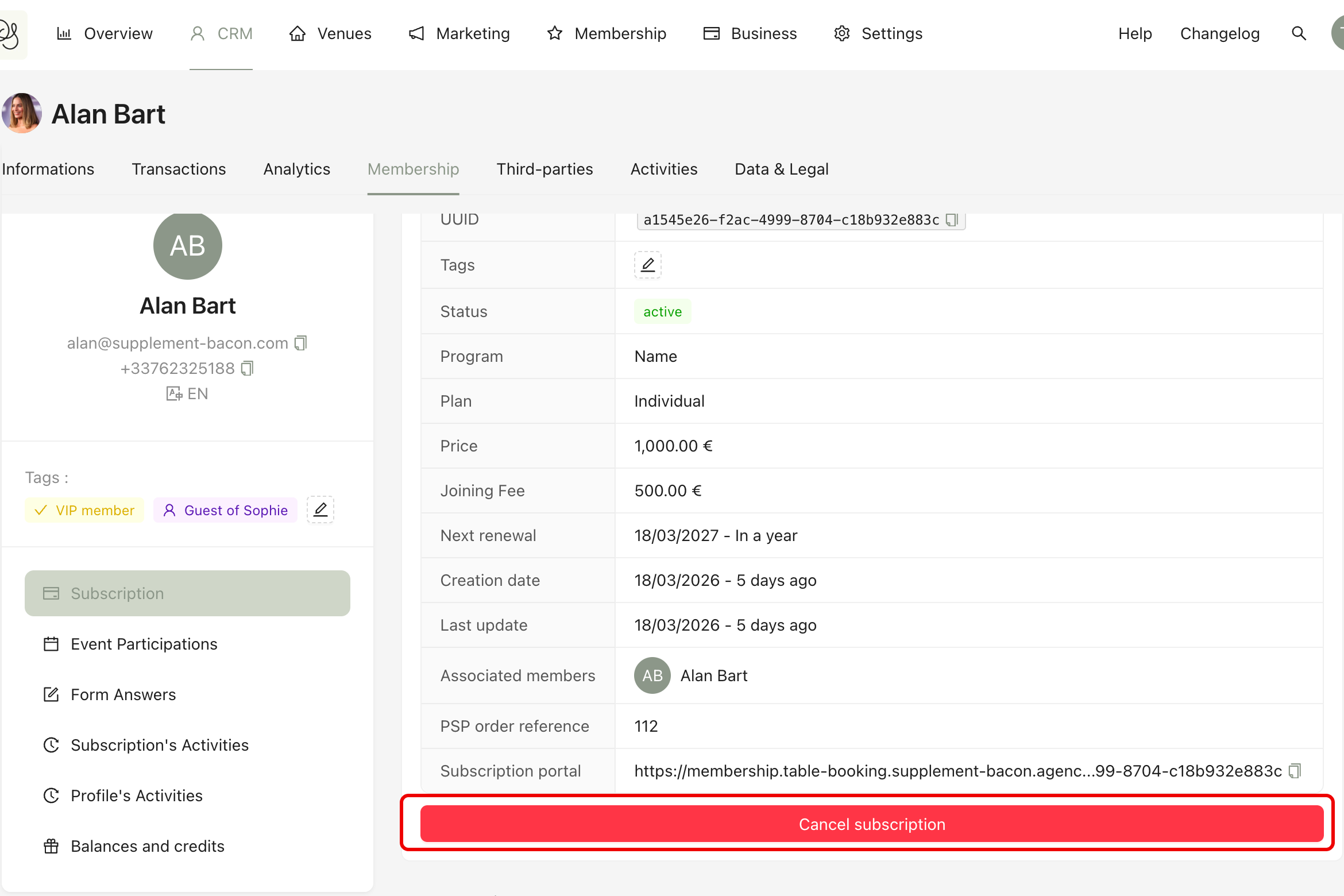
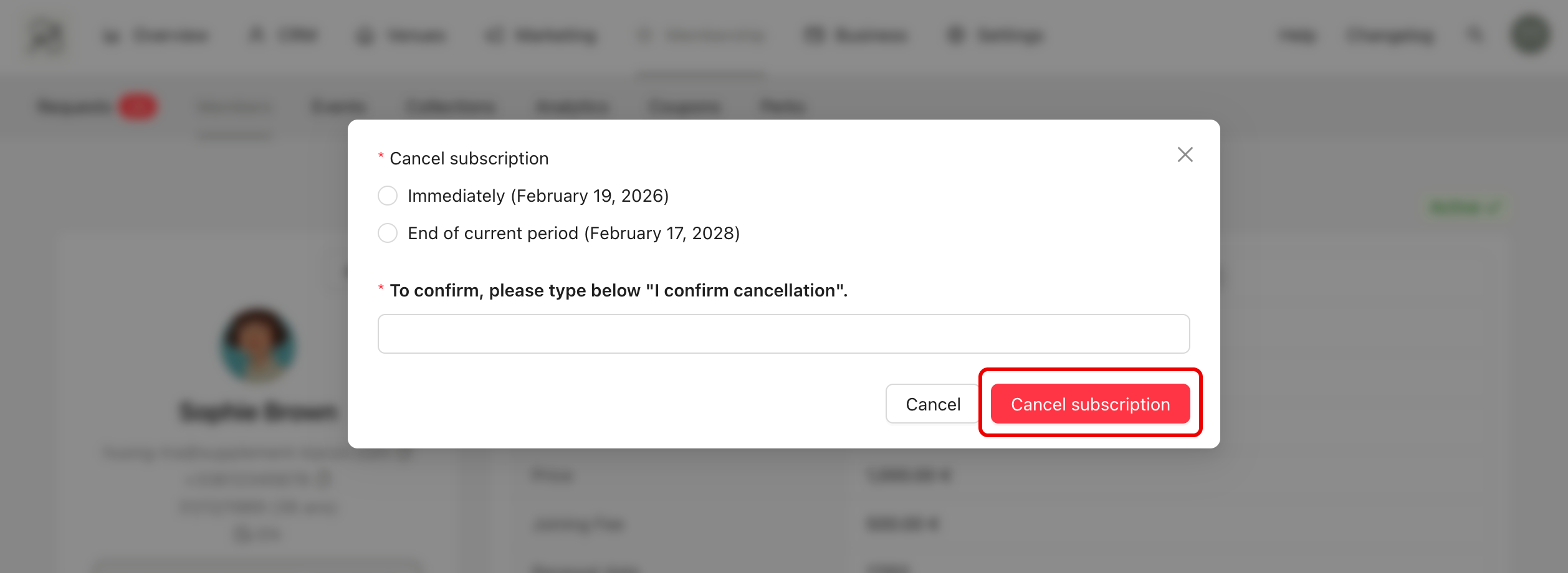
Step 2: In the Subscription section, click the Cancel subscription button.
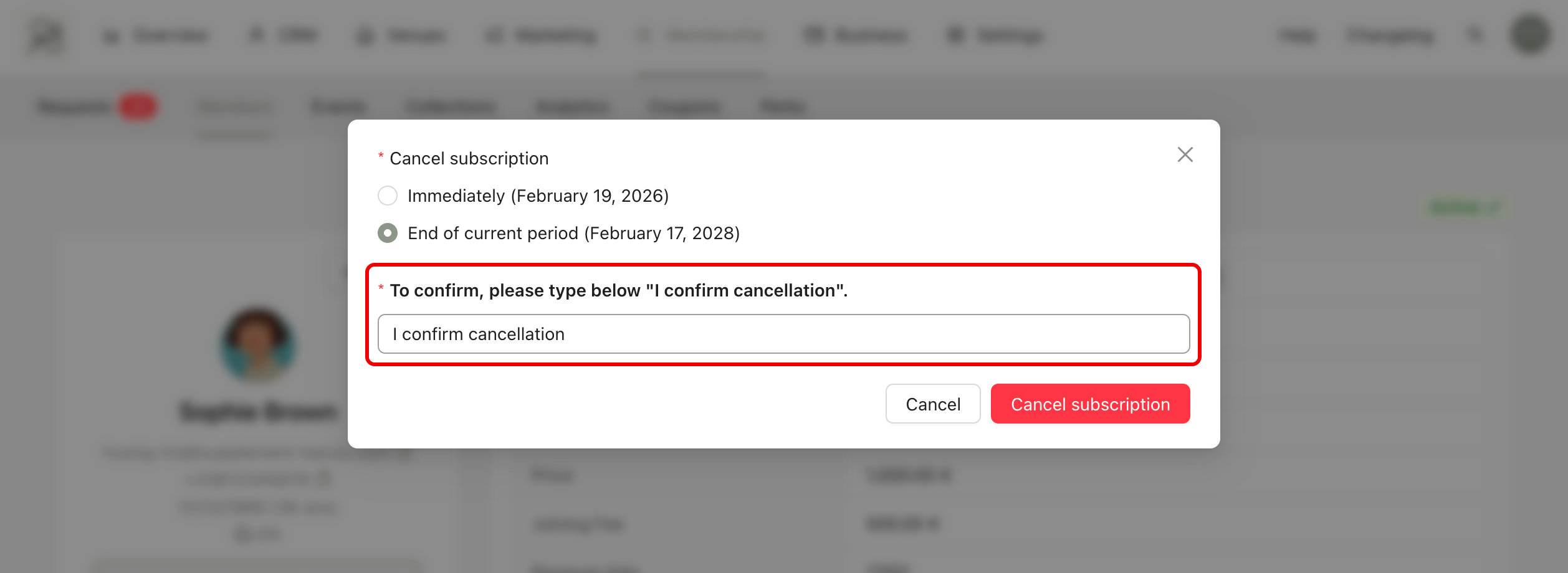
Step 3: In the cancellation modal, choose one of the two options:
Immediately (1): The subscription is cancelled right away. The member instantly loses access to the membership area and all related benefits.
End of current period (2): The subscription remains active until the renewal date. For example, if the renewal date is February 17, the member keeps access until that date. After that, the subscription is automatically cancelled and access is removed.
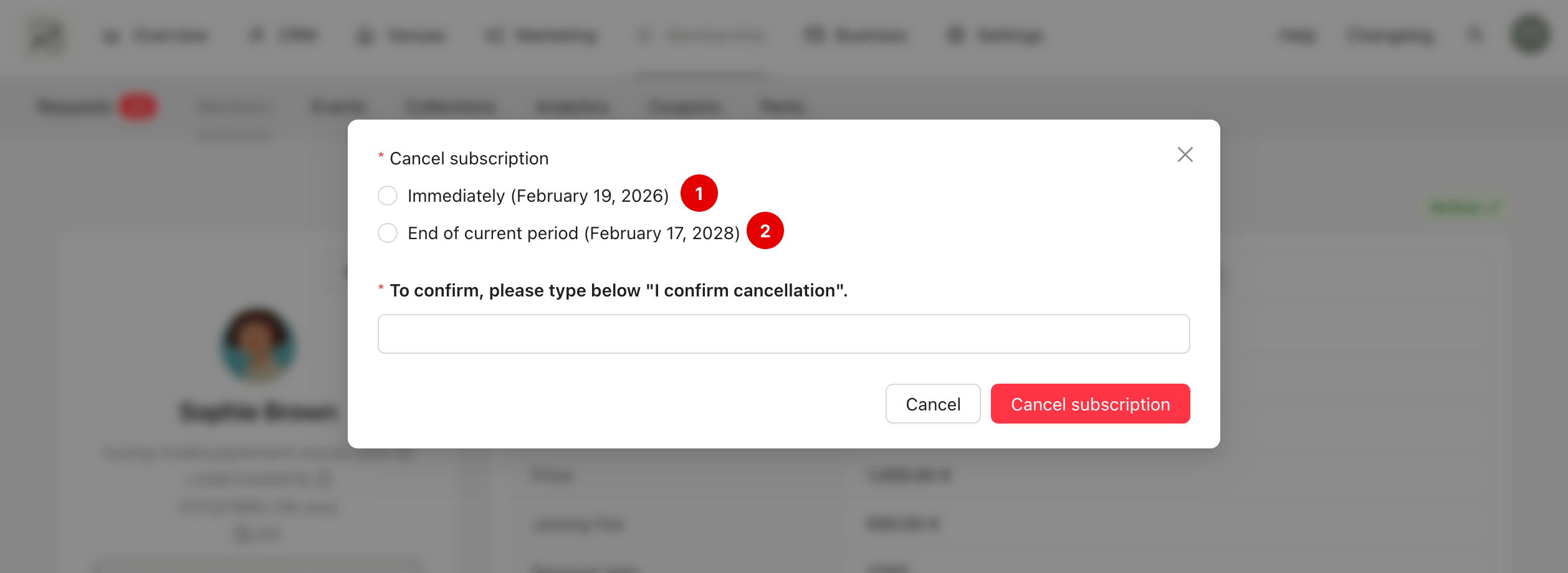
Step 4: To confirm the action, type “I confirm cancellation” in the required field. This prevents accidental cancellations.
Step 5: Click Cancel subscription to finalize.
1. Cancel immediately
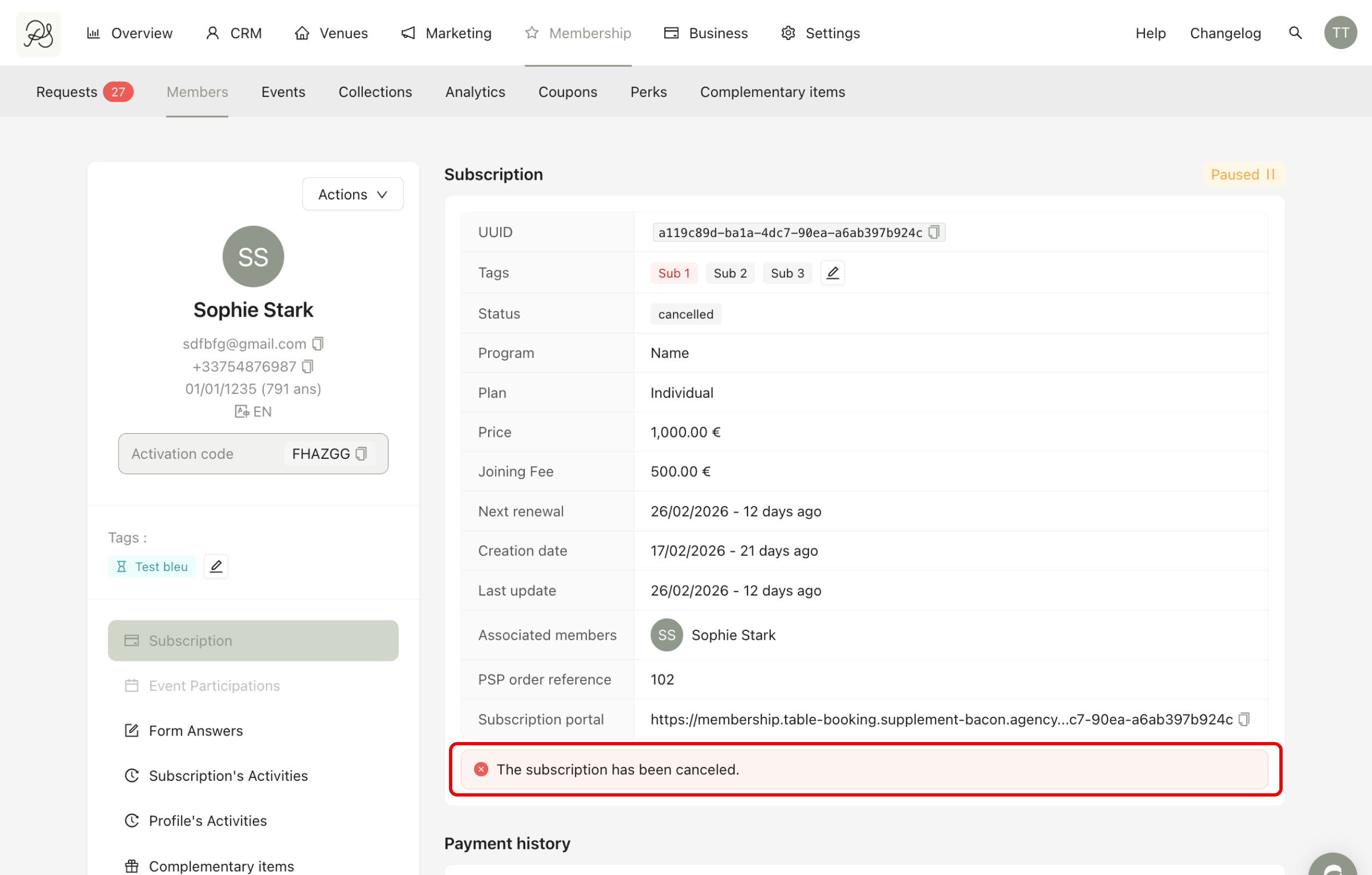
If you cancel immediately, the action cannot be undone. Access and benefits are removed permanently from that moment.
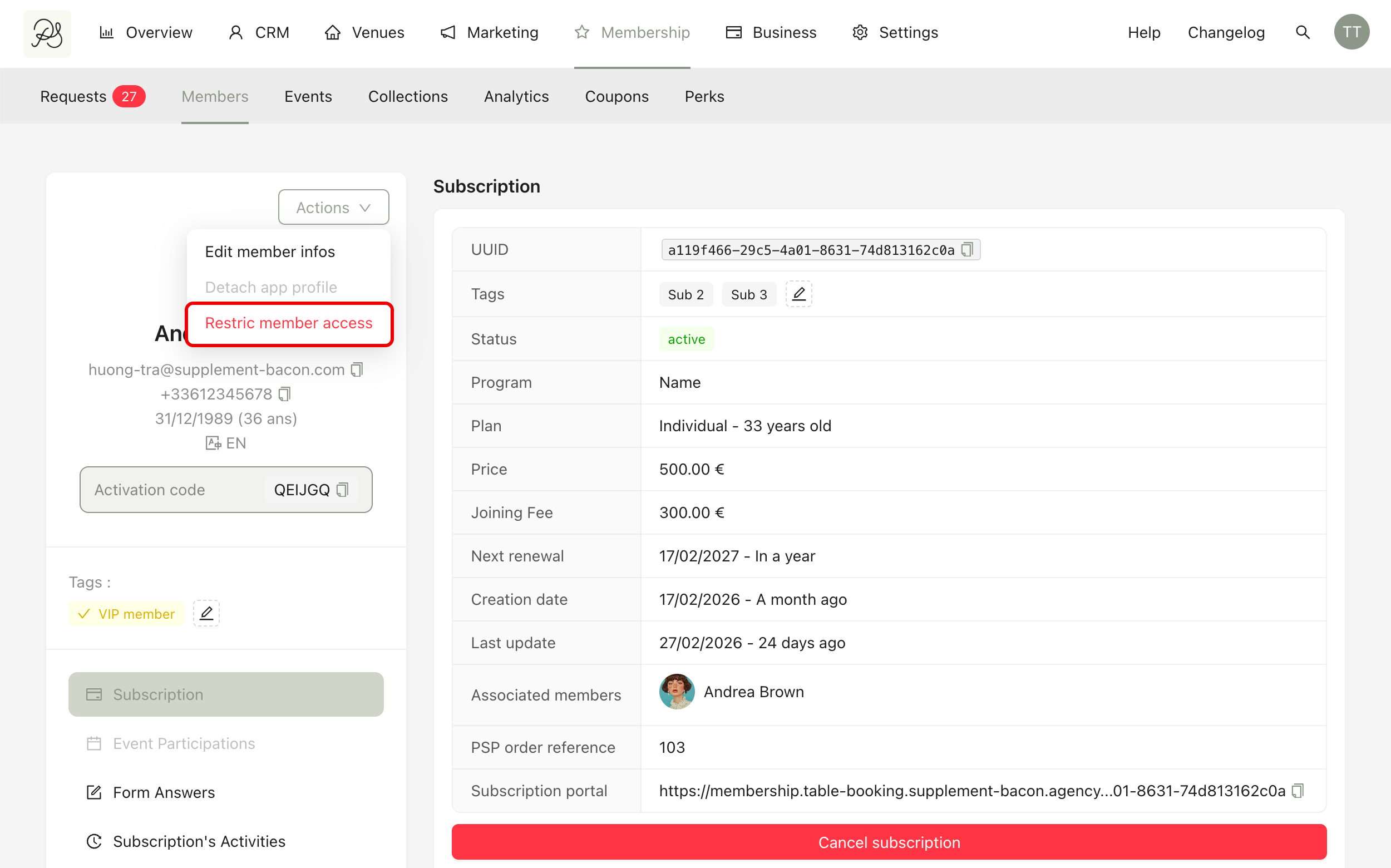
If you only need to temporarily disable access, you may choose to restrict the member’s access instead.
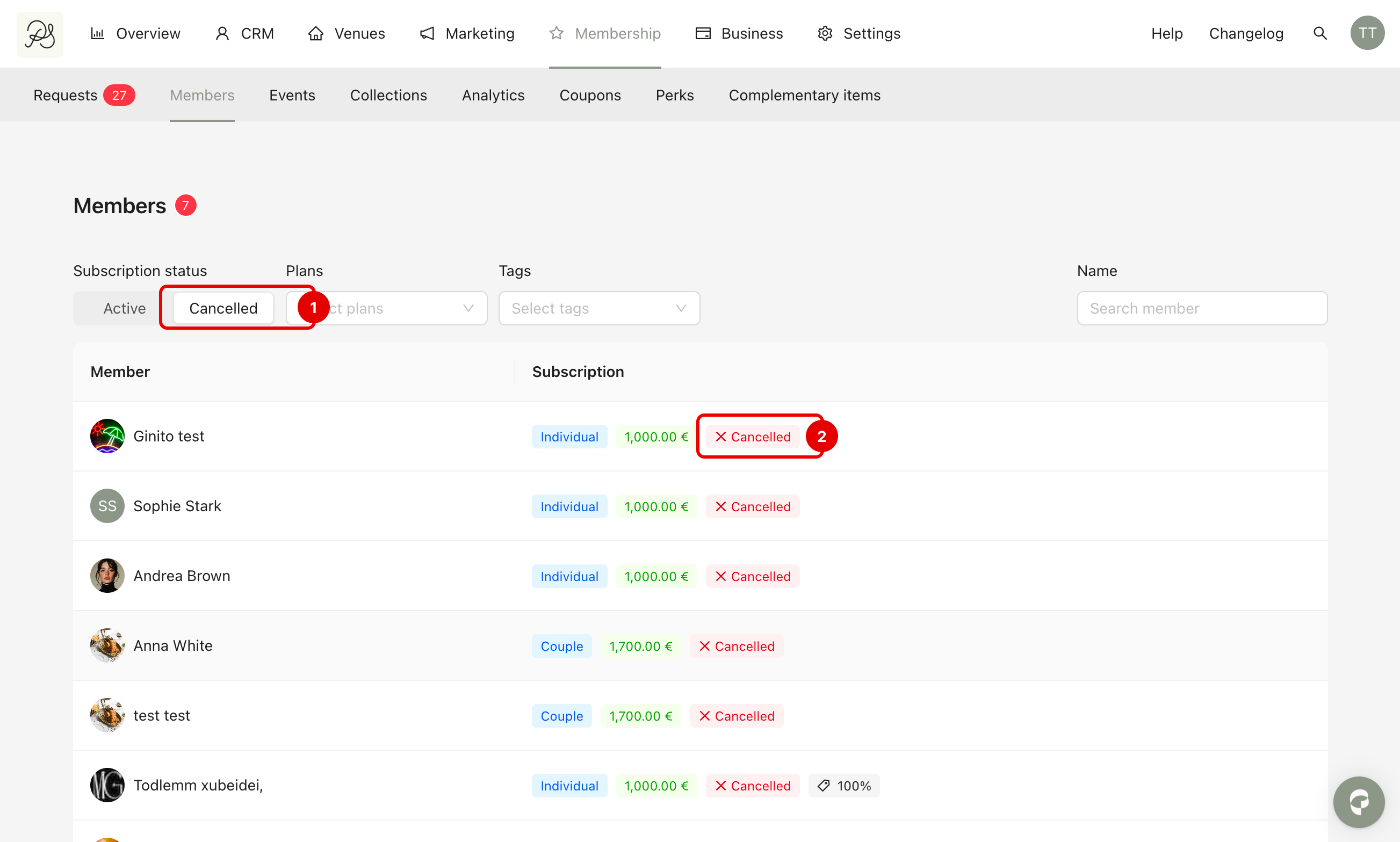
After an immediate cancellation, the member will appear in the Cancelled tab (1). In the Subscription column, a Cancelled badge (2) will replace the renewal date badge.
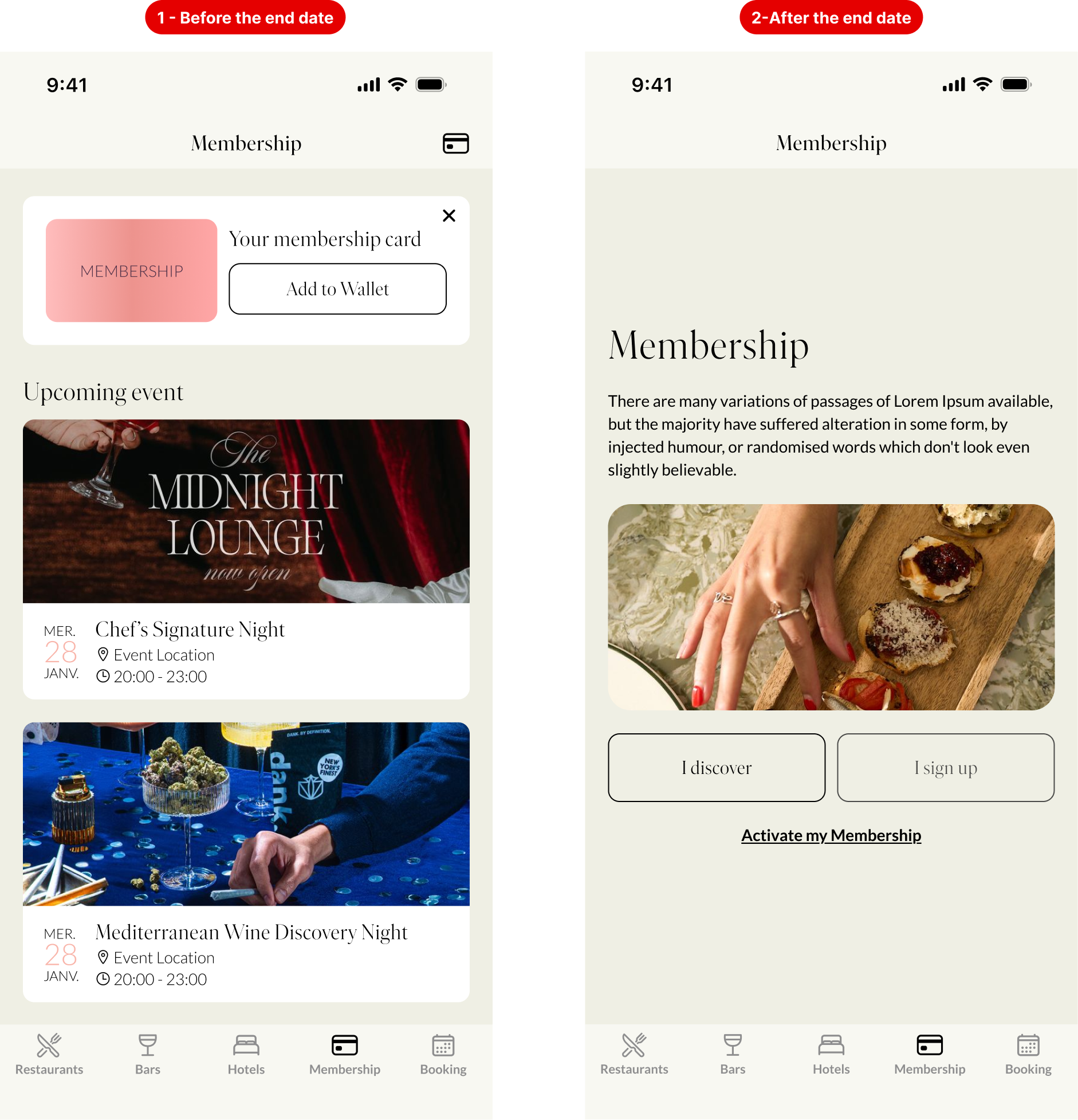
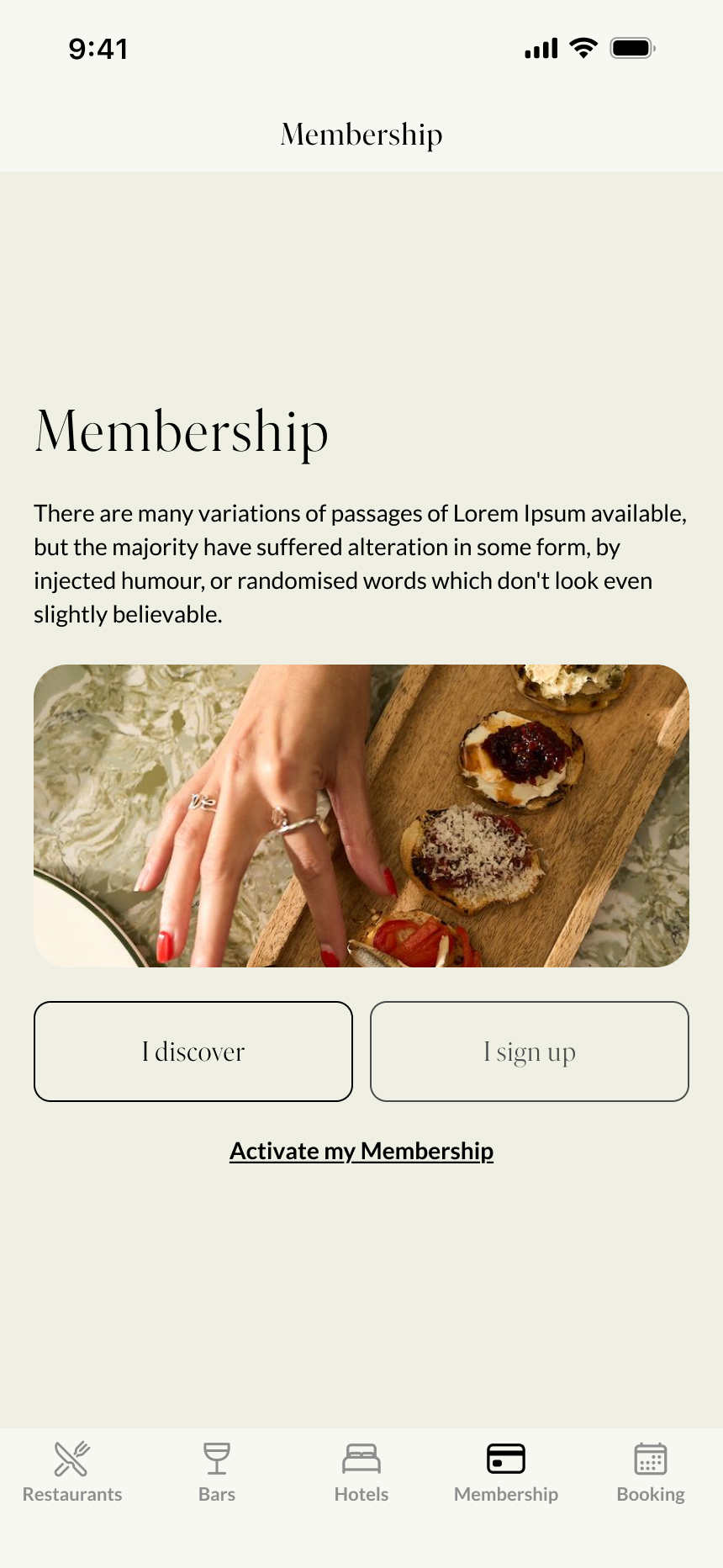
After cancellation, the member’s membership page in the application will return to its initial state, as if no active subscription is associated with the account.
2. Cancel at the end of the current period
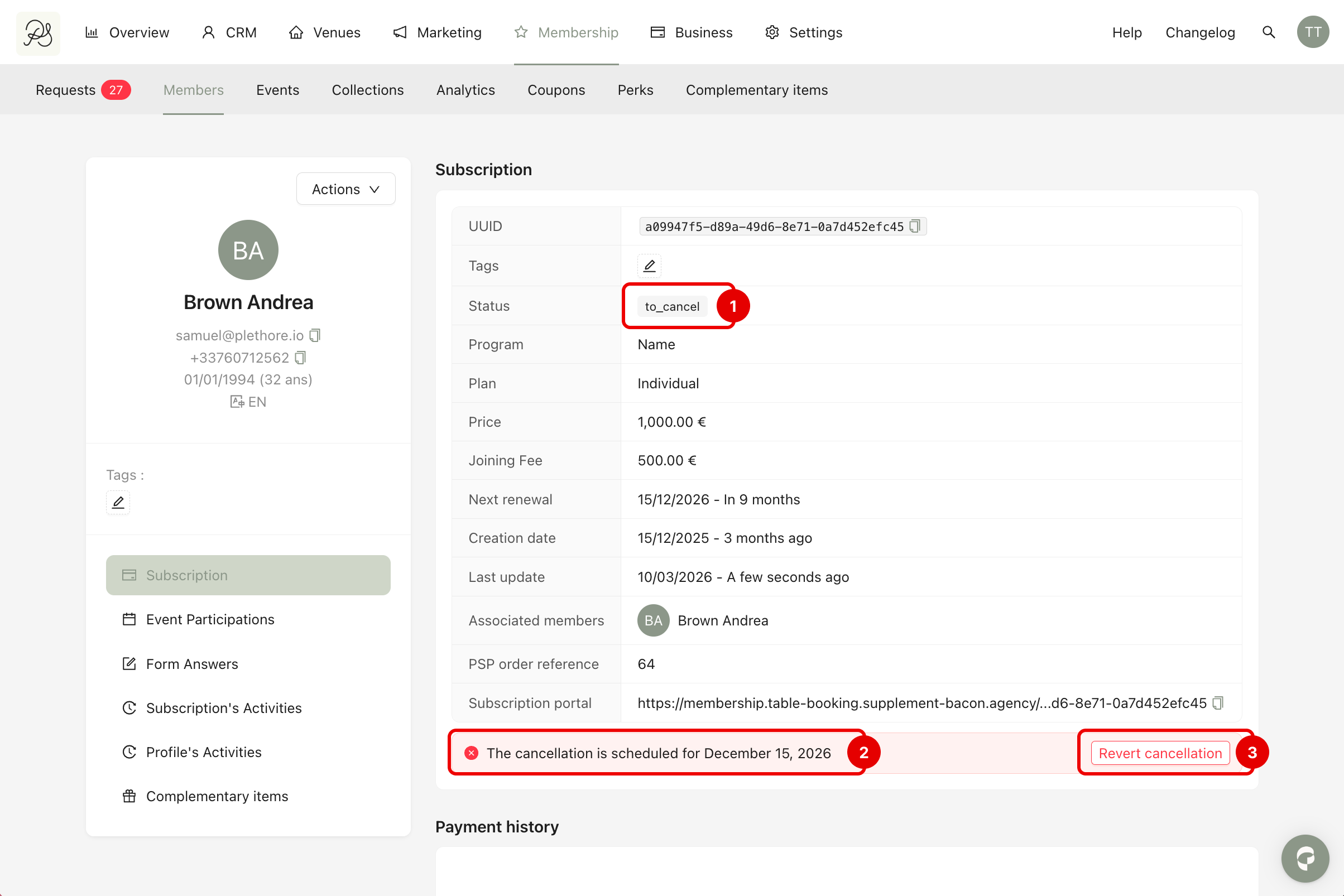
If you cancel at the end of the current period, the subscription status will change to to_cancel (1) and a message will indicate the scheduled cancellation date (2).
You can still revert this action anytime before the renewal date by clicking Revert cancellation (3). If not reverted, the subscription will automatically switch to Cancelled on the scheduled date.
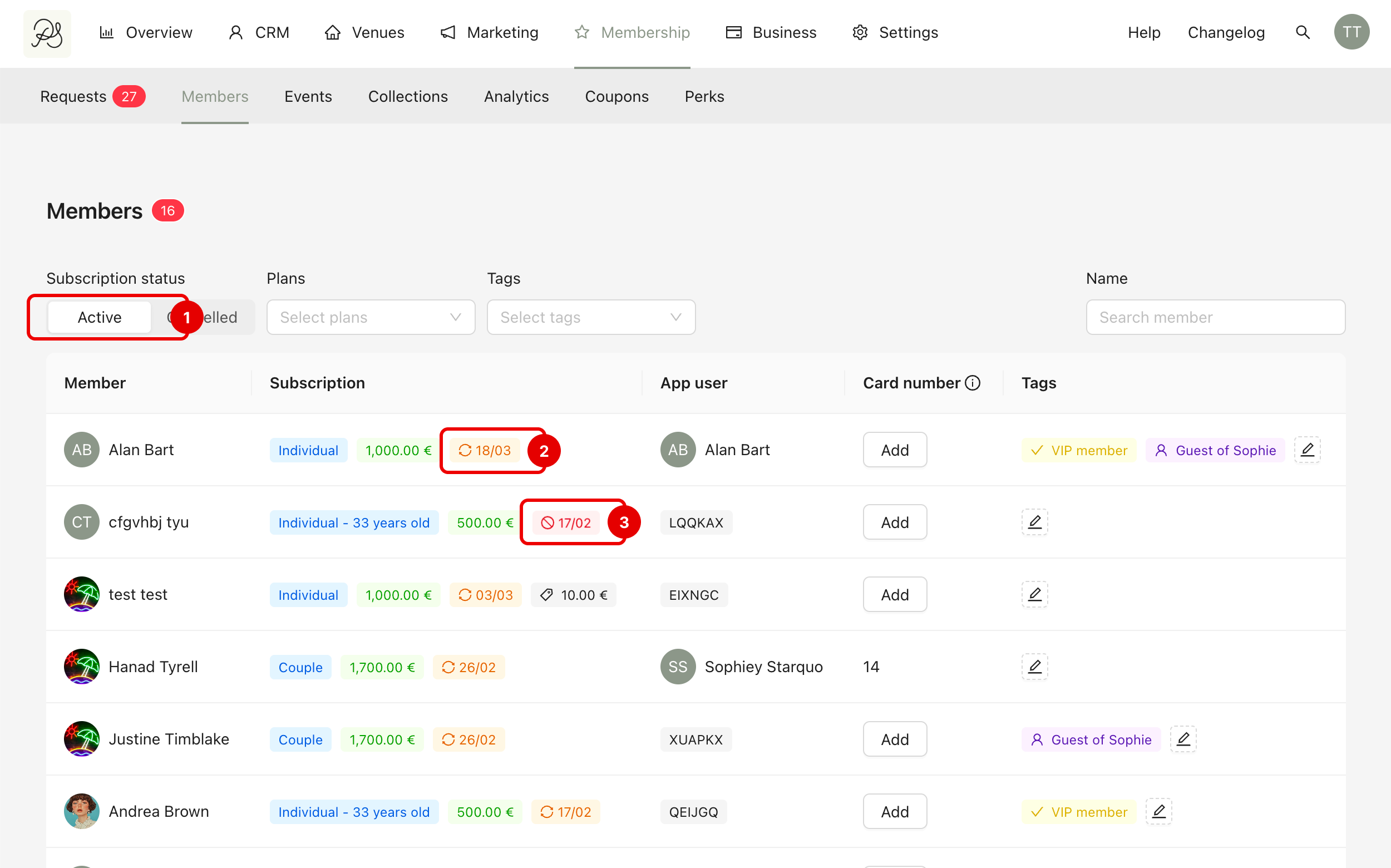
After a delayed cancellation, the member will still appear in the Active tab (1). However, the renewal date badge will turn red (2) instead of orange (3), indicating that the subscription will not be renewed.
In the application, the member will continue to have access to the membership page until the end date (1). After that date, the page will return to its initial state (2).