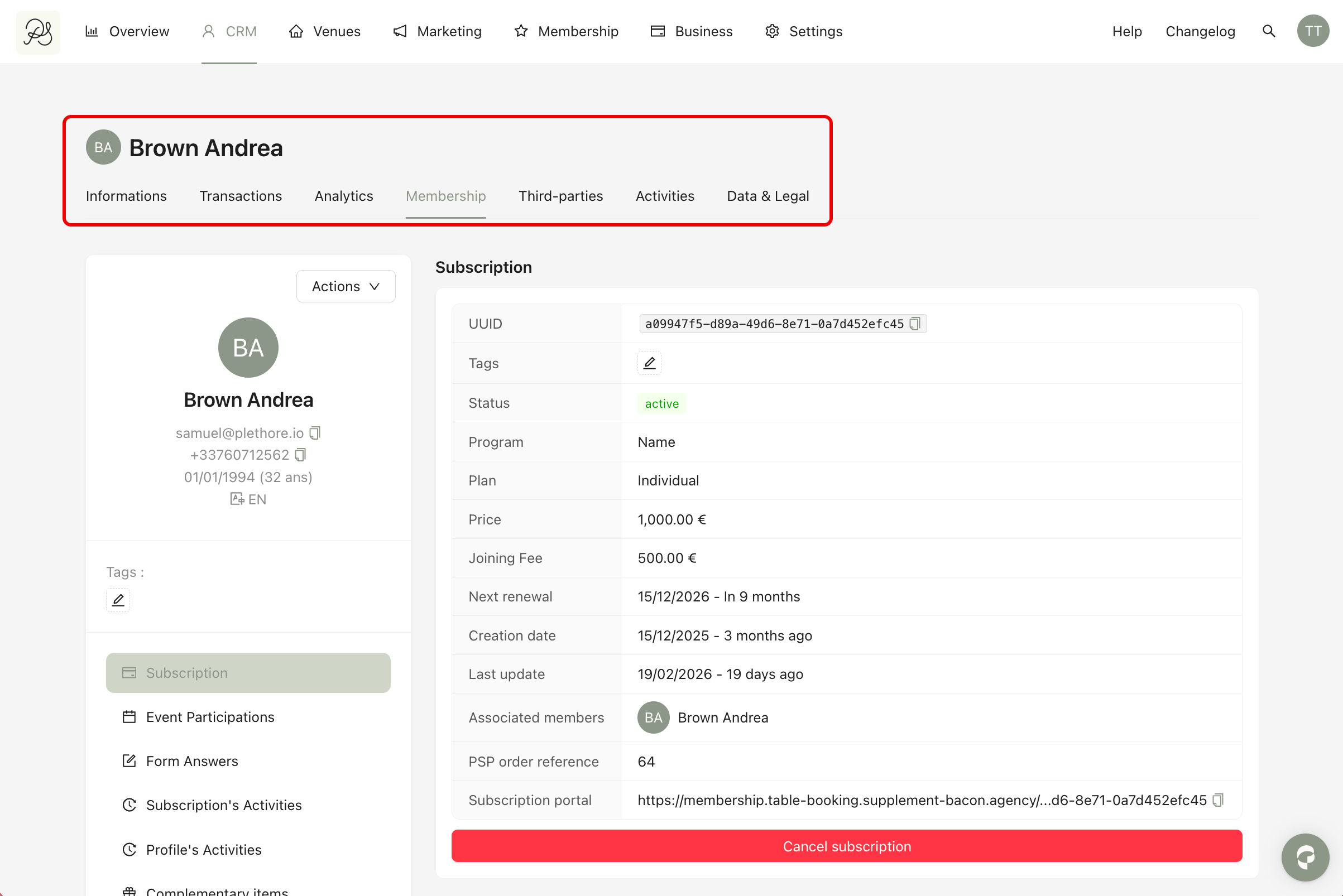
The Member Details page provides a complete view of a specific member’s profile and subscription. To access this page, go to Membership → Members, then click on a member’s row.
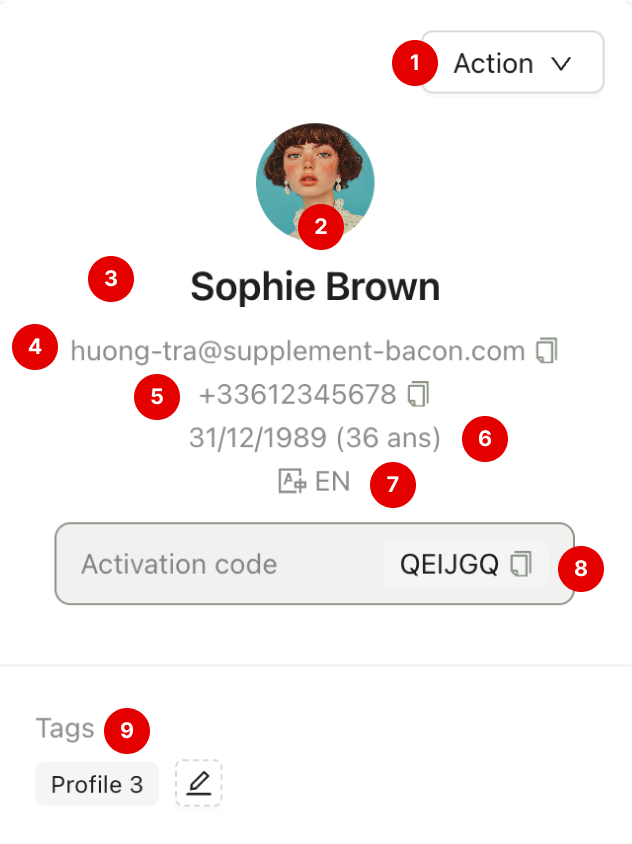
On the left side of the page, you can see the member’s main profile information. This section includes:
Action Button (1): A group of action such as modify information, detach app profile and restrict access to membership program.
Profile picture (2)
Full name (3)
Email address (4)
Phone number (5)
Date of birth (6)
Preferred language (7)
Activation code (if not yet linked to an app account) (8)
Assigned membership profile tags (9)
If the member has not activated their membership in the application yet, the activation code will be displayed here. Once activated, the membership will be linked to their application account.

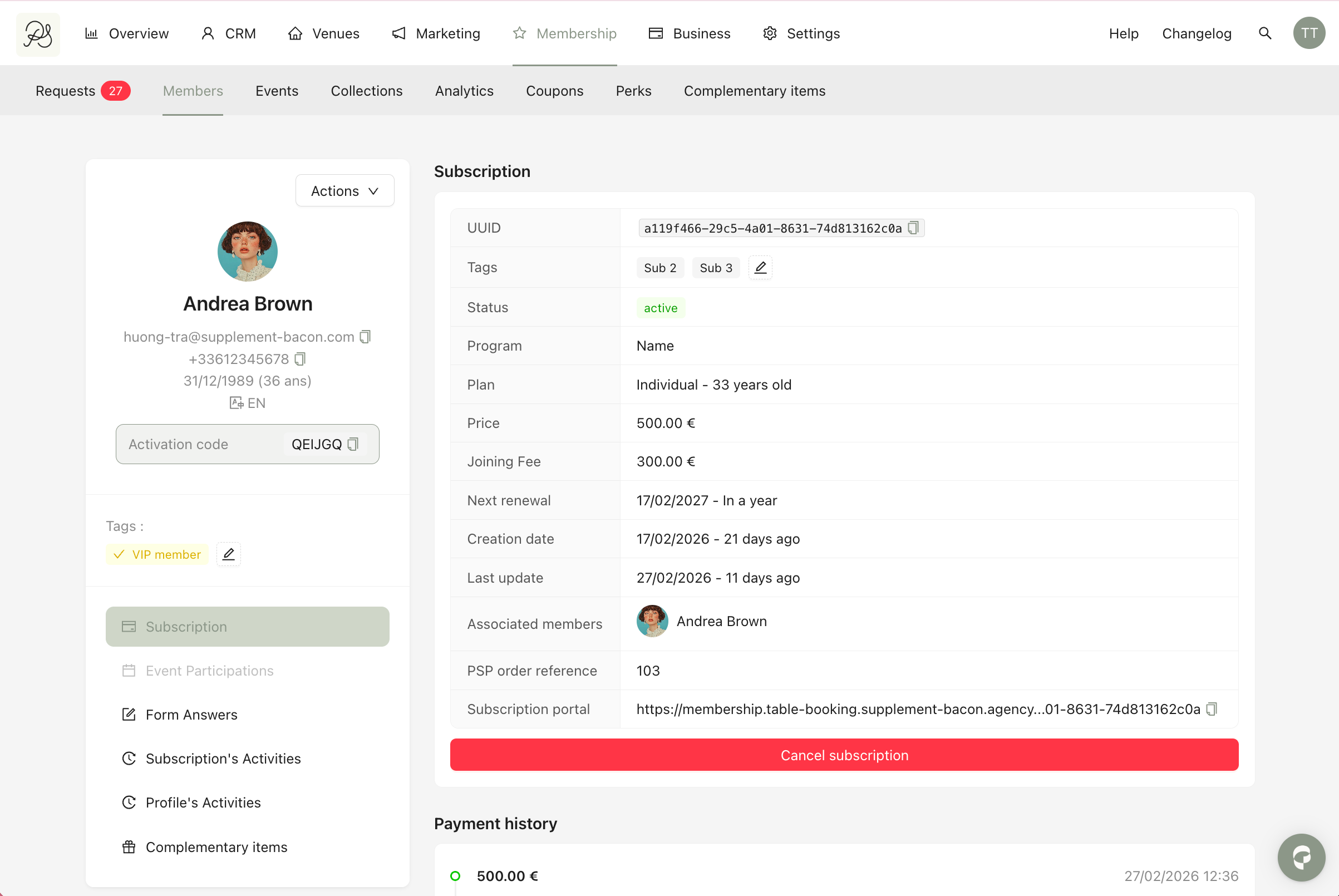
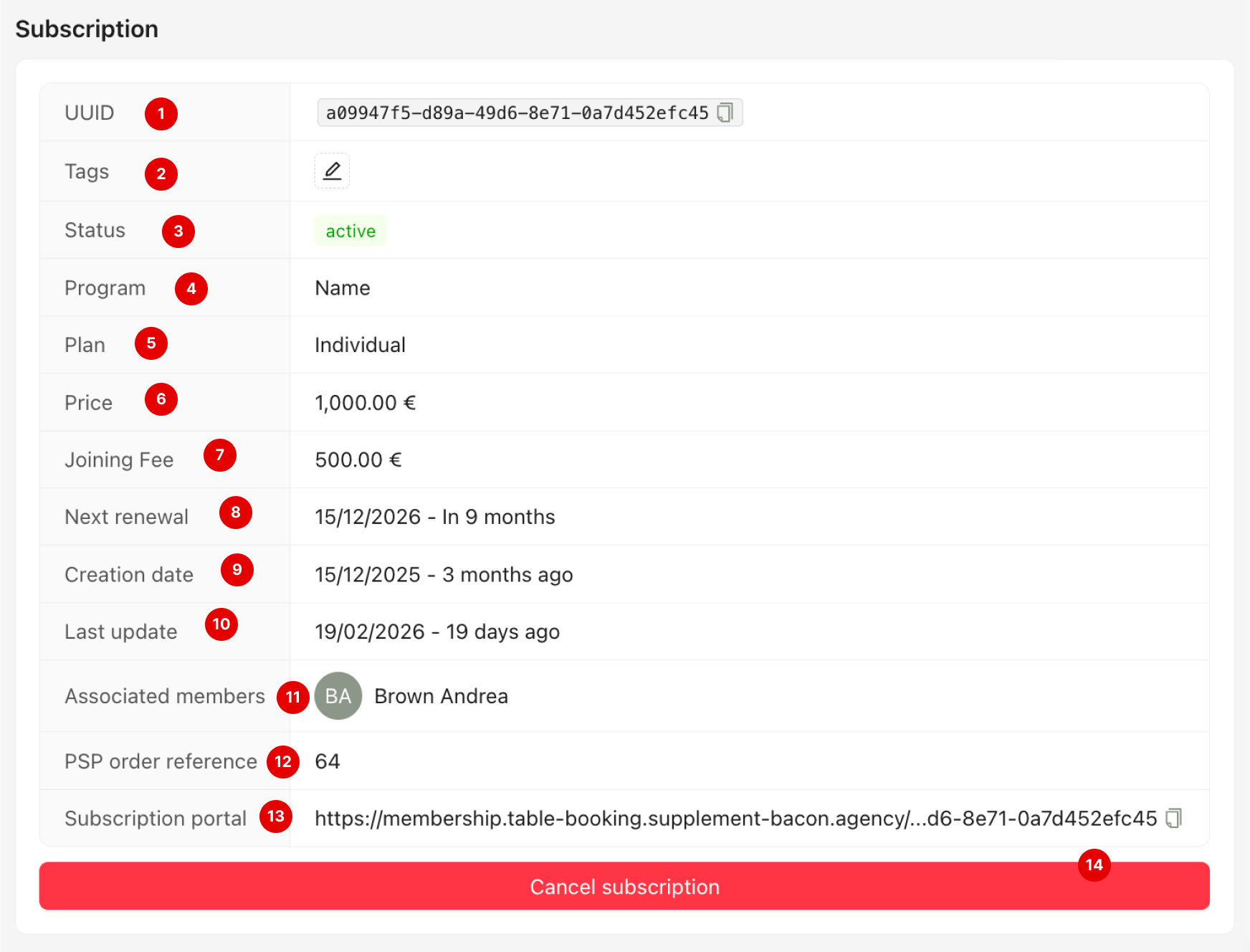
The Subscription section shows the core membership information. This includes:
UUID (1) (internal unique identifier): The unique identifier generated by the system for this subscription.
Tags (2): Custom labels assigned to the subscription.
Status (3): Indicates whether the membership is currently active, awaiting payment data, payment failed, etc.
Program (4): The program of the plan the member subscribed to.
Plan name (5): The name of the membership plan the member subscribed to.
Price (6): The amount charged for the membership plan (recurring).
Joining fee (7): A one-time fee charged when the member first subscribes to the plan (one time).
Renewal date (8): The next scheduled date when the subscription payment is due.
Creation date (9): The date when the subscription was initially created in the system.
Last update (10): The most recent date when the subscription information was modified.
Associated member(s) (11): The member(s) linked to this subscription. If it is a multi member plan, every members will be listed here.
PSP order reference (12): The transaction reference provided by the Payment Service Provider. It is used to track the payment with your payment provider.
Subscription portal (13): The link that redirects to the subscription management page.
Cancel subscription (14): You can cancel the member’s subscription from this section.
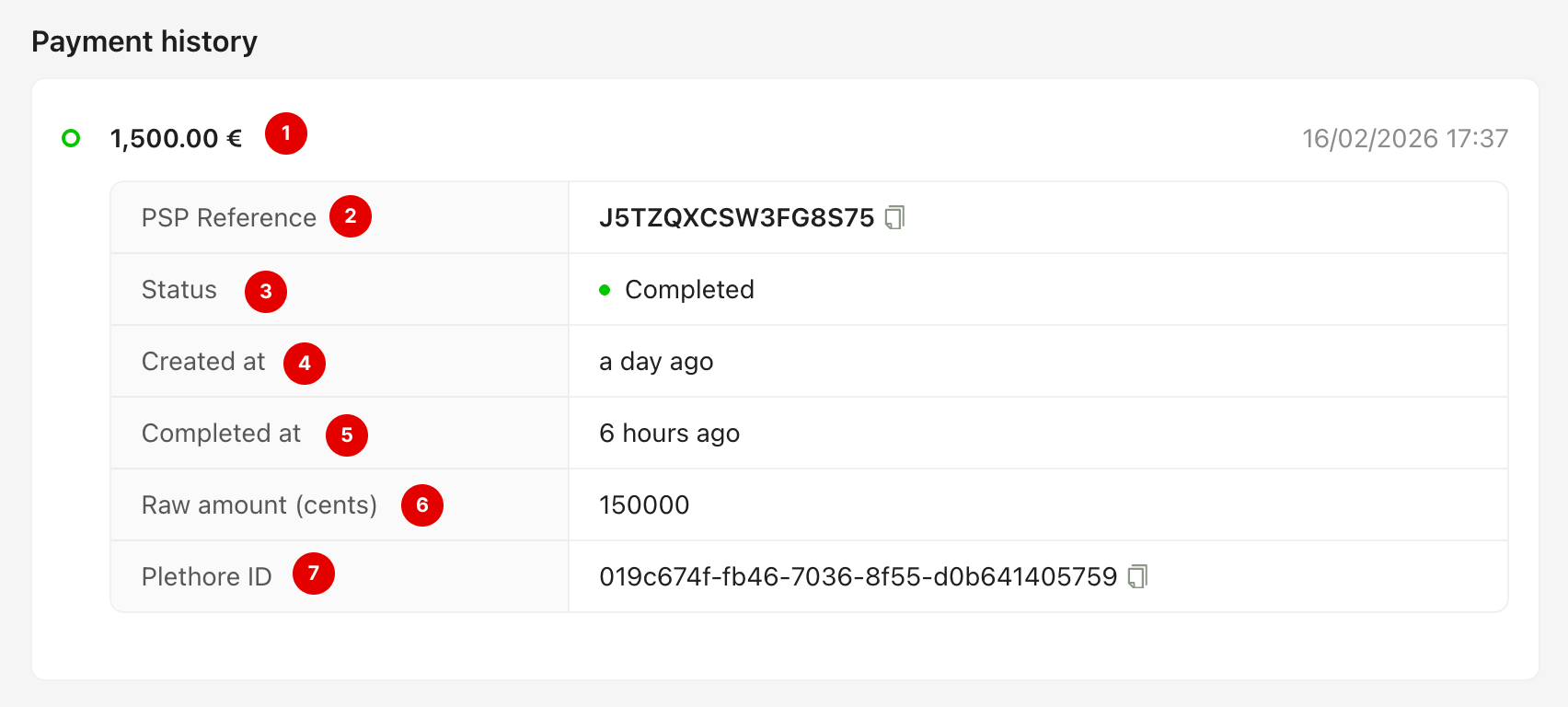
Below the subscription information, you will find the Payment History.
Each payment record shows:
Amount paid (1): The total amount charged for the transaction.
PSP Reference (2): The payment provider’s transaction reference number.
Status (3): Indicates whether the payment is completed, pending, or failed.
Created date (4): The date and time the payment was initiated.
Completed date (5): The date and time the payment was successfully processed.
Raw amount (in cents) (6): The transaction amount expressed in cents.
Pléthore ID (7): The internal transaction ID generated by the system.
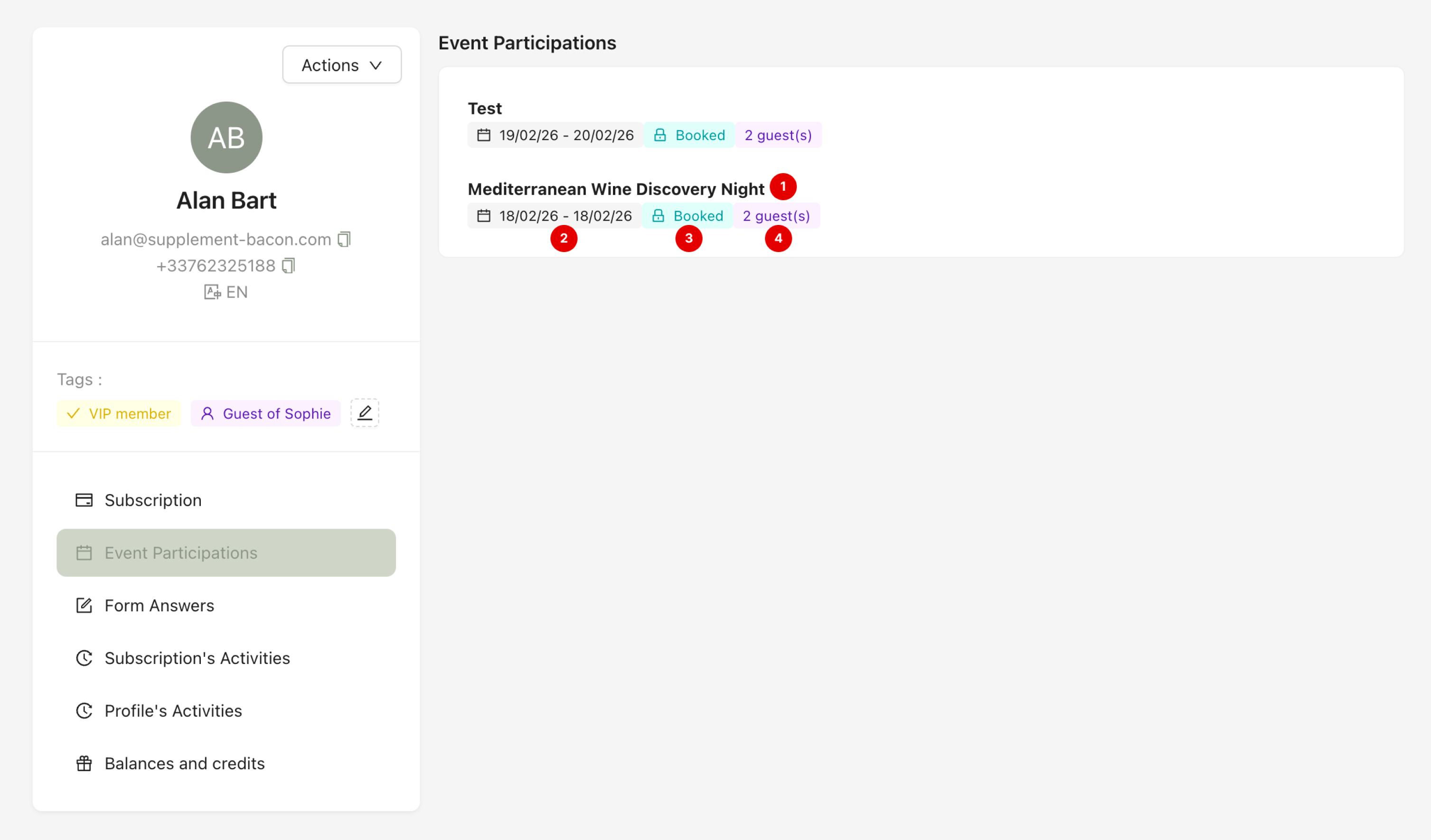
The Event Participation section shows the events the member has booked or attended. For each event, you can see:
Event name (1)
Event date (2)
Booking status (3)
Number of guests (4)
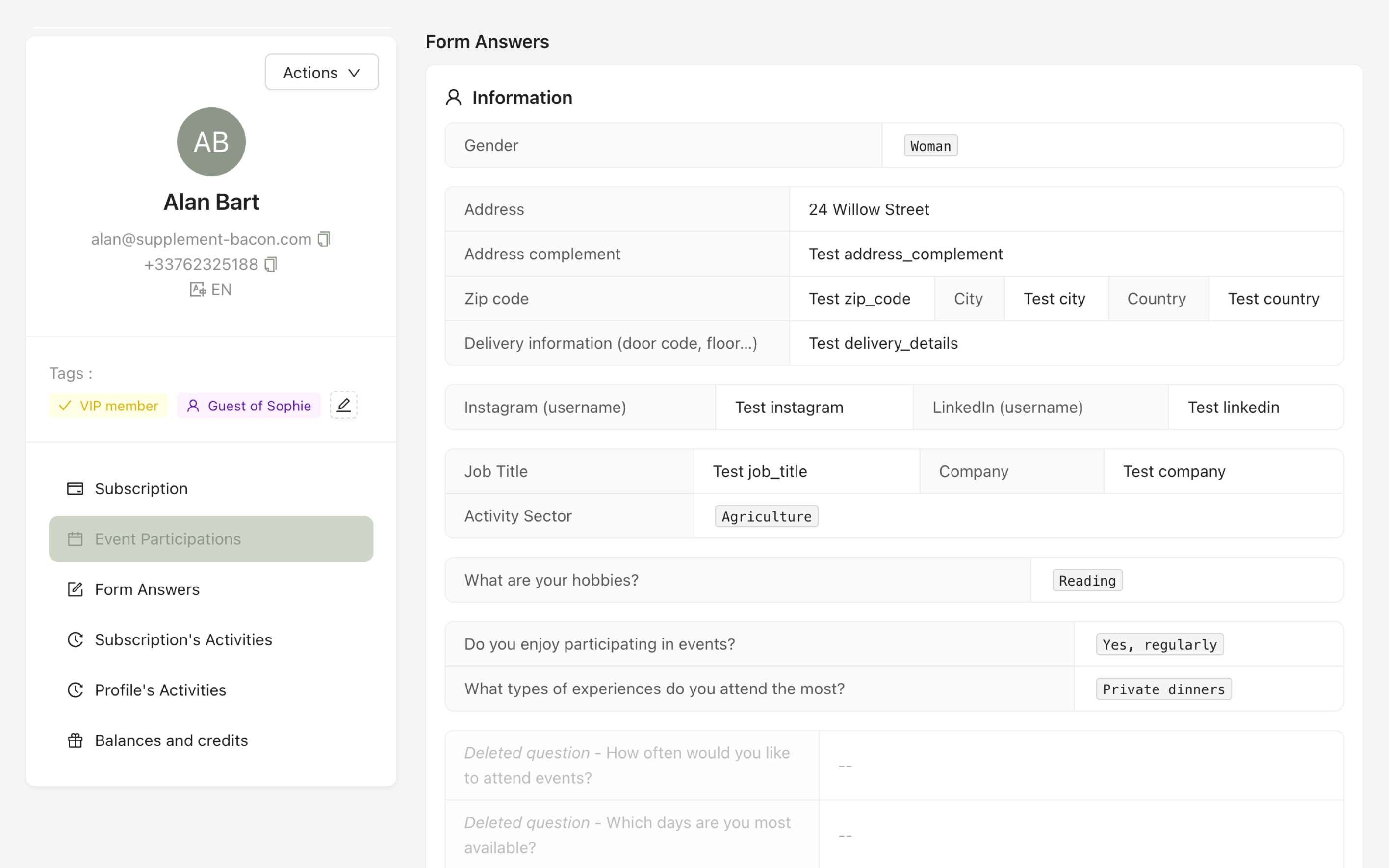
The Form Answers section contains the information submitted by the member during the registration process. You can review their responses to all custom fields configured in your membership form.
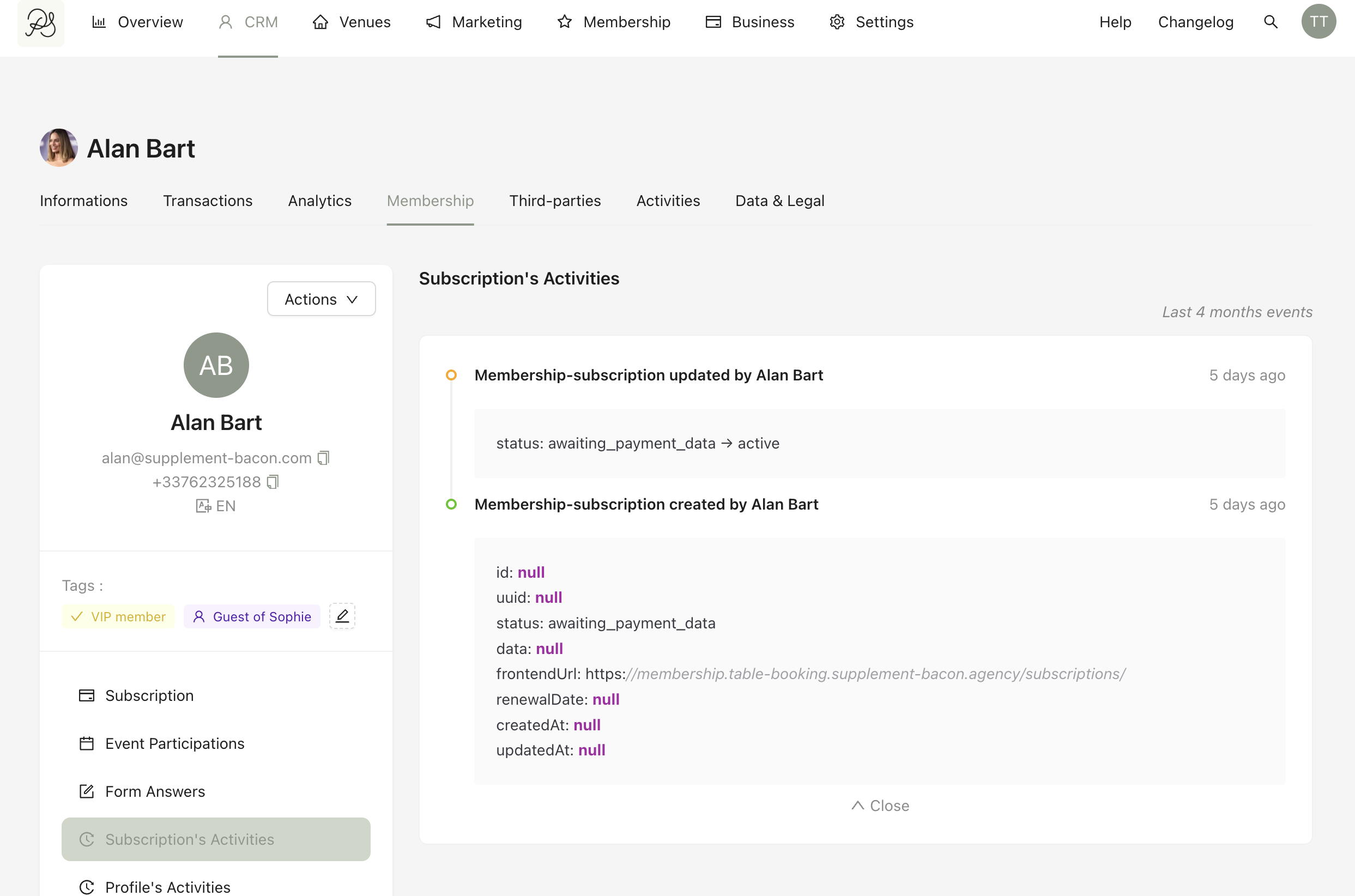
The Subscription’s Activities section provides a timeline of actions related to the subscription itself.
This includes:
Creation of the subscription
Status changes
System updates
Manual changes made by admins
Each entry shows who performed the action (system or admin) and when it happened.
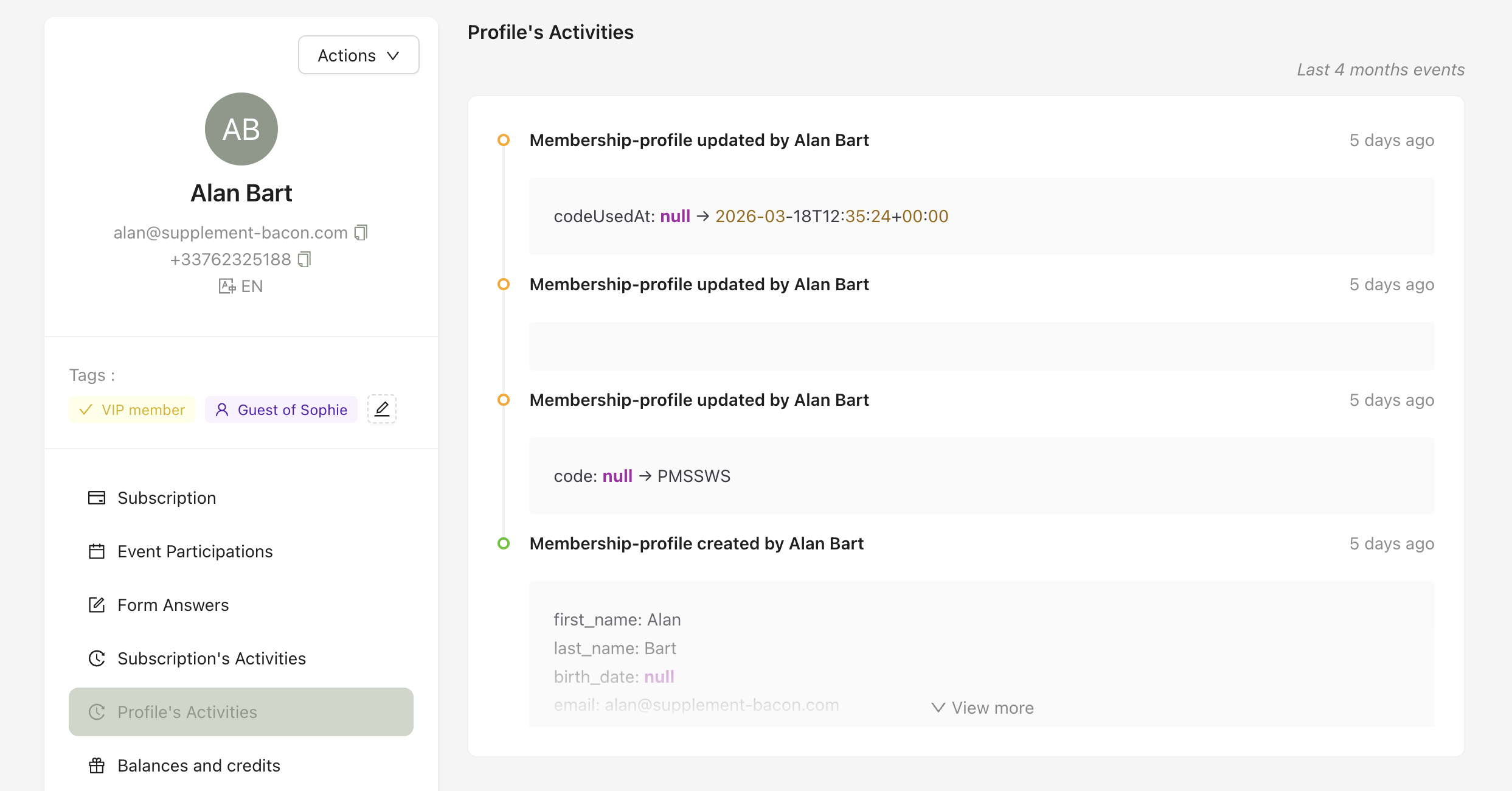
The Profile’s Activities section tracks updates made to the member’s profile.
This may include:
Profile creation
Changes to personal information
Activation code usage
Updates performed by an admin
System-generated changes
For example, when a member uses their activation code in the app, the activity log records the change from null to the actual code used.