You can manage all your membership events directly from the dashboard.
From the Events section, you can view events in a calendar format, access detailed event information, track bookings and analytics, edit event settings and delete events when necessary.
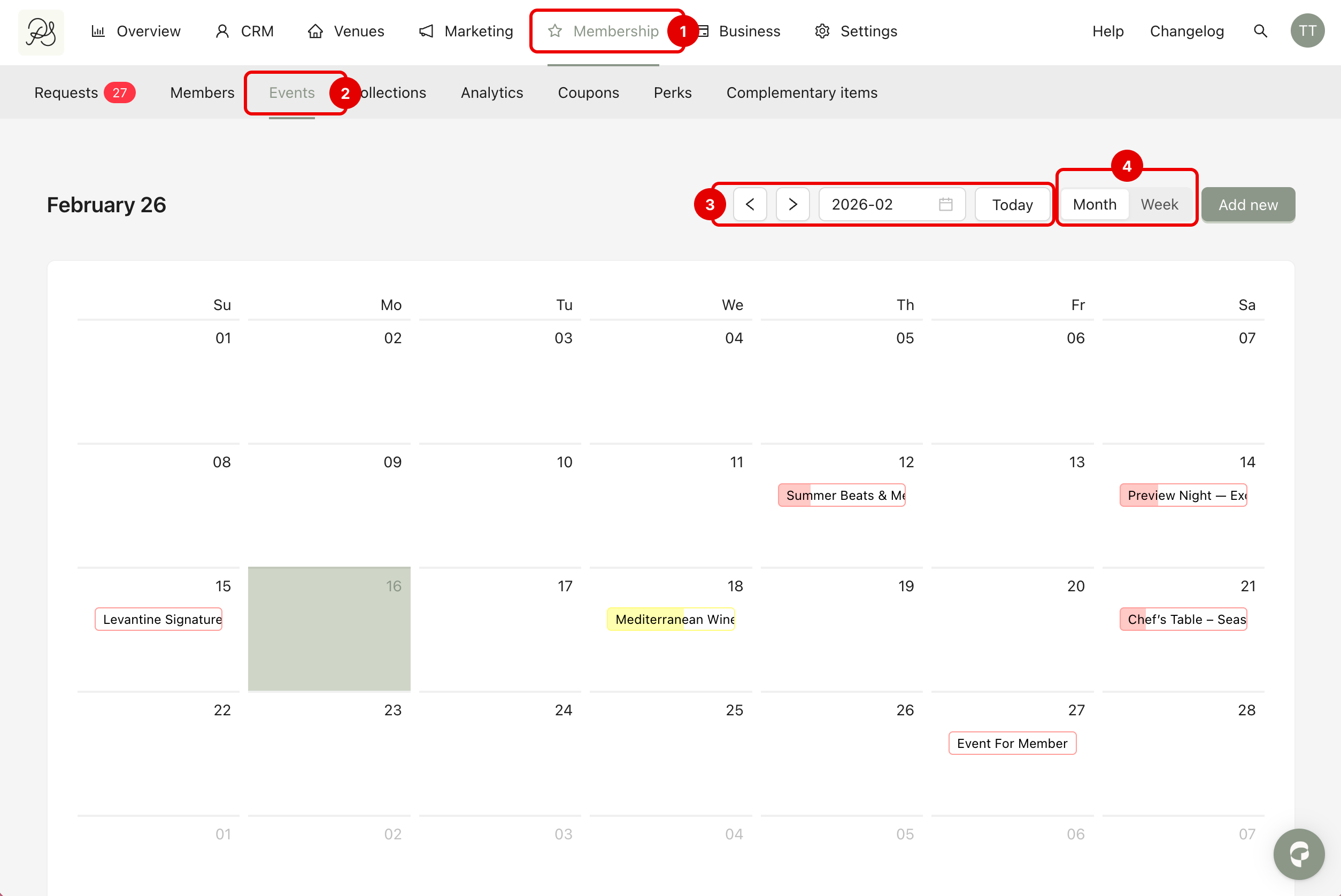
To view all events, go to Membership (1) → Events (2). You will see a calendar displaying your events at their scheduled date and time. At the top of the page, you can use the filter bar to adjust the date range and display events for a specific period (3). You can also switch between weekly and monthly views (4).
To view the details of a specific event, click on the event in the calendar. You will be redirected to the event’s dedicated detail page.
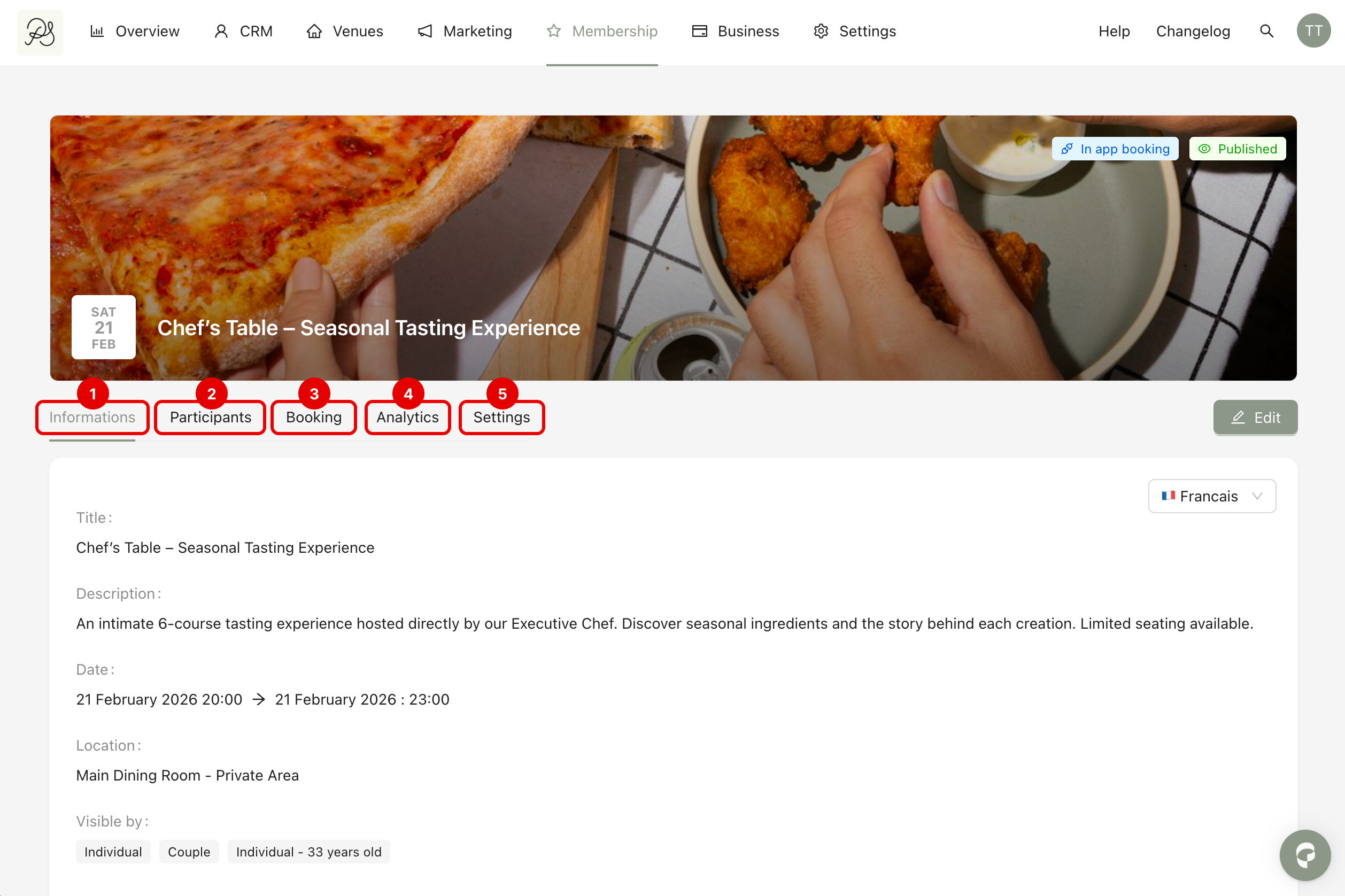
On this page, you can access several tabs:
Main Information (1): Displays the information you entered when creating the event, such as title, description, date, location, and booking configuration.
Participants (2): Shows the list of members and guests registered for the event.
Booking (3): Displays booking statistics, including: Total number of bookings, Number of participants, Remaining available spots.
Analytics (4): Provides performance insights: Booking conversion rate and number of event openings.
Settings (5): Allows you to delete the event and view activity update logs related to the event.

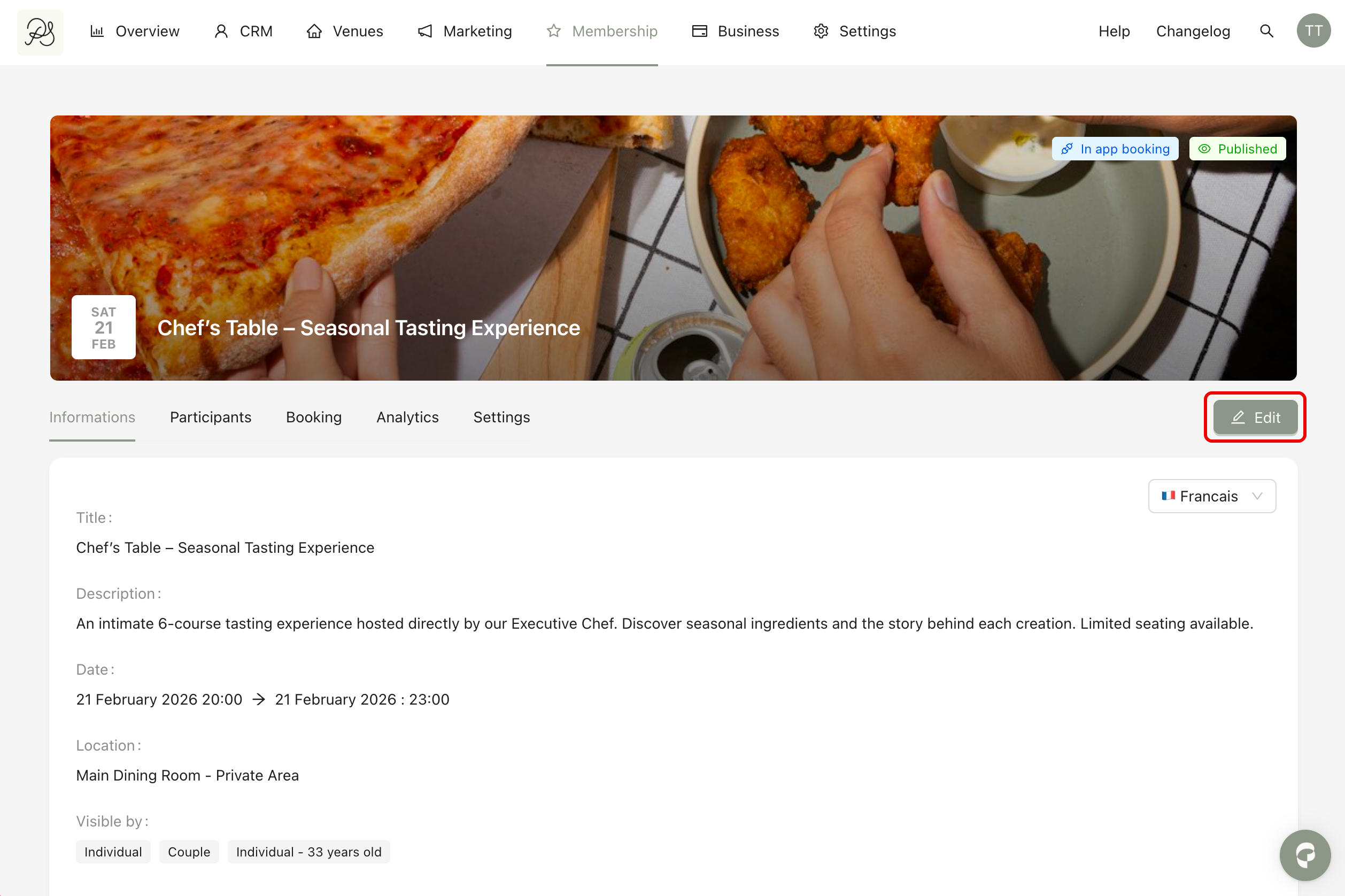
Step 1: To edit an event, go to the event detail page and click the Edit button.
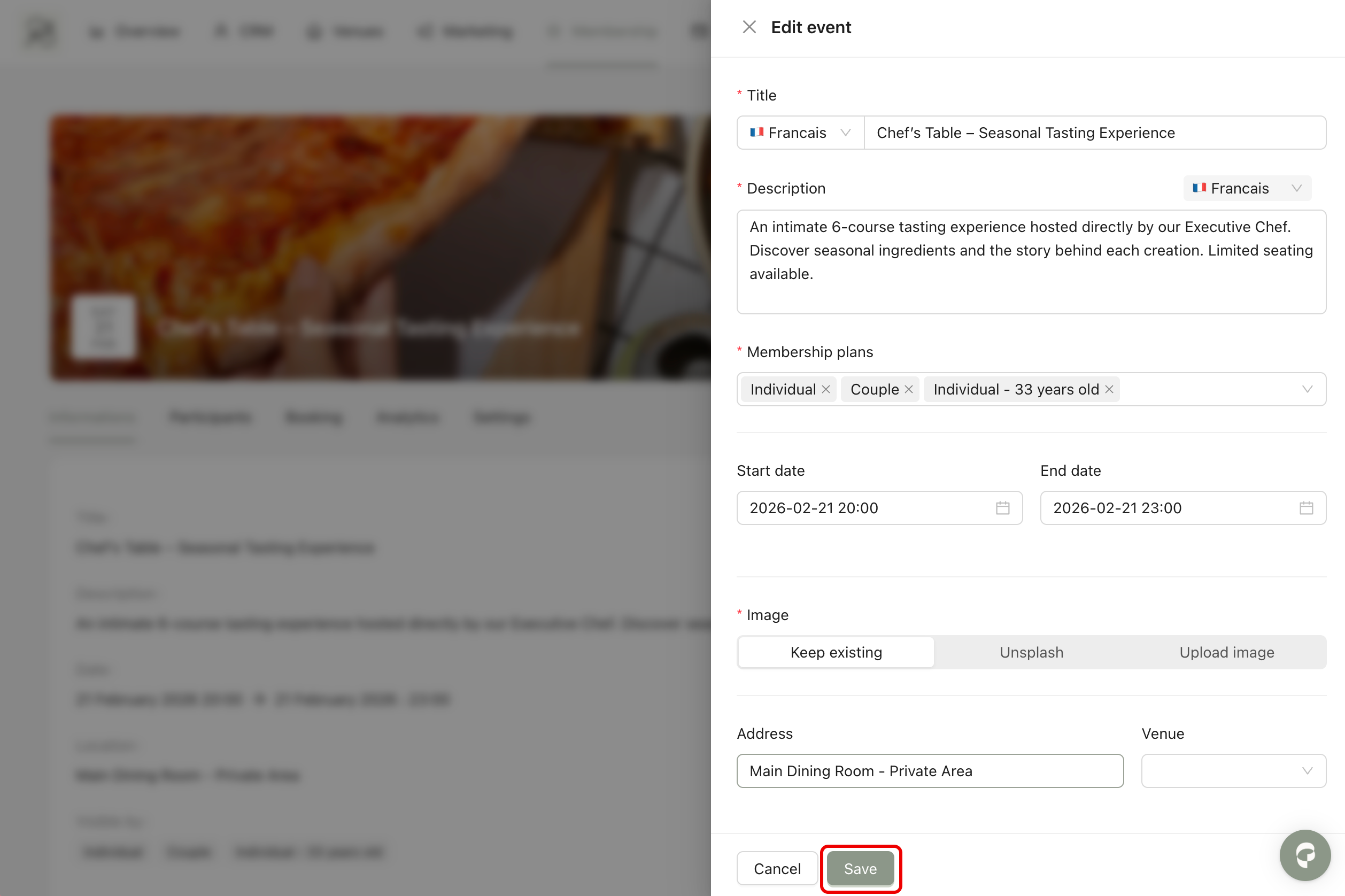
Step 2: A side modal will open, allowing you to modify the event information (title, date, booking rules, etc.). After making changes, save your updates to apply them.
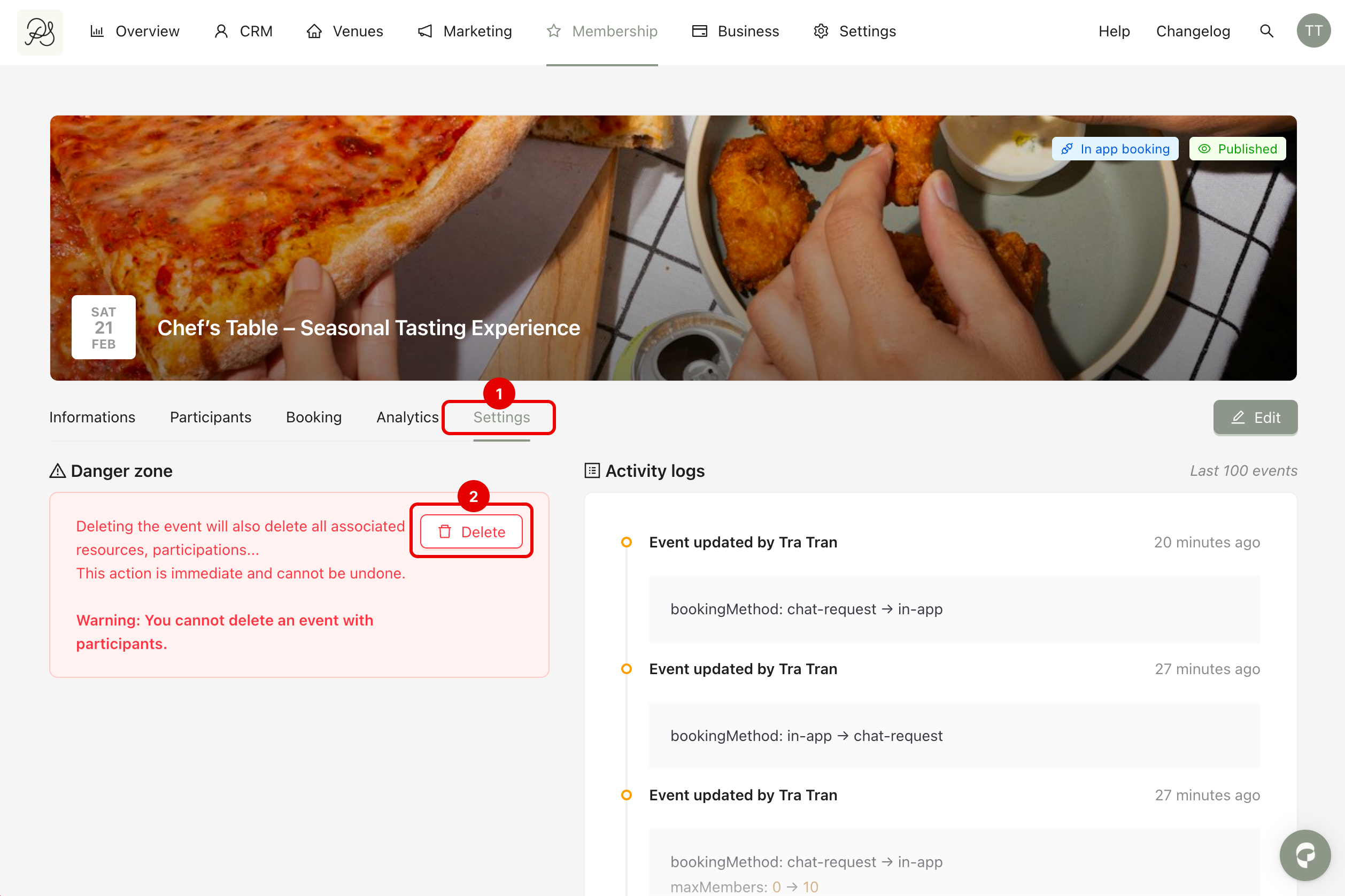
To delete an event, go to the event detail page, open the Settings tab (1) → Click the Delete button (2).