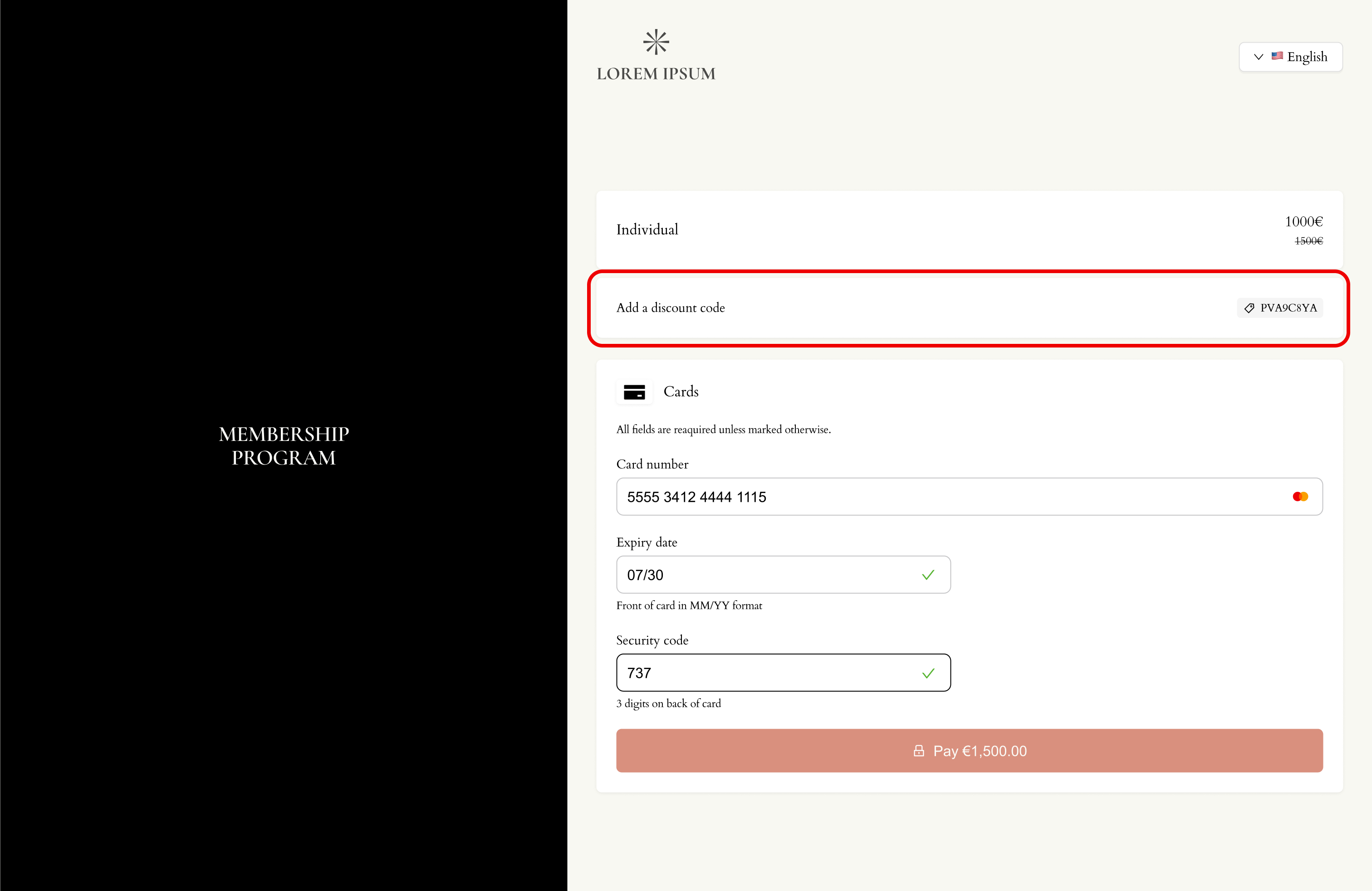
Coupons are used to offer discounts when customers subscribe to a paid membership plan. You can create discount codes directly from the dashboard, define how they apply, limit their usage, assign them to specific plans/programs, and track their performance.
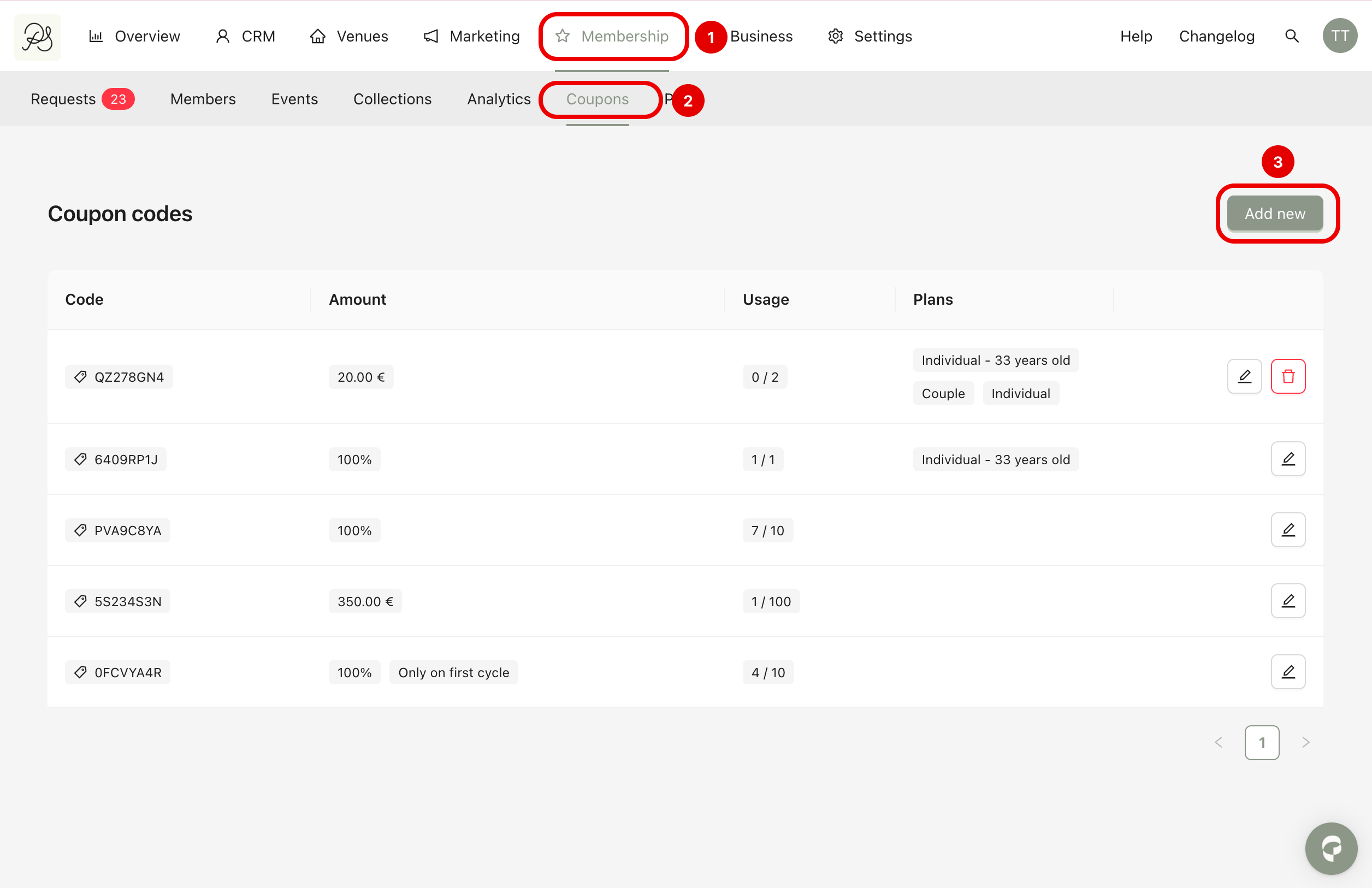
Step 1: Go to Membership (1) → Coupons (2) and click Add new (3).
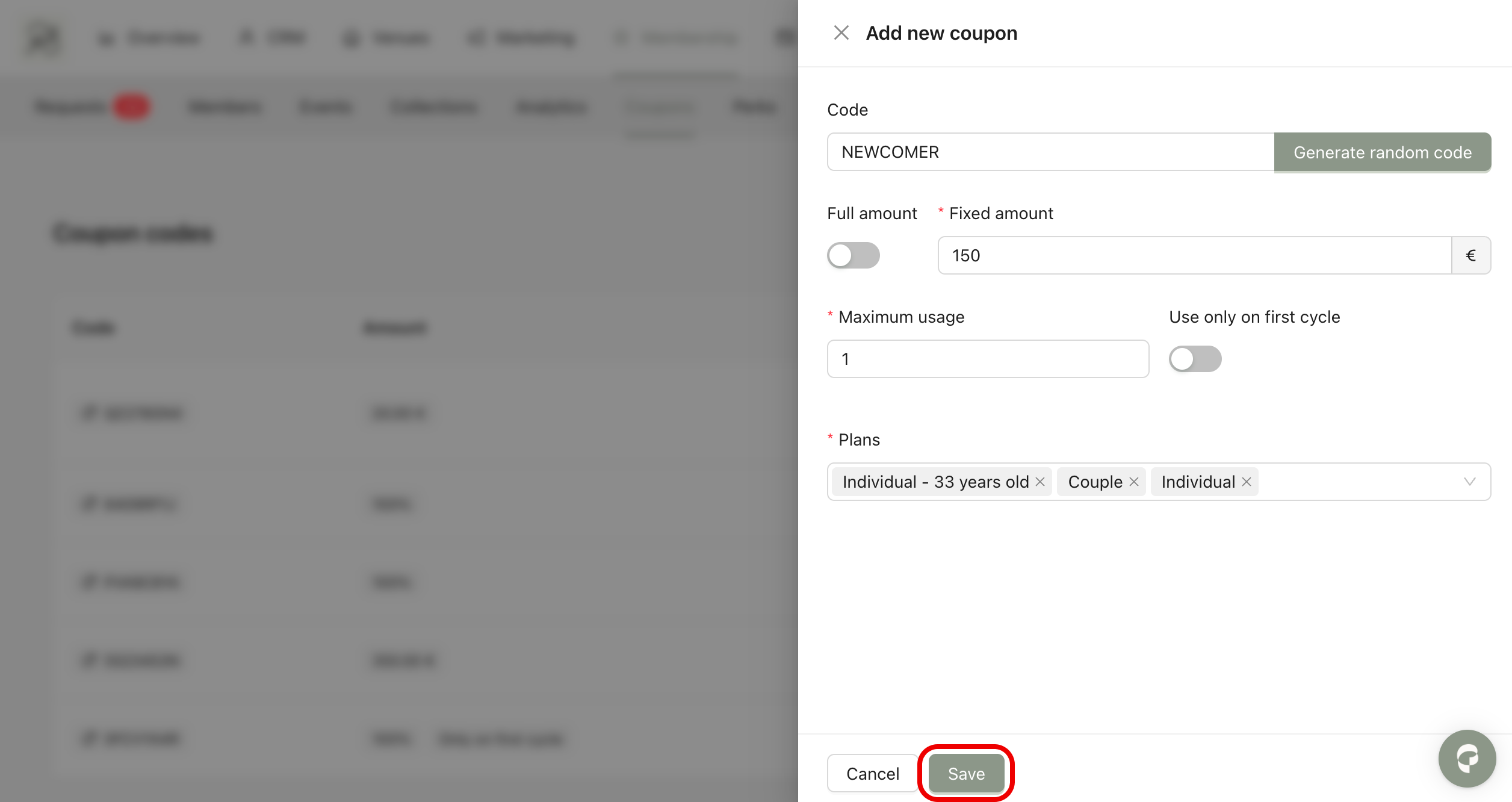
Step 2: A modal will appear where you can configure the coupon settings.
Code: Enter the discount code that customers will use during subscription. You can create your own custom code or generate a random one.
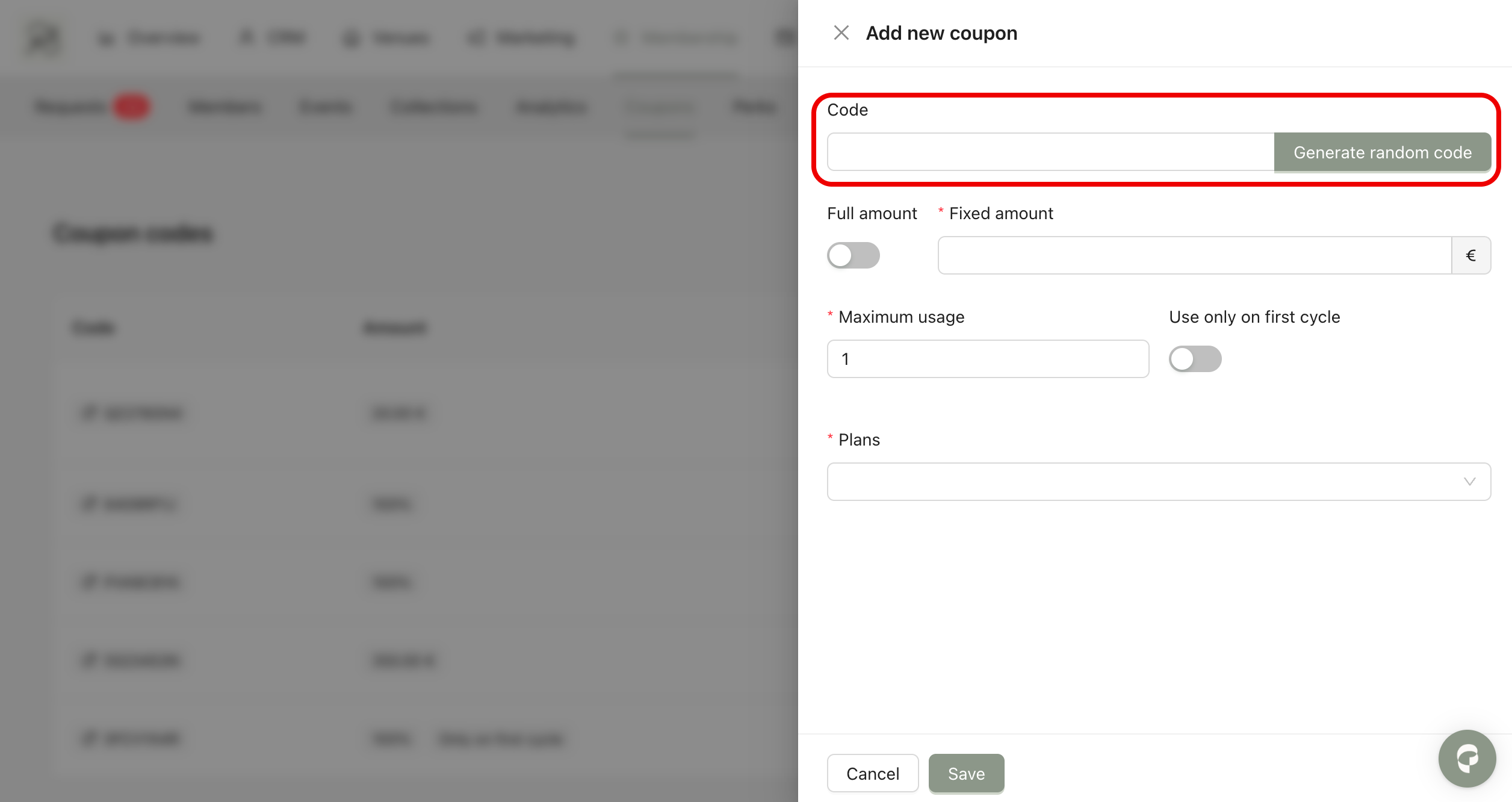
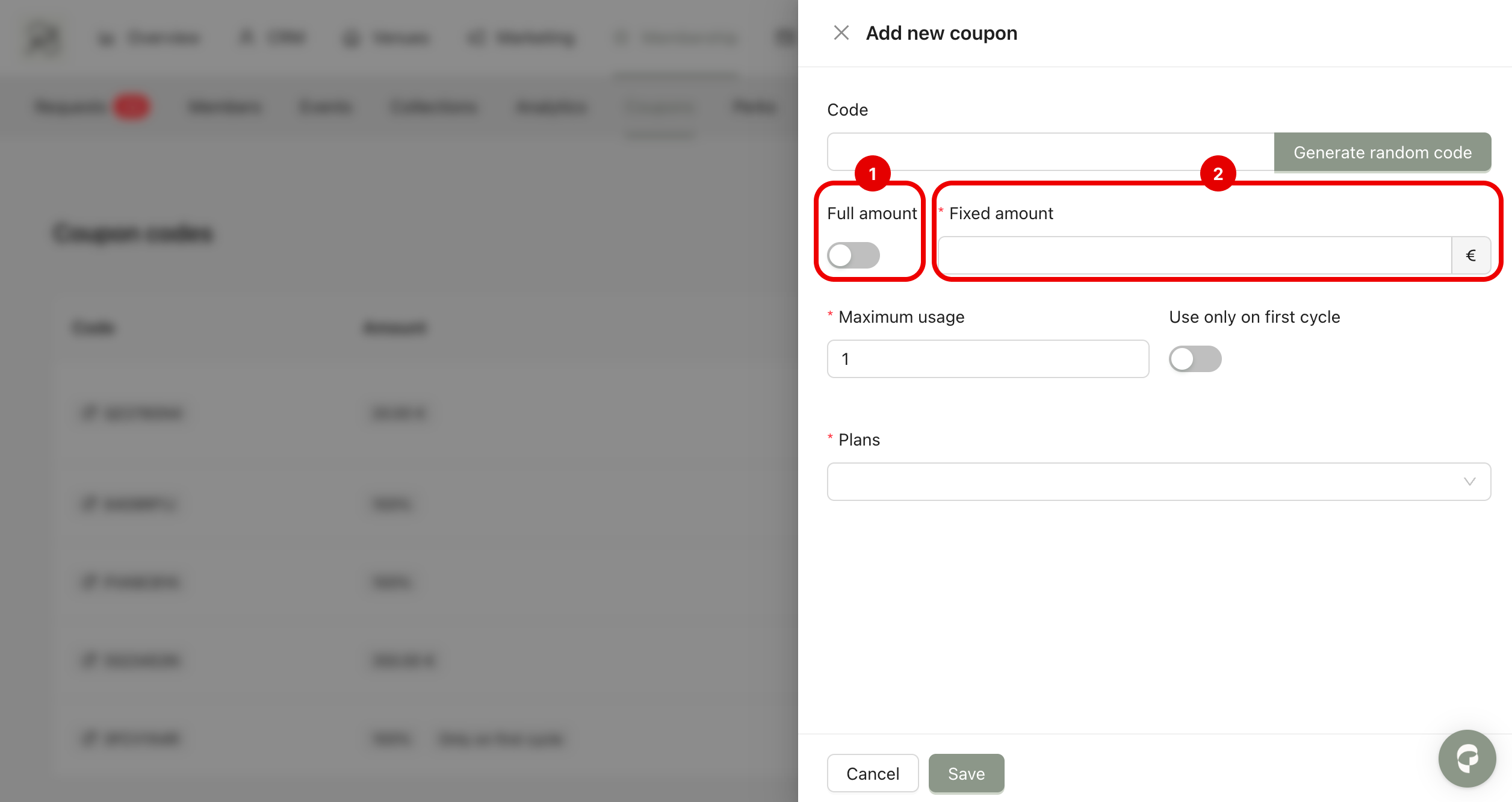
Amount: There are two options to define the discount value:
Full amount (1): This reduces the entire price of the plan. For example, if the plan costs 1000€ or 2000€, applying the coupon reduces the price to 0€, making the membership free.
Fixed amount (2): Enter a specific value to subtract from the plan price (joining fees + recurrent fees). For example, if you enter 100€, a 2000€ plan becomes 2900€, and a 1000€ plan becomes 900€.
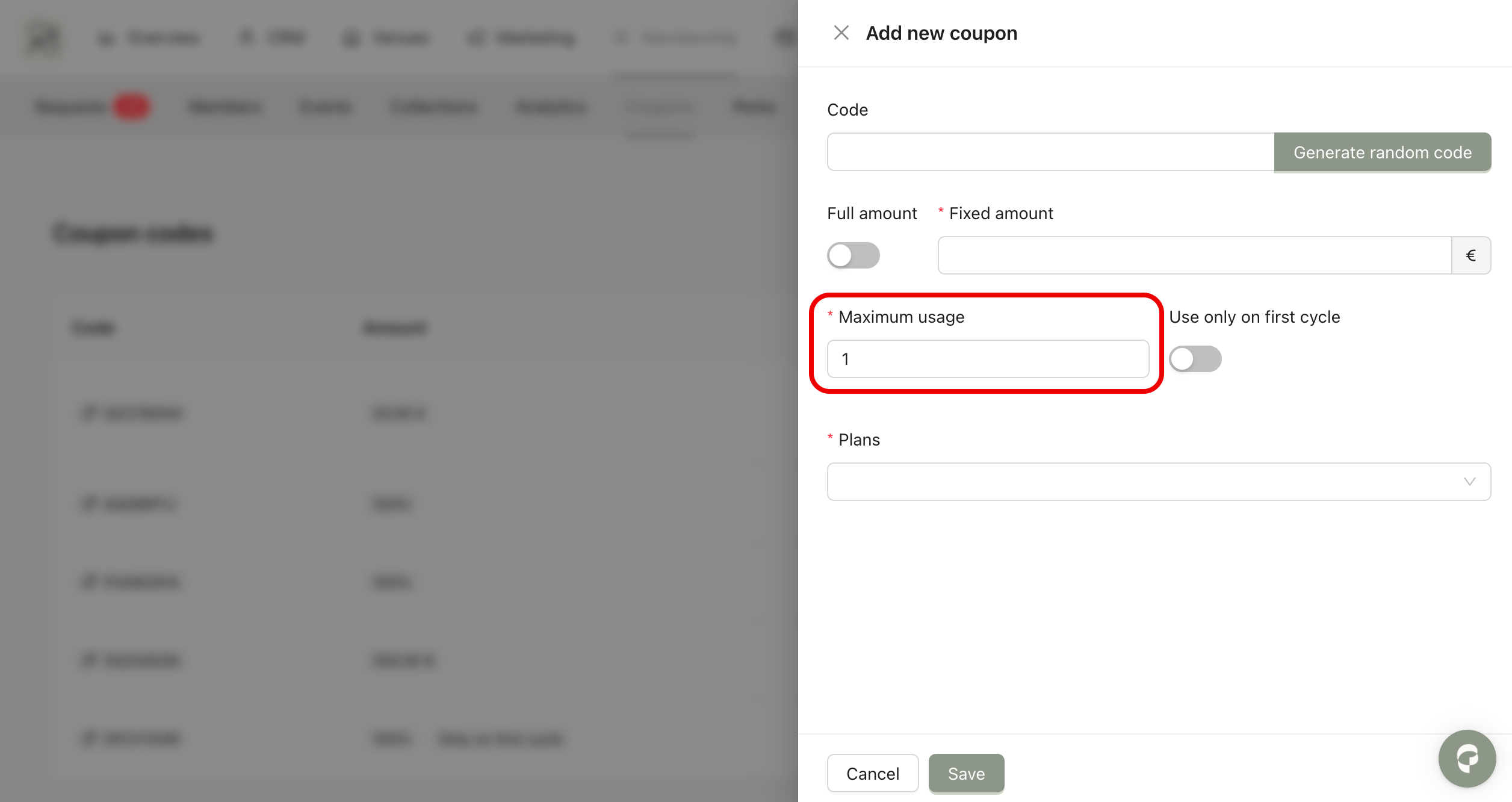
Maximum usage: Define how many times the coupon can be used. Once the limit is reached, the code becomes invalid.
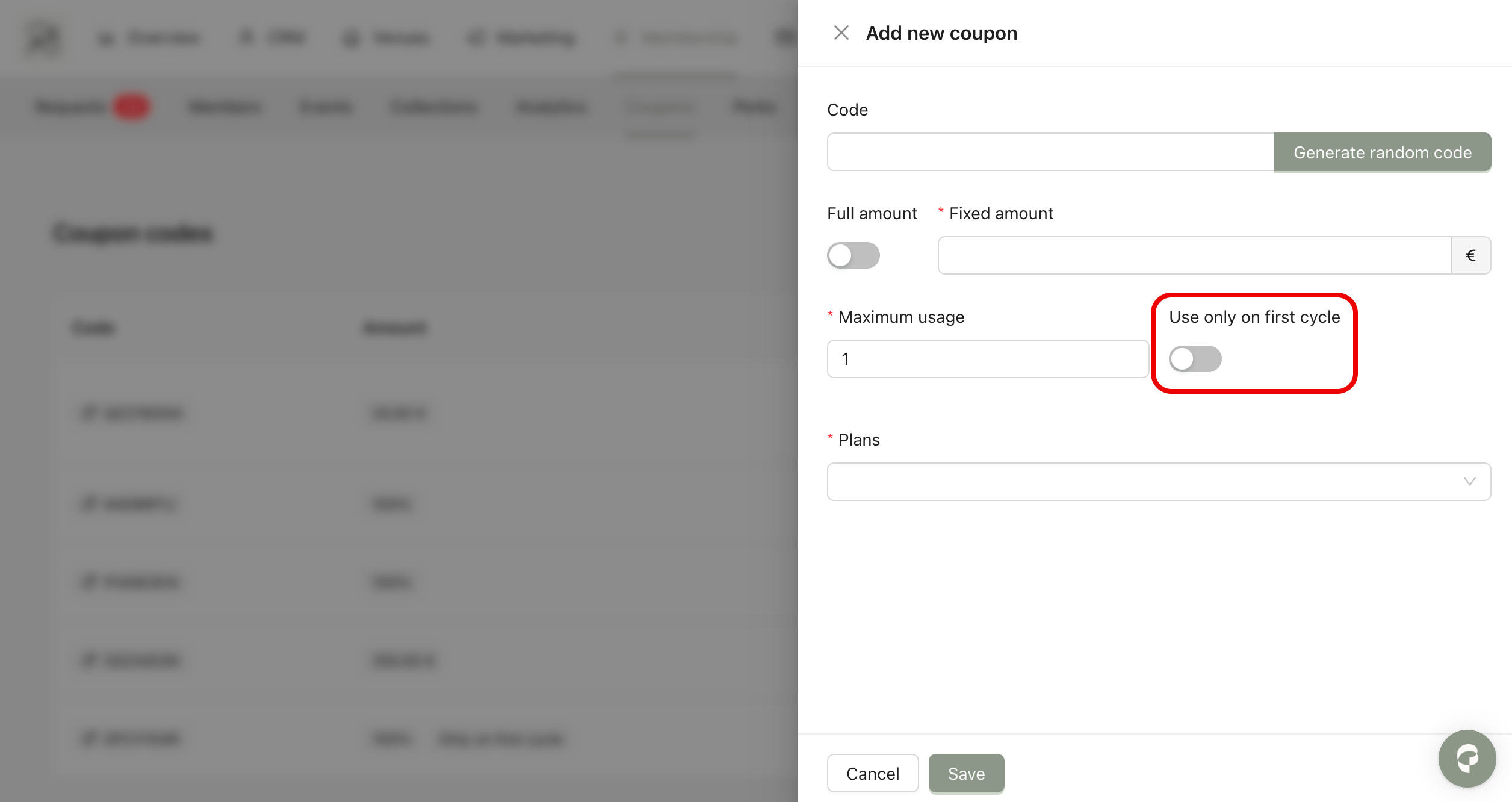
Use only on first cycle: This option defines whether the coupon applies only to the first payment or to recurring renewals.
If the toggle is turned on, the discount will continue to apply to future renewal payments. For example, if Sophie subscribes to a 2000€ plan using a 100€ coupon, she pays 1900€ initially and will continue to pay 1900€ on each renewal.
If the toggle is turned off, the discount applies only to the first payment. Using the same example, Sophie pays 1900€ the first time and 2000€ at renewal.
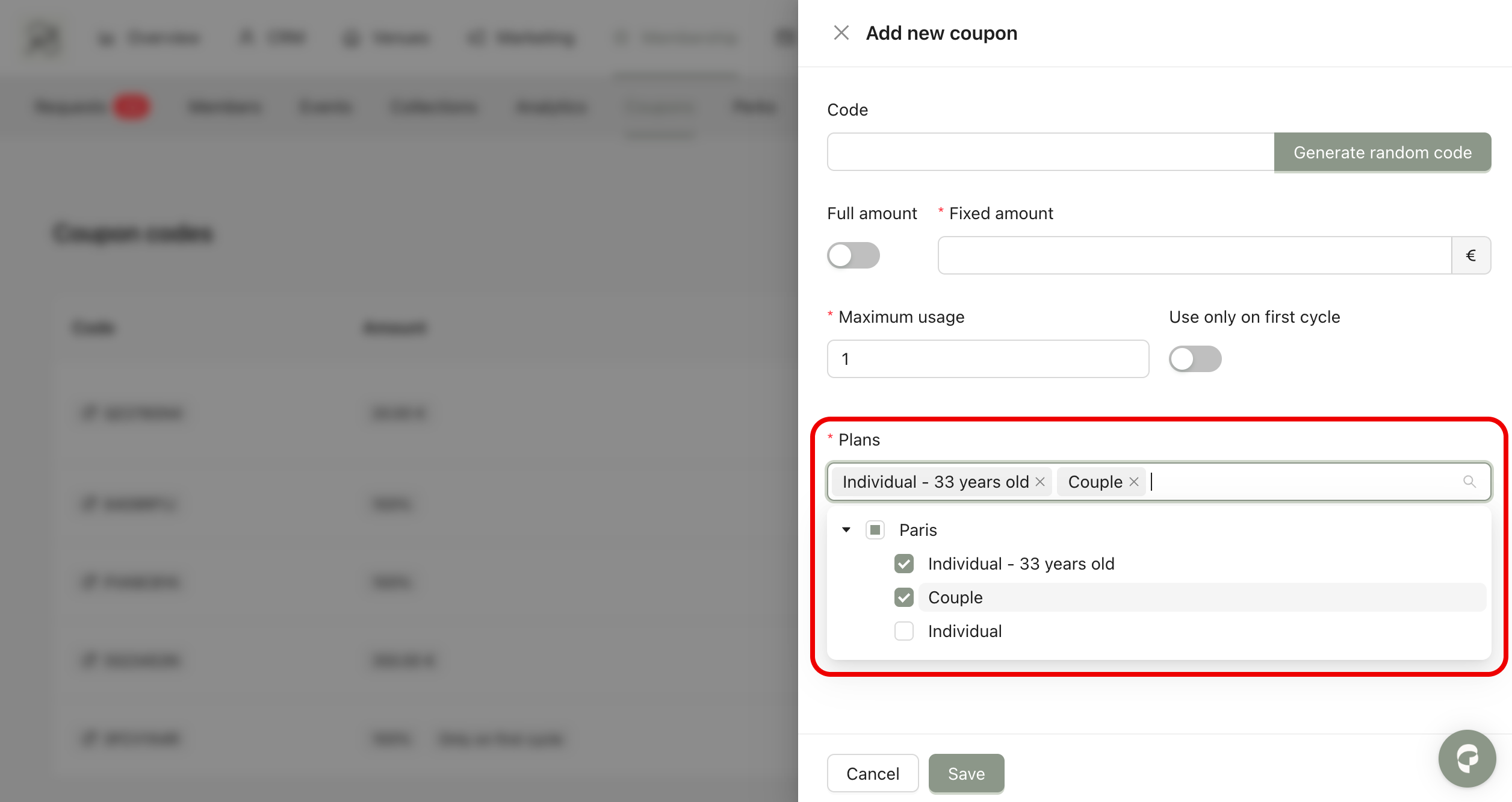
Plan: Select the membership plan(s) where the coupon can be applied. Customers subscribing to other plans will see the code as invalid.
Step 3: Click Save to create the coupon.
 Final Result: The coupon is now active. Customers can enter the code during the subscription process to receive the discount.
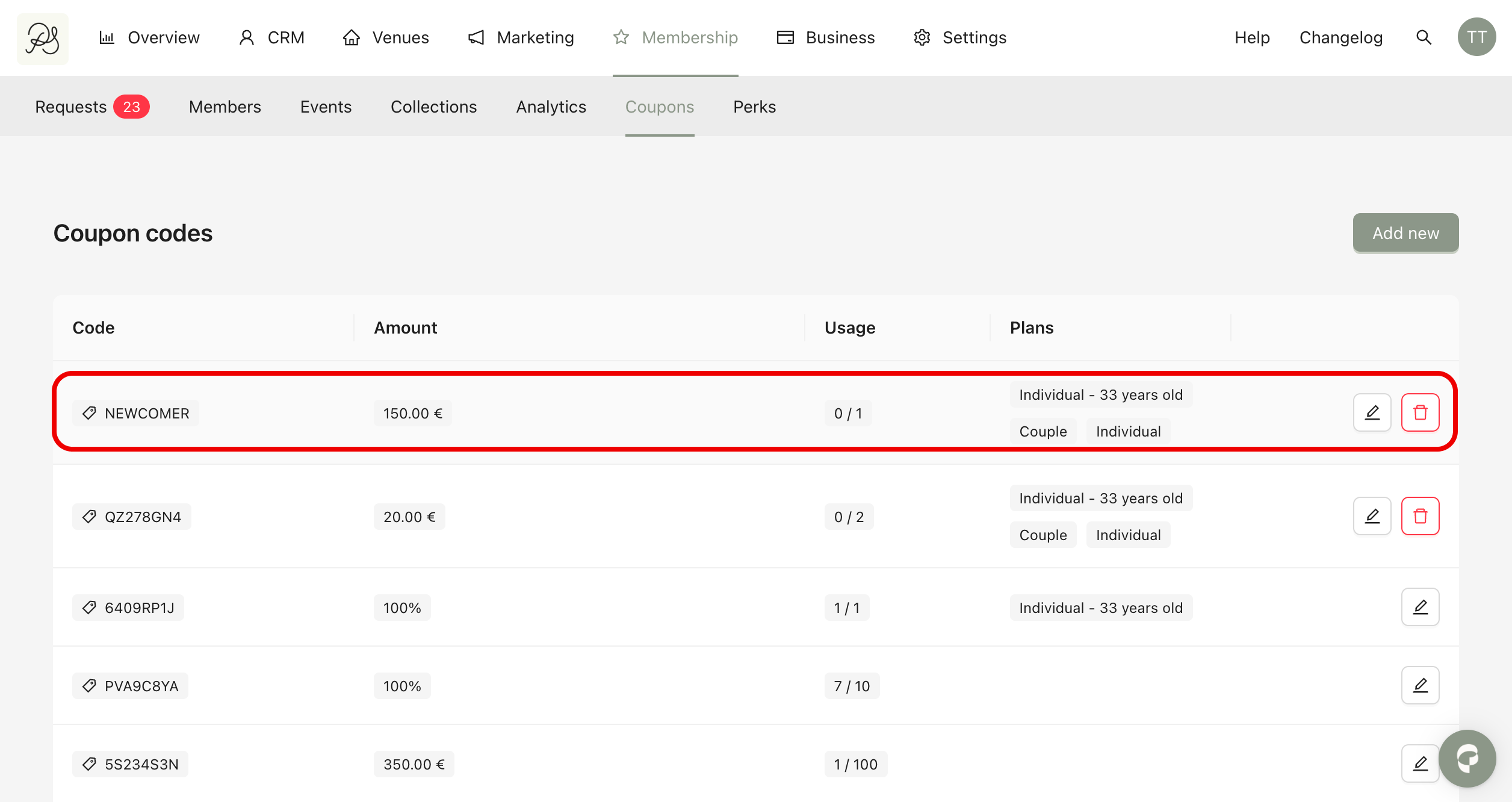
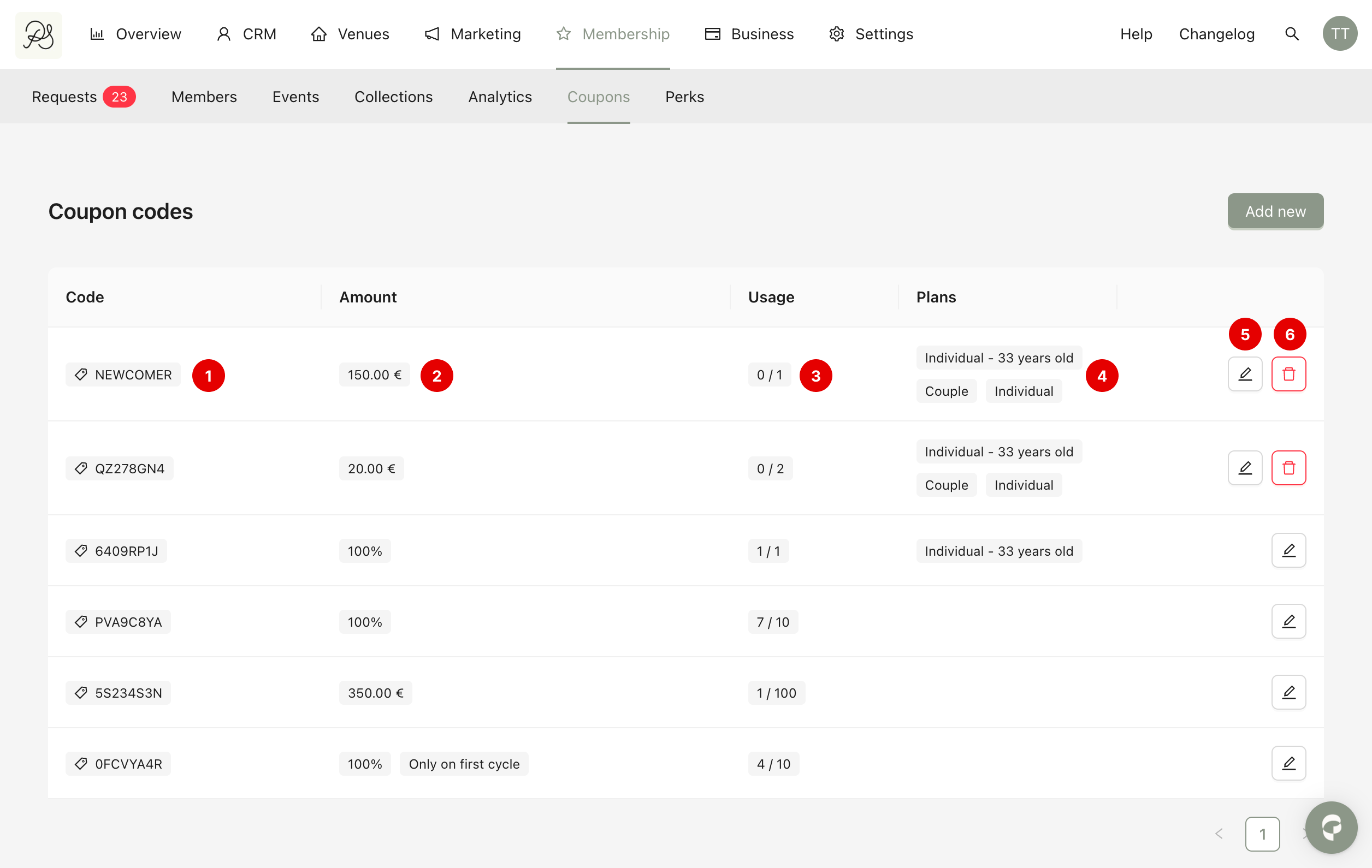
To manage existing coupons, go to Membership → Coupons. You will see a table listing all created coupons.
Code (1): Displays the discount code customers use to enter.
Amount (2): Shows the discount value. If it is a full discount, it will display 100%. If it applies only to the first cycle, a badge “Only on first cycle” will appear.
Usage (3): Shows how many times the coupon has been used compared to its maximum allowed usage.
Plans (4): Displays the membership plans where the coupon is valid.
Edit Code (5): Click the pen icon to edit the coupon. You can only modify the maximum usage and the associated plans.
Delete Code (6): Click the delete icon to permanently remove the coupon. If the coupon has already been used at least once, it cannot be deleted.