
If users cannot see the Book button on a venue page, it is usually due to a configuration setting in the Back Office. This guide helps you quickly identify and fix the most common cause.
Step 1: Go to the Venues page, then select the venue you want to check. Open the Booking tab (1).
Step 2: In the Make your venue bookable in the app section, verify that the option is enabled (2) .
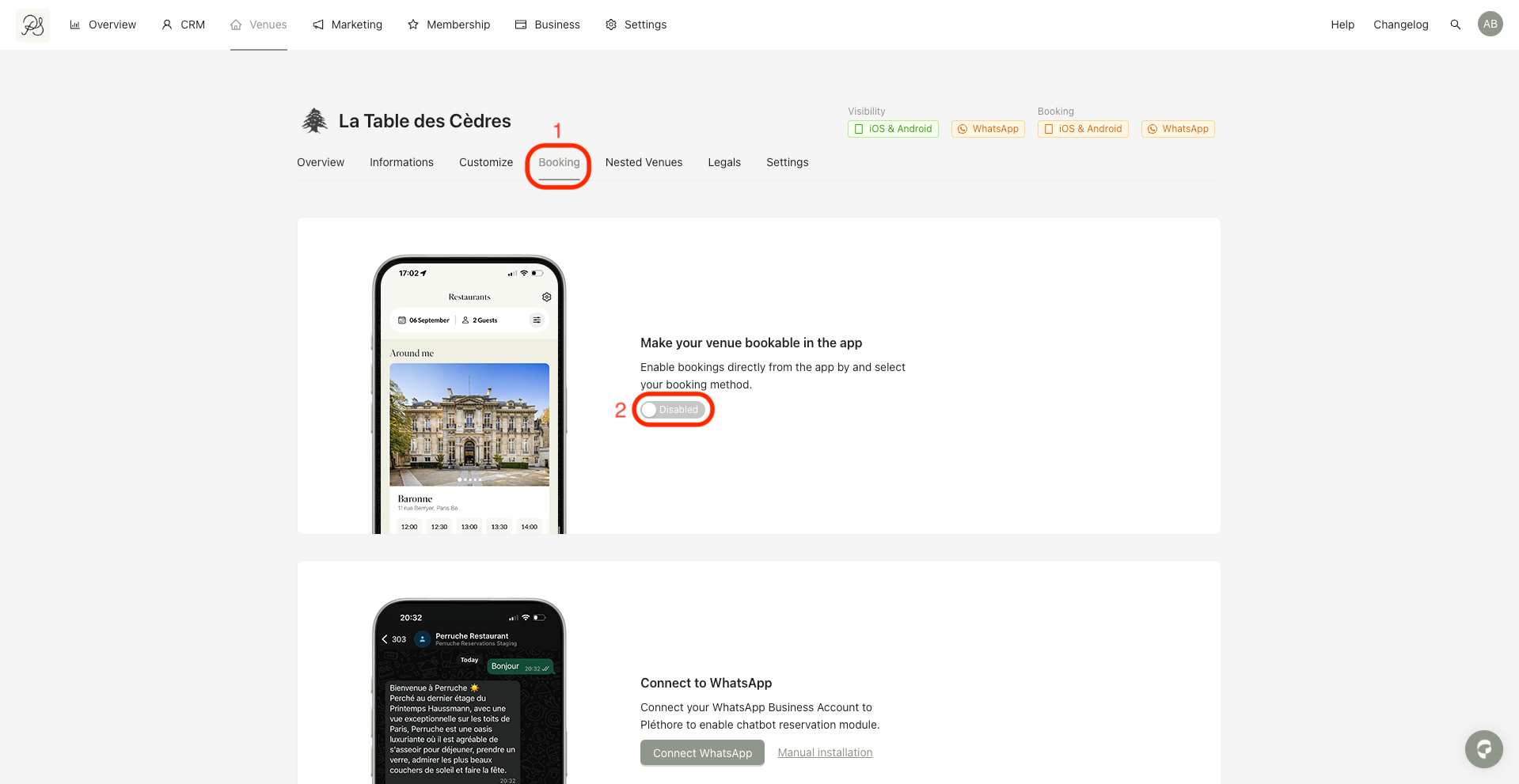
If this option is not activated, the booking button will not be displayed in the mobile application.
Once enabled, the Book button will appear on the venue page for users.

Learn how to make the Book Button work: Make a Venue Bookable in the Mobile App