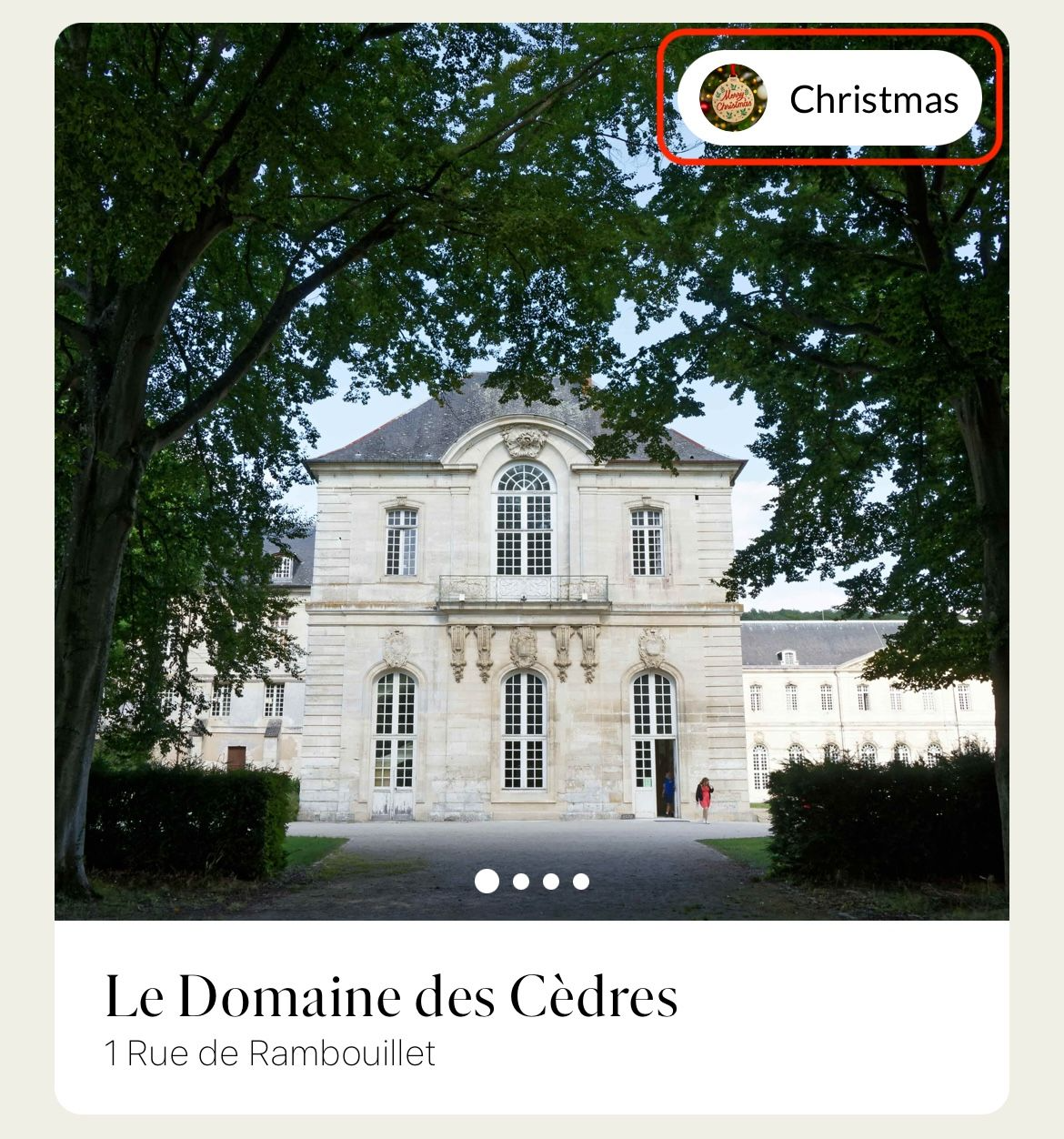
Tags are small labels displayed on venue cards in the mobile application. They allow you to highlight additional information and help users quickly identify specific features or attributes of a venue.
The following roles are allowed to create and manage venue tags:
Admin
Communication
Head of Project
Marketing
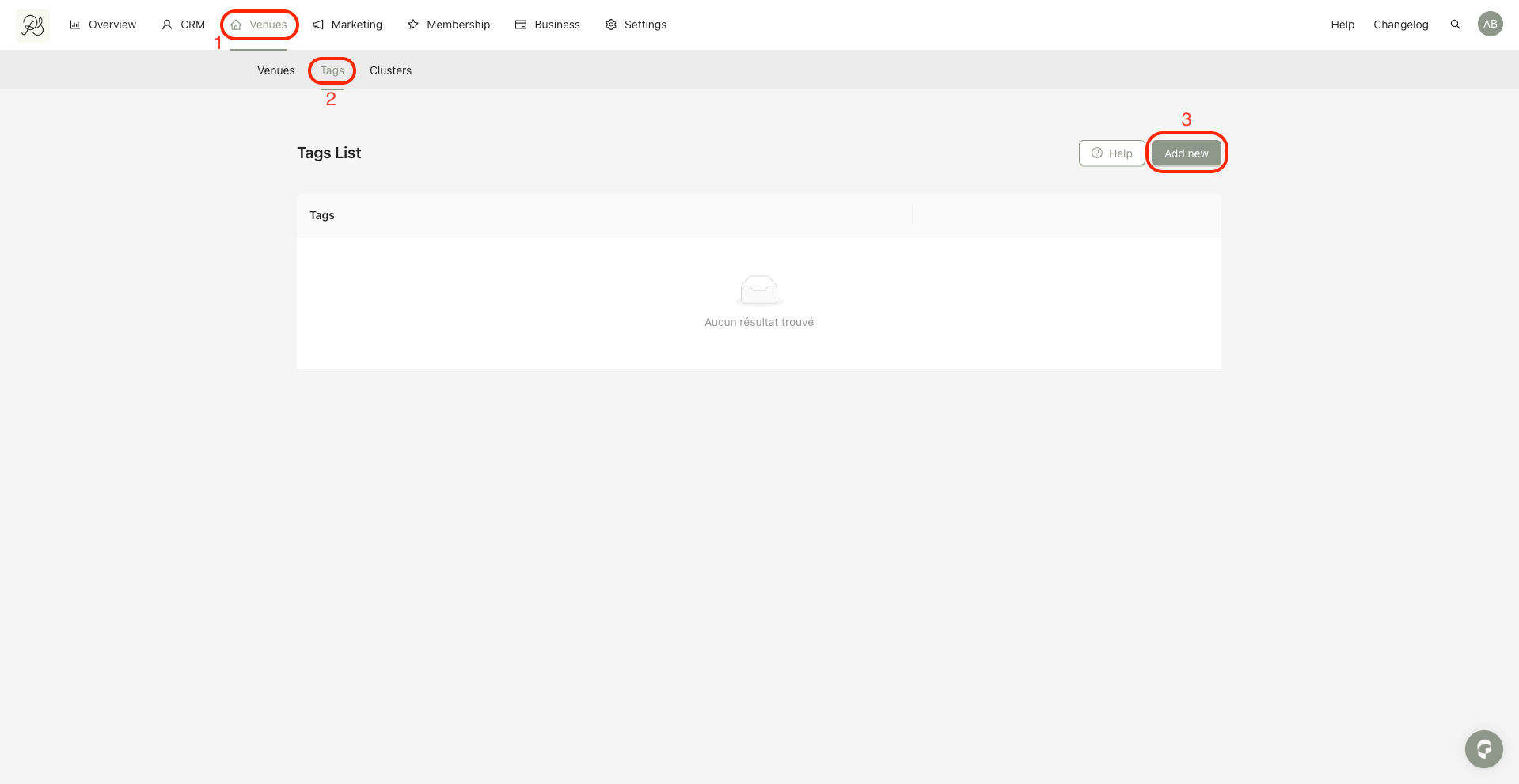
Step 1: Go to the Tags tab (1), then click Add new (2).
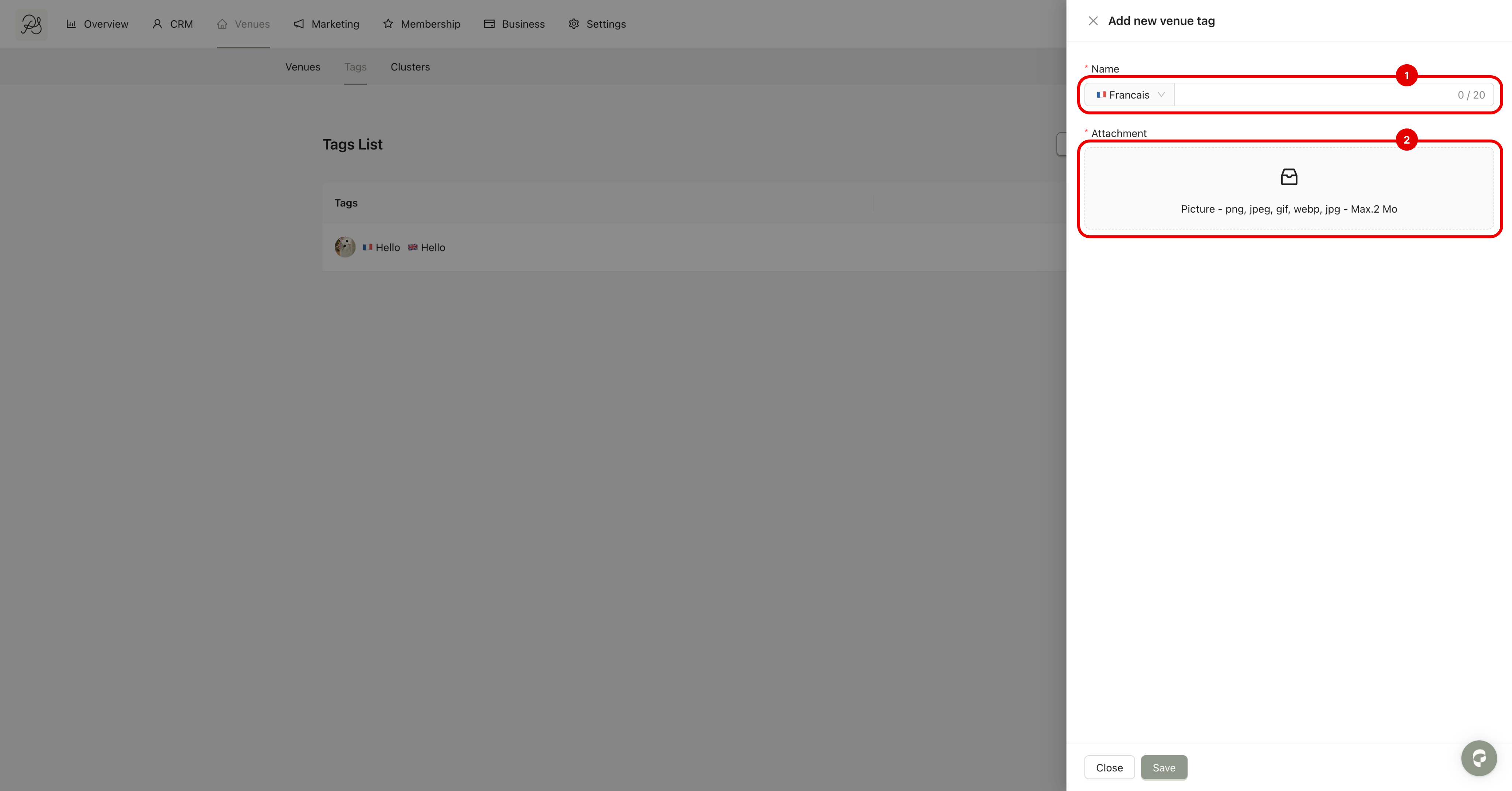
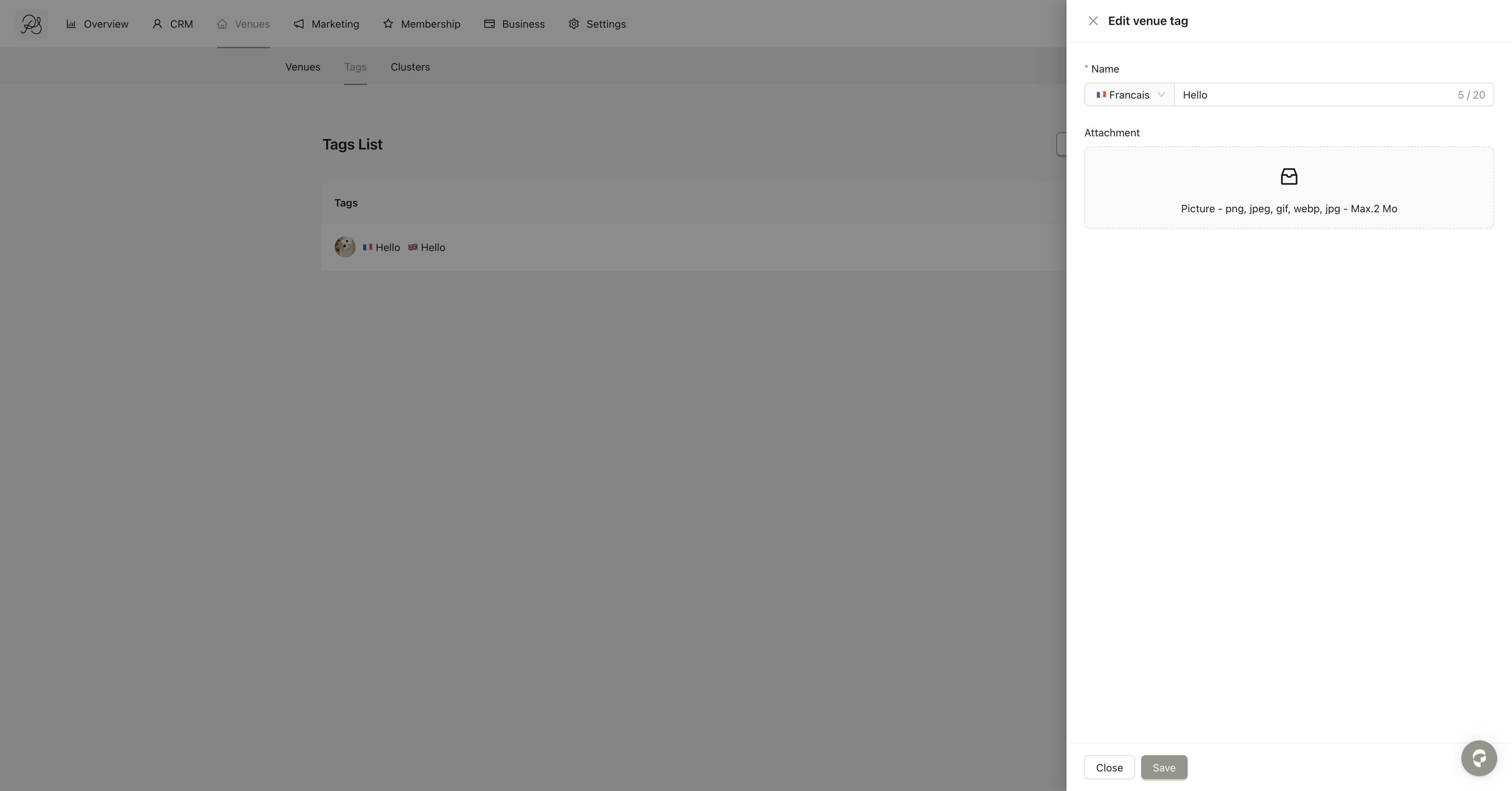
Step 2: Fill in the form the text of your tag in French and English (1). To add an icon, click inside the upload area or use drag and drop (2). Then click Save.
Step 1: Click the edit (pencil) icon.

Step 2: Update the form, then click Save.
Step 1: Click the delete (trash) icon.

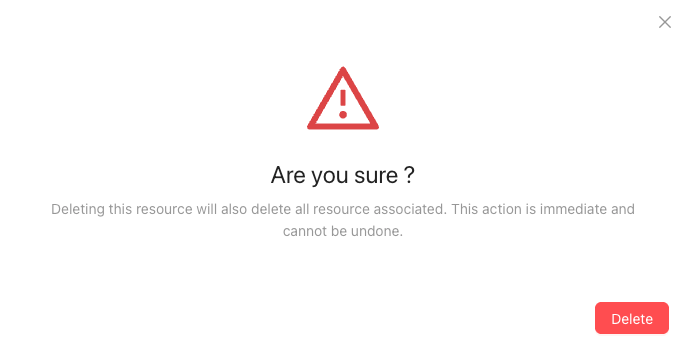
Step 2: A confirmation message will appear. Click Delete to confirm.

 Result in Mobile Application
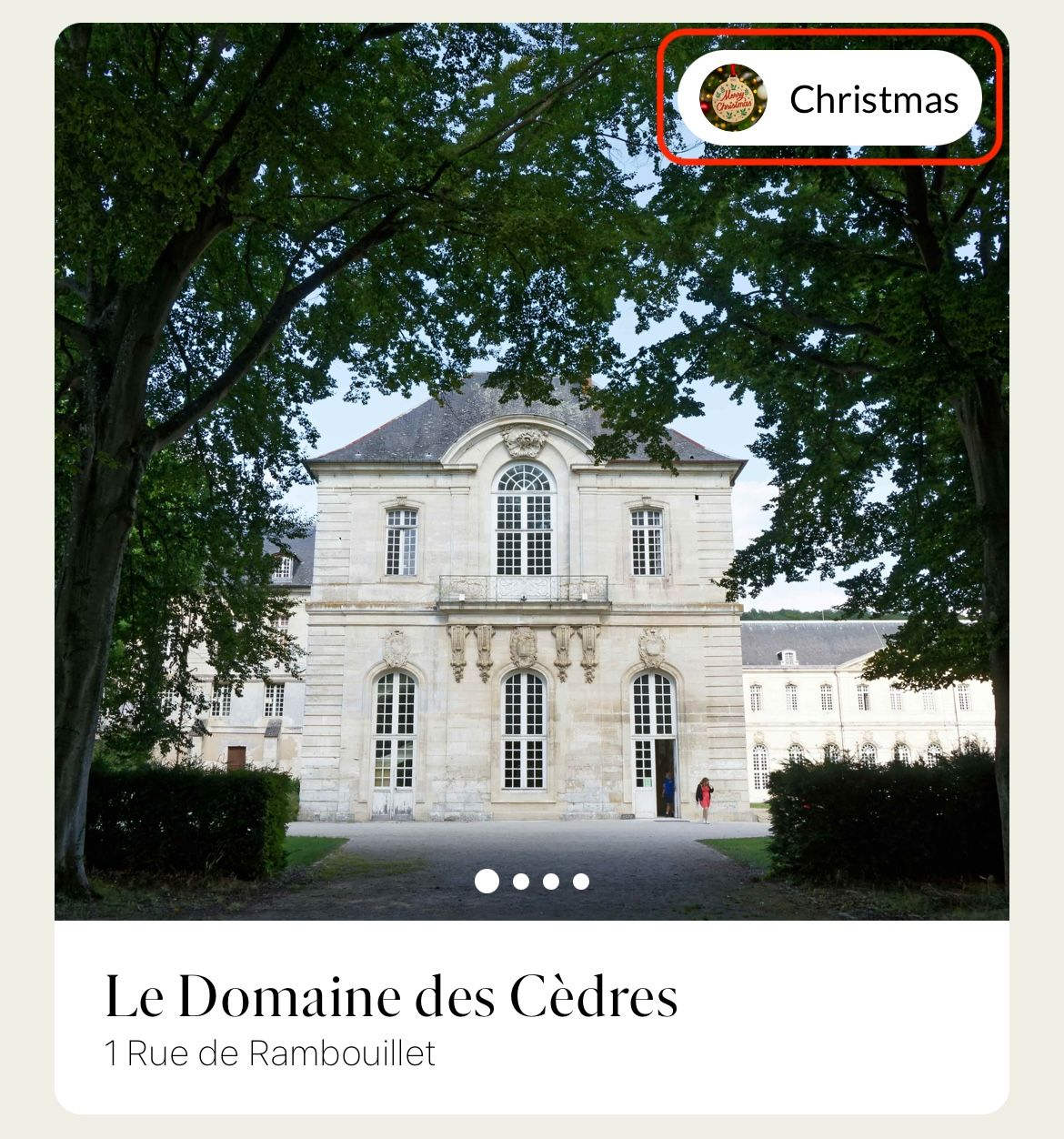
Below is how tags appear in the mobile application.