The following roles are allowed to edit venues:
Admin
Communication
Head of Project
Marketing
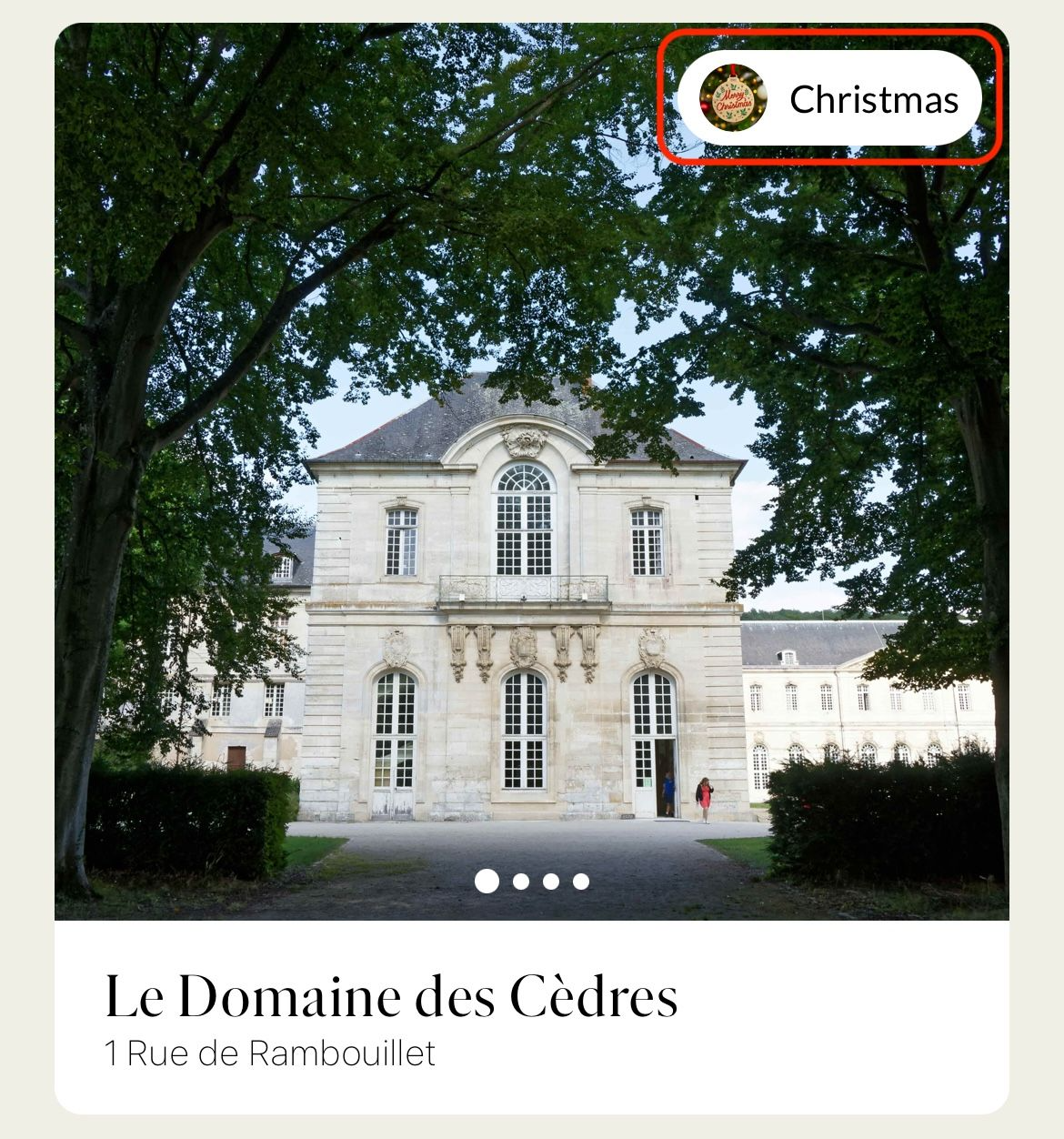
Step 1: Click on the image displayed on the left.

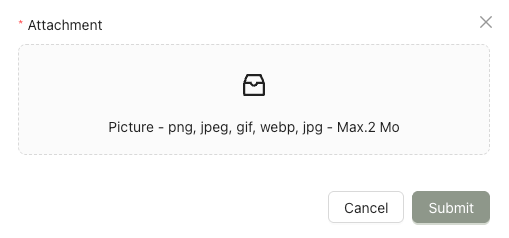
Step 2: A pop-up window will appear. Click inside the upload area or drag and drop your new icon, then click Submit.
To edit the venue content, click the Customize tab.
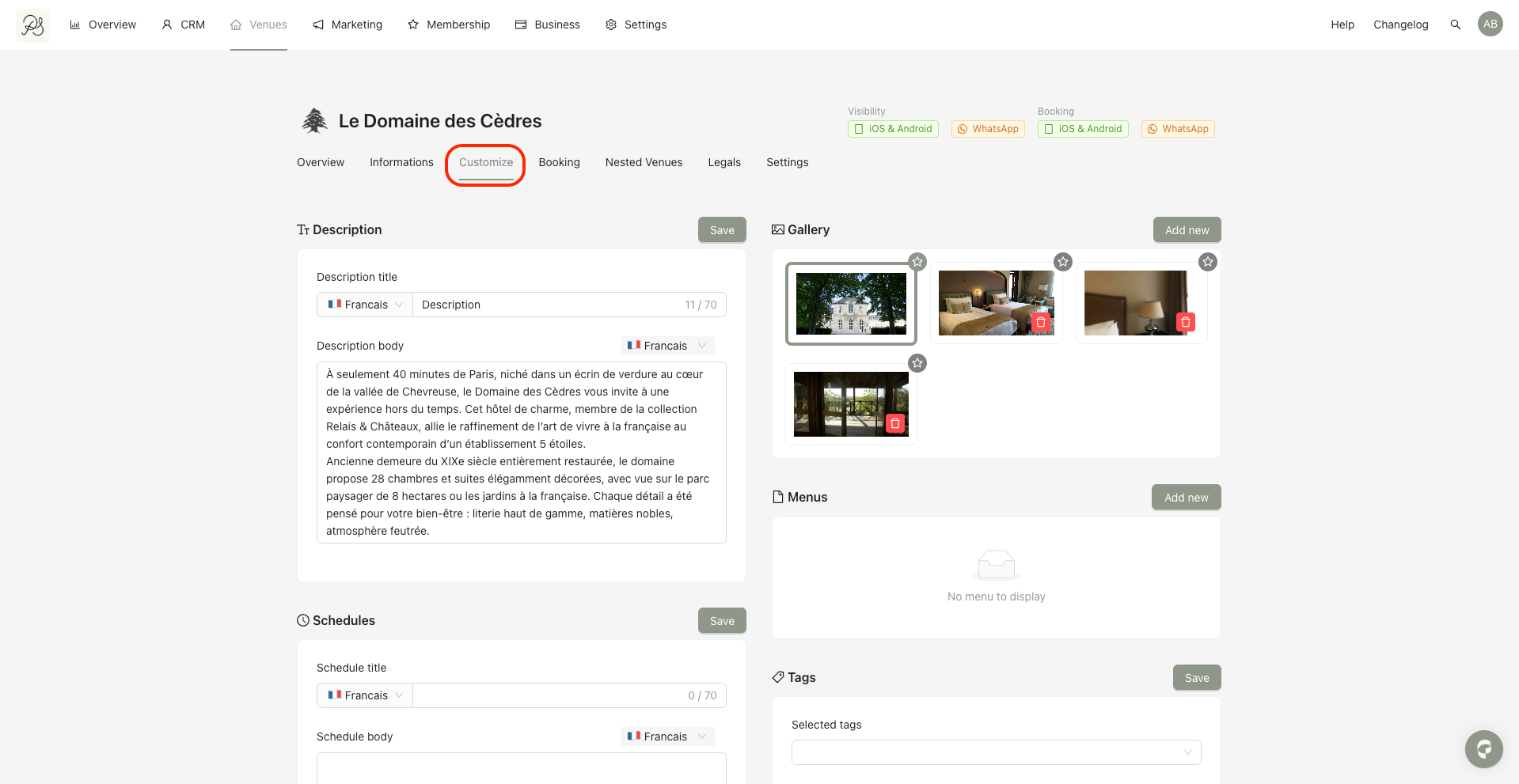
This tab contains the sections below:
2.1. Description section
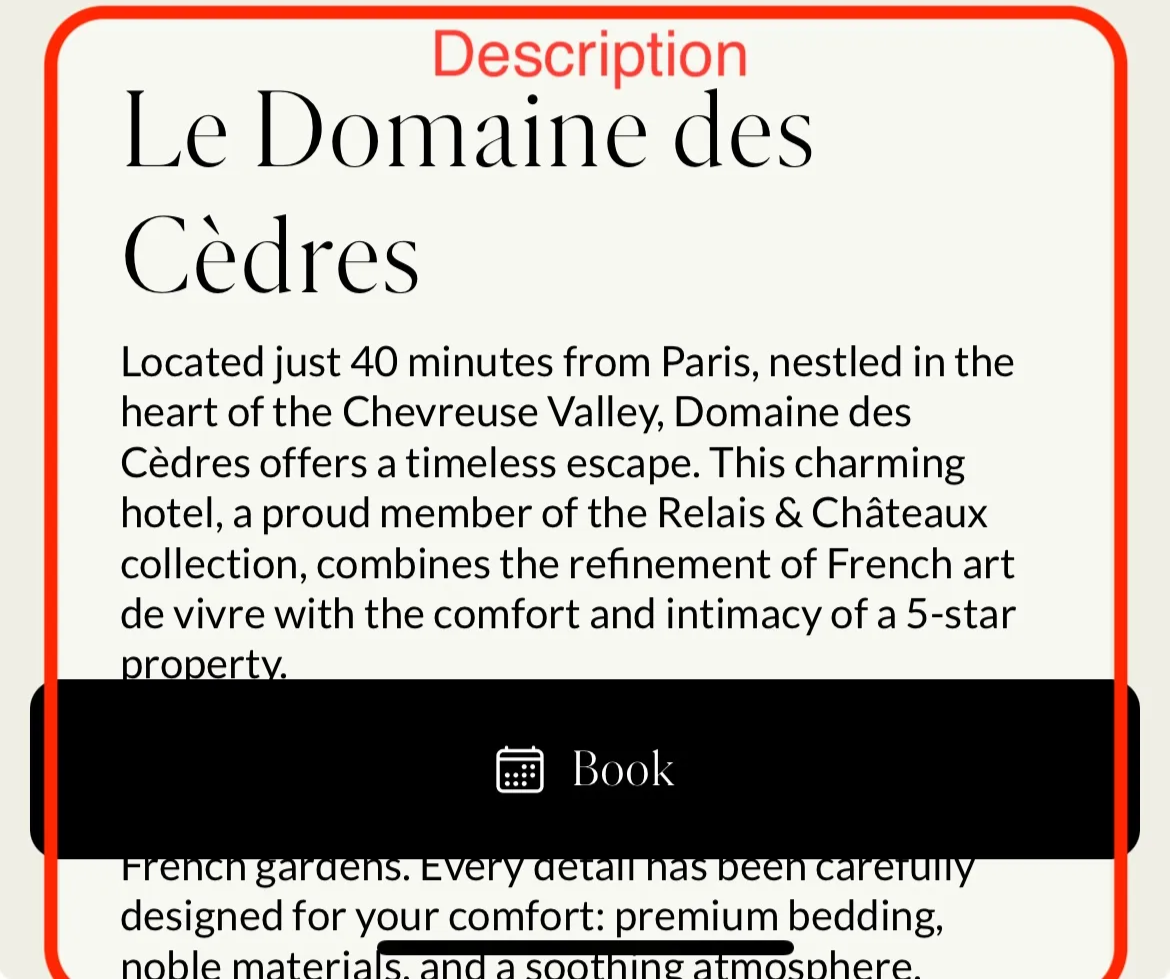
The Description section allows you to add a presentation text for the venue in multilangues. This content will be displayed:
In the mobile application
In the WhatsApp bot
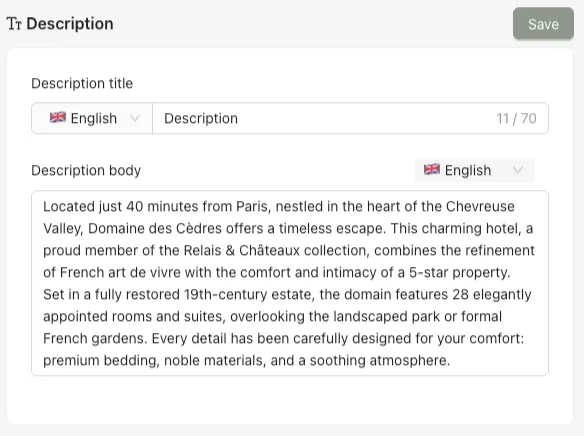
Below is how it appears in the mobile application.
2.2. Gallery section
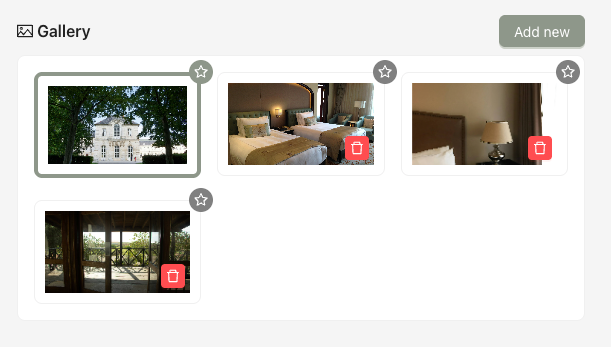
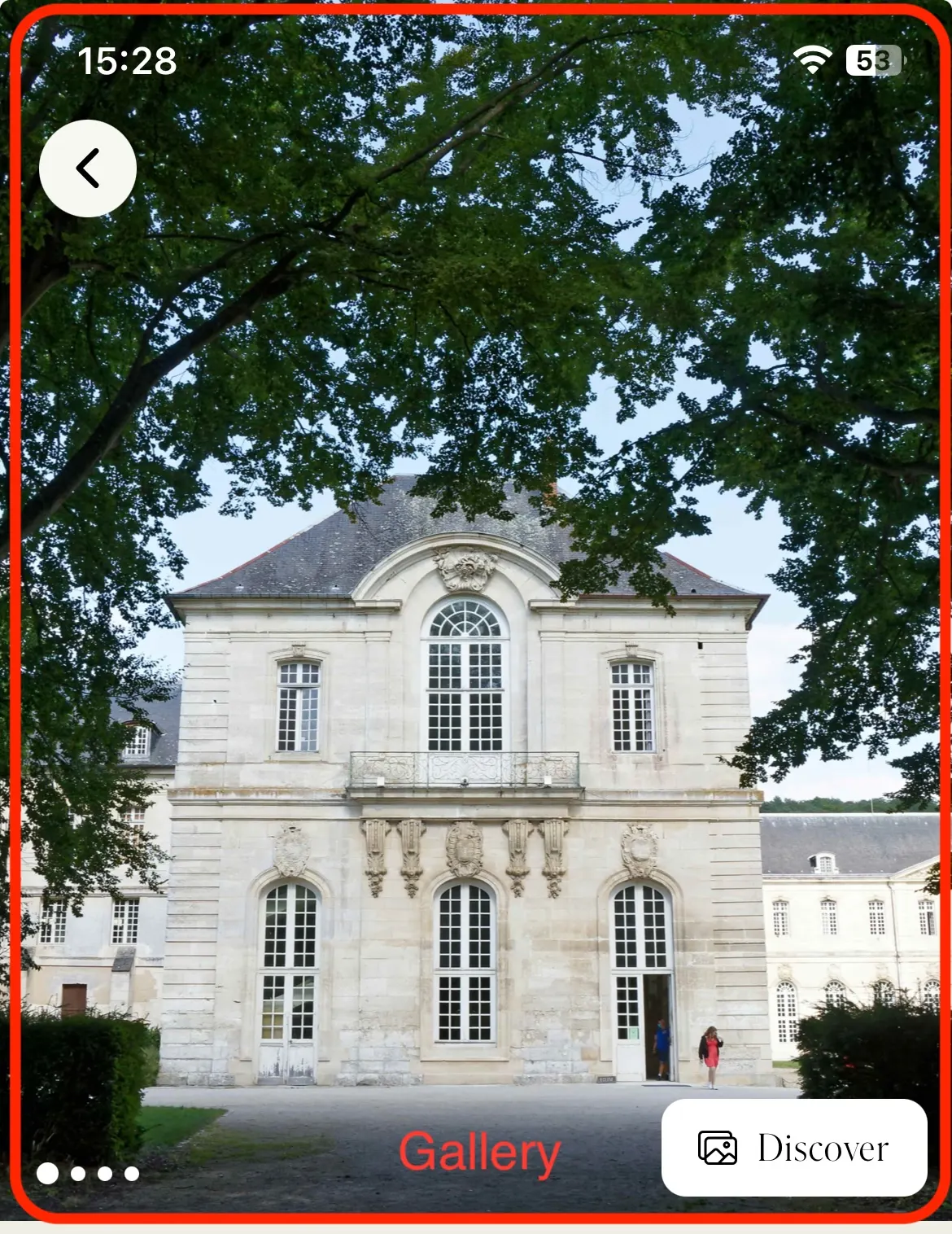
The Gallery section allows you to display multiple photos in the venue image slider and choose a featured image. You can:
Change the order of images using drag and drop
Select the featured image by clicking the star icon
Delete an image by clicking the red trash icon
You can add new photos by clicking Add new.
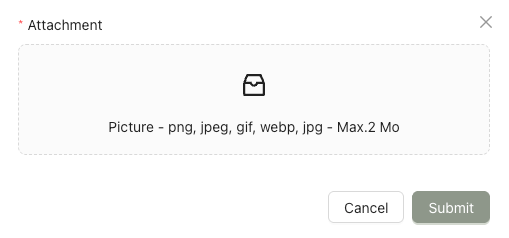
A pop-up will appear. Click inside the upload area or drag and drop an image, then click Submit.
Below is how it appears in the mobile application.
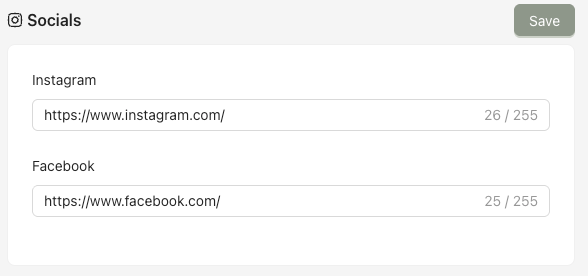
2.3. Social section
The Social section allows you to display social media links for the venue.
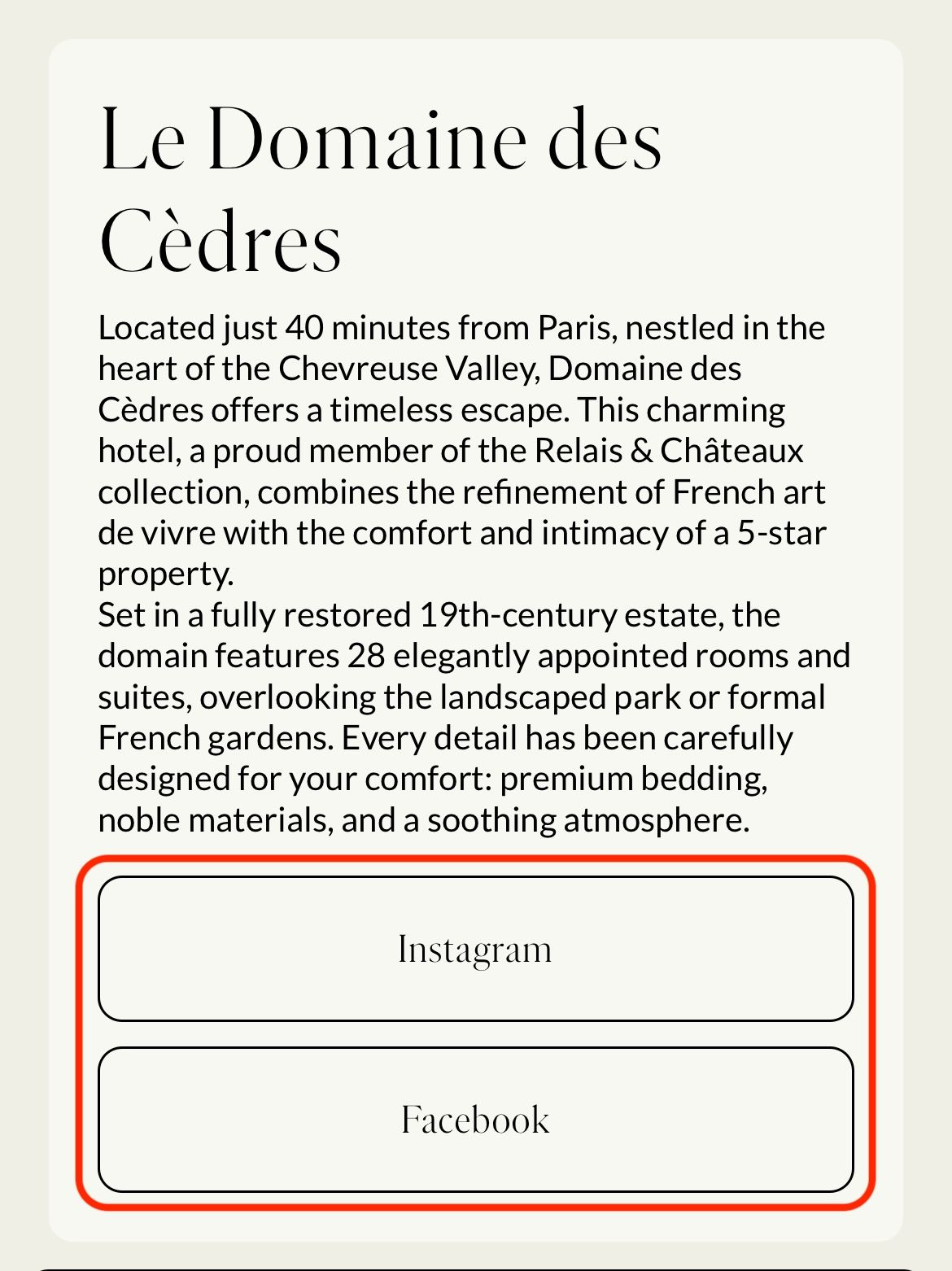
If a link field is left empty, it will not appear in the mobile application.
Below is how it appears in the mobile application.
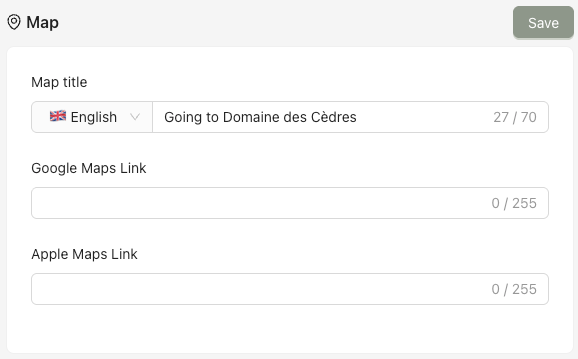
2.4. Map section
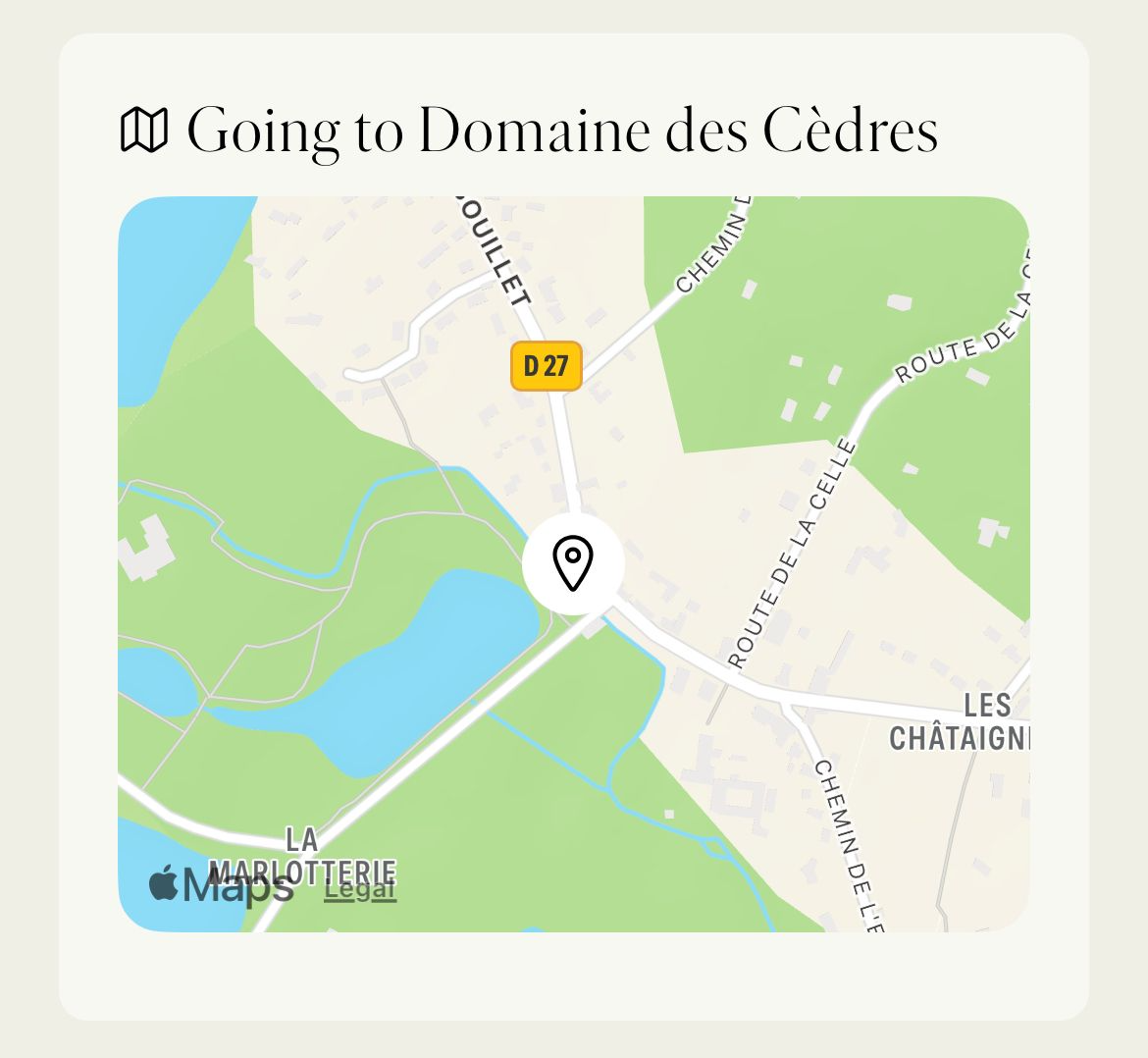
The Map section allows you to display a location map in the mobile application.
Below is how it appears in the mobile application.
2.5. Menu section
The Menu section allows you to upload menus in PDF format, in French and English.
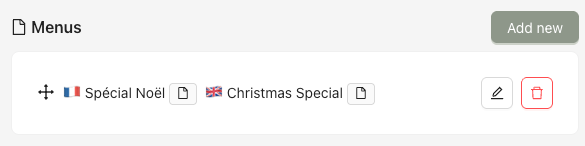
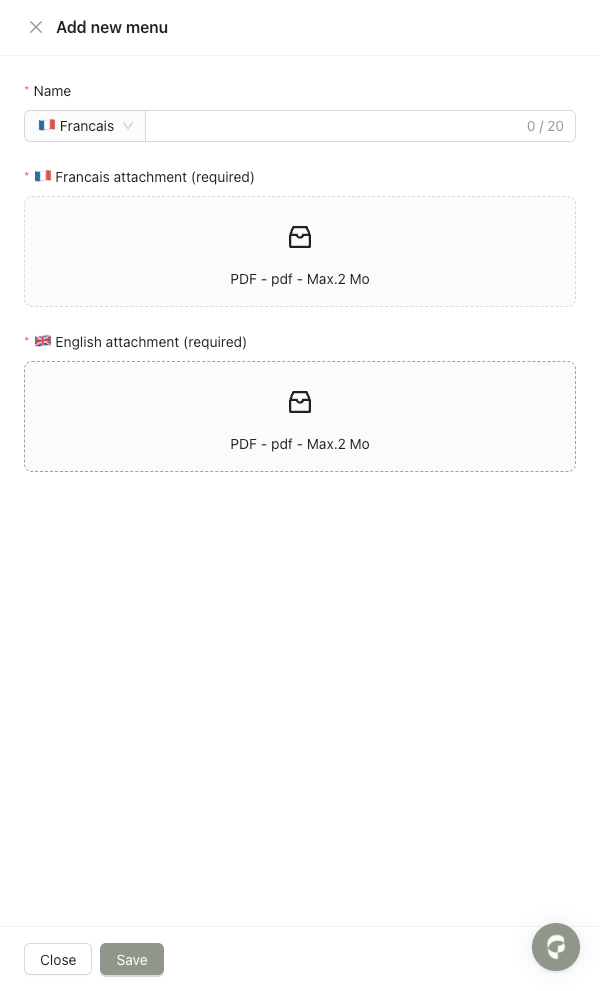
Add a menu
Click Add new, then fill in the form in all locales, finally click Save.
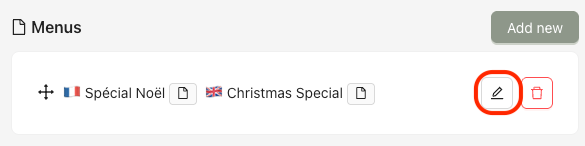
Edit a menu
Step 1: Click the edit (pencil) icon.
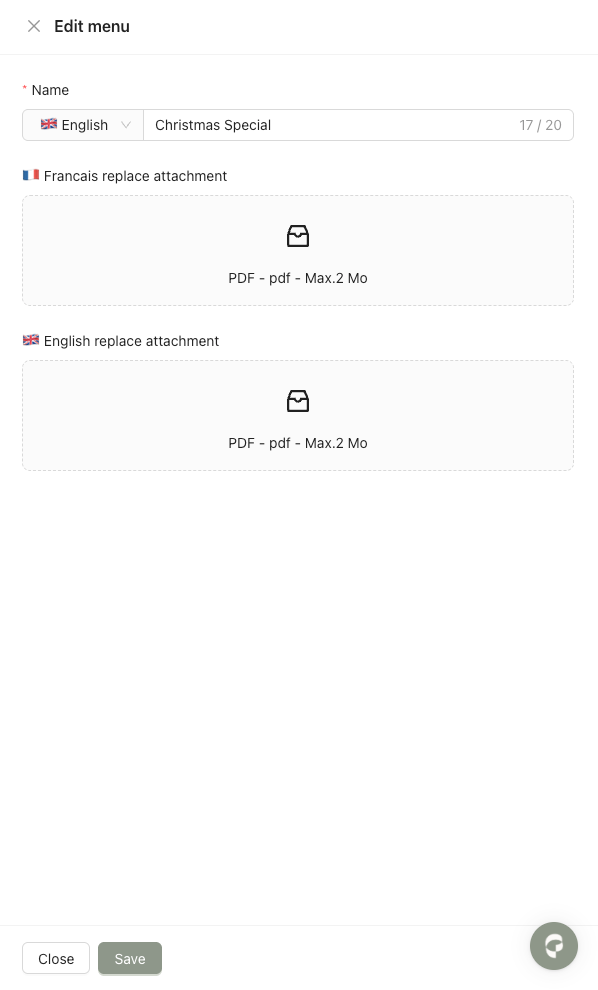
Step 2: Update the information in all locales, then click Save.
Delete a menu
Step 1: Click the trash icon.
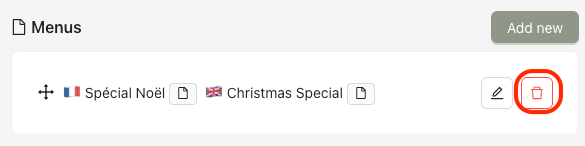
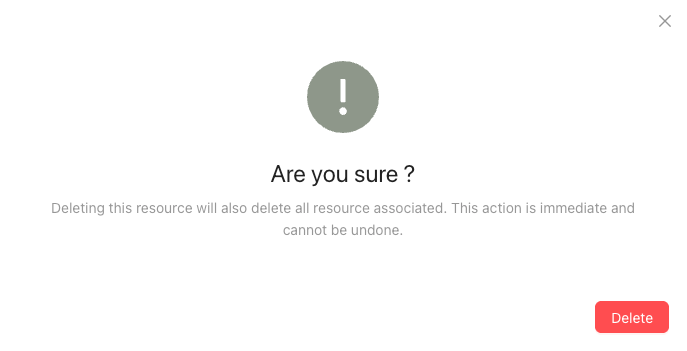
Step 2: A confirmation pop-up will appear. Click Delete to confirm.

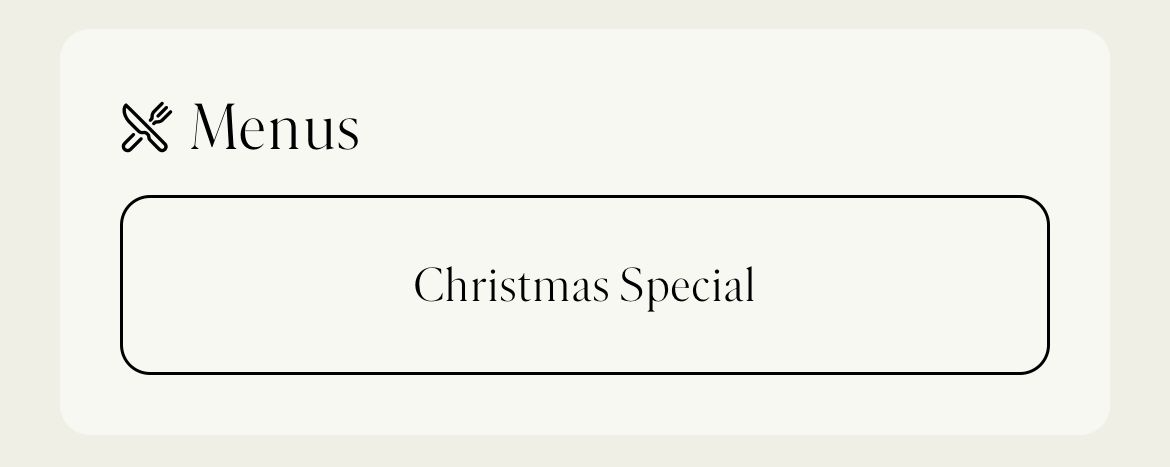
Below is how it appears in the mobile application. When users tap on a menu in the mobile app, the PDF will open.
2.6. Schedule section
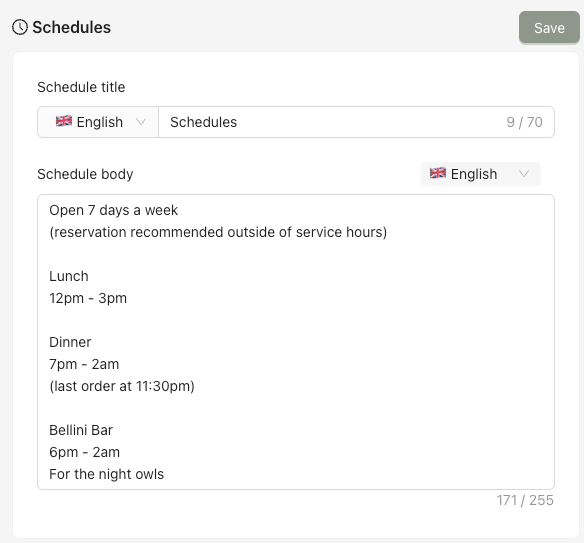
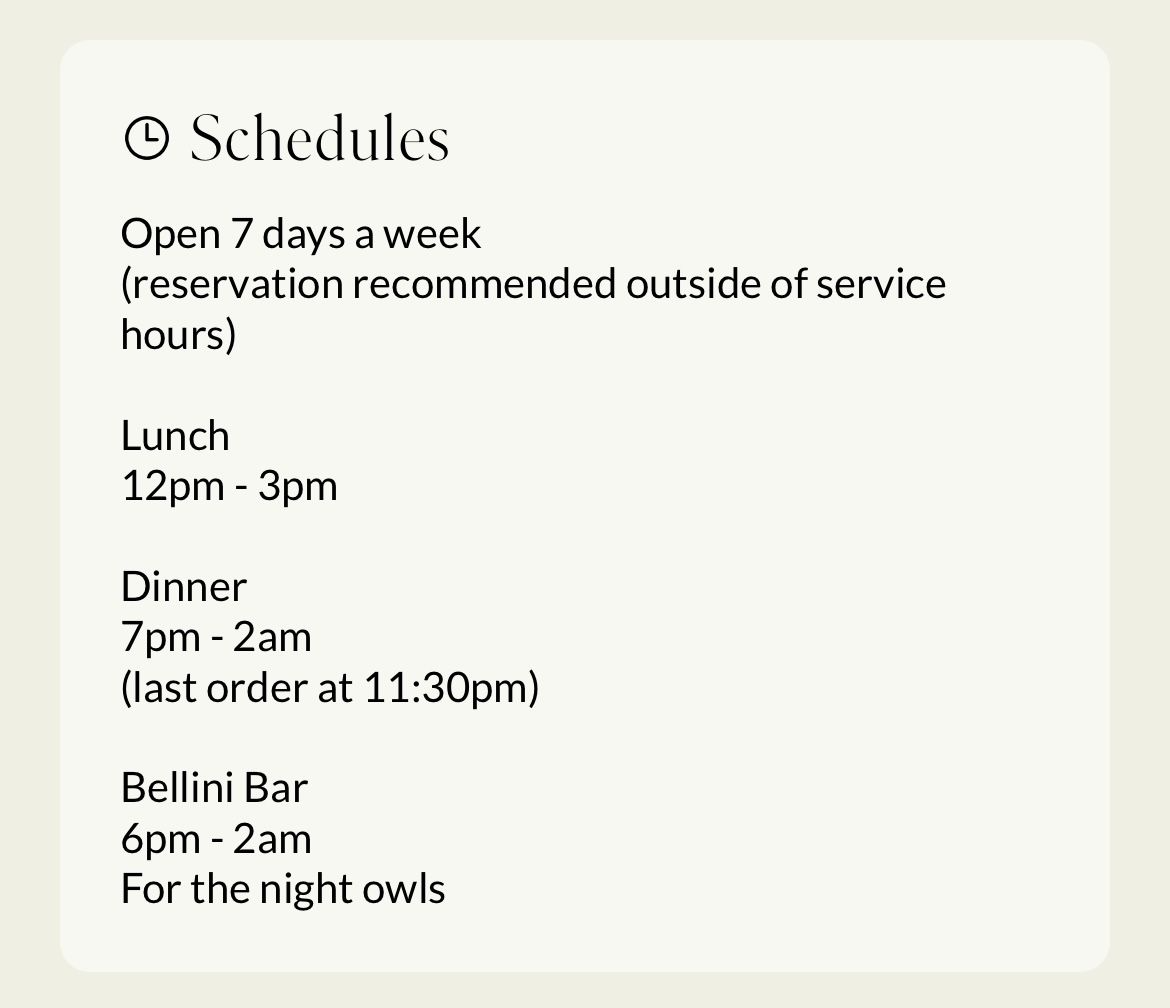
The Schedule section allows you to display additional opening hours or schedule-related information in all locales.
If this section is left empty, it will not be displayed in the mobile application.
Below is how it appears in the mobile application.
2.7. Tags section
The Tags section allows you to display labels on venues in the mobile application. If no tags are selected, no tags will be displayed in the mobile app.
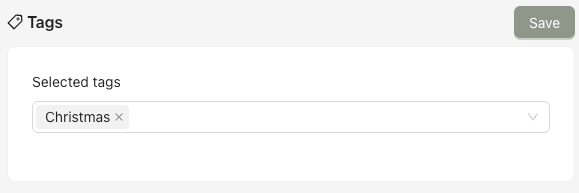

Below is how it appears in the mobile application.