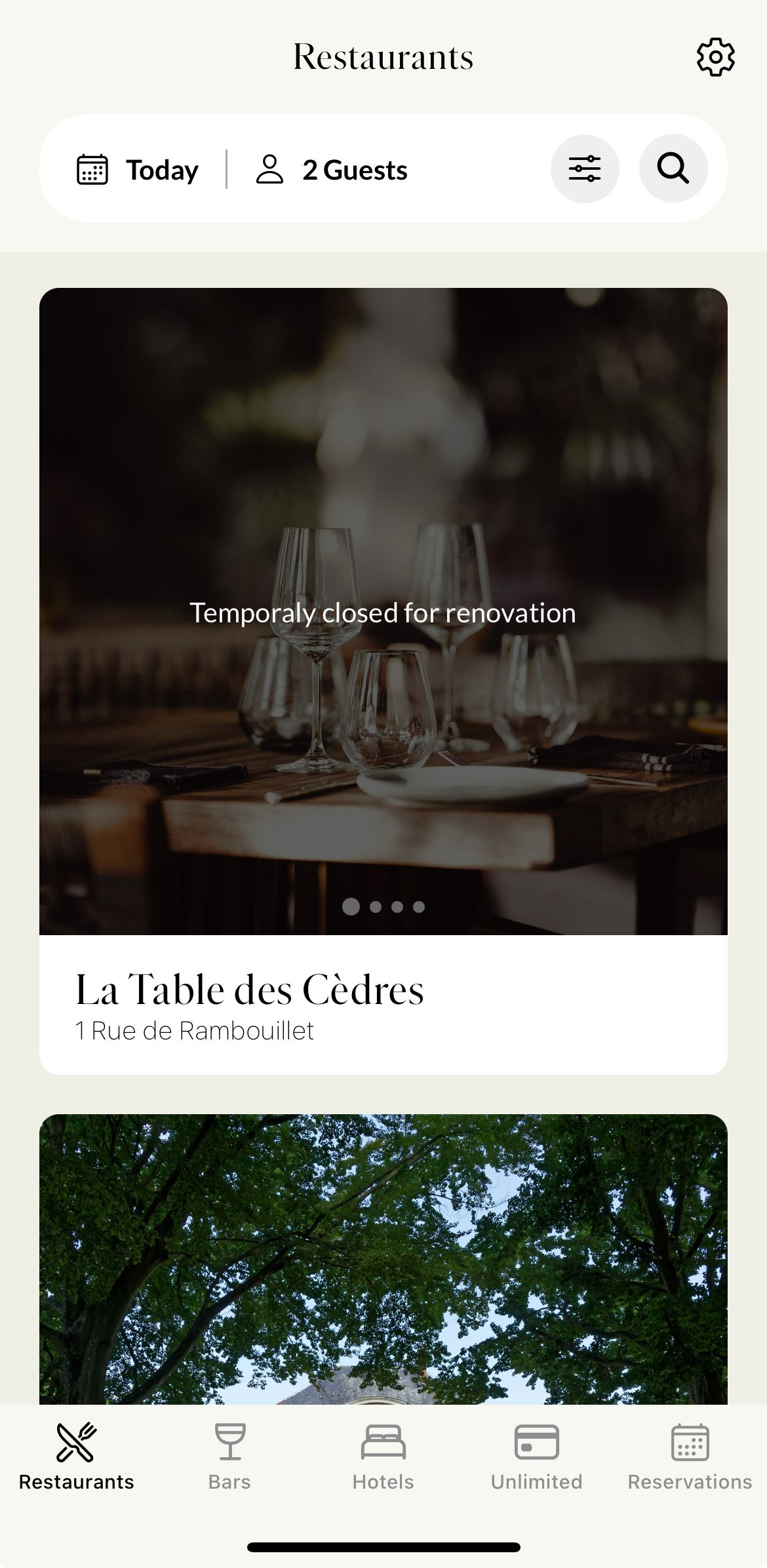
Any changes made in this section affect how the venue is displayed in the mobile application and other channels.
The following roles are allowed to edit venues:
Admin
Communication
Head of Project
Marketing
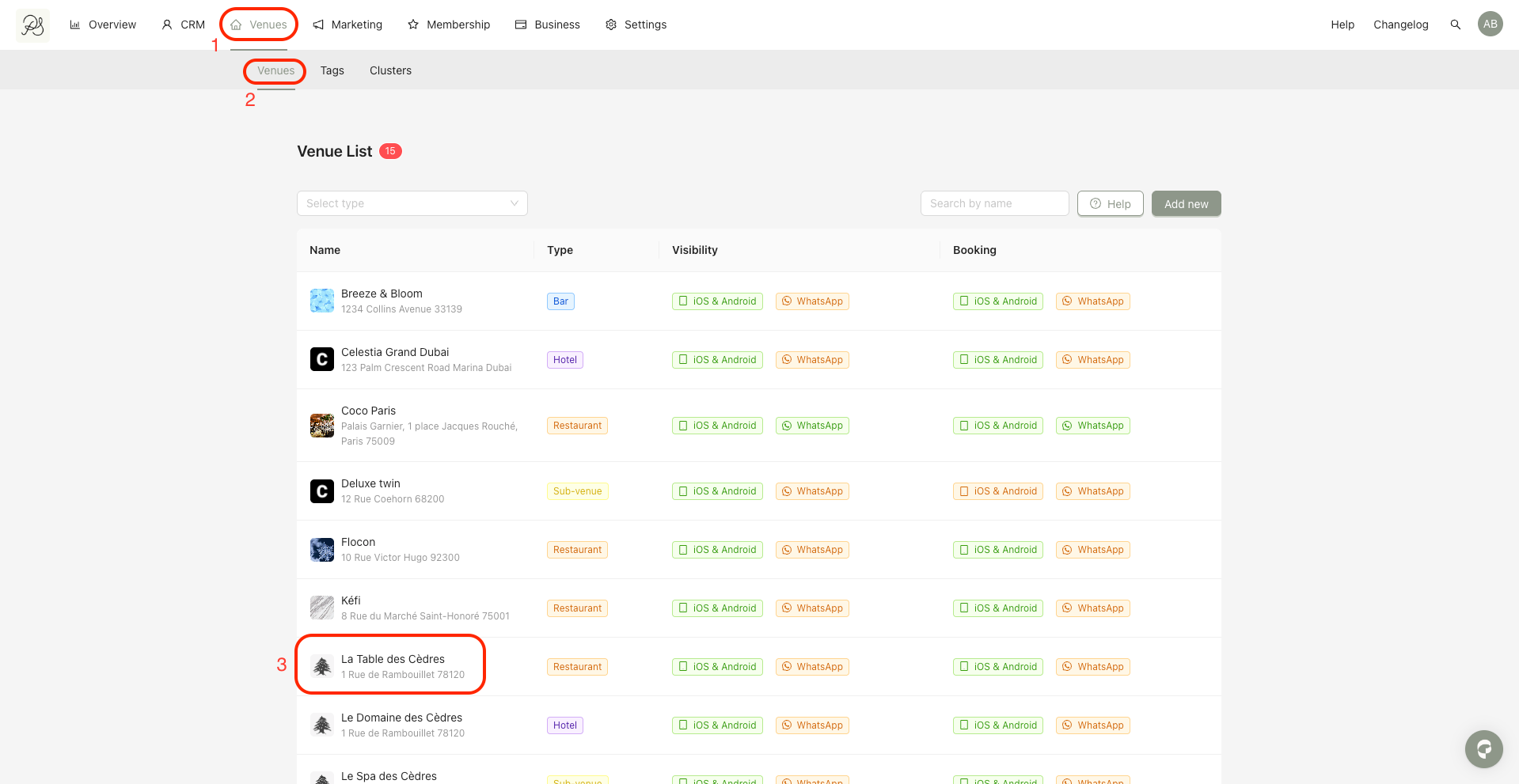
Step 1: Go to Venues (1) → Venues (2), then select the venue you want to edit.
In this example, we use “La Table des Cèdres” (3).
Step 2: Click the Information tab.
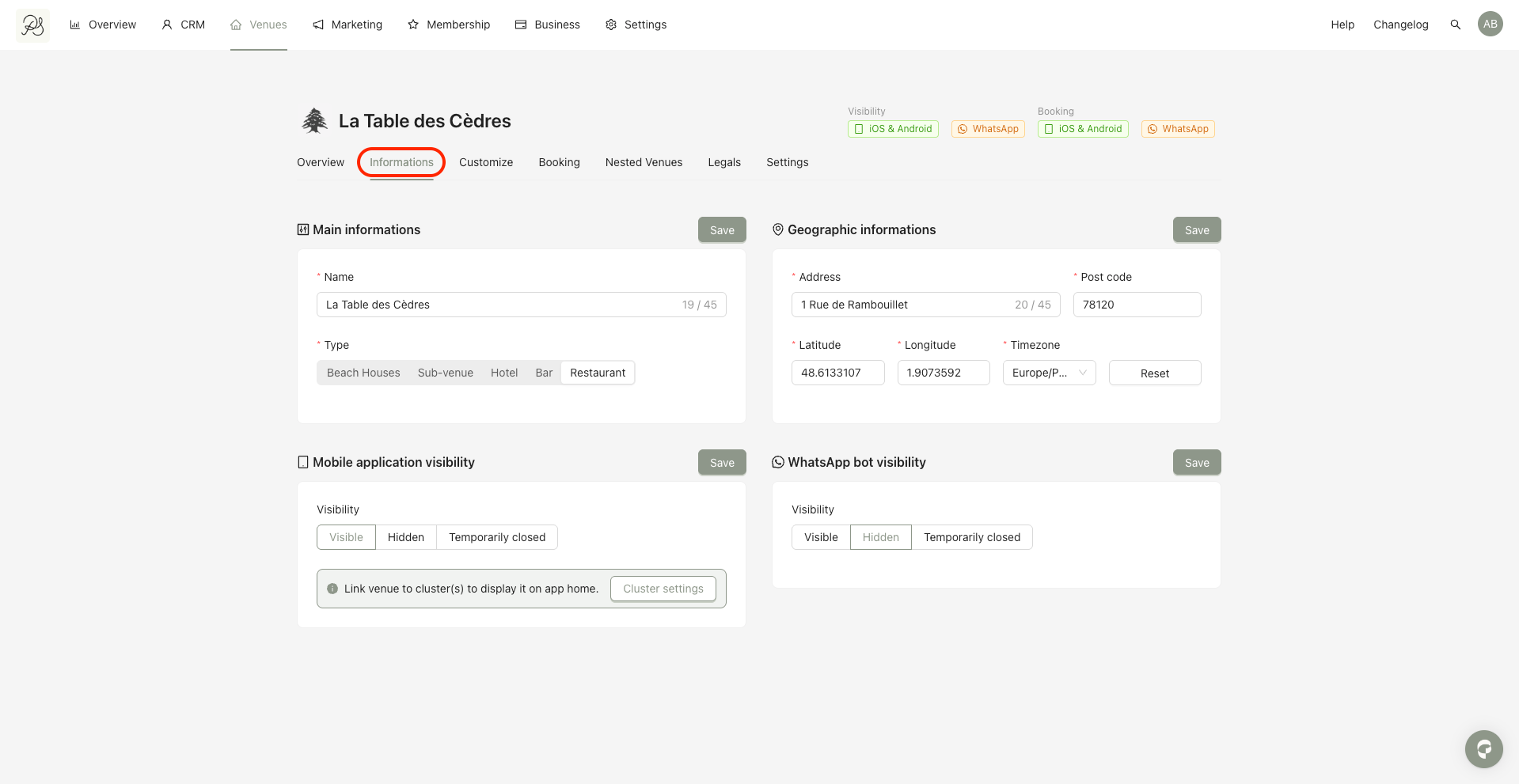
In this tab, you will find the following sections:
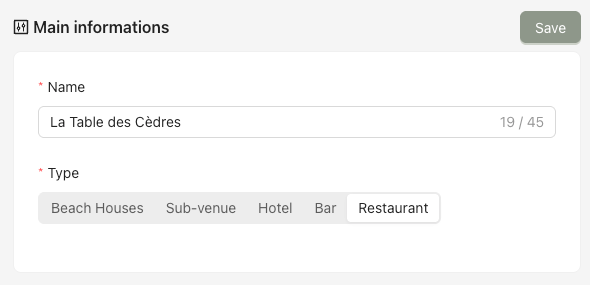
Allows you to edit the venue name and venue type.
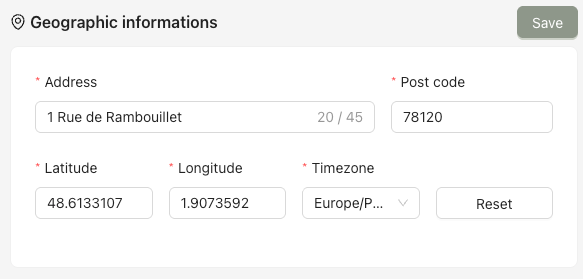
Allows you to add or update the venue address.
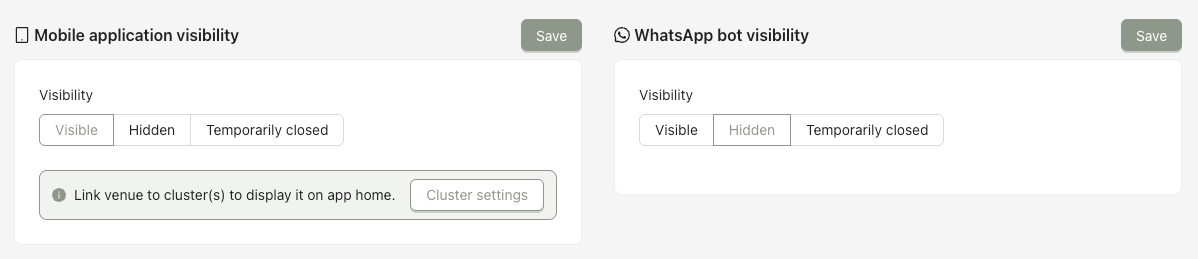
This section lets you control whether the venue is visible to users.
There are 2 sections, one for Mobile application visibility (left) and one for Whatsapp bot visibility (right).
For both, three options are available:
Visible: The venue is displayed and bookable.
Hidden: The venue is hidden and not displayed.
Temporarily closed: The venue is displayed but reservations are disabled.
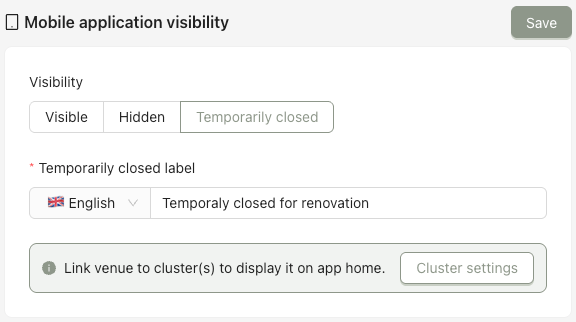
When selecting Temporarily closed, you must enter a message in French and English explaining the closure. This message will be displayed to users in the application.
Below is how the venue visibility appears in the mobile application.