A Collection is a group of events displayed in the mobile application.
At least one collection must be created for your events to appear in the members’ app. Without a collection, events will not be visible, even if they are published.
Collections allow you to organize events and control how they are displayed in the application.
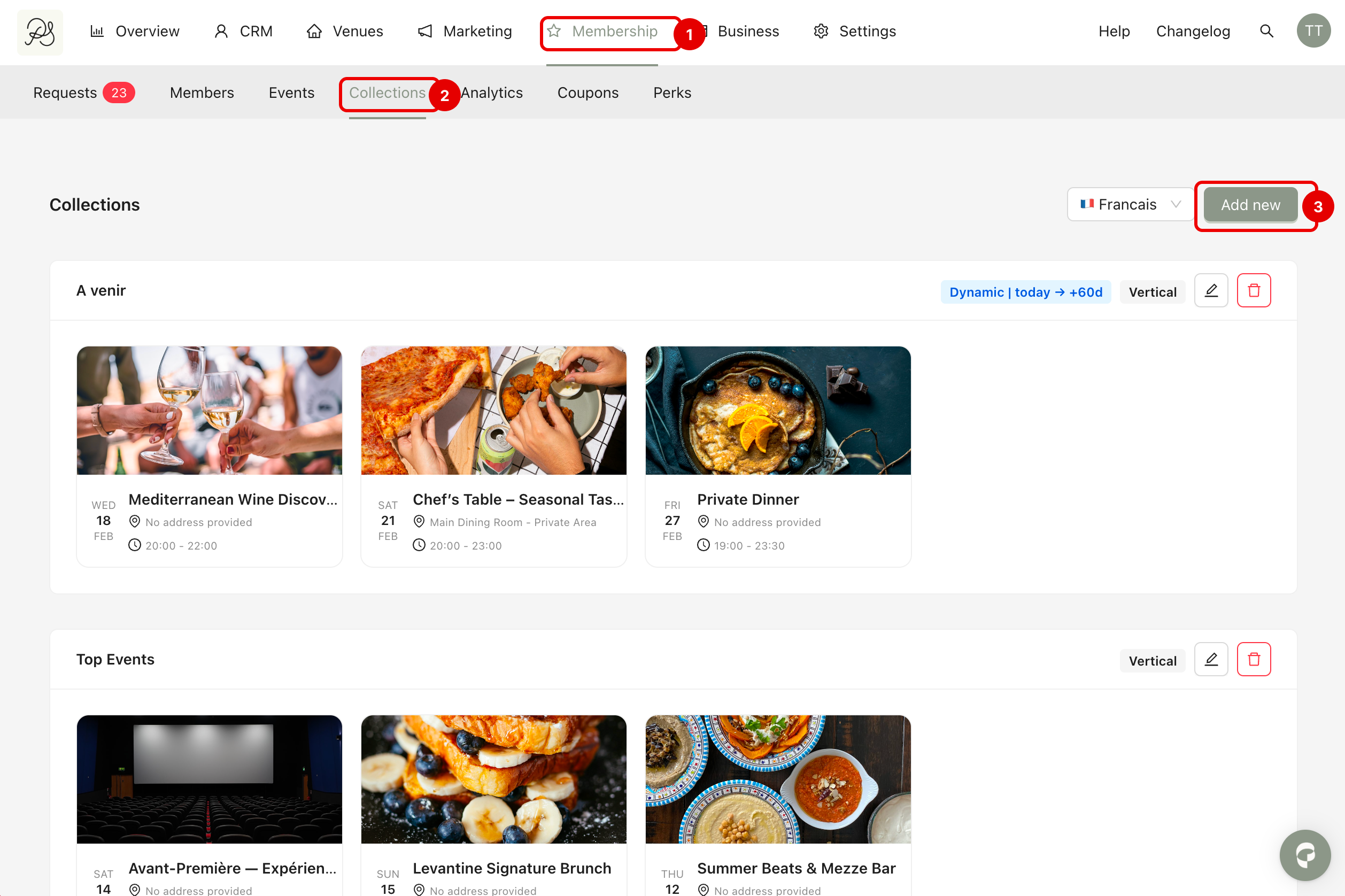
Step 1: Go to Membership (1) → Collections (2) and click Add New (3).
Step 2: A modal will appear. You can add events to your collection in two ways:
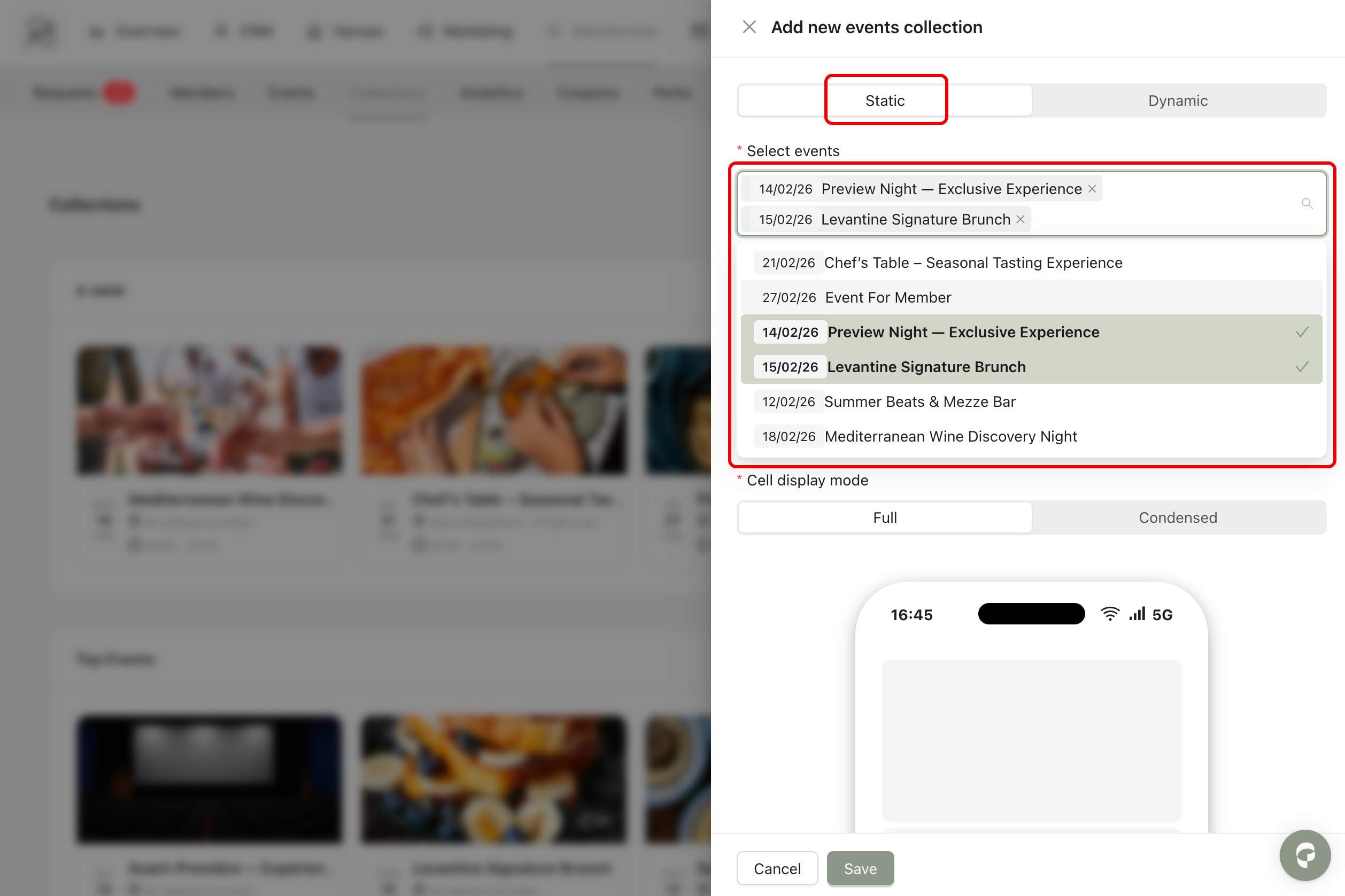
1. Static Collection
This option allows you to manually select which events to display. When choosing Static:
You must select the events you want to include by clicking on them in the selection field.
You can add as many events as needed.
Only upcoming events (events that have not yet passed) can be selected.
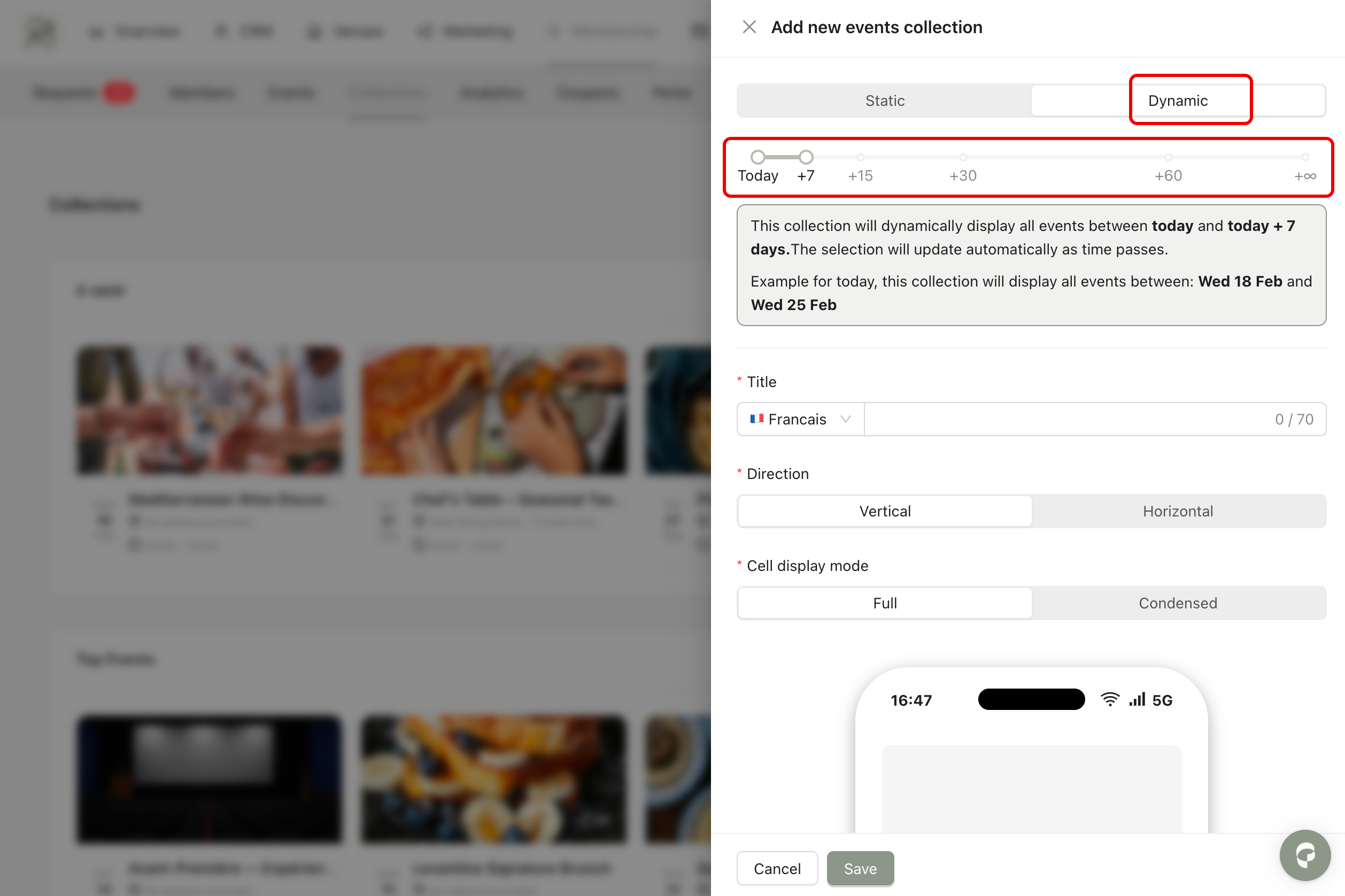
2. Dynamic Collection
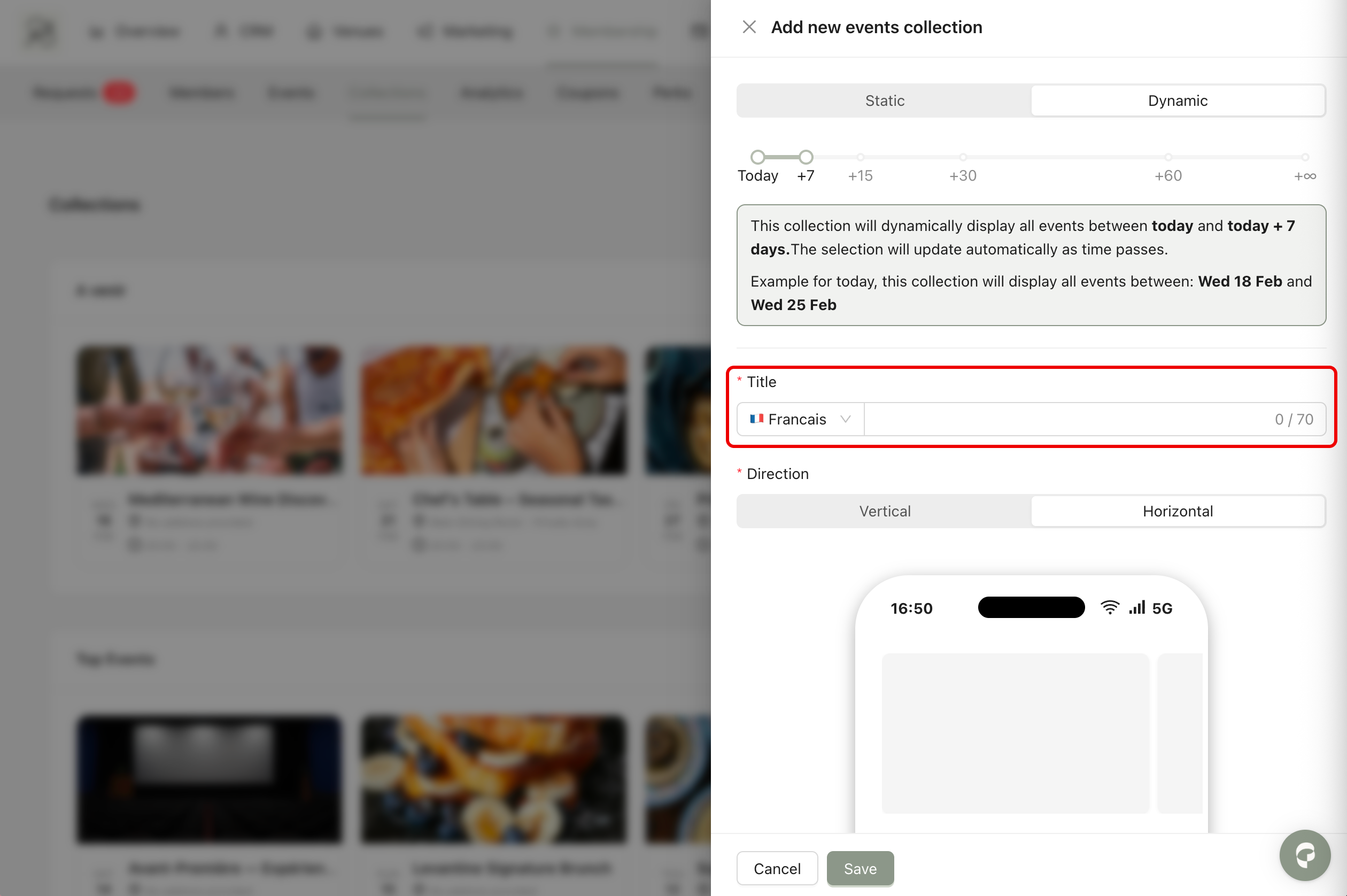
This option automatically displays events based on their scheduled date. Instead of selecting events manually, you define a future time range.
For example, if you set the slider to +7 days, the collection will automatically display all events scheduled within the next 7 days.
If today is February 18, it will show events from February 18 to February 25.
If today is February 20, it will show events from February 20 to February 27.
You can adjust the slider to define the time range you want. The maximum setting allows you to display all upcoming events without time limitation.
Step 3: Scroll down to configure how the collection will appear in the mobile application.
Title: Enter the name of the collection. This title will be visible in the app.
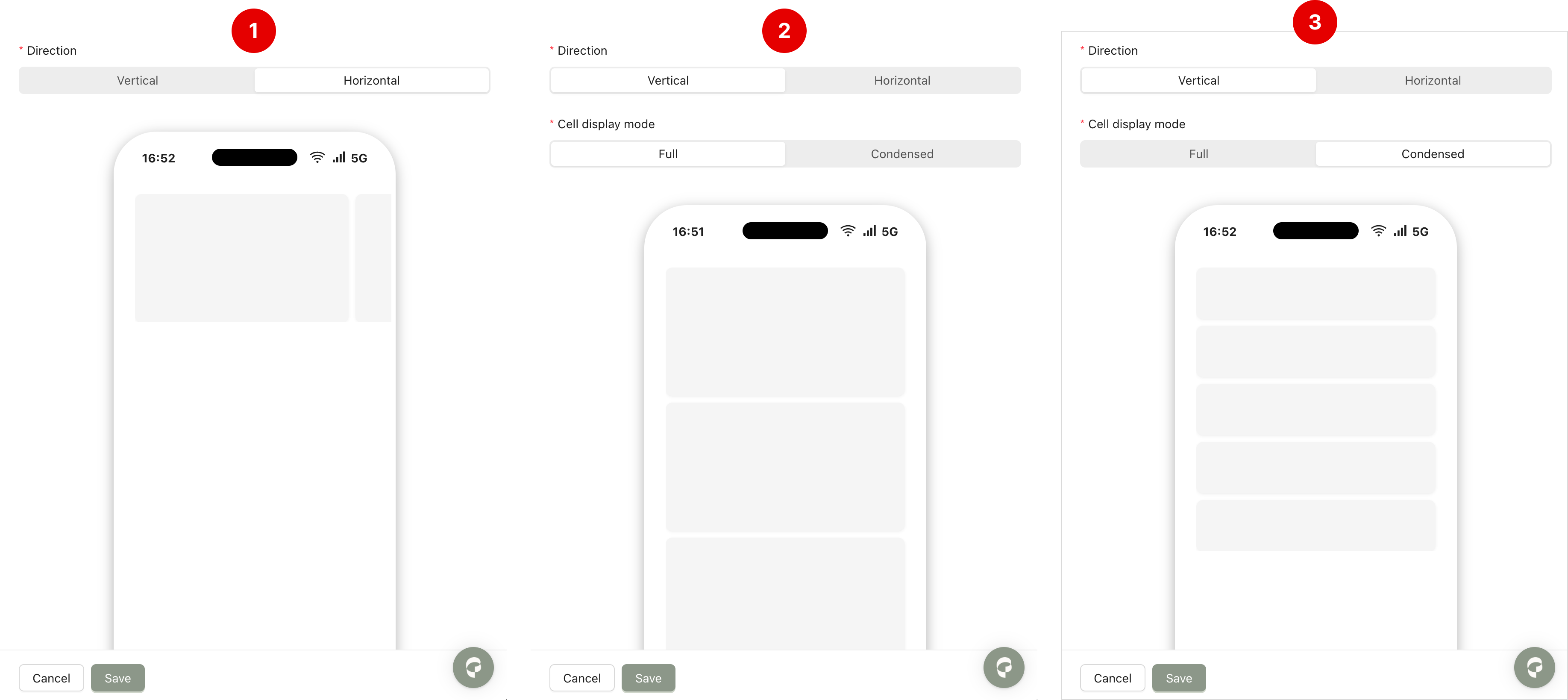
Direction: You can choose how events are displayed Horizontal (1) (Events appear in a scrollable line) or Vertical (Events appear in a column).
Cell Display Mode: In case you choose Vertical, you can choose how each event card will appear Full (2) (Displays the event with its image) and Condensed (3) (Displays the event without an image for a more compact layout).
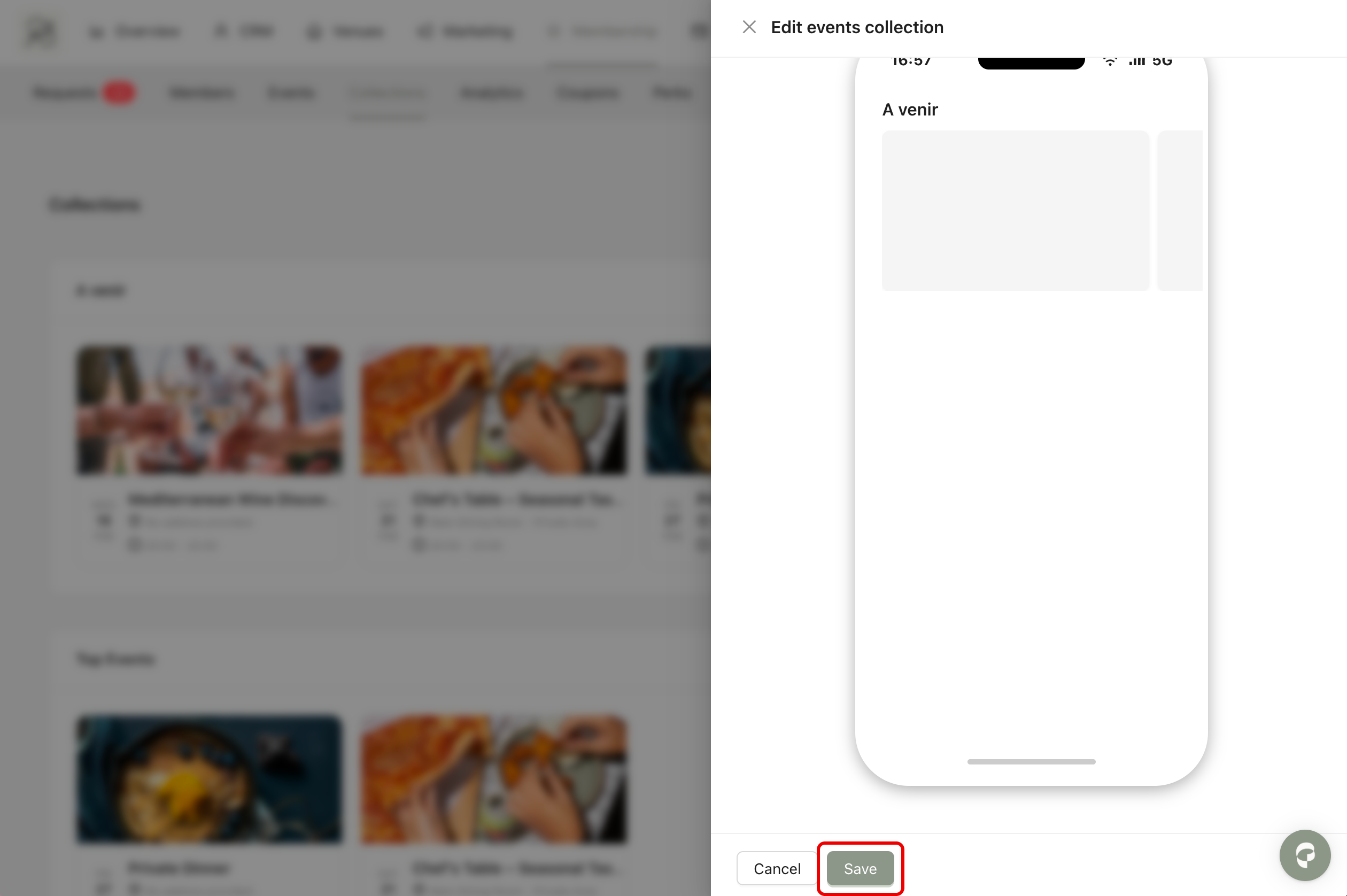
Step 4: Click Save to create the collection.
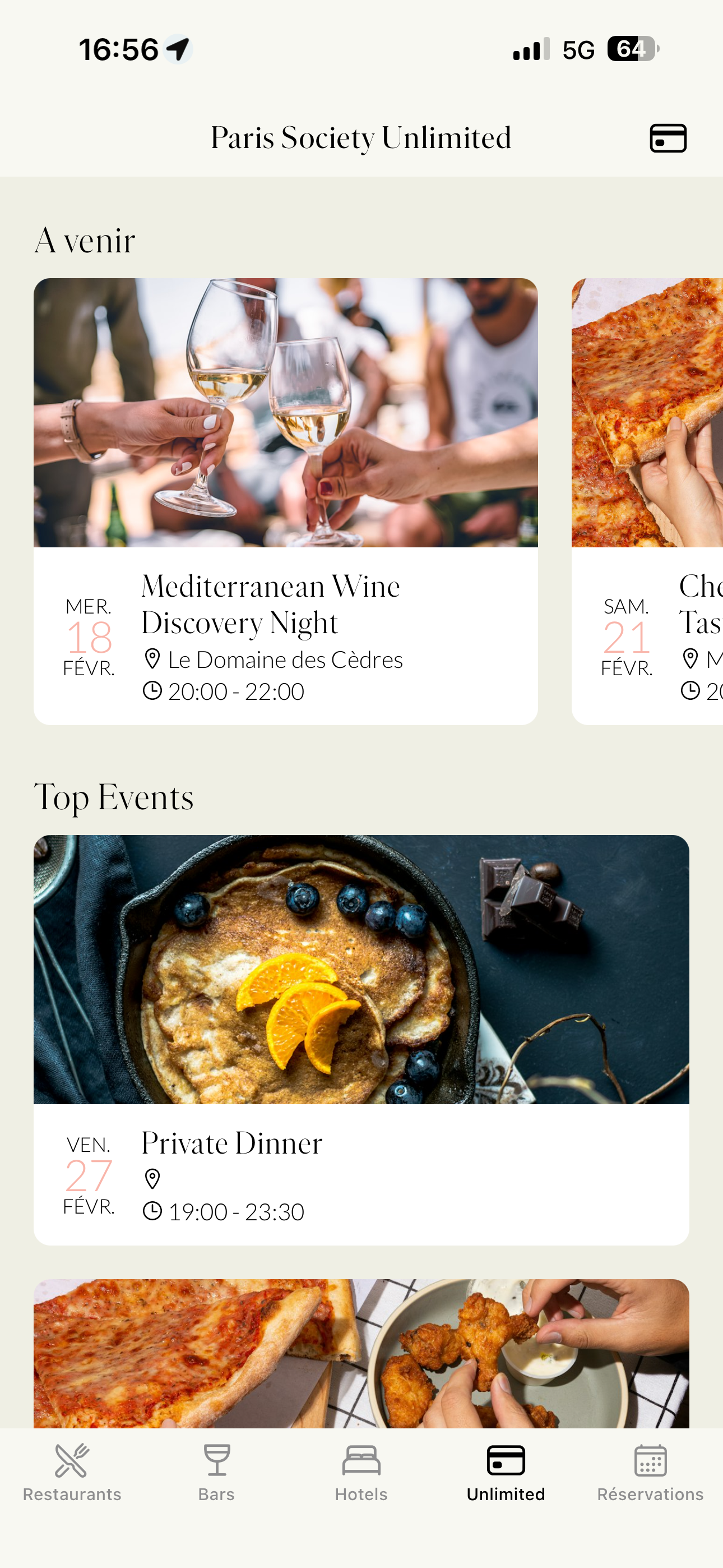
 Final Result: Once saved, the collection will appear in the mobile application. You can create multiple collections with different rules and display modes at the same time. This allows you to design a dynamic and organized event screen that matches your brand’s strategy and visual identity.
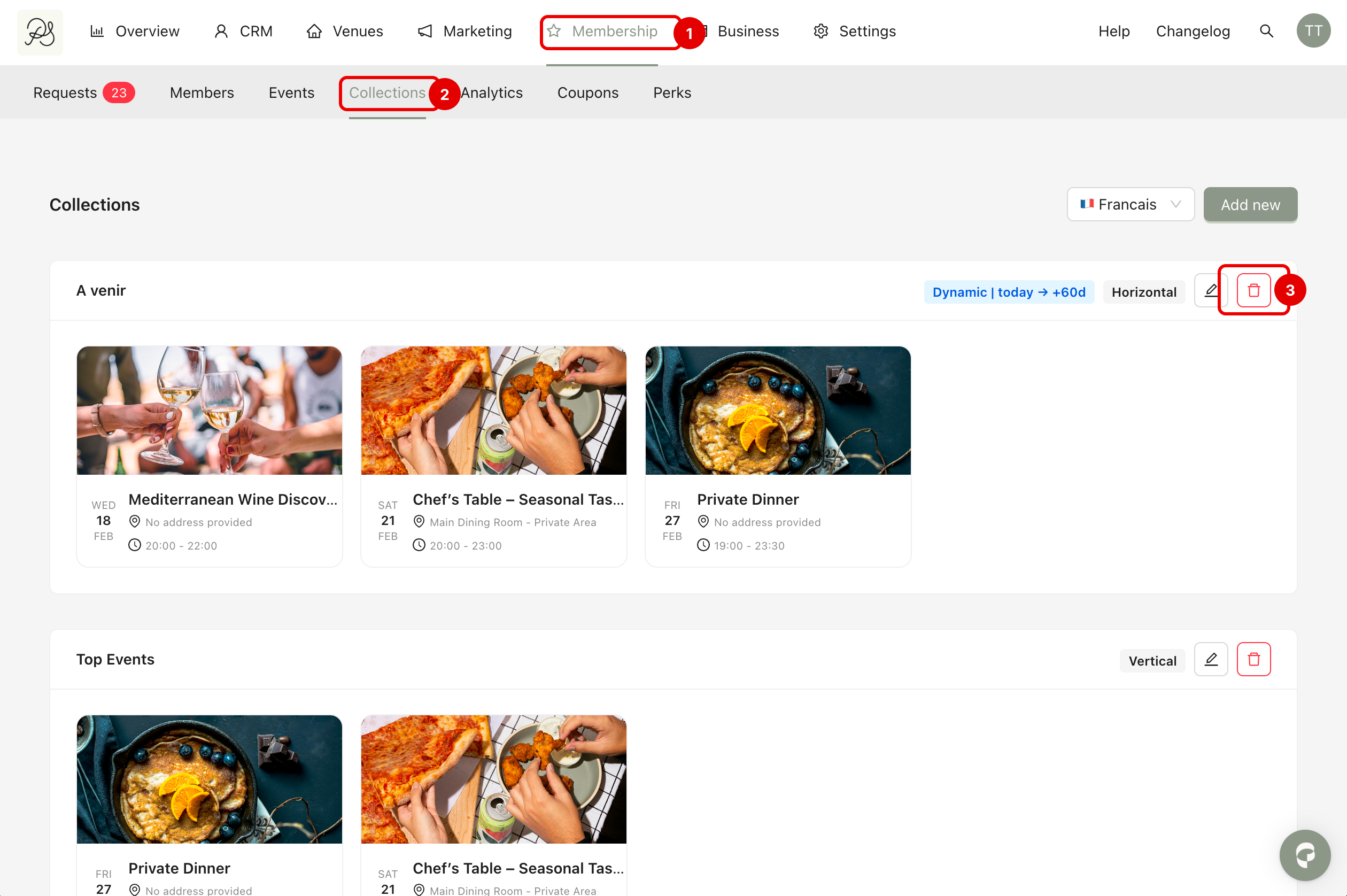
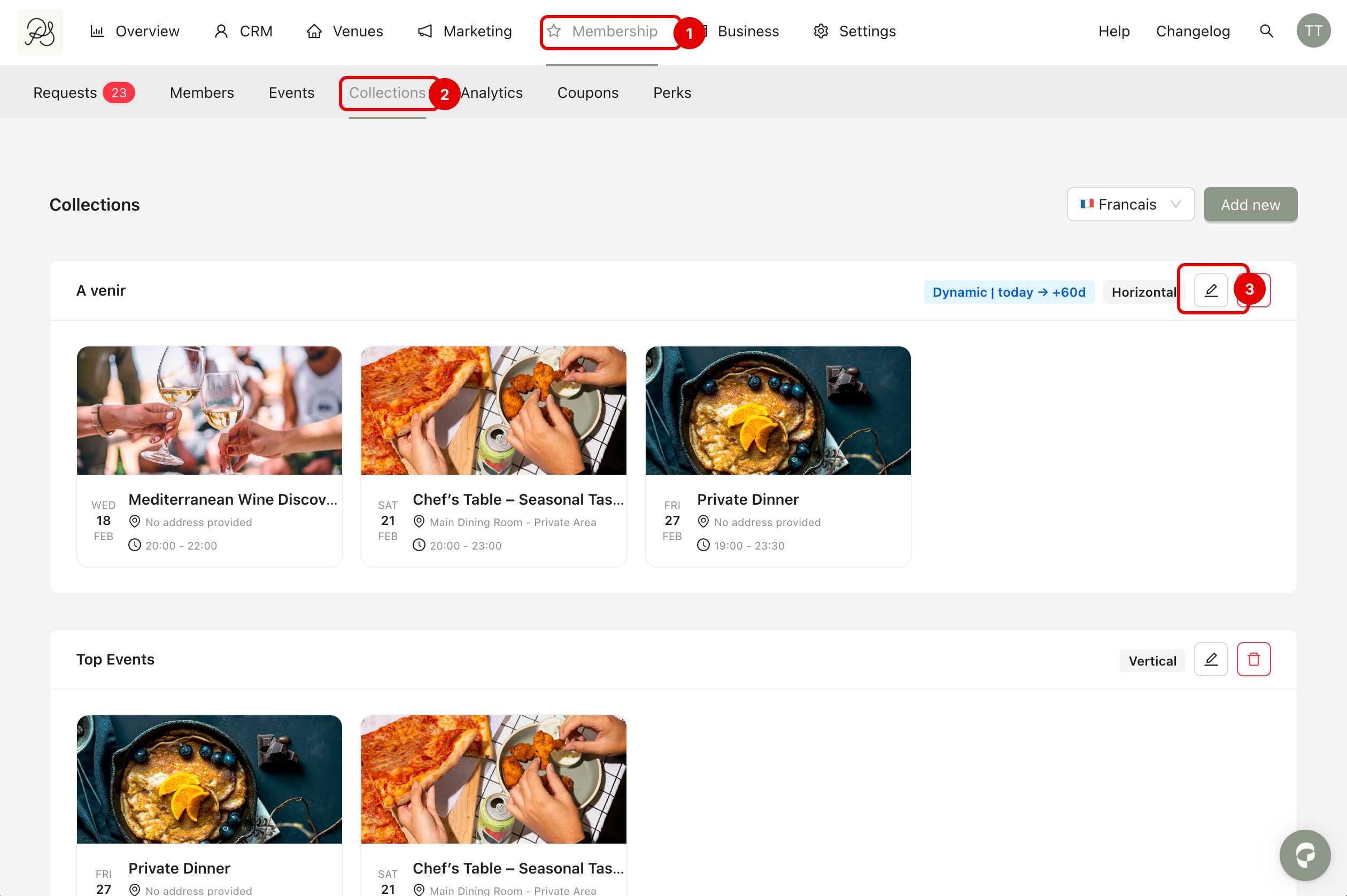
Step 1: Go to Membership (1) → Collections (2). Find the collection you want to edit and click the pencil icon (3).
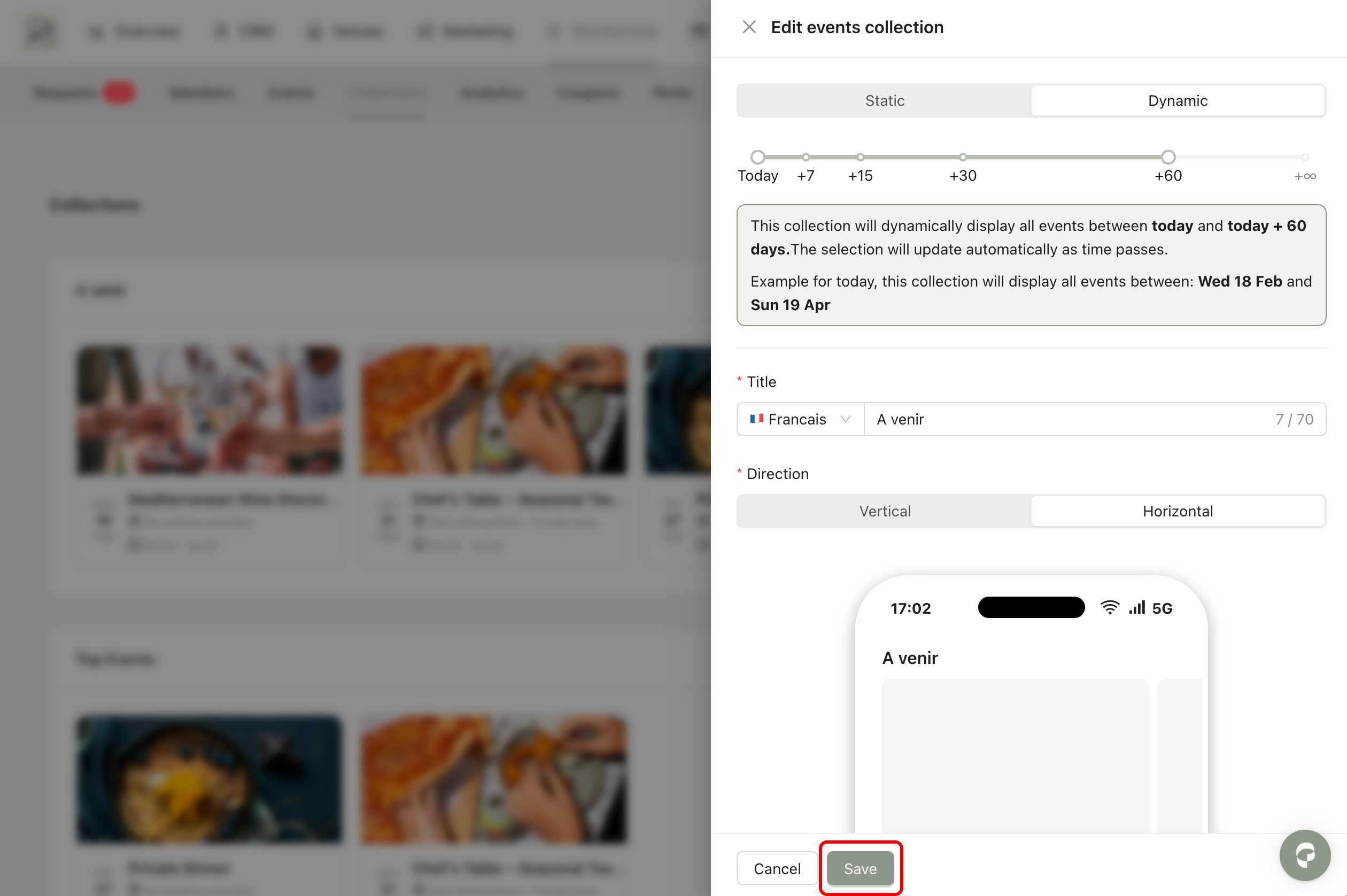
Step 2: A modal will appear to edit the collection. After making your changes, click Save to apply them.
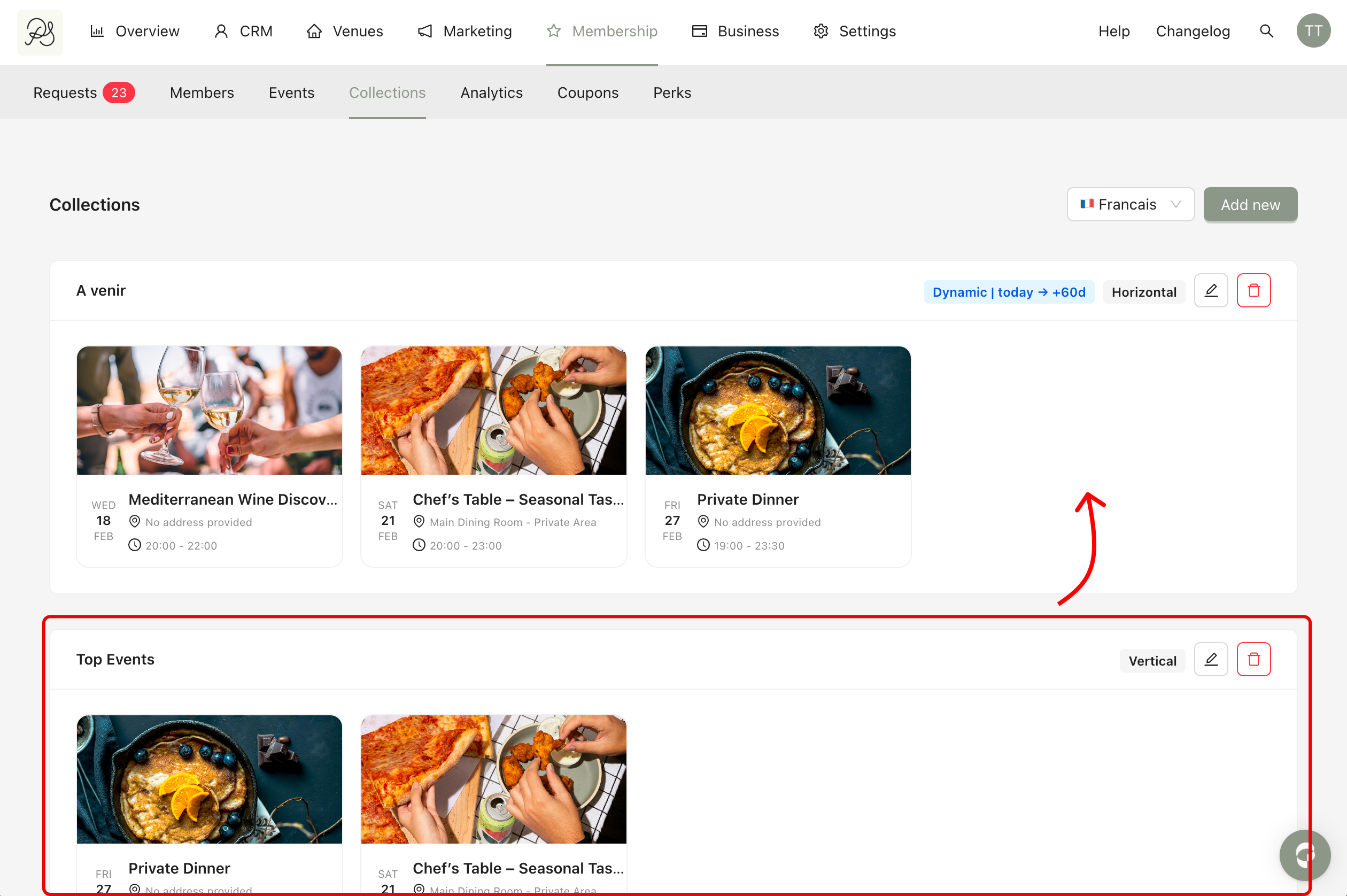
You can control the order in which collections appear in the mobile application. Go to Membership (1) → Collections (2). Drag and drop the collection to the desired position.
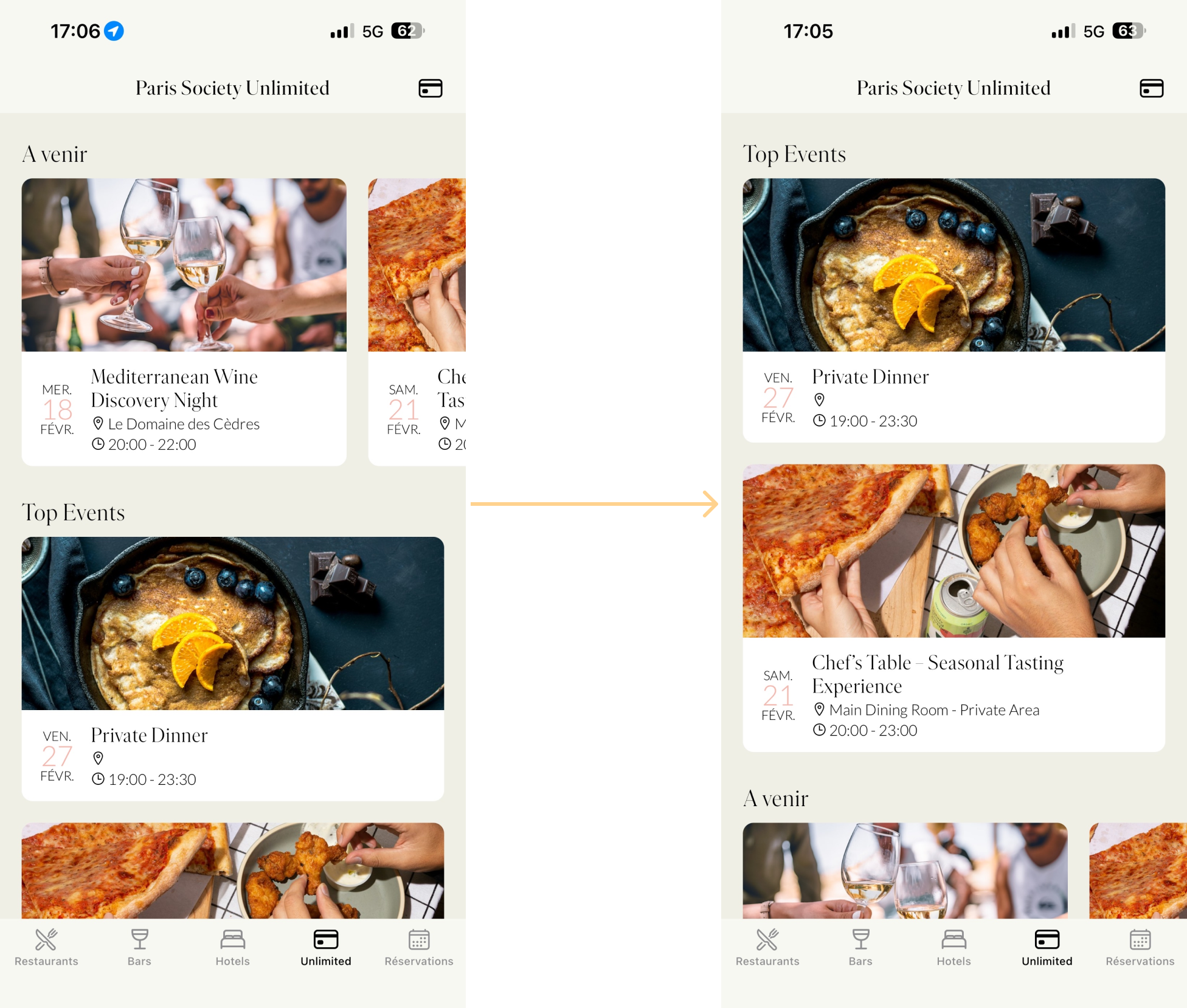
Result: The new order will automatically update in the members’ application.
To delete a collection, go to Membership (1) → Collections (2). Find the collection you want to delete and click the bin icon (3).