The Users section allows you to efficiently manage user profiles, access their booking history, track referrals, and monitor interactions within the app. This tool provides essential insights while ensuring compliance with GDPR regulations. By leveraging these features, you can optimize customer management and enhance the overall user experience.
Click on Users.
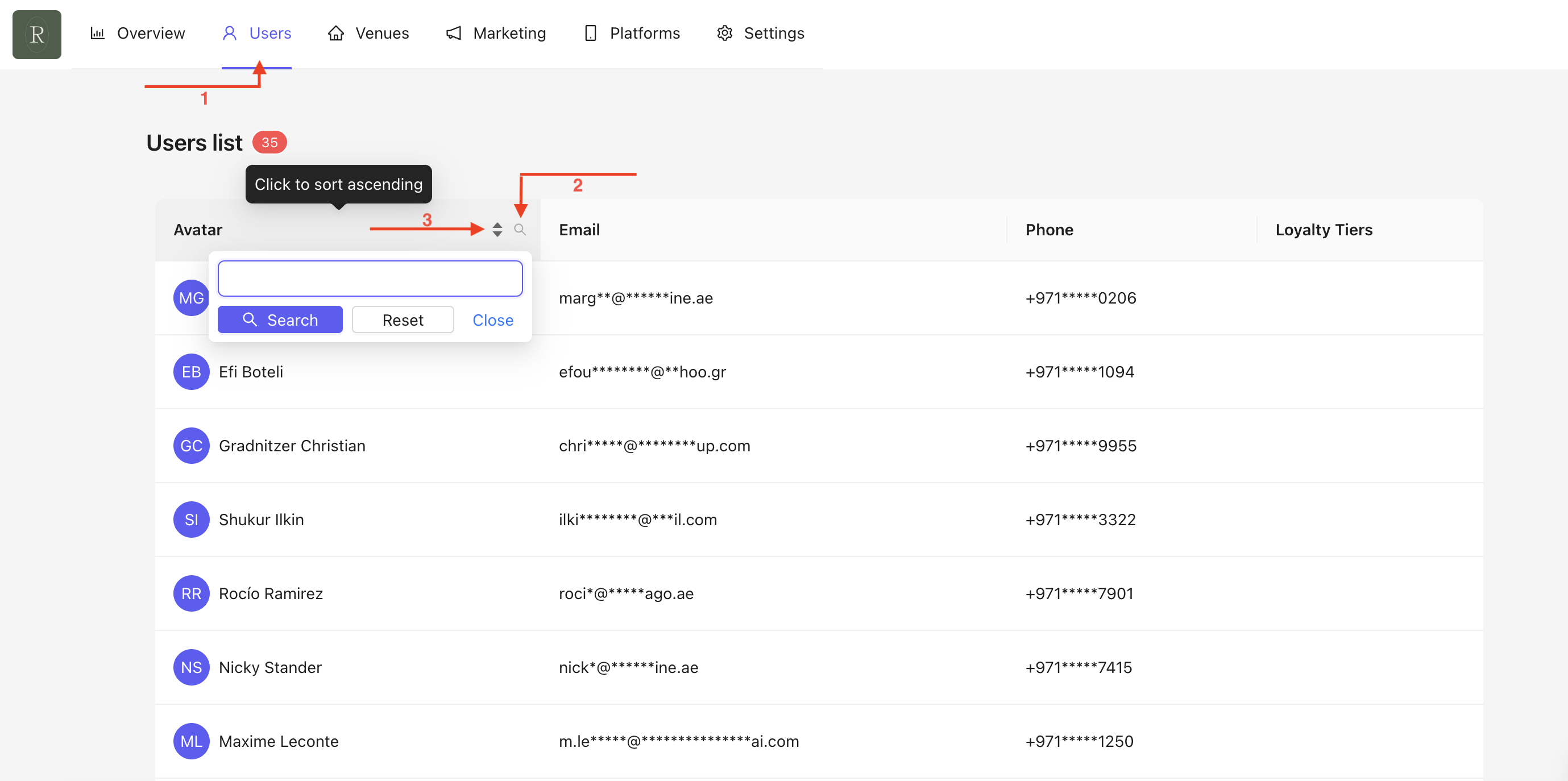
You will land on the Users homepage, displaying all registered users :
Quick search : use the magnifying glass icon to find a user.
Alphabetical sorting : arrange users by alphabetical order.

To access a user's profile, simply click on their name.
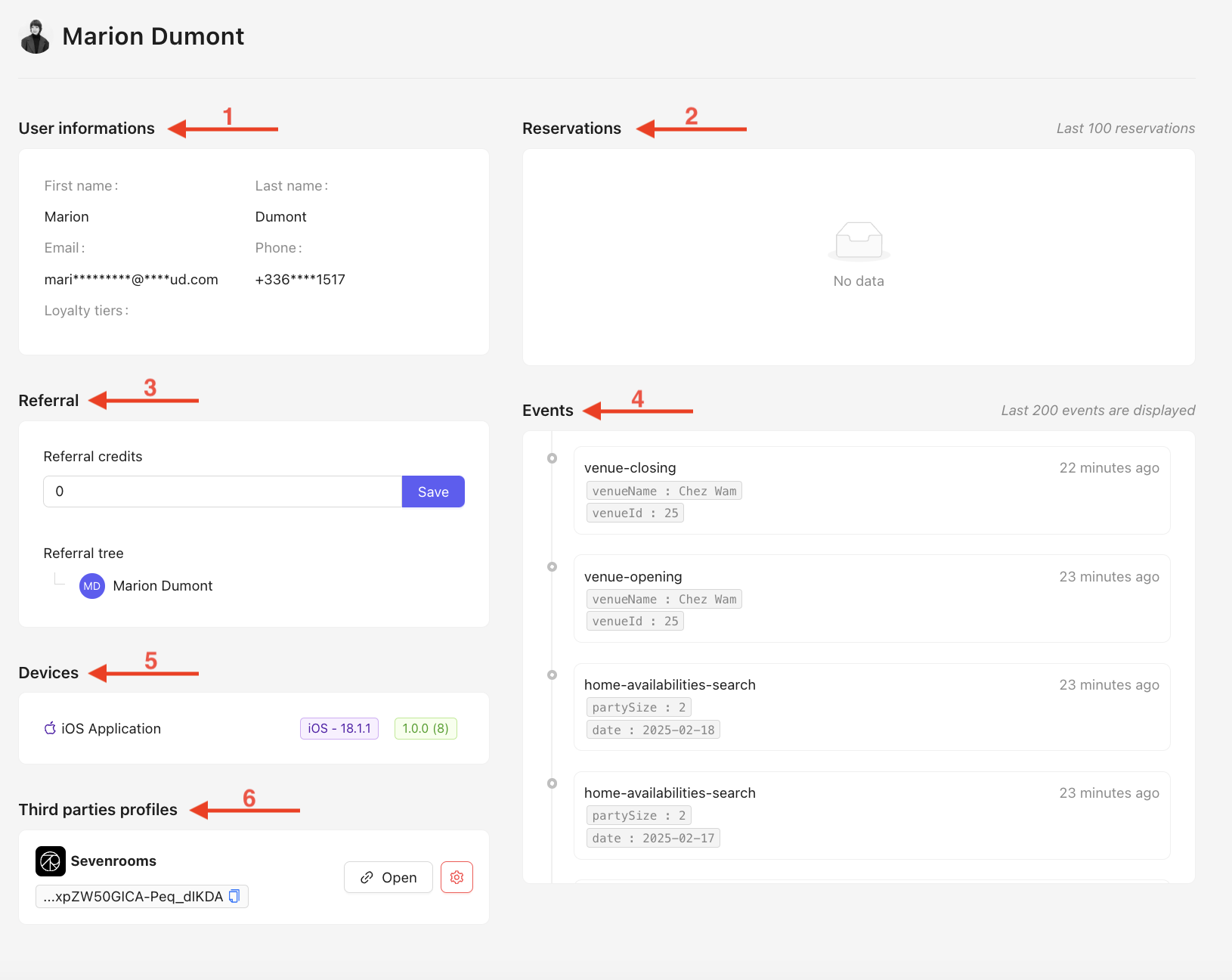
User Information : Displays user details. Due to GDPR compliance, sensitive information such as phone numbers and emails are masked.
Reservations : View booking history in chronological order (past & future). Only the last 100 reservations made via the App or Bot only are displayed.
Referral : Displays the user’s referral system, including the number of credits.
Events : Shows the last 200 events, tracking all user interactions within the app.
Devices : Lists all devices linked to the user account.
Previous devices appear grayed out.
Displays the OS version, App version, and Bot version.
Third-Party Profiles : Displays the SevenRooms profile linked to the user.
Referral Credits is a sponsorship system that allows a user to refer one or more people by granting them a predefined number of credits. You can set this amount directly from the User Page.
In this section, you will learn how to view, manage, and assign Referral Credits effectively :
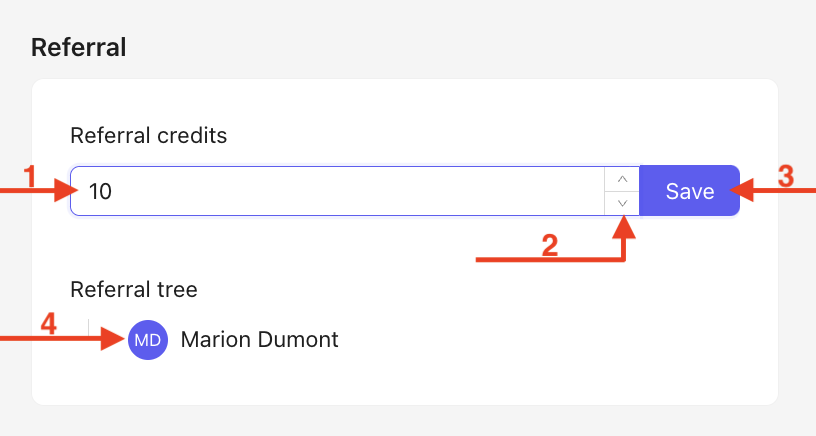
You can directly enter the desired credit amount.
Alternatively, adjust the value up or down using the arrows (increments of 1).
Click on Save to apply the changes.
Displays the referrer (the person who invited the user).
Click on the link below to learn how to define a Referral :
Lien
When a user logs into the App, a profile is either created in SevenRooms or linked to an existing one. If you encounter any issues with linking a user to their SevenRooms profile (such as deletion, duplication with another profile, etc.), this section allows you to modify their profile, as the user will no longer be connected.
Scroll down to the Third Parties Profiles Section :
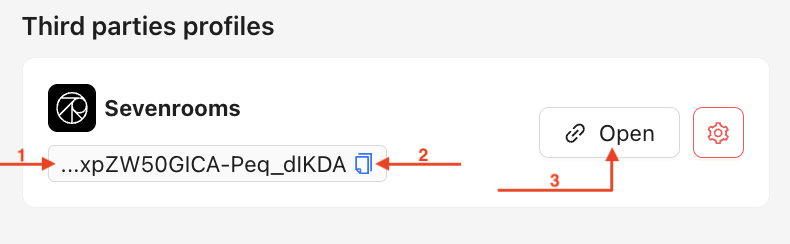
Linked SevenRooms Profile : Displays the link to the user's SevenRooms profile. If the link appears in red, there is a linking issue.
Copy Link Option : You can copy the link if needed.
Open in a New Tab : Allows you to open the user's SevenRooms profile in a new tab.
How to Reconnect a Profile ?
To find the User ID, go to SevenRooms :
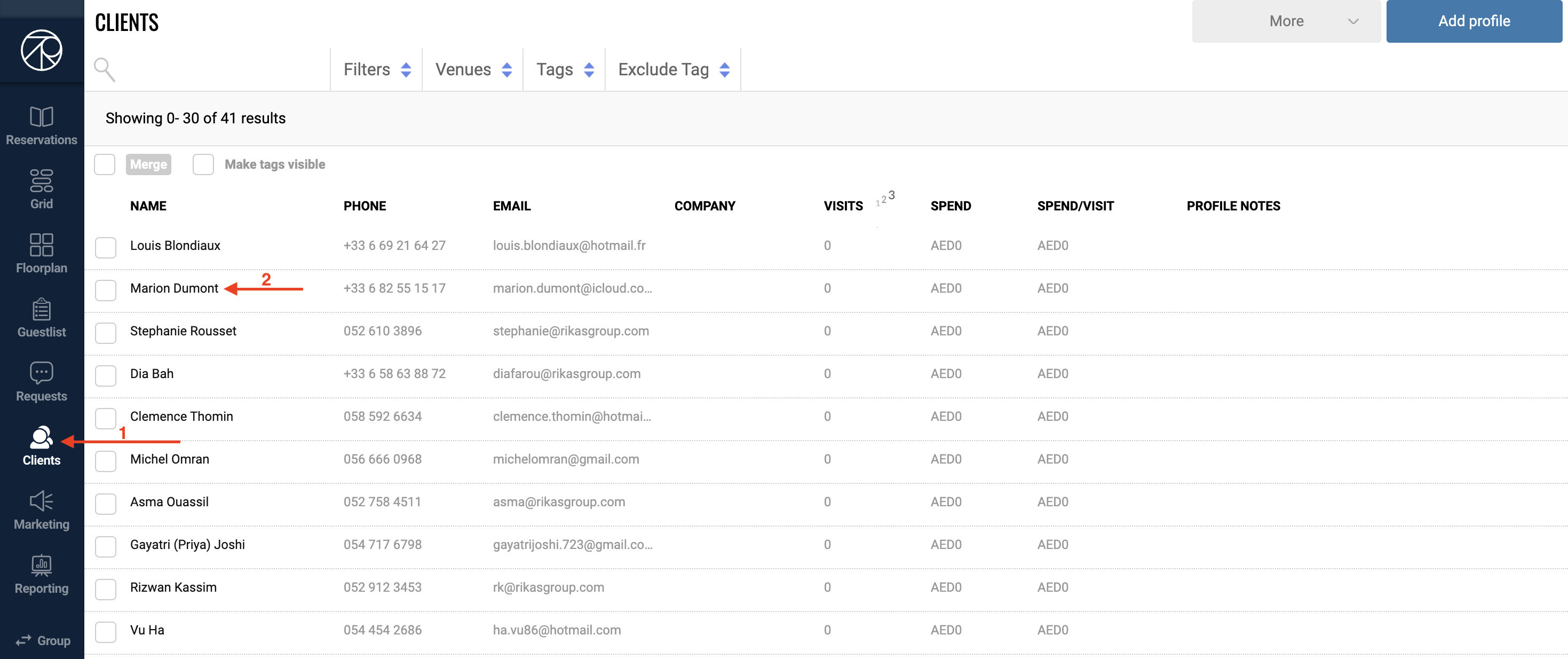
Go to Clients Section
Search and click on the user profile
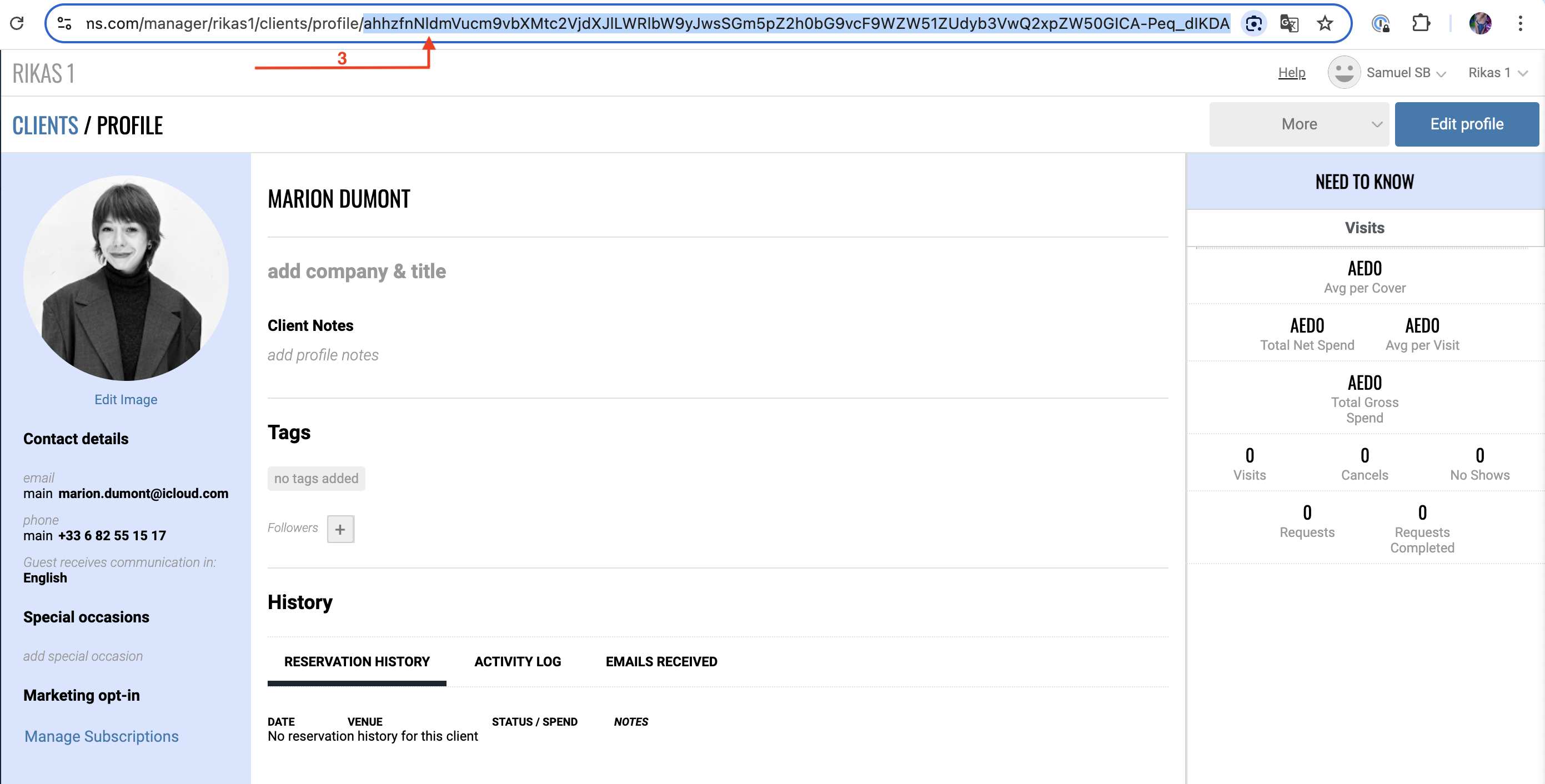
Copy the User ID : This is the sequence of characters found in the URL after "profile".
Return to the Back-Office to proceed with the reconnection :
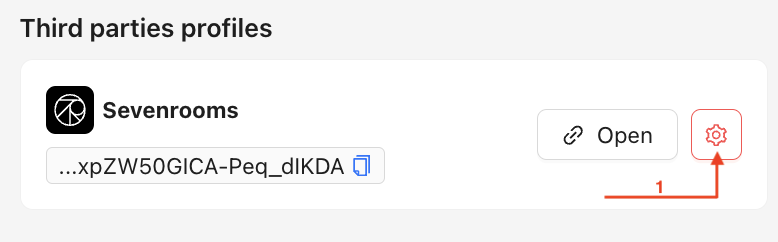
Clicking on Settings Icon, a pop-up will appear :
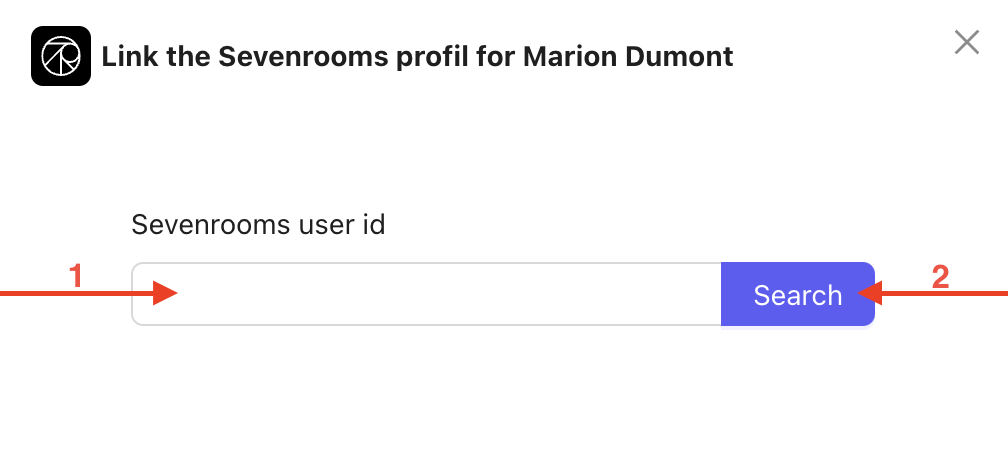
Enter the SevenRooms link or paste the copied link from SevenRooms into the designated field.
Click Search to find the matching profile.
At this stage, data from both the App and SevenRooms will appear. You have the option to overwrite or keep existing data :
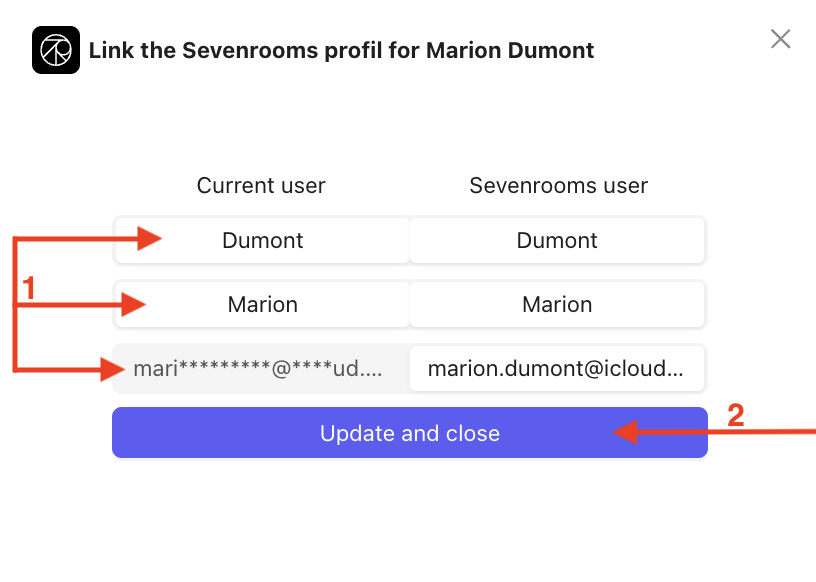
Click on the data you want to keep. Grayed-out information represents the data you are not retaining.
Click Update and Close to confirm your modifications.
With the Users section, you have a centralized and structured view of each user's activity and engagement. Whether it’s checking booking history, tracking referrals, or linking third-party profiles, this module ensures seamless user management. Make sure to utilize all available features to improve operational efficiency and provide a smooth customer experience.
