Roles with permission to add, edit, or remove Loyalty Tiers for a user:
Admin
Head of Project
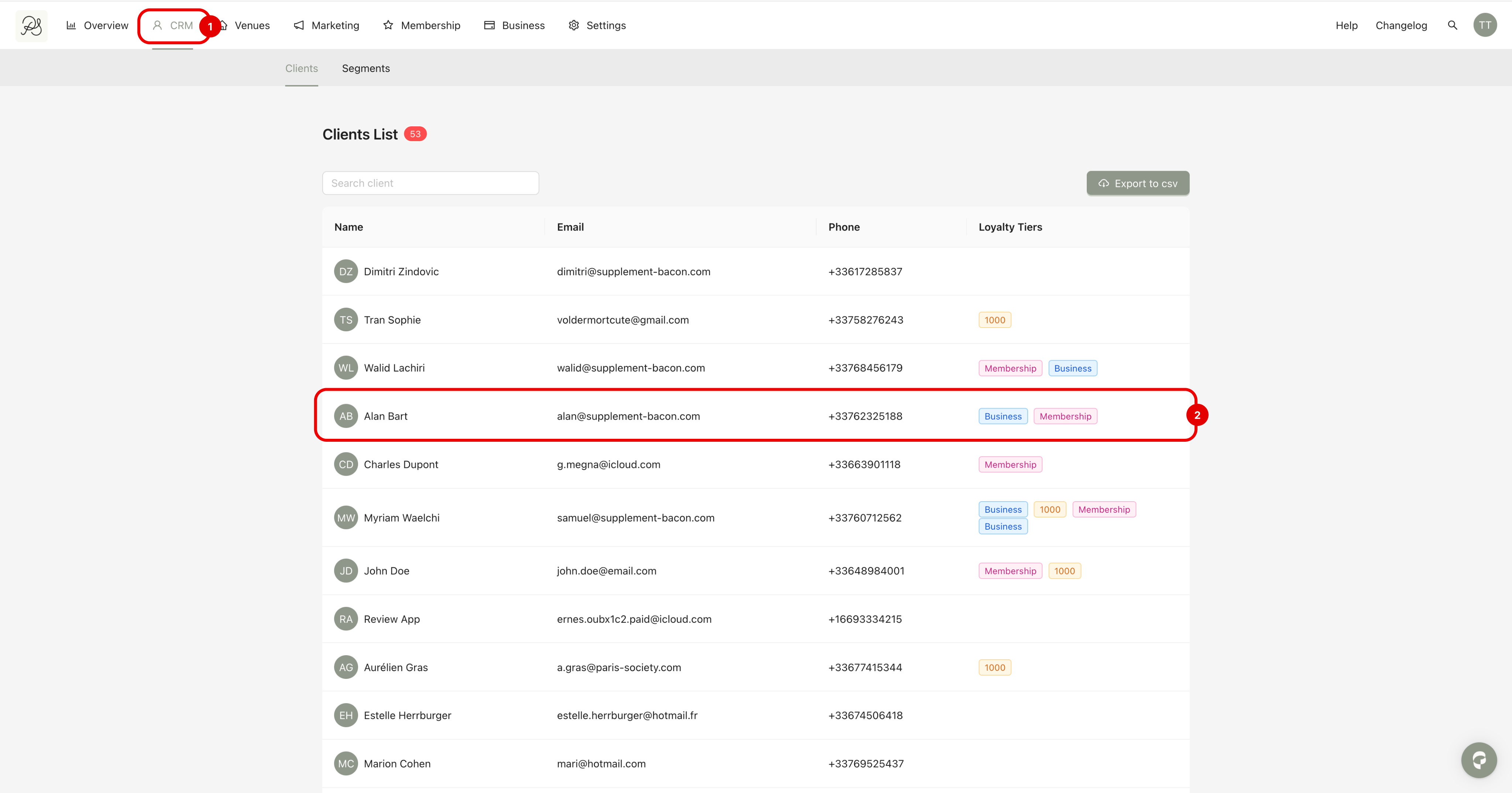
Step 1: From the homepage, click CRM (1). Then click in the user you want to assign a Loyalty Tier (2).
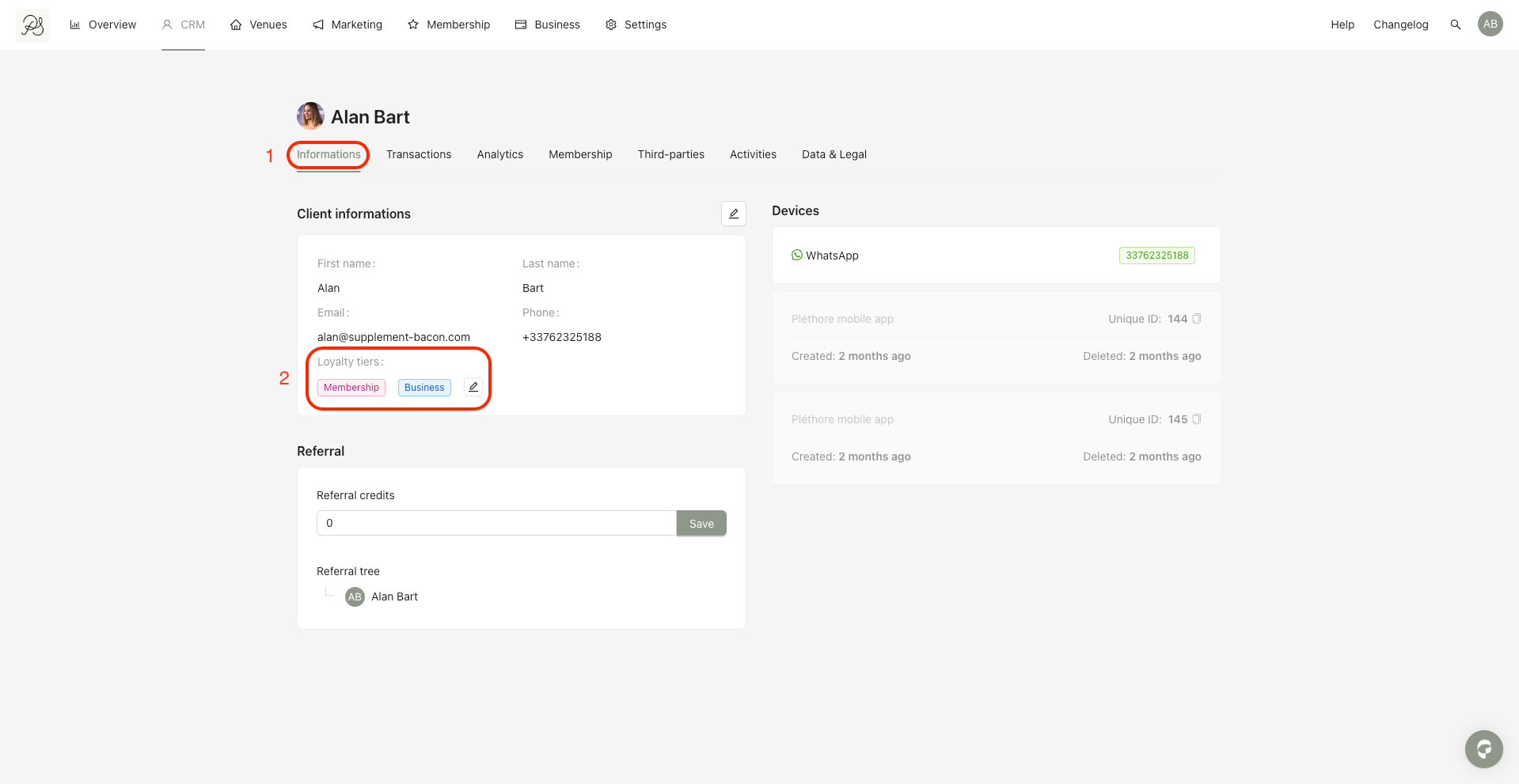
Step 2: Go to the Information tab (1). In the highlighted section (2), you can see the Loyalty Tiers currently assigned to the user.
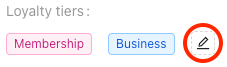
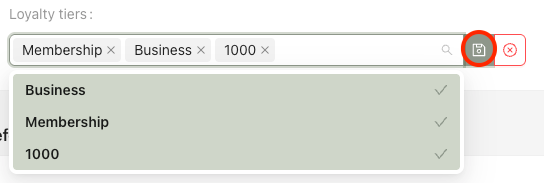
Step 3: Click the edit (pencil) icon. Select the Loyalty Tier(s) you want to add.
In this example, we add the “1000” tier.
Once selected, the tier turns green, which means It is added to the list of assigned tiers.
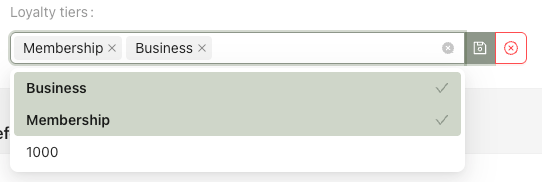
Step 4: Click the save (disk) icon to confirm. To cancel, click the red cross icon. The Loyalty Tier is now successfully assigned to the user.
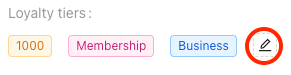
Step 1: Click the edit (pencil) icon.
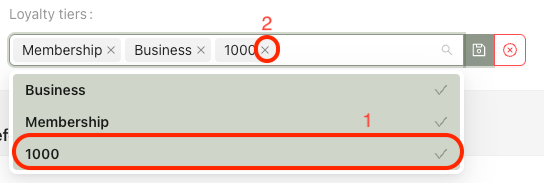
Step 2: Remove the Loyalty Tier by clicking the highlighted tier (1), or clicking the cross icon next to it (2). The tier will turn white and be removed from the list.
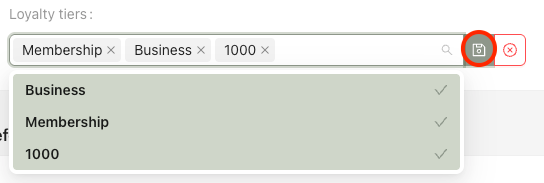
Step 3: Click the save (disk) icon to confirm. To cancel, click the red cross icon. The Loyalty Tier is successfully removed.
Some Loyalty Tiers are assigned automatically based on user actions:
Membership: Assigned when the user activates their membership account in the mobile application.
Business: Assigned when the user joins a Business company.

