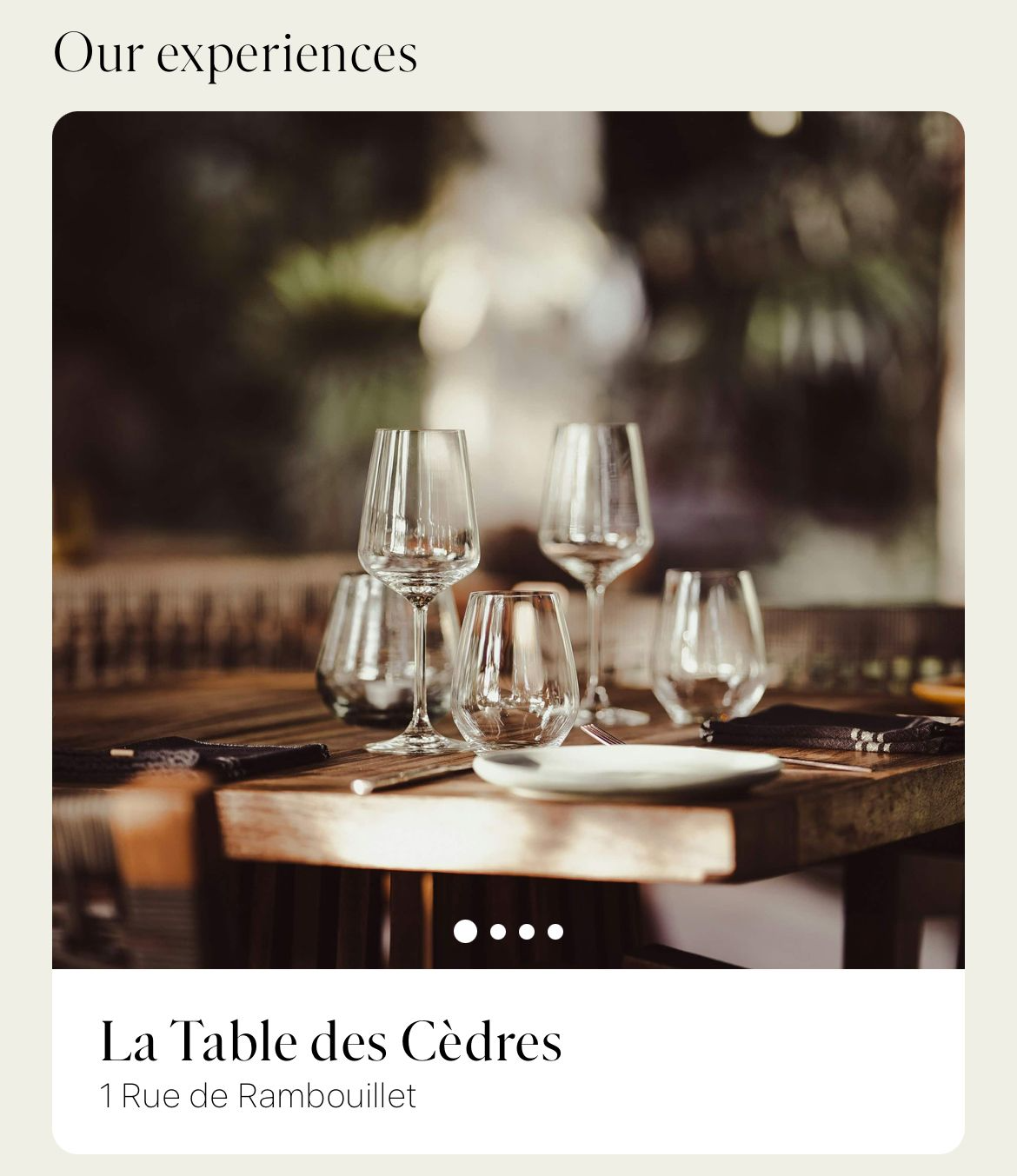
Nested Venues allow you to add links to other venues within a venue’s page.
The following roles can edit venues and Nested Venues:
Admin
Communication
Head of Project
Marketing
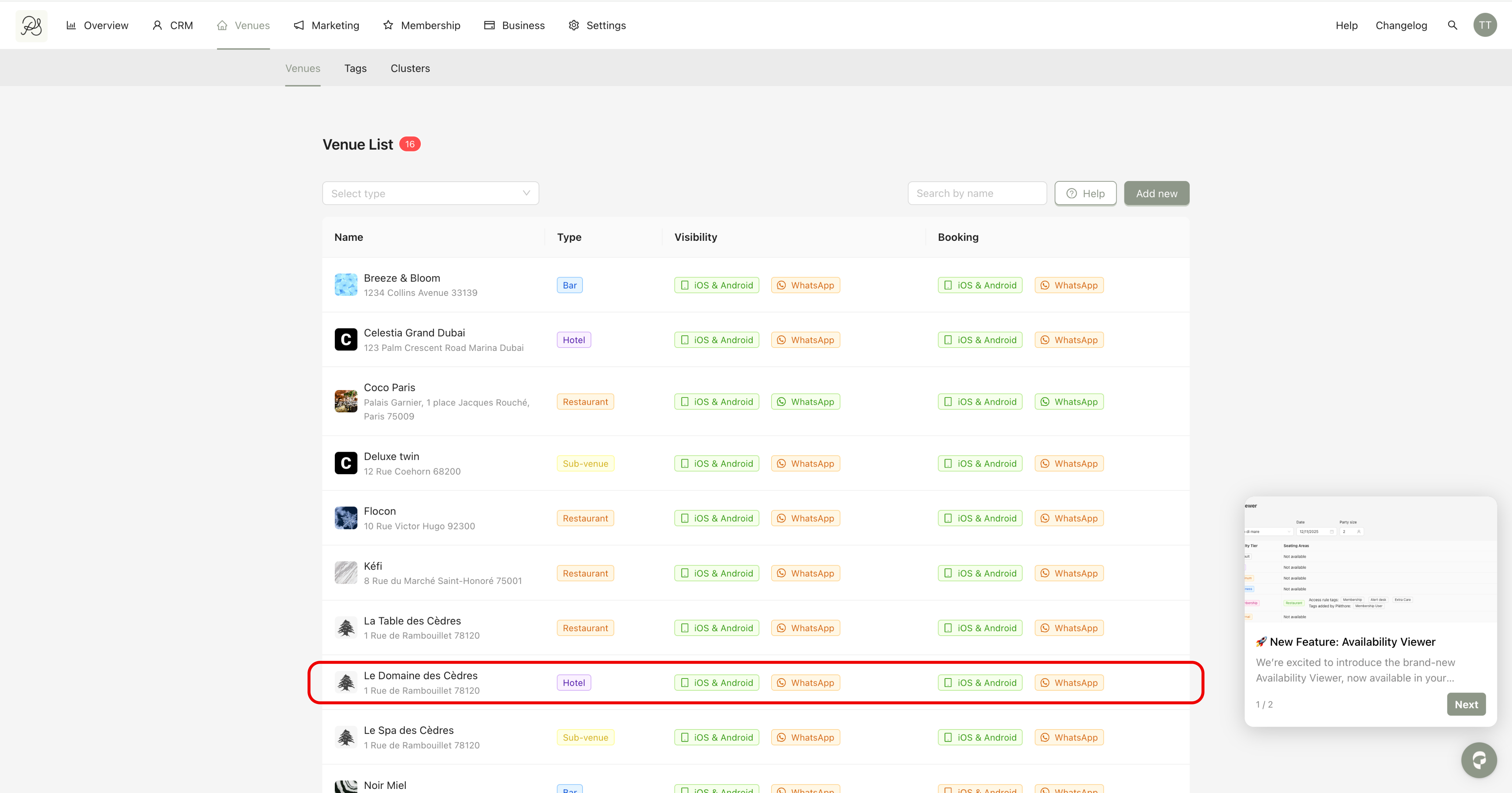
Step 1: From the Venues tab, select the venue you want to edit.
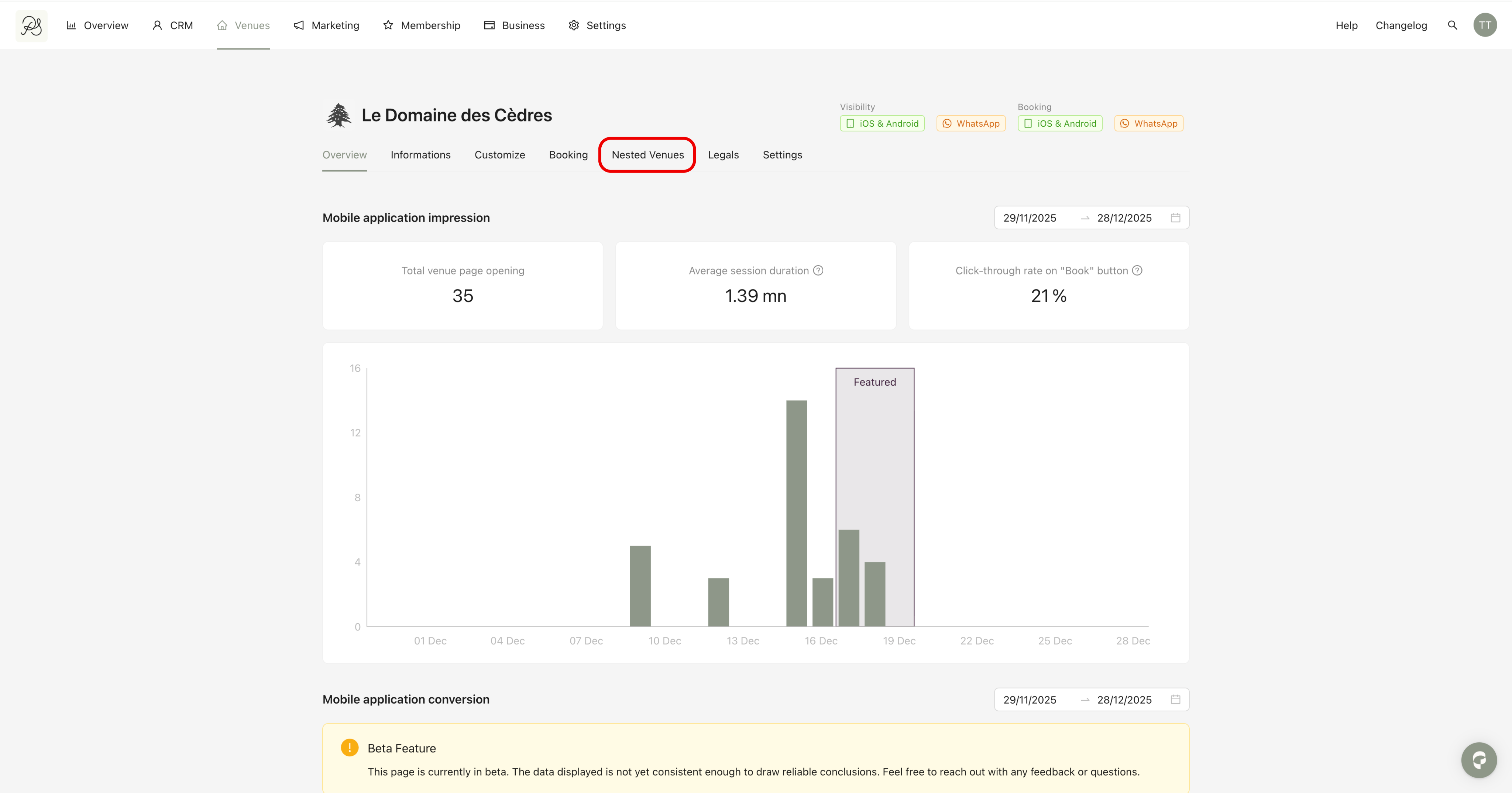
Step 2: Go to the Nested Venues tab. From this section, you can create links between venues.
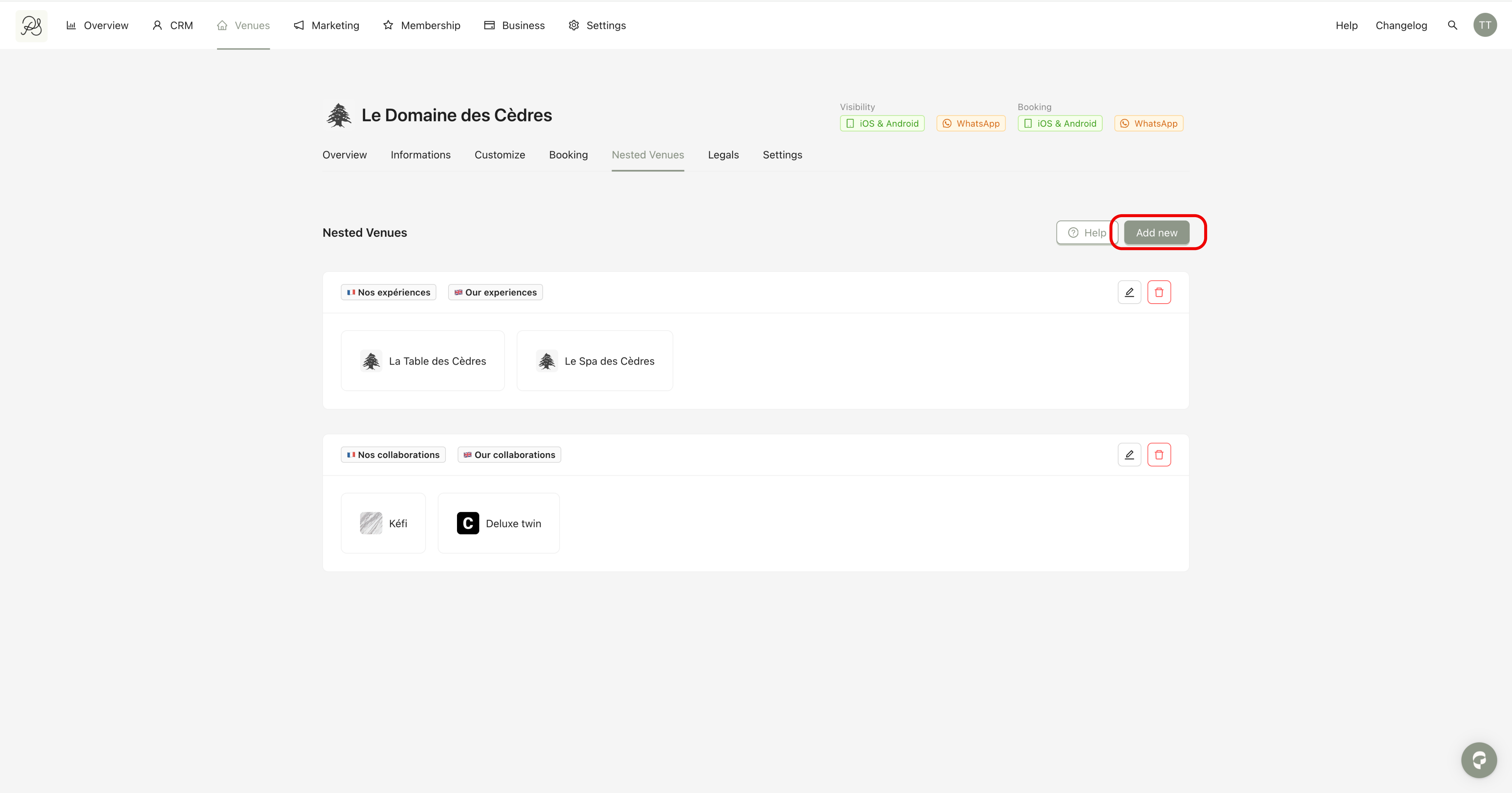
Step 1: Click Add new.
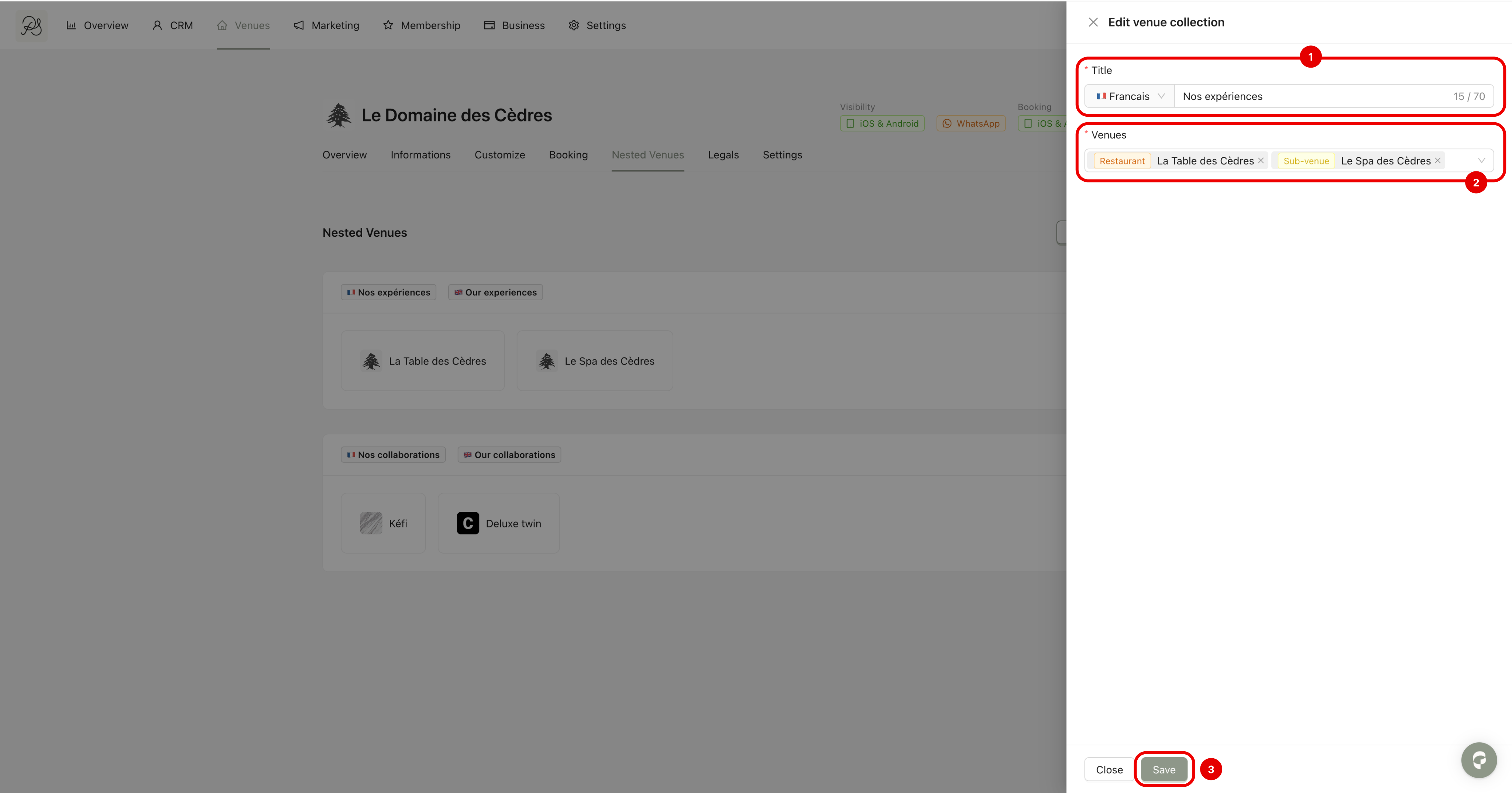
Step 2: Complete the Nest Title in French and English (1). Add one or more venues to the Nested Venue (2), then click Save (3).
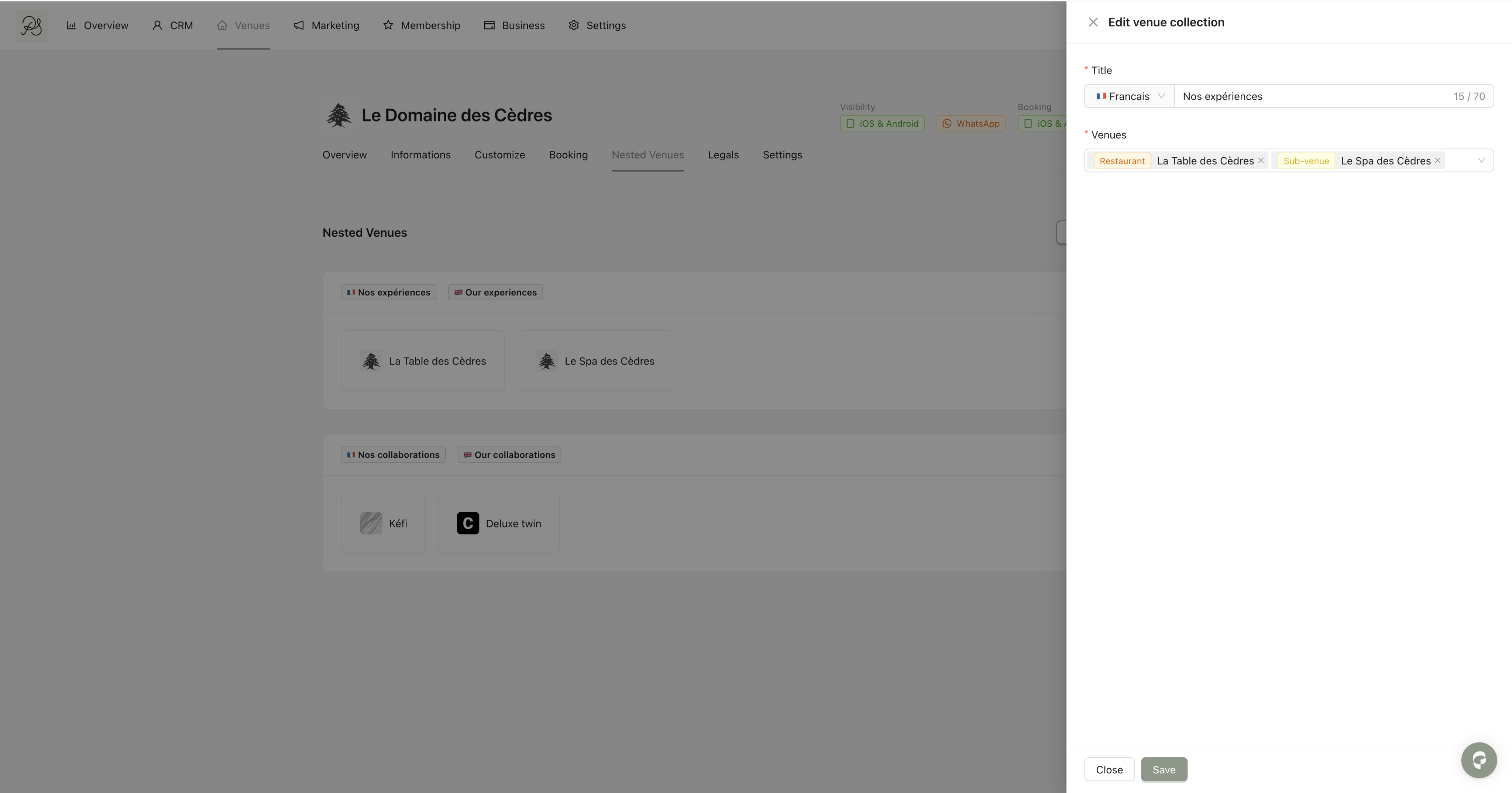
Step 1: Click the edit (pencil) icon.

Step 2: Update the form as needed. Click Save to apply your changes.
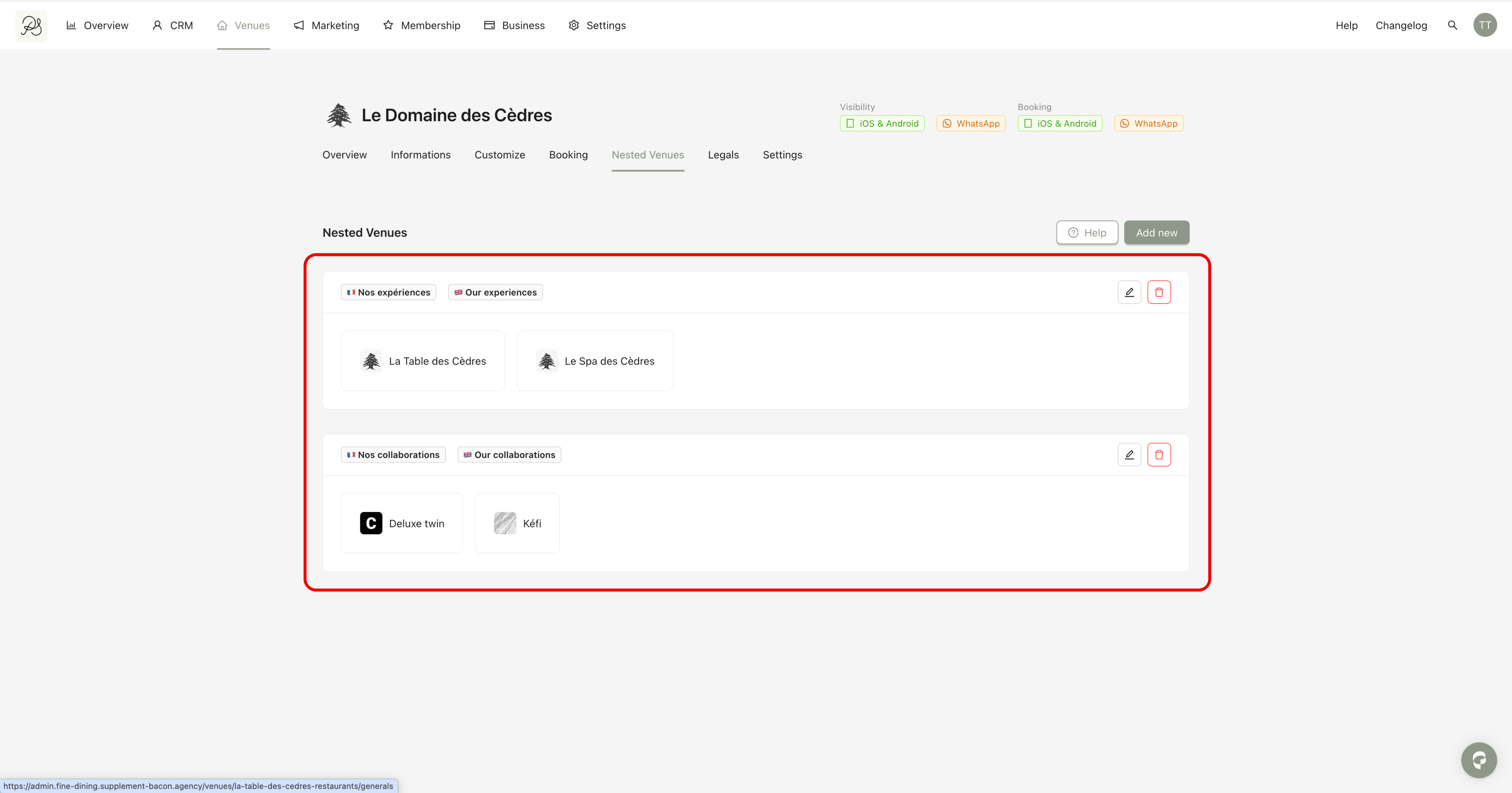
To change the order of venues, drag and drop the venue block.

If you have multiple Nested Venues, you can change their display order using drag and drop.
Step 1: Click the trash icon.
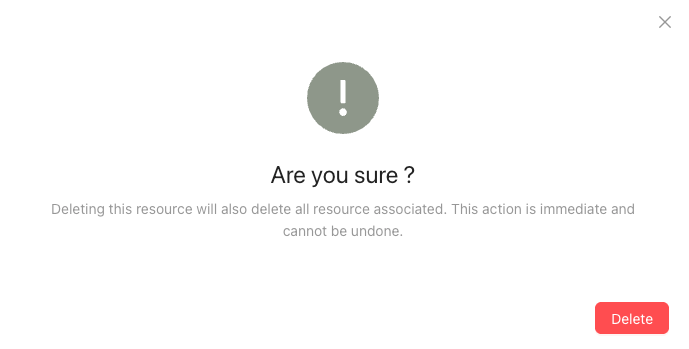
Step 2: A confirmation message will appear. Click Delete to confirm.

 Result in the mobile application
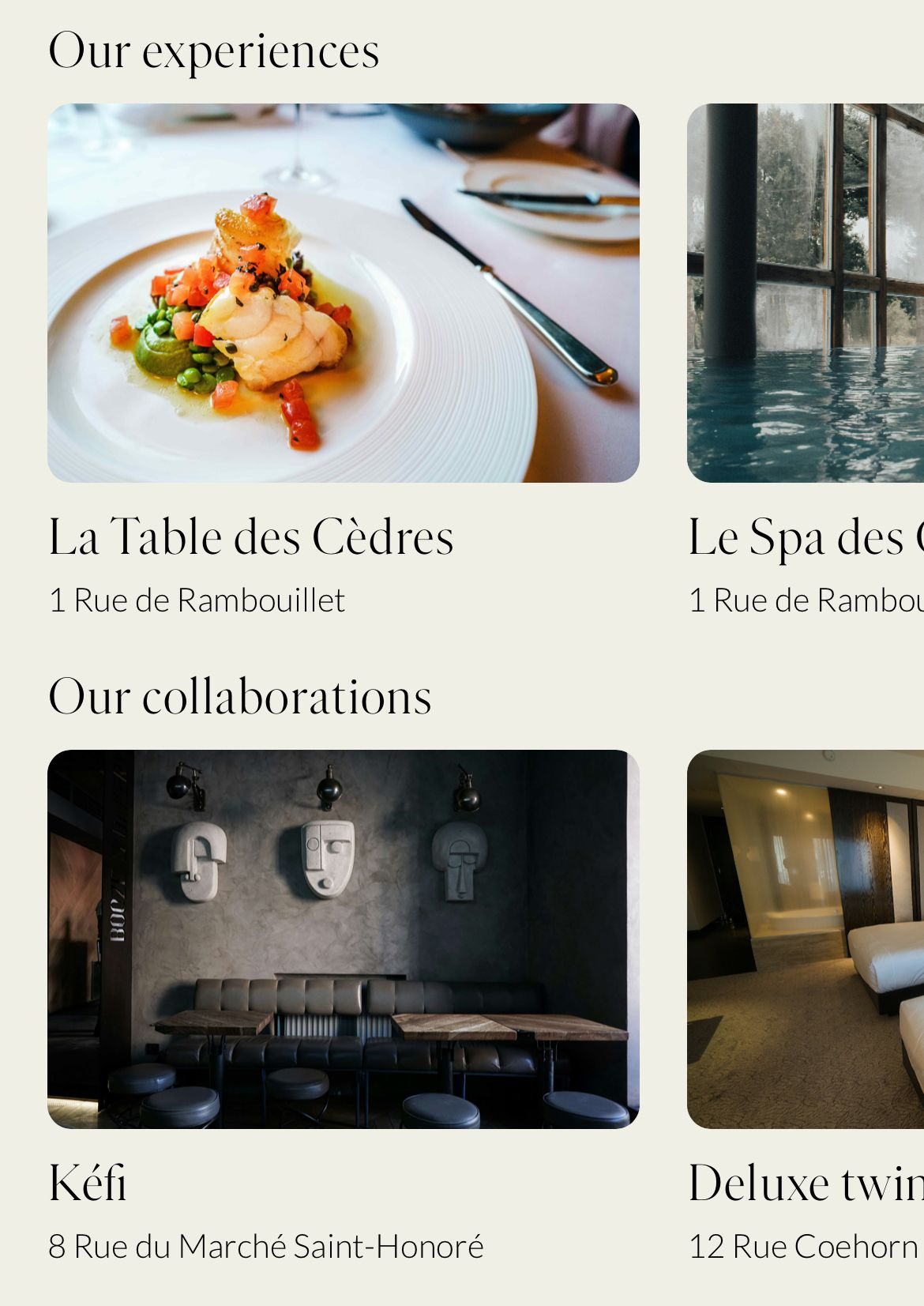
Below is how multiple Nested Venues appear in the mobile application.
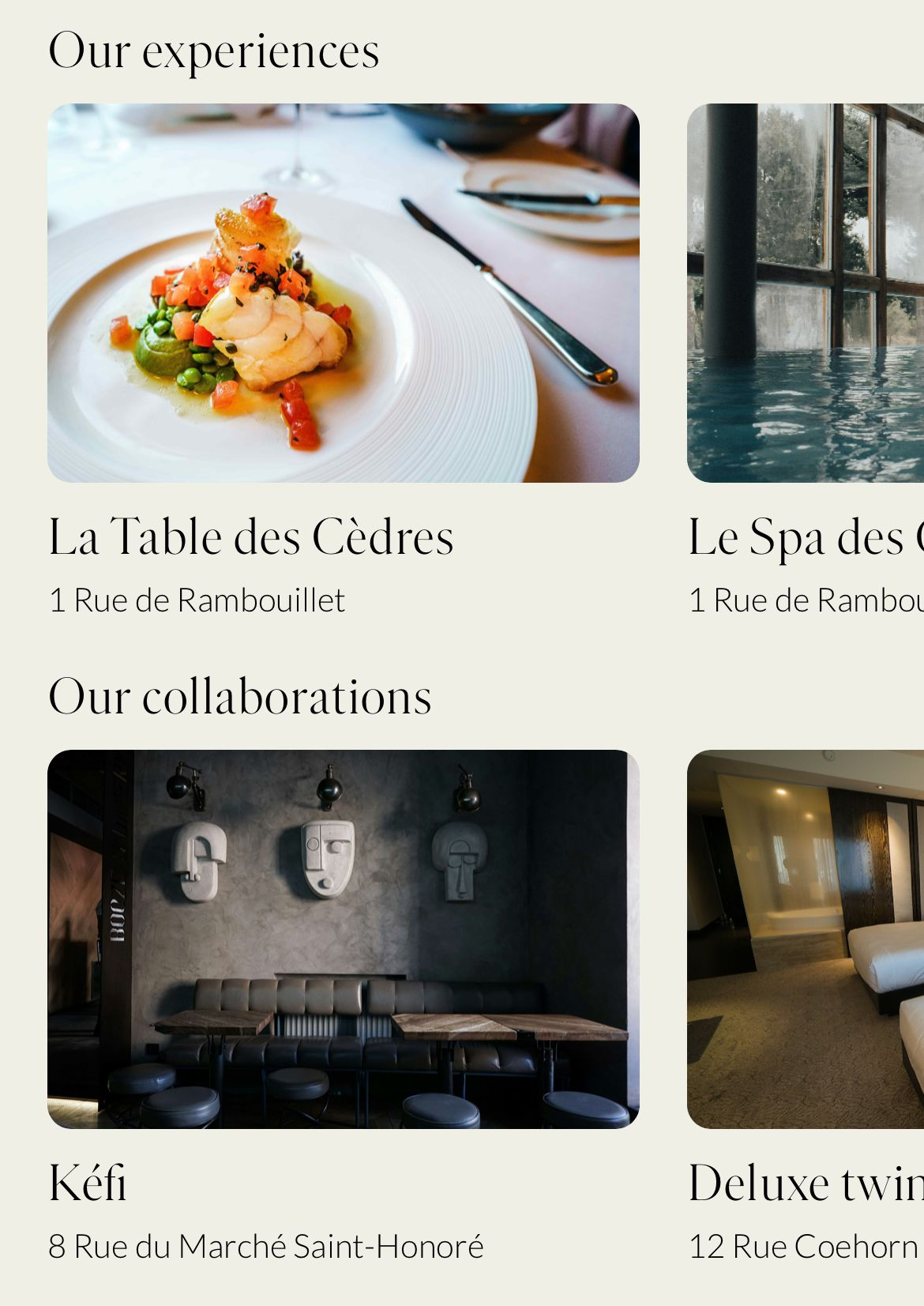
When a Nested Venue contains multiple venues, they are displayed as a list in the mobile application.
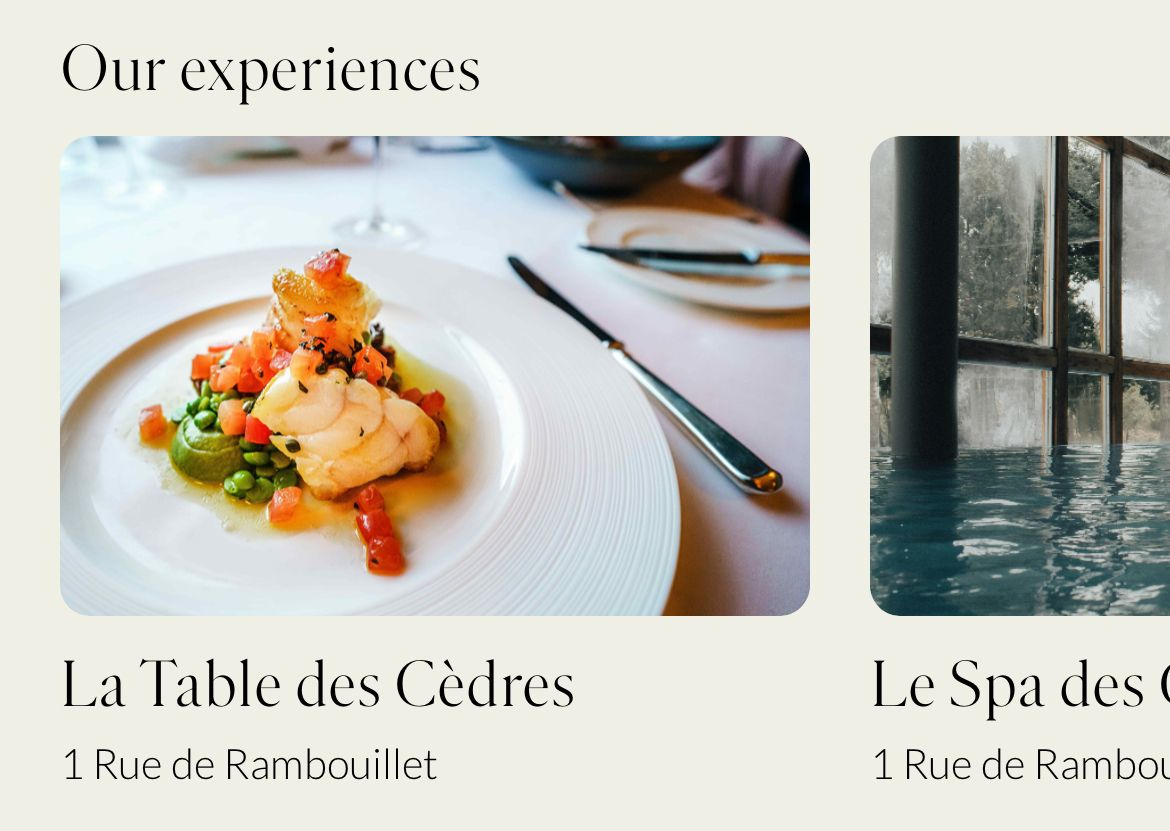
When a Nested Venue contains a single venue, it is displayed as a single link.