The Nested Venue feature provides an intuitive and flexible way to organize and display multiple venues within a single venue page. With this option, users can easily add, modify, or remove venues in a horizontal carousel format, ensuring a richer and smoother experience for visitors. This system not only optimizes the display but also ensures a simple and quick content management process.
A nested venue allows you to attach one or more venues, in a horizontal carousel format, to a venue page.
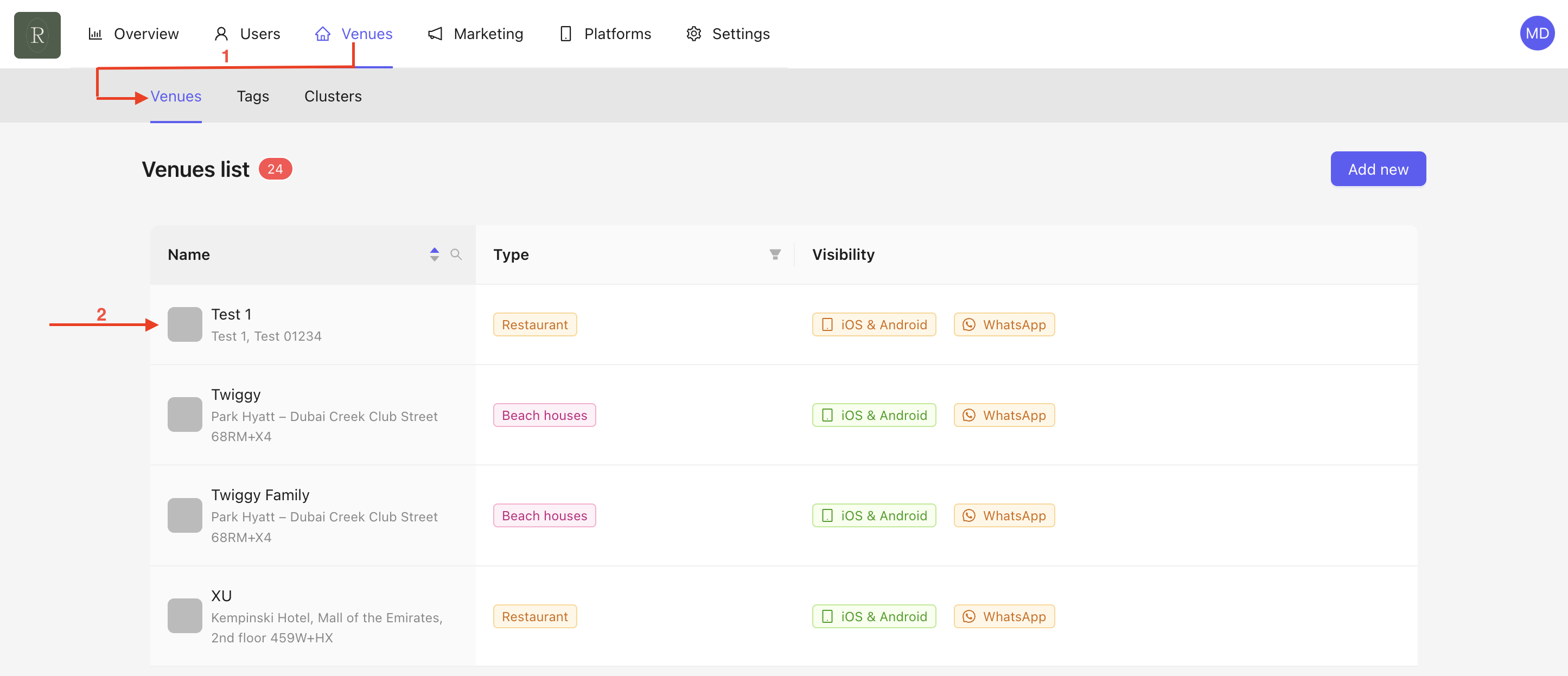
Go to the Venue section.
Click on the chosen venue.
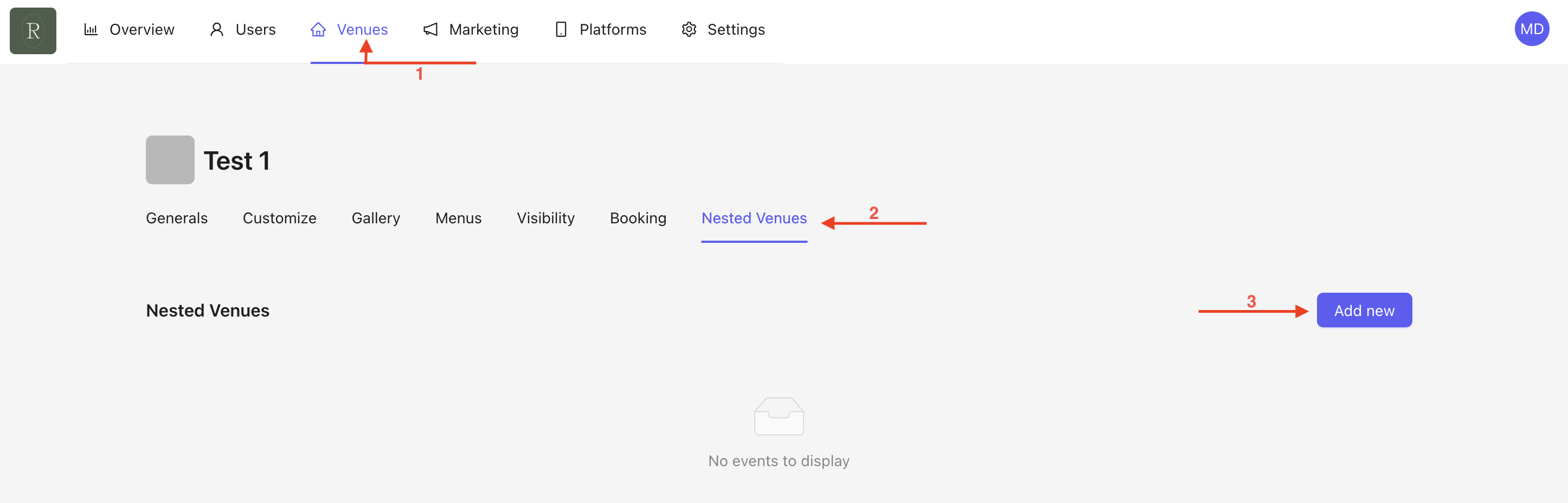
Go to the Nested Venue section.
Click on Add New.
A pop-up will appear with various fields to fill in :

Add title in the selected languages.
Add venues from the dropdown menu in the search bar.
You can remove a venue directly by clicking the cross.
Select venues from the dropdown menus. Once selected, they are highlighted in blue.
You can delete a venue at any time by clicking on it again.
Click Save.

Your Nested Venue now appears on your homepage :
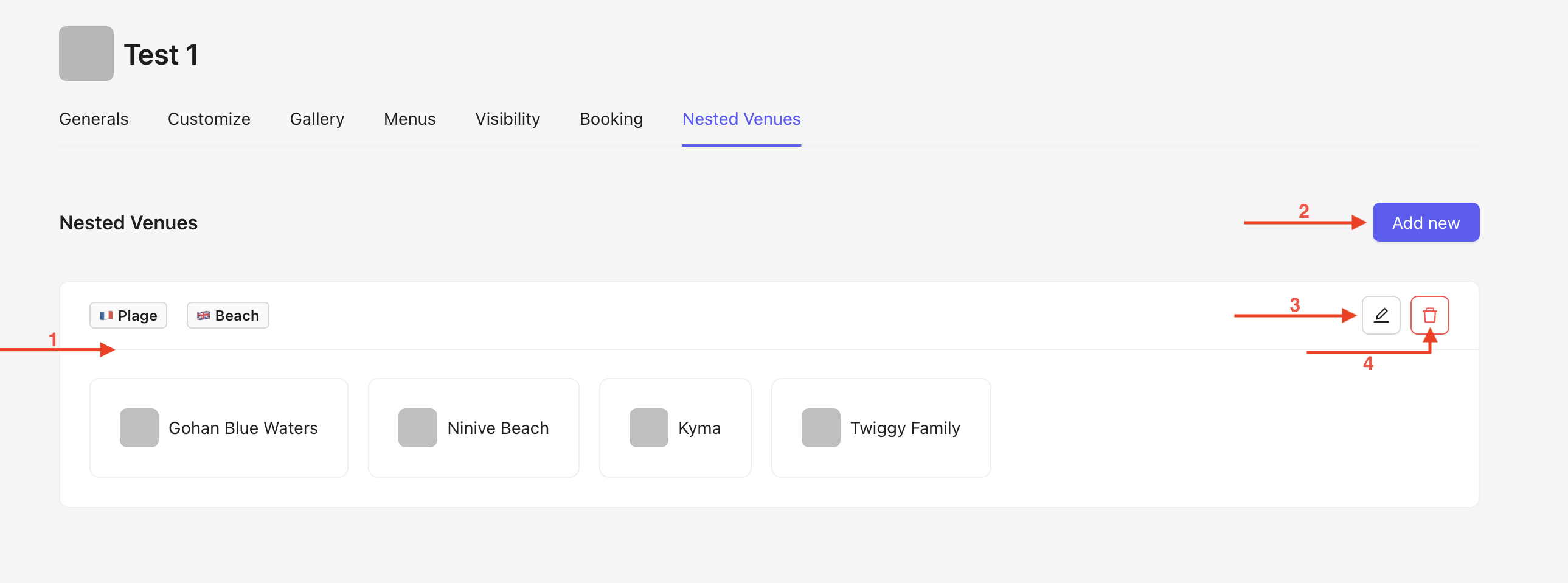
Visibility of the created nested venue with its title in the selected languages, displaying the chosen venues that have been attached.
Click on Add new to create a new nested venue at any time .
Edit the nested venue using the edit icon. A pop-up will open, the same as during creation.
Delete the nested venue using the trash icon.
Visual appearance of a Nested Venue in the App :
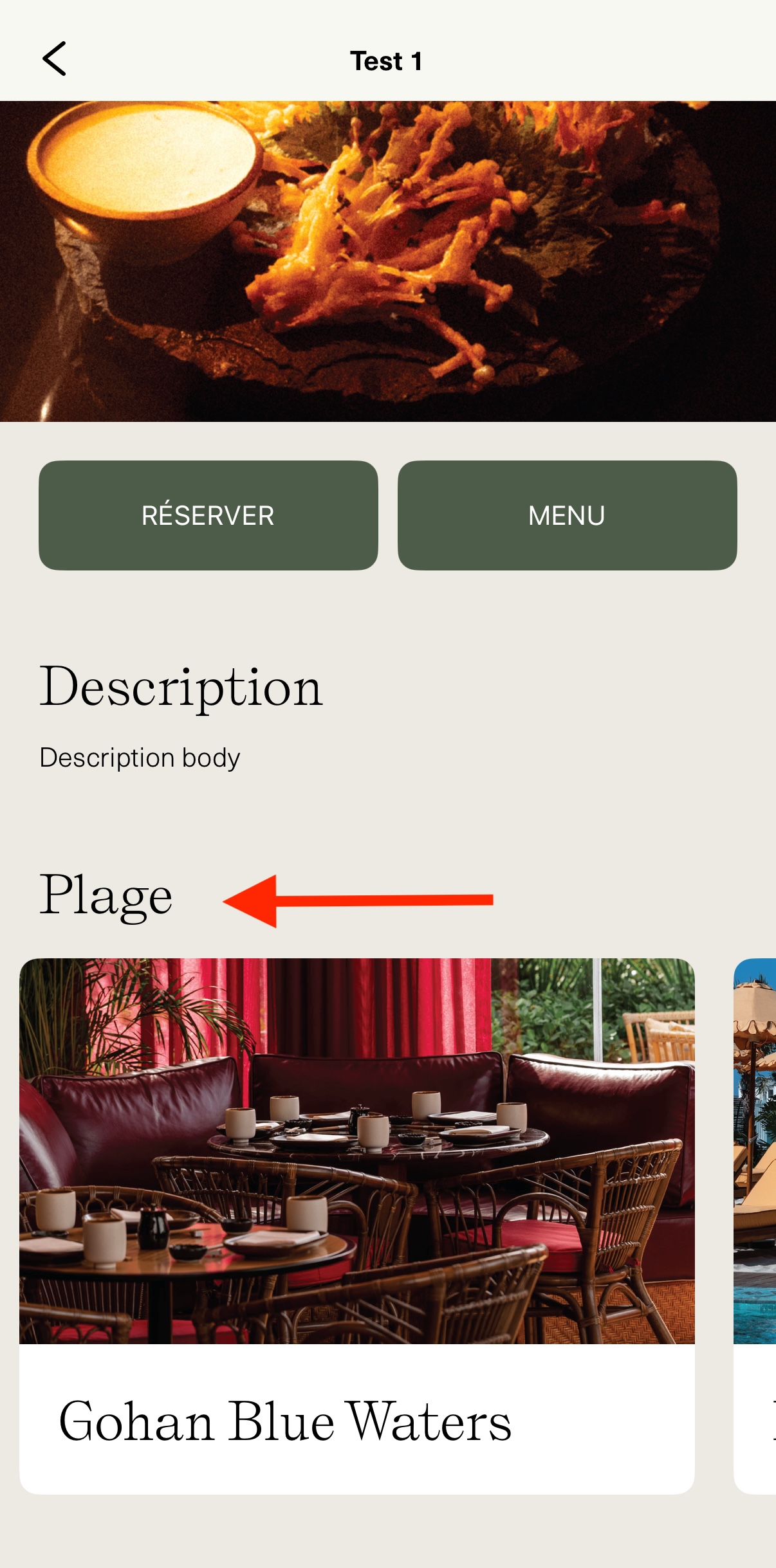
Integrating nested venues offers significant value by providing an easy-to-implement feature that is easily managed in the back office. Users can easily highlight specific venues at any time, regardless of geographic limitations. For app visitors, this means the opportunity to discover new places they may not have known about before, enriching their experience with the variety of venues on offer.
