Roles with permission to create campaigns:
Admin
Head of Project
Marketing
Communication
Membership
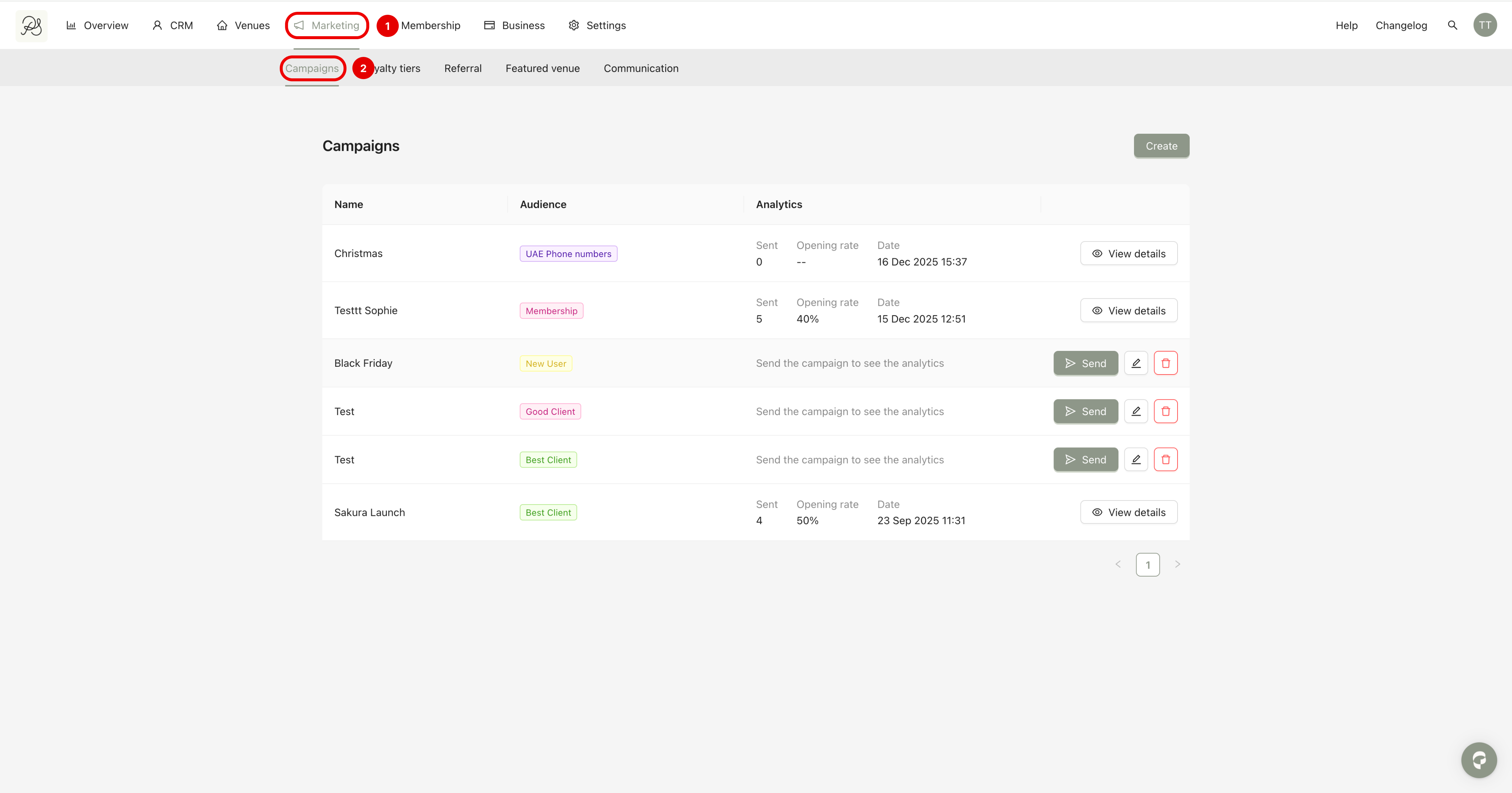
Step 1: Go to Marketing → Campaigns.
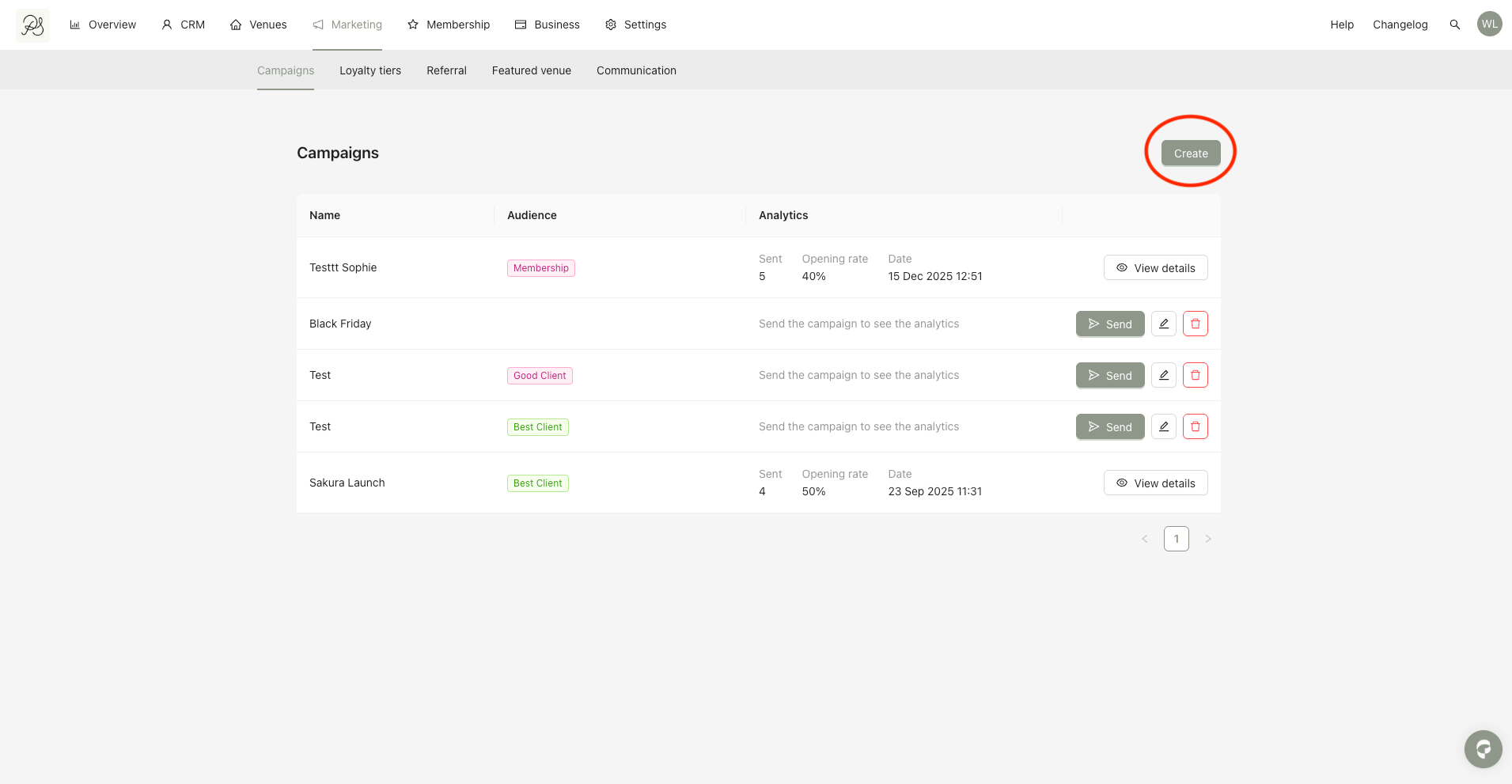
Step 2: Click the button Create.
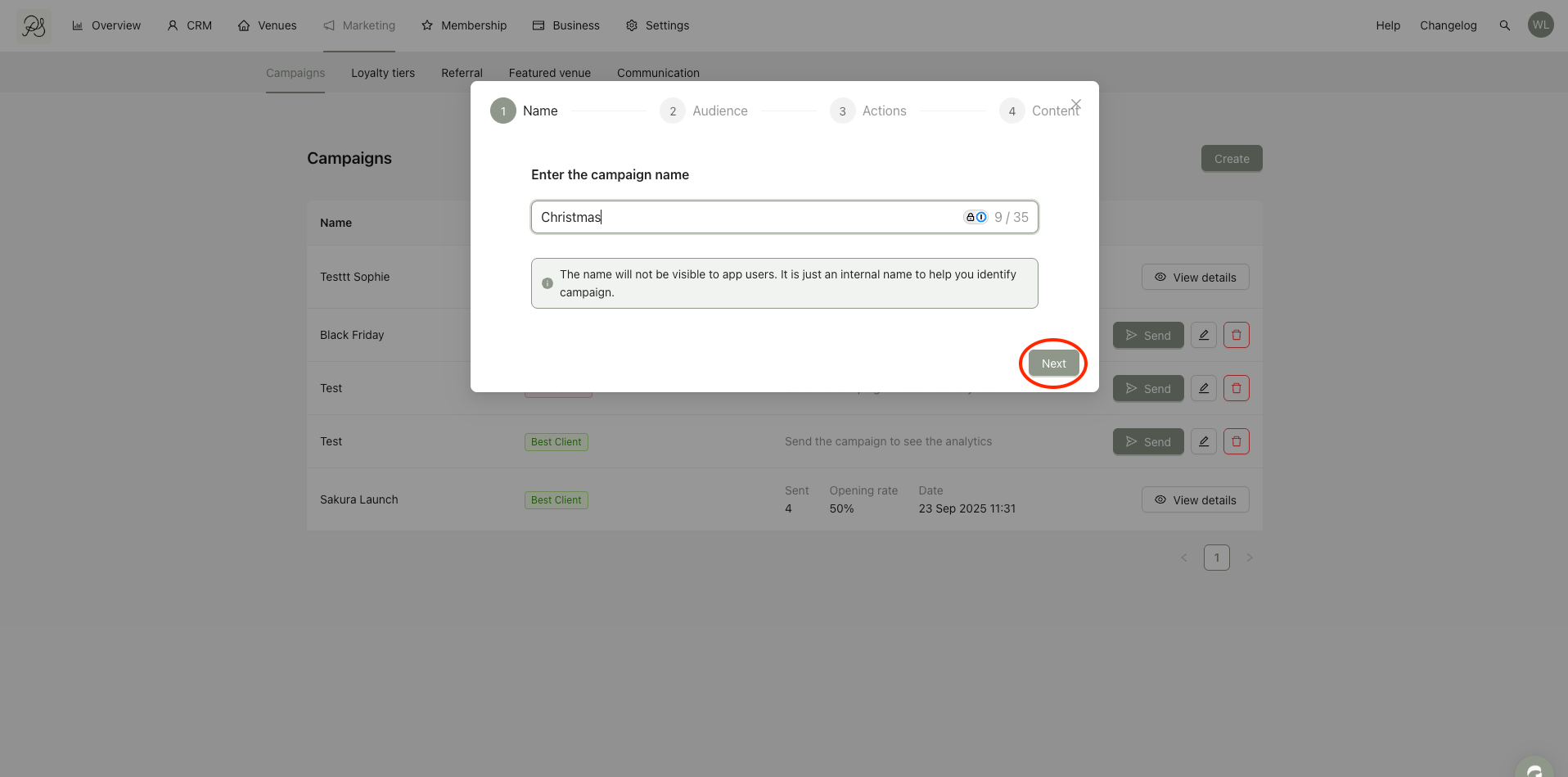
Step 3: You will enter a 4-step process to create a push campaign. In the fist one, enter the campaign name, then click Next.

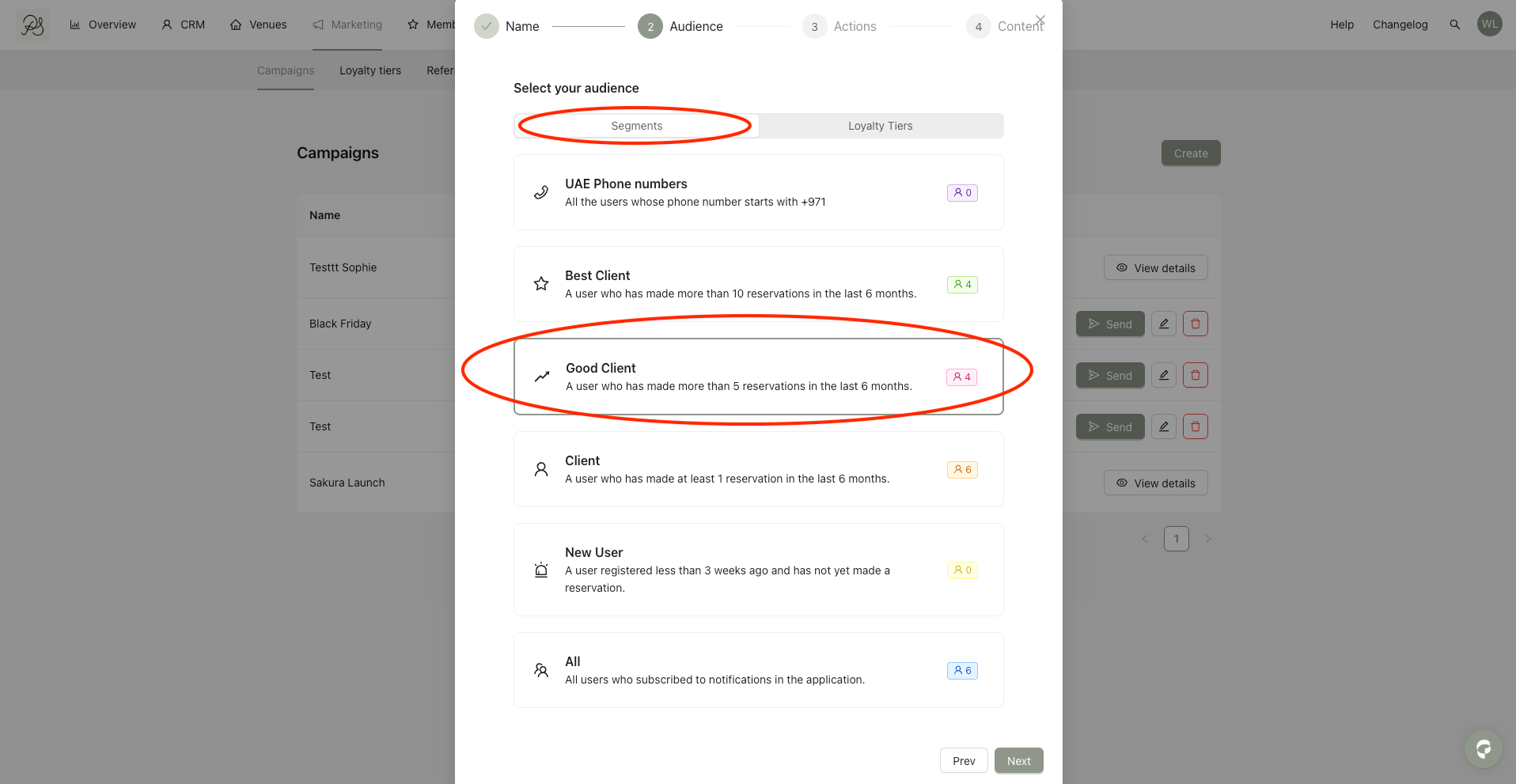
Step 4: Next, Select the target audience by choosing one or more segments or loyalty tiers.
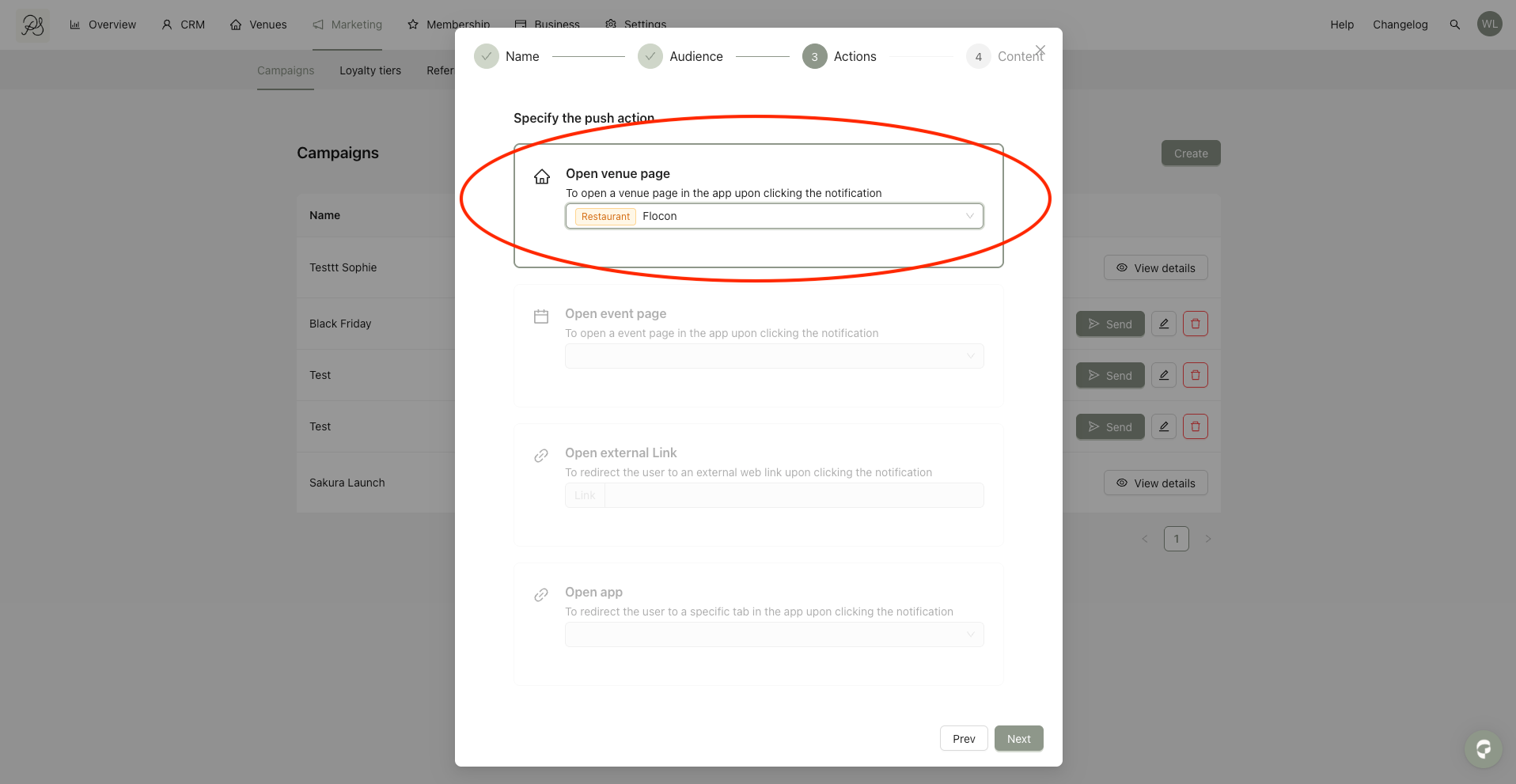
Step 5: After that, select the action triggered when users tap the notification. You have 4 options:
Open venue page: Redirects users to the selected venue page in the app.
Open event page: Redirects users to the selected event page (membership users only).
Open external link: Redirects users to an external URL (e.g. website, online form).
Open app: Redirects users to a specific app section (e.g. Restaurants).
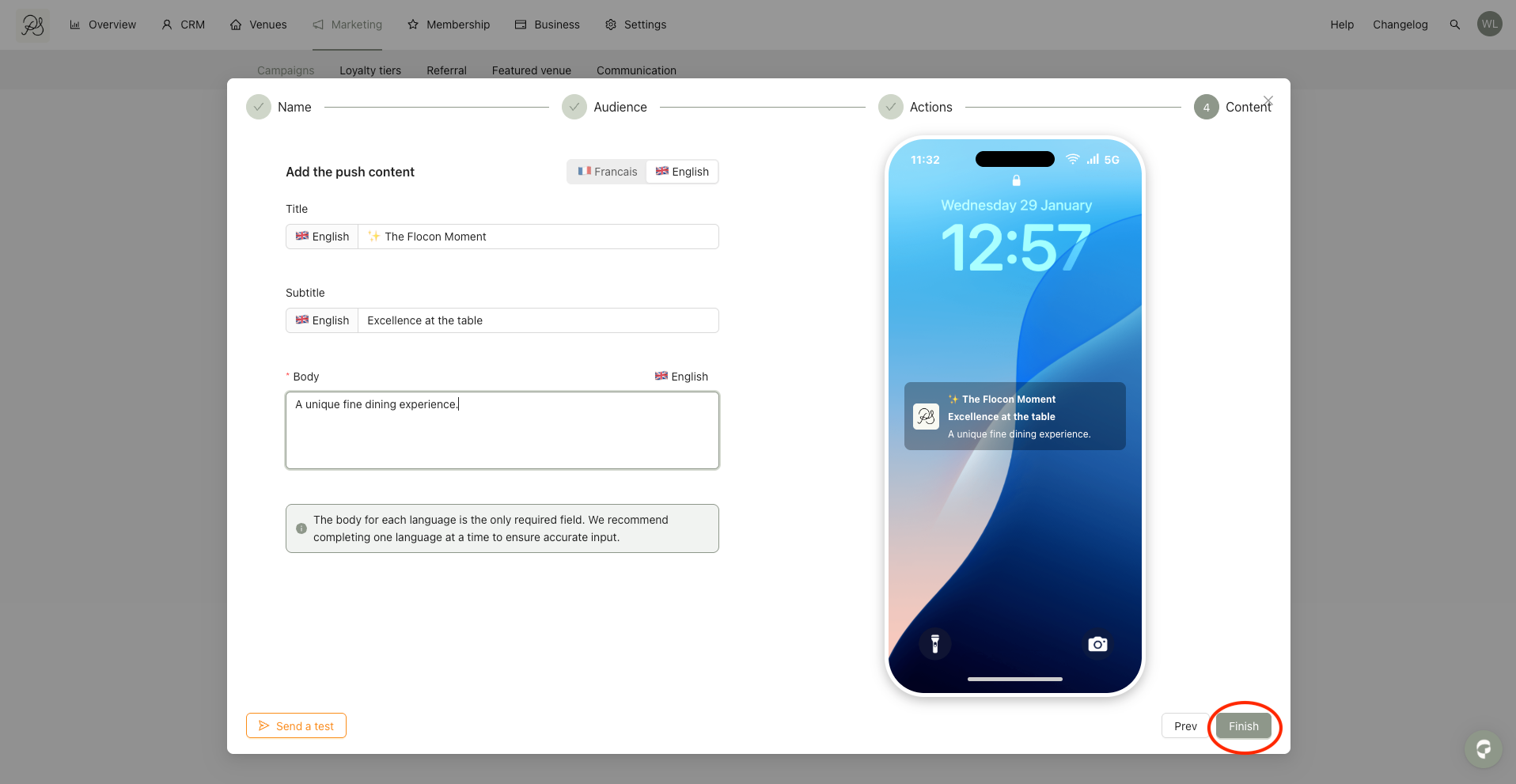
Step 6: This final one is to define notification content. Enter the notification text in French and English, then click Finish.
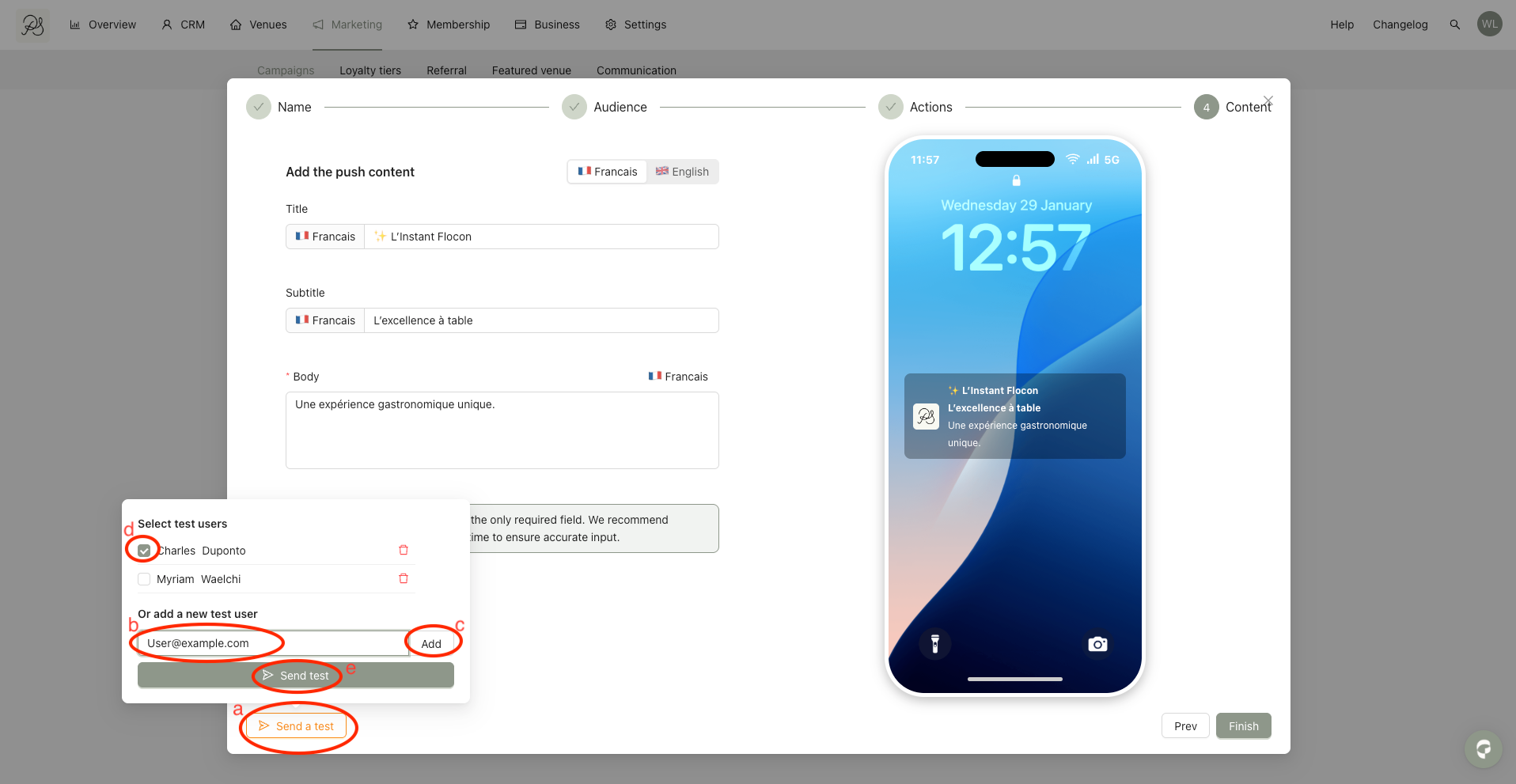
This feature enables you to test the campaign before sending it to users:
a. Click Send a test.
b. Enter the email address of the user account logged into the mobile app on the device you want to test.
c. Click Add.
d. Select the corresponding first and last name(s).
e. Click Send test.
 Result
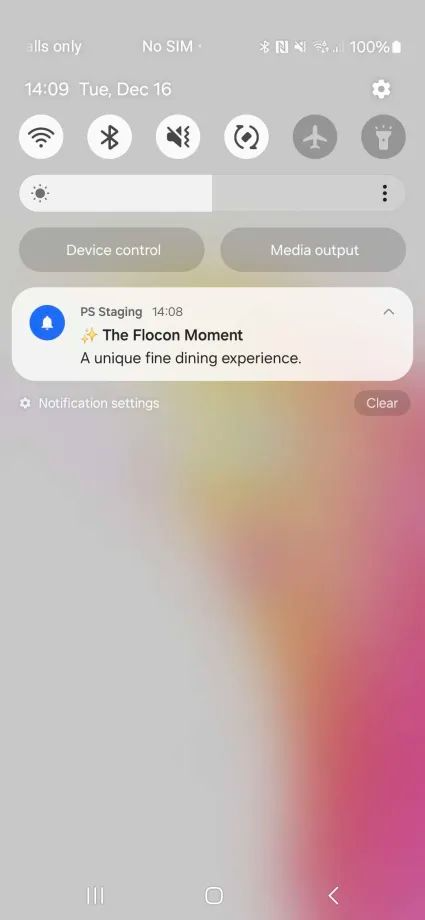
This is how your push notification appears on the user’s mobile device.