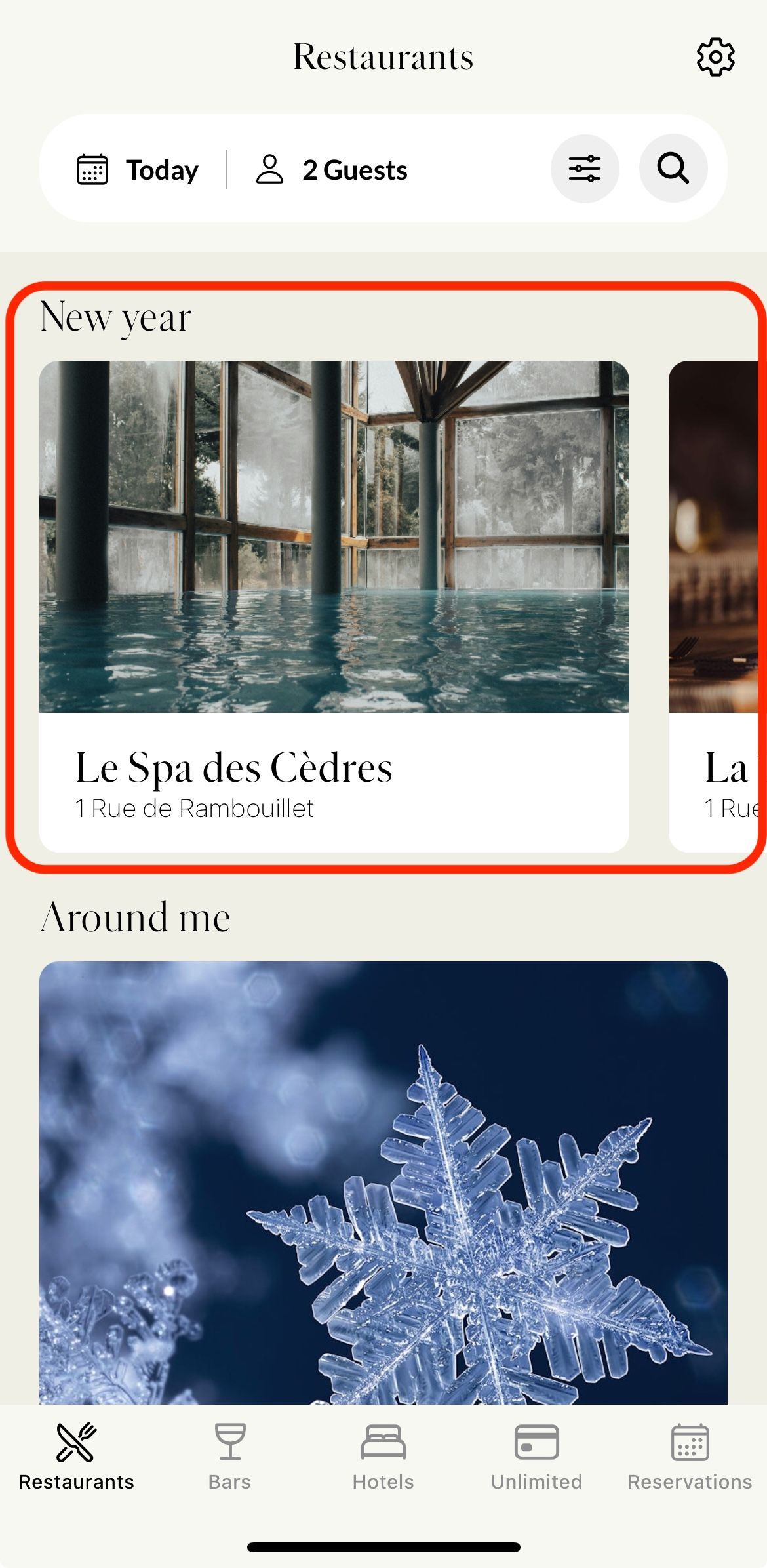
Featured Venues allow selected venues to appear at the top of the page in the mobile application.
The following roles can create and manage Featured Venues:
Admin
Communication
Head of Project
Marketing
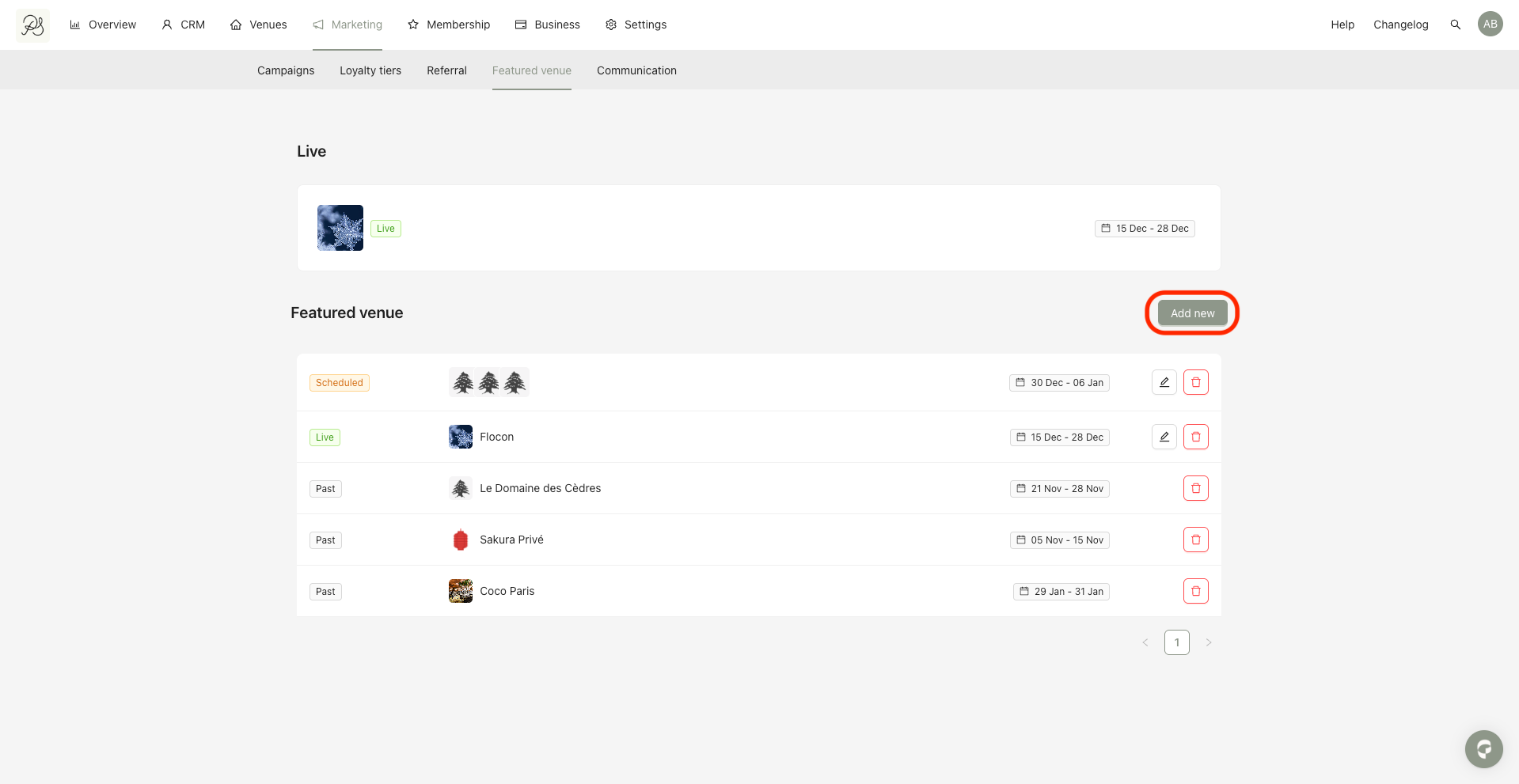
Step 1: Go to Marketing → Featured Venues. On this page, you can view current, scheduled, and past Featured Venues. Click Add new.
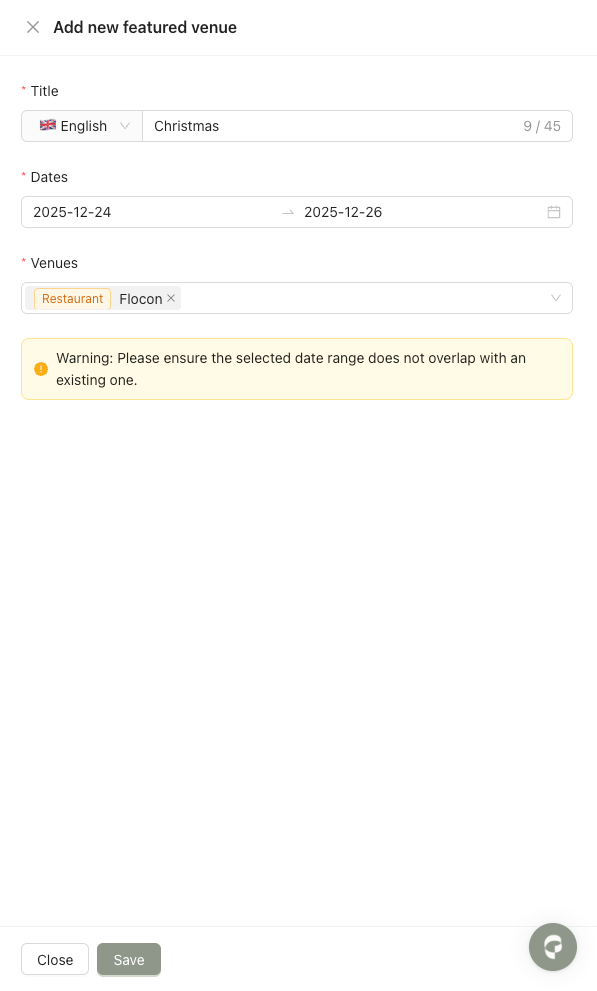
Step 2: Complete the form in French and English then click Save.

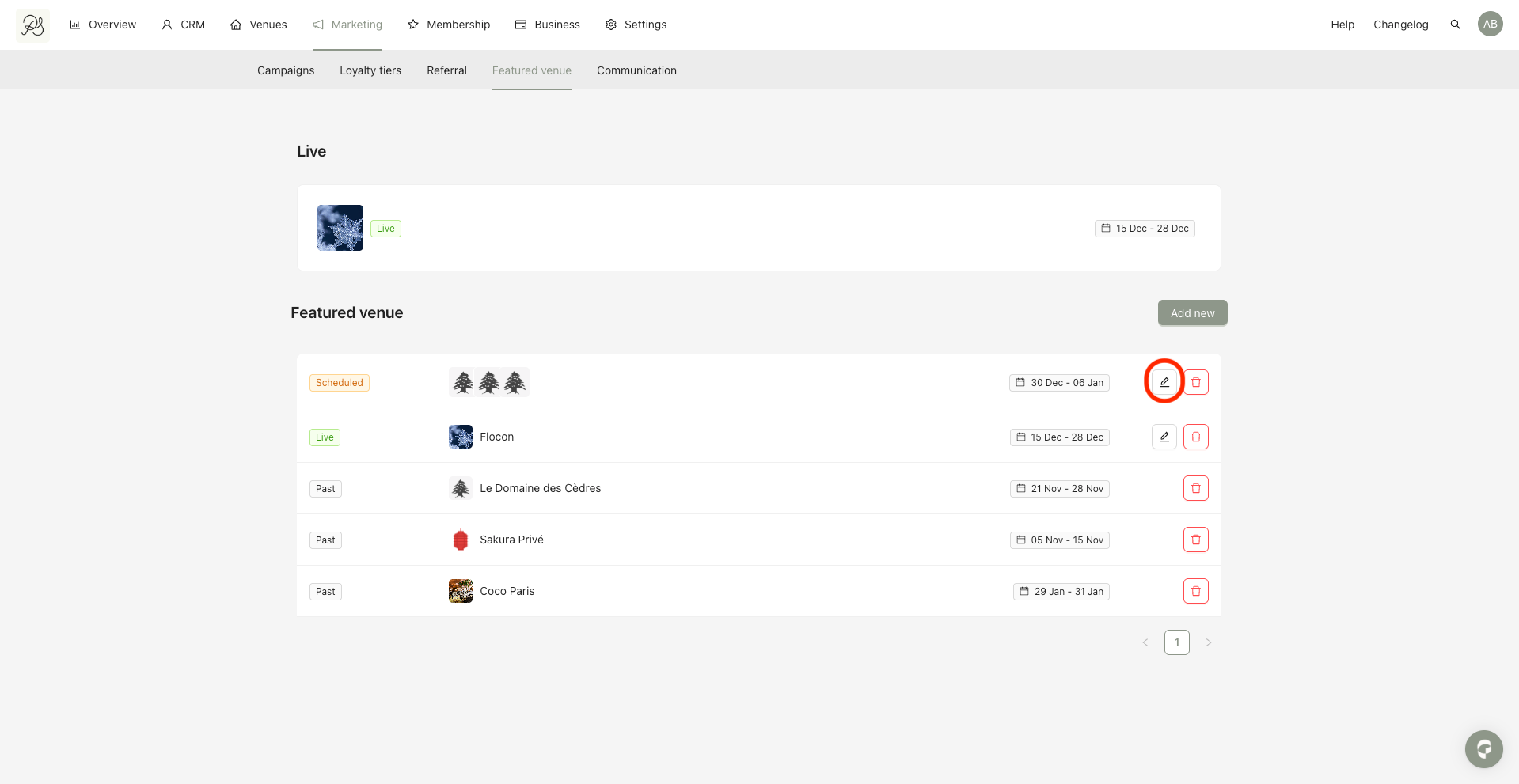
Click the edit (pencil) icon. Update the form in French and English, and then click Save to apply your changes.
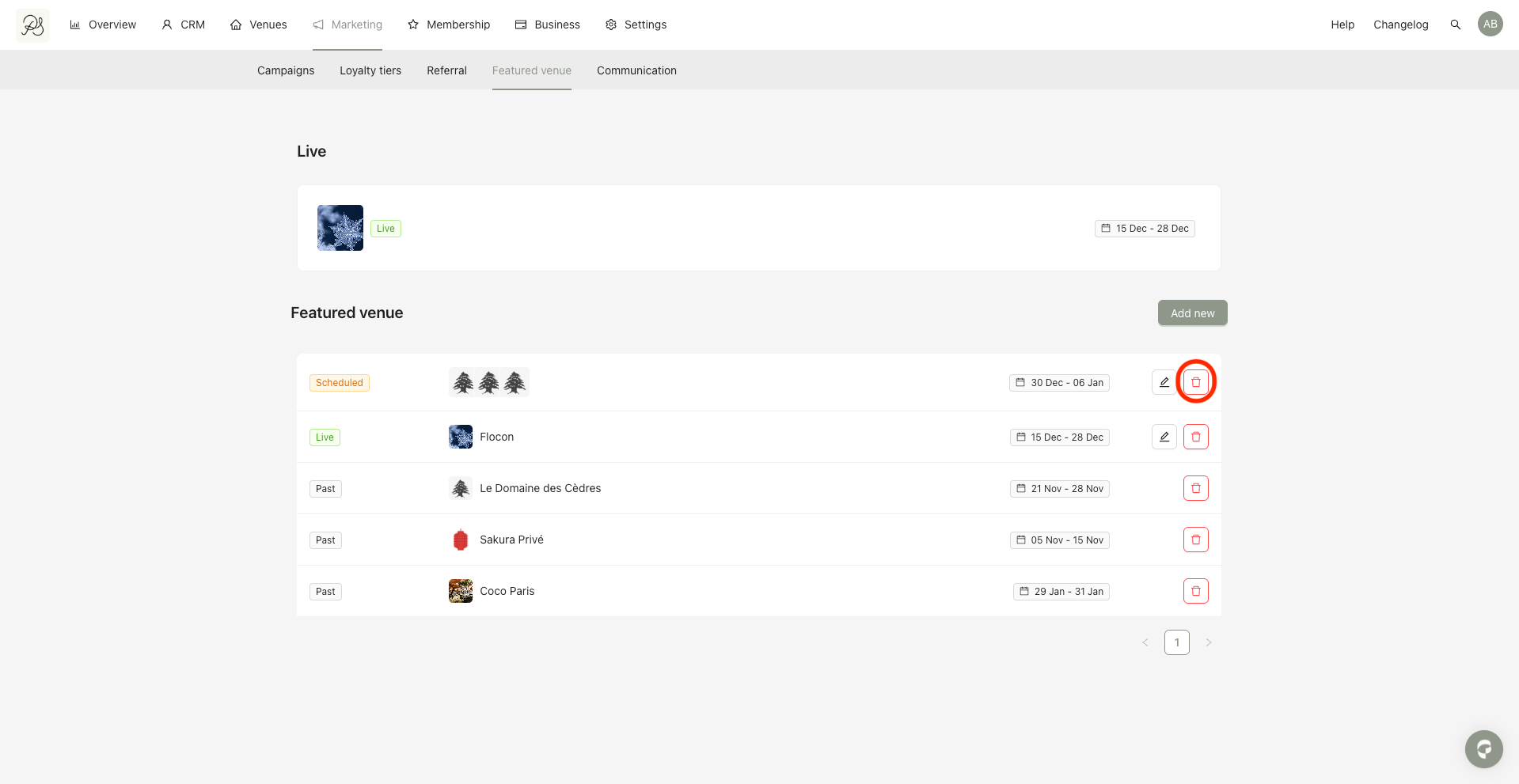
Step 1: Click the trash icon.
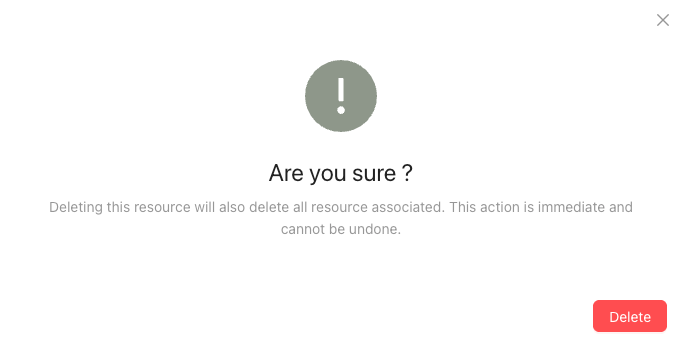
Step 2: Confirm the deletion by clicking Delete.
If one venue is selected, it will appear alone in the Featured section.
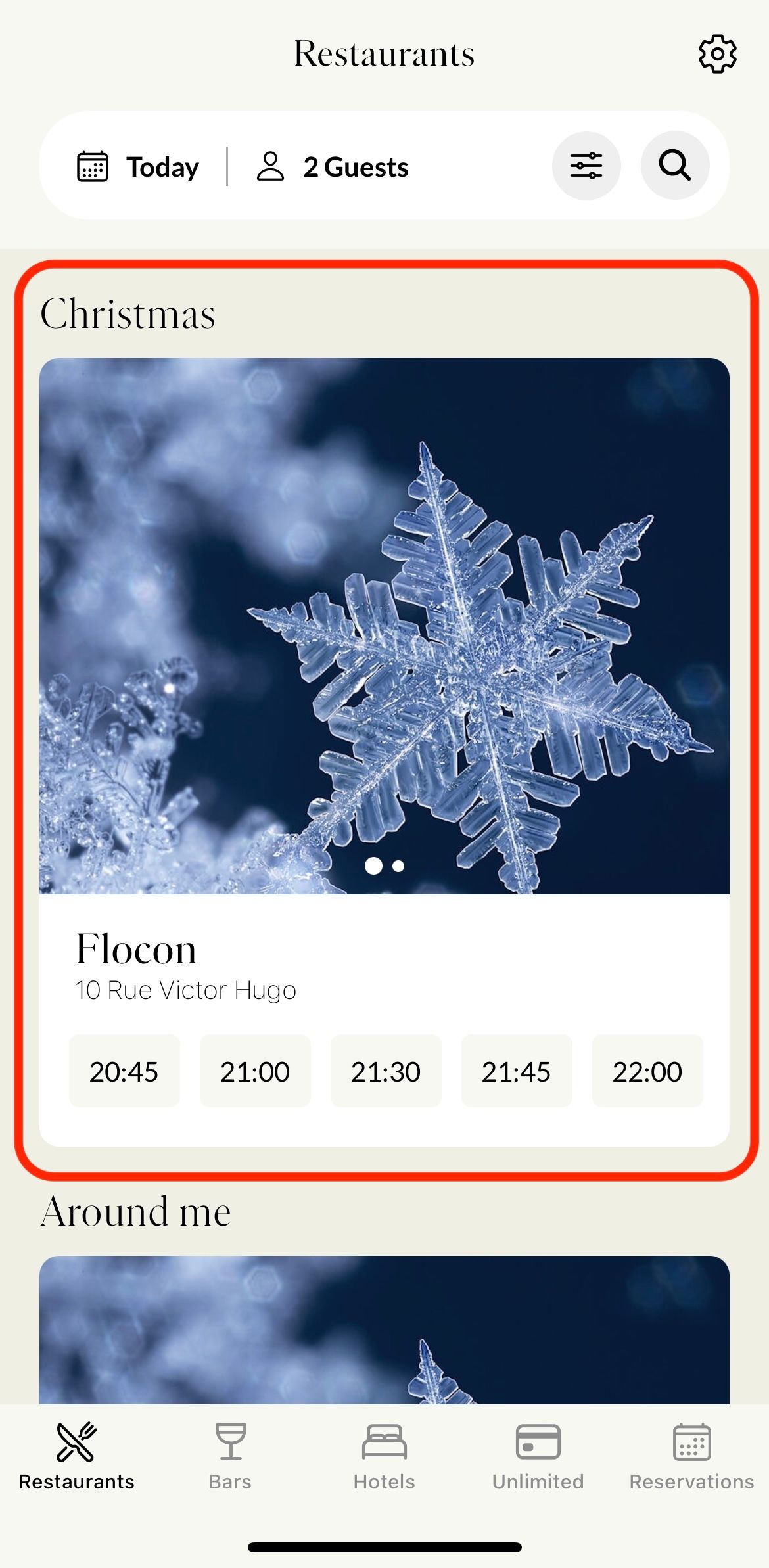
If multiple venues are selected, they will be displayed together in the Featured section of the mobile app.