Managing booking settings is a key element in optimizing your users' experience.
Through the Booking section accessible from your venue's page, you can easily configure the visibility of your locations on the App or WhatsApp, and thus define the booking methods that best suit your needs. By connecting your venue to SevenRooms or an external link, the management of your bookings becomes seamless and personalized.
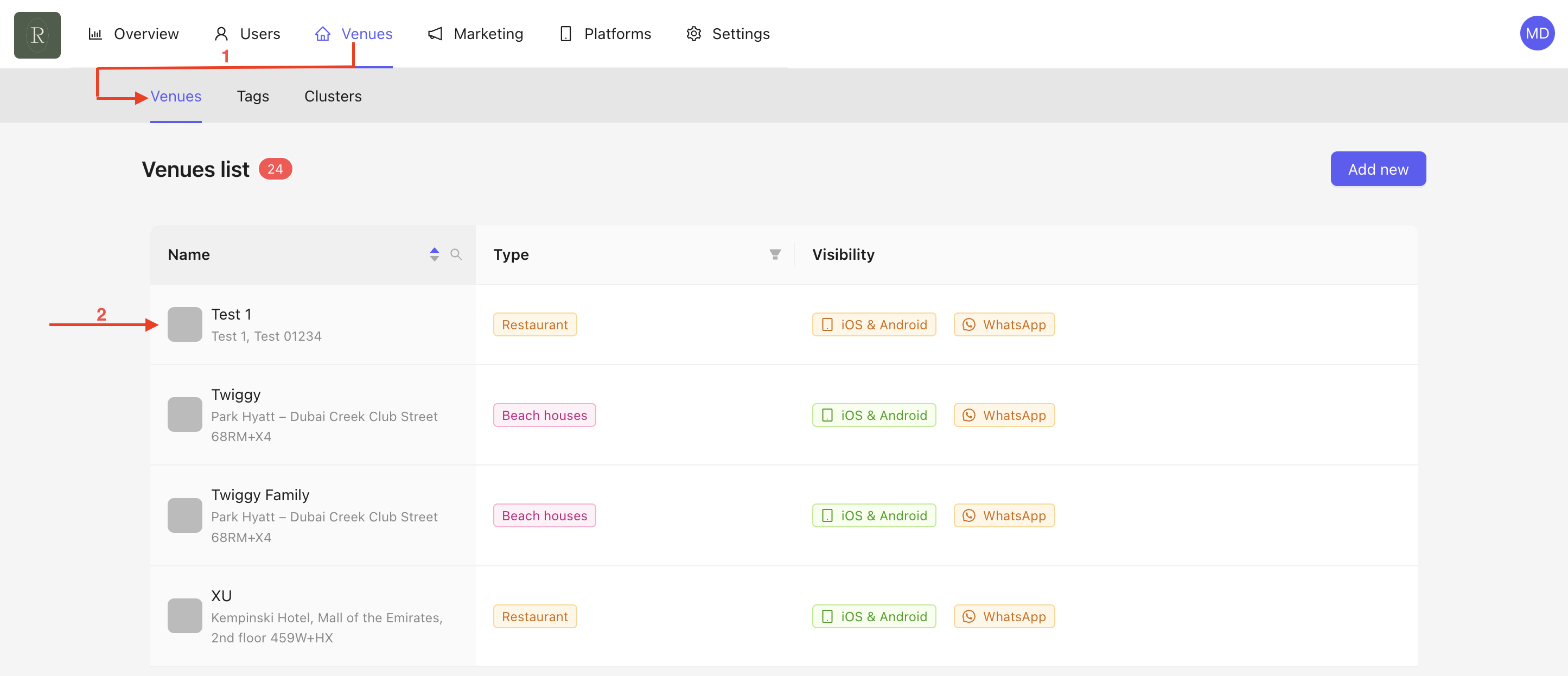
Go to the Venue section.
Click on the selected venue.
Go to the Booking section of the selected venue. You are now on the homepage with various settings :
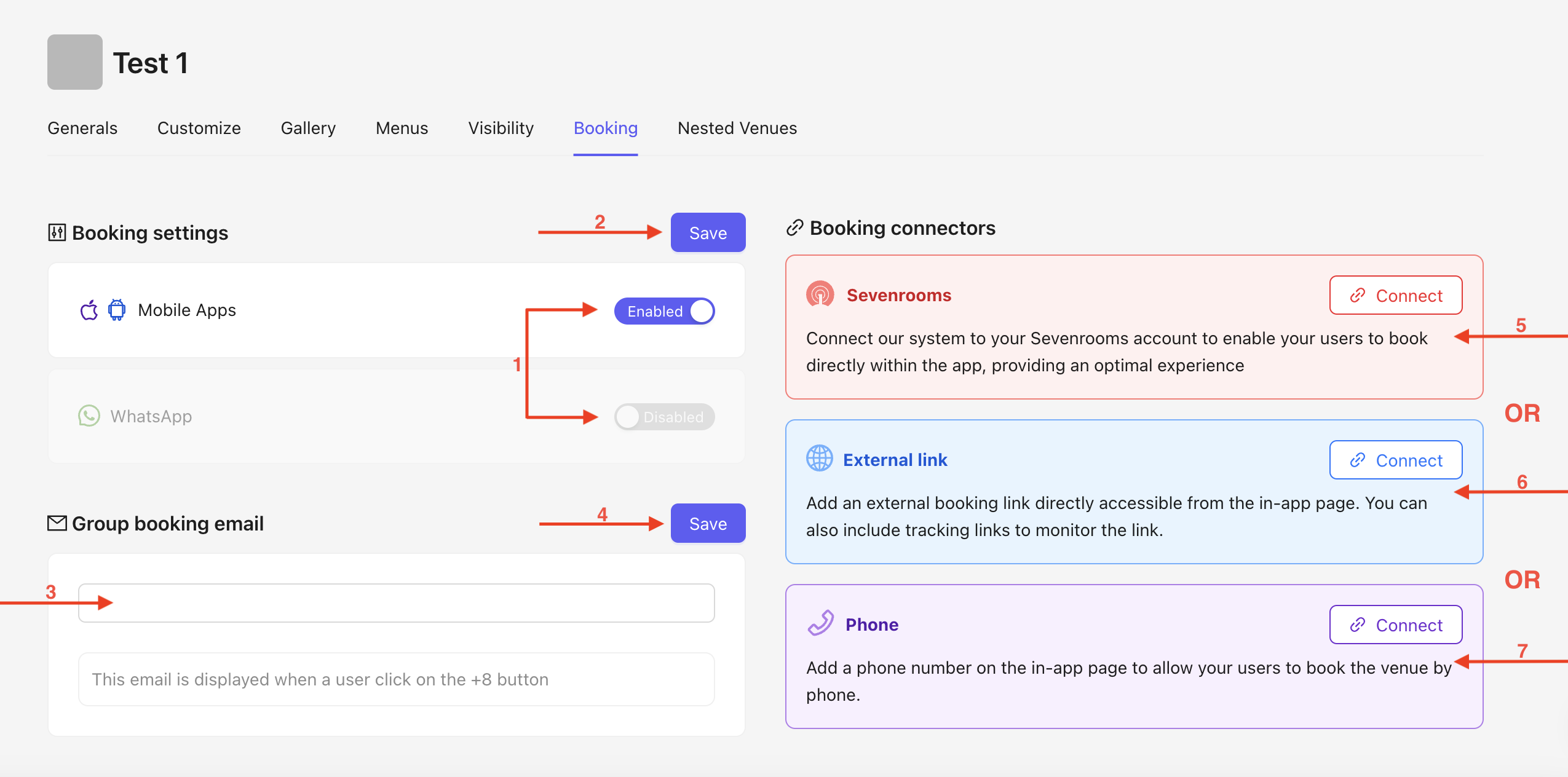
Choose whether the venue is visible on the App and/or WhatsApp. Simply click on enabled or disabled.
Make sure to save your changes.
For group reservations of more than 8 people, a clickable button will redirect the user to the venue's reservation email. Enter the contact email address in the field provided.
Make sure to save your changes.
You then have three options : you can either connect your venue directly to SevenRooms (5), choose an external link (6), by phone (7).
Click on connect in SevenRooms section.
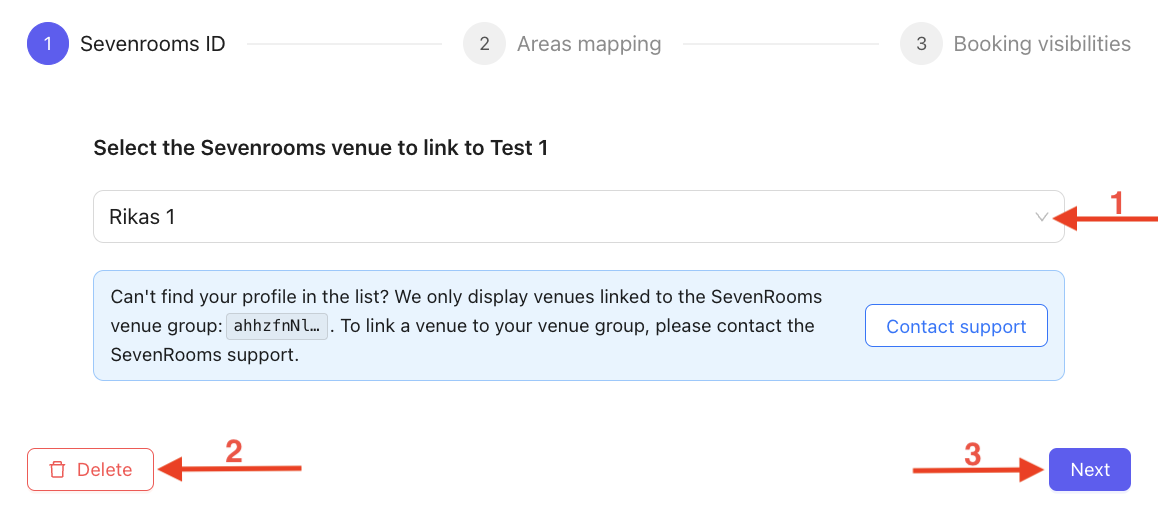
Select your profile from the dropdown menu.
You can delete it at any time using the trash icon.
Click on Next.
In this second section, you have the option to link the areas defined by SevenRooms with the areas you define yourself.
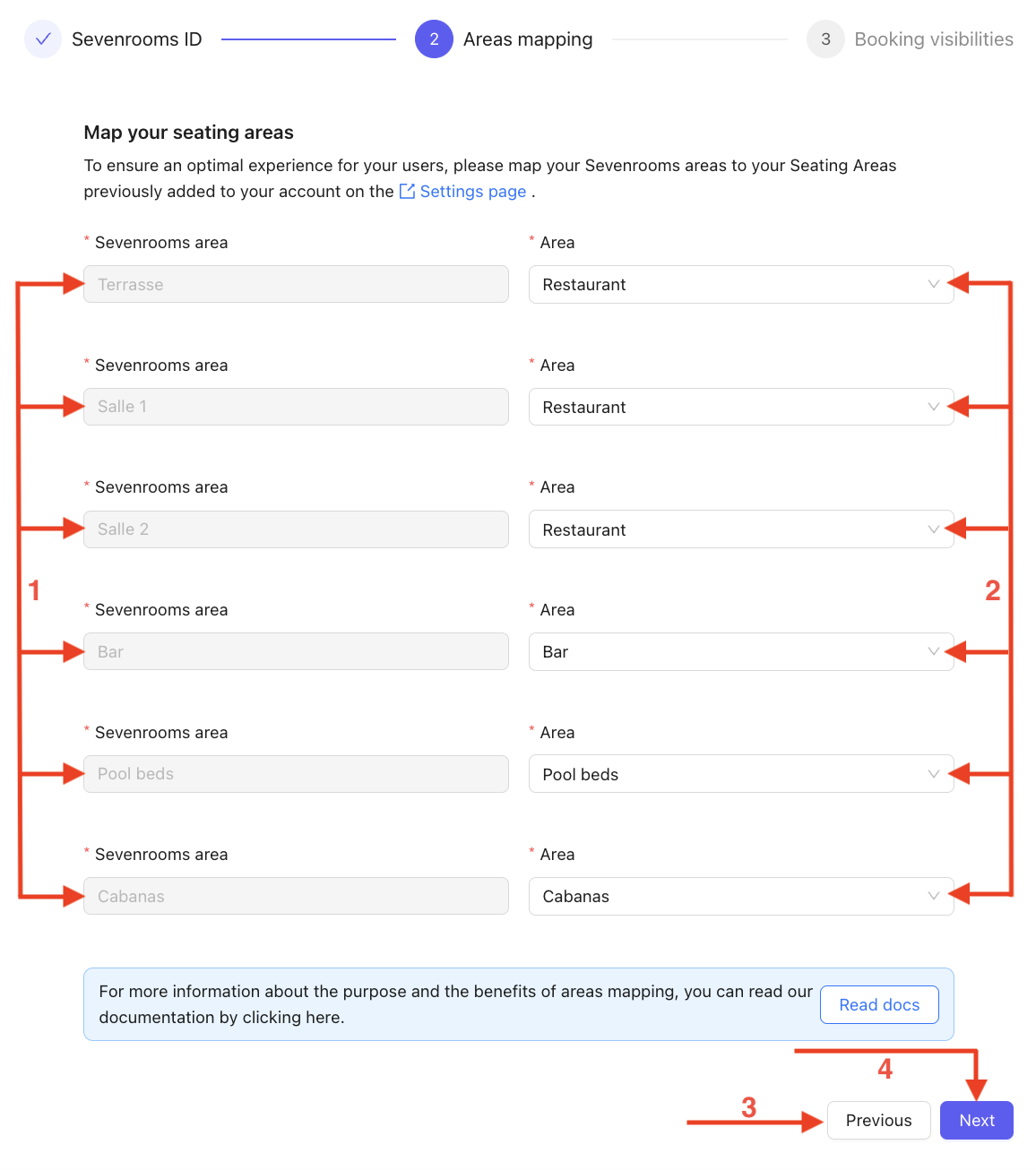
Here, the fields are defined by SevenRooms and are not editable.
Link the predefined areas from SevenRooms to those previously created in the settings.
You can go back at any time.
Click Next once your modifications are complete.
Redefining seating areas in the BackOffice allows for more flexible and tailored reservation management. By customizing these areas, you ensure better visibility of availability and an optimized user experience. Additionally, this helps unify the display across the app and WhatsApp while maintaining consistency with external integrations like SevenRooms.
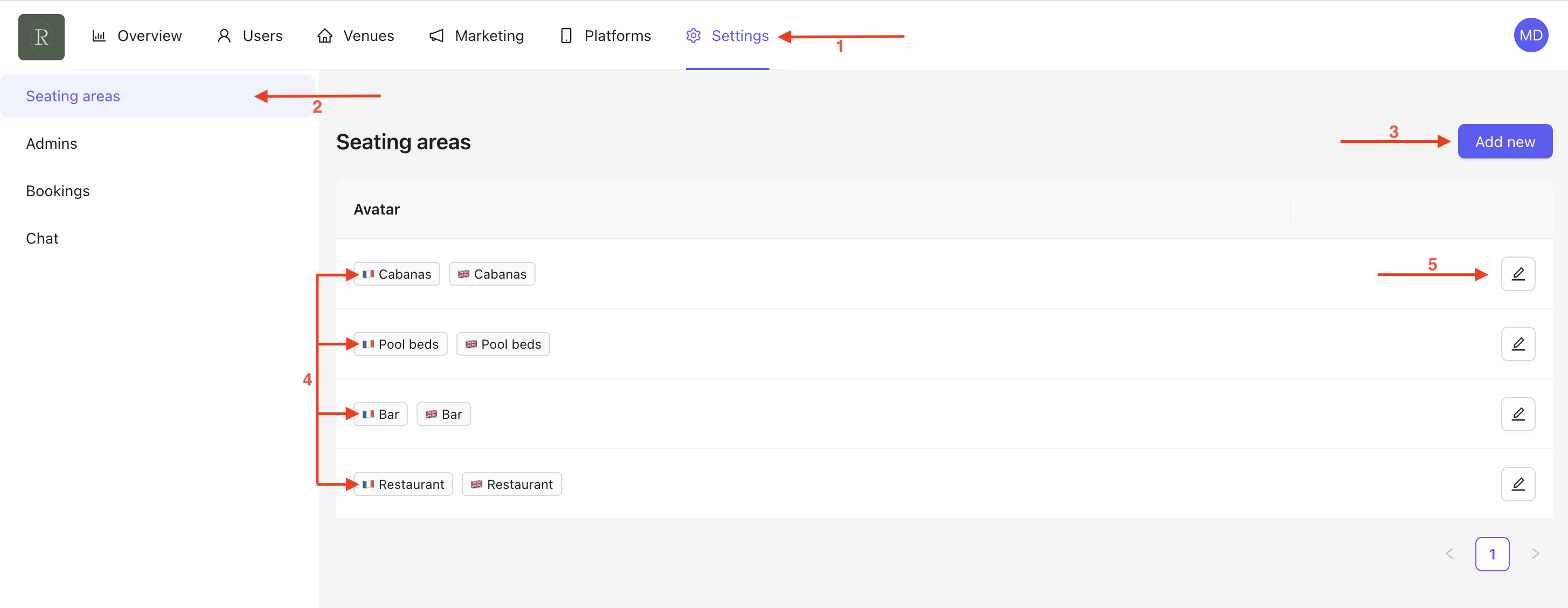
Go to the Settings section (if you are on the Areas Mapping page, click on the Settings pages link).
Make sure you are in the Seating Areas section.
Click on Add New to create a new Seating Area.
The homepage provides an overview of all your seating areas.
Use the edit icon to quickly modify your seating area.
Click on Add New, a pop-up will appear with different fields to fill in :
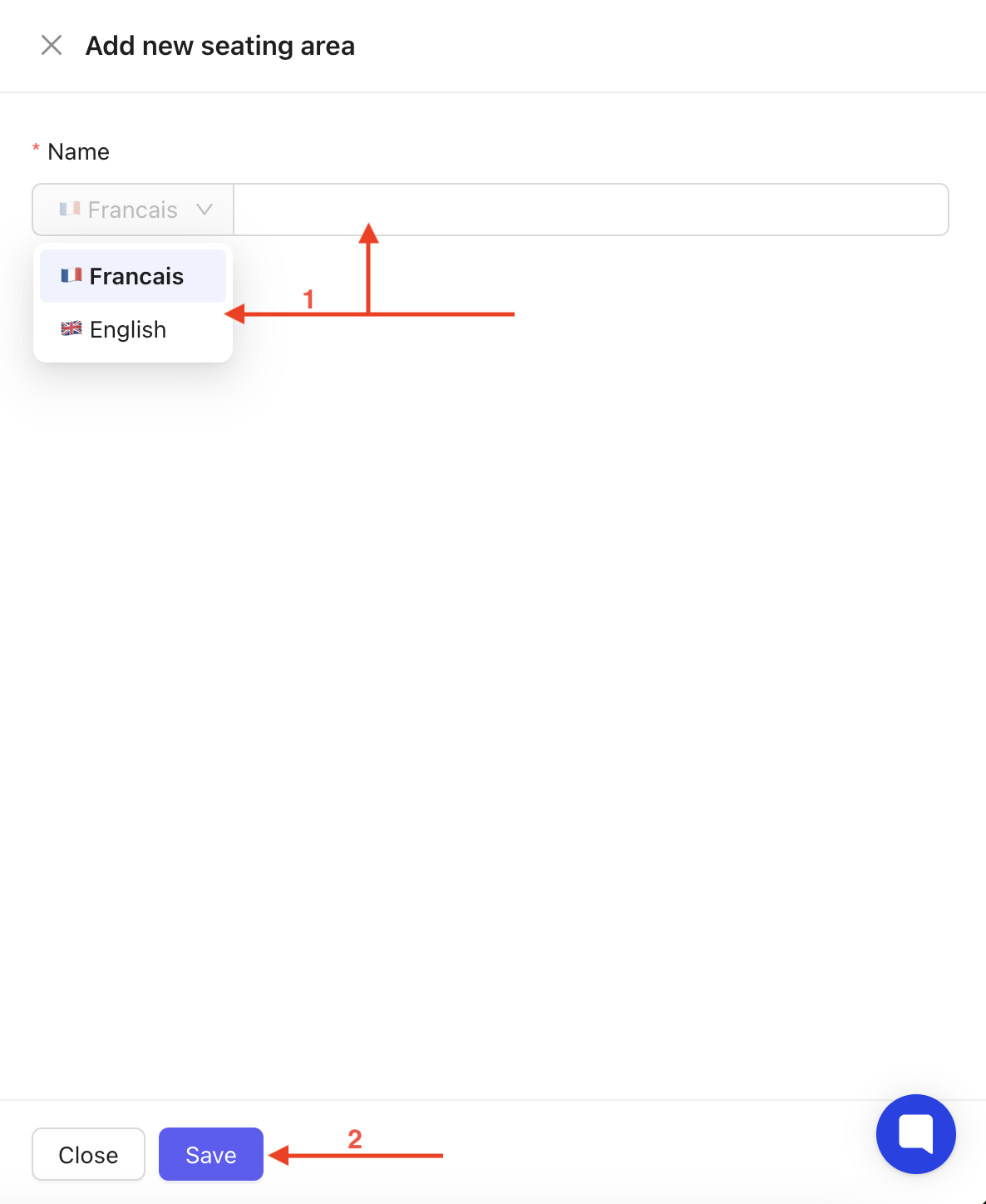
Define the name in the selected languages.
Click Save to confirm.
When editing a Seating Area, the same pop-up will open. Make sure to save your changes.

Once your Area Mapping is linked and you have clicked on Next, you will reach the third step : Booking Visibilities.
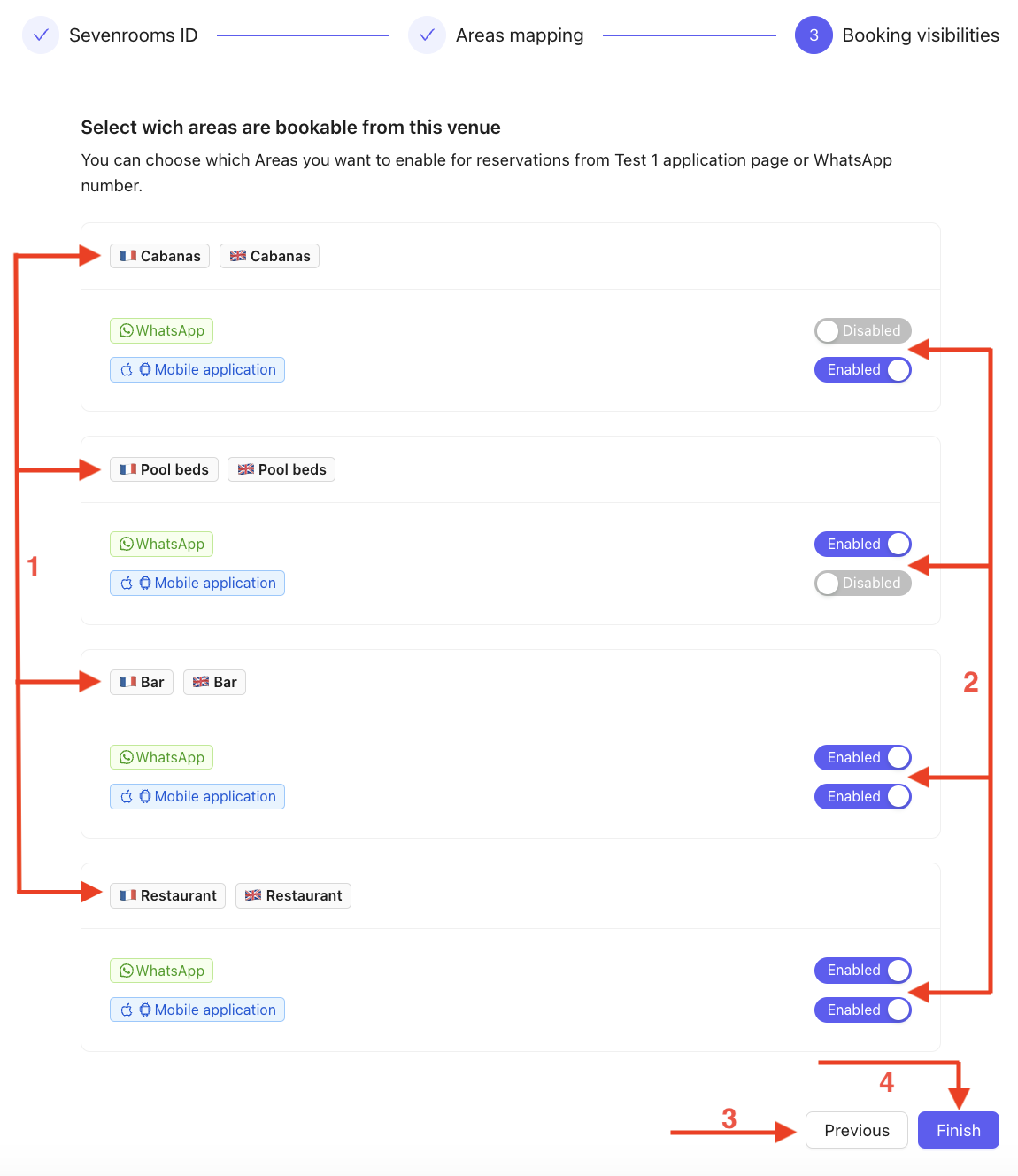
Your previously defined Seating Areas will appear as a list, along with the two available booking methods (App and WhatsApp).
Define whether each Seating Area is available for booking based on the chosen booking method.
You can always go back to the previous step to modify your Seating Areas.
Click on Finish to confirm.
Your Venue is now connected to SevenRooms.
Some of your venues may not be eligible for integration with SevenRooms. For example, a spa might be linked to the Planity platform instead. In such cases, you will need to connect your venue to an external link.

From the Booking section homepage :
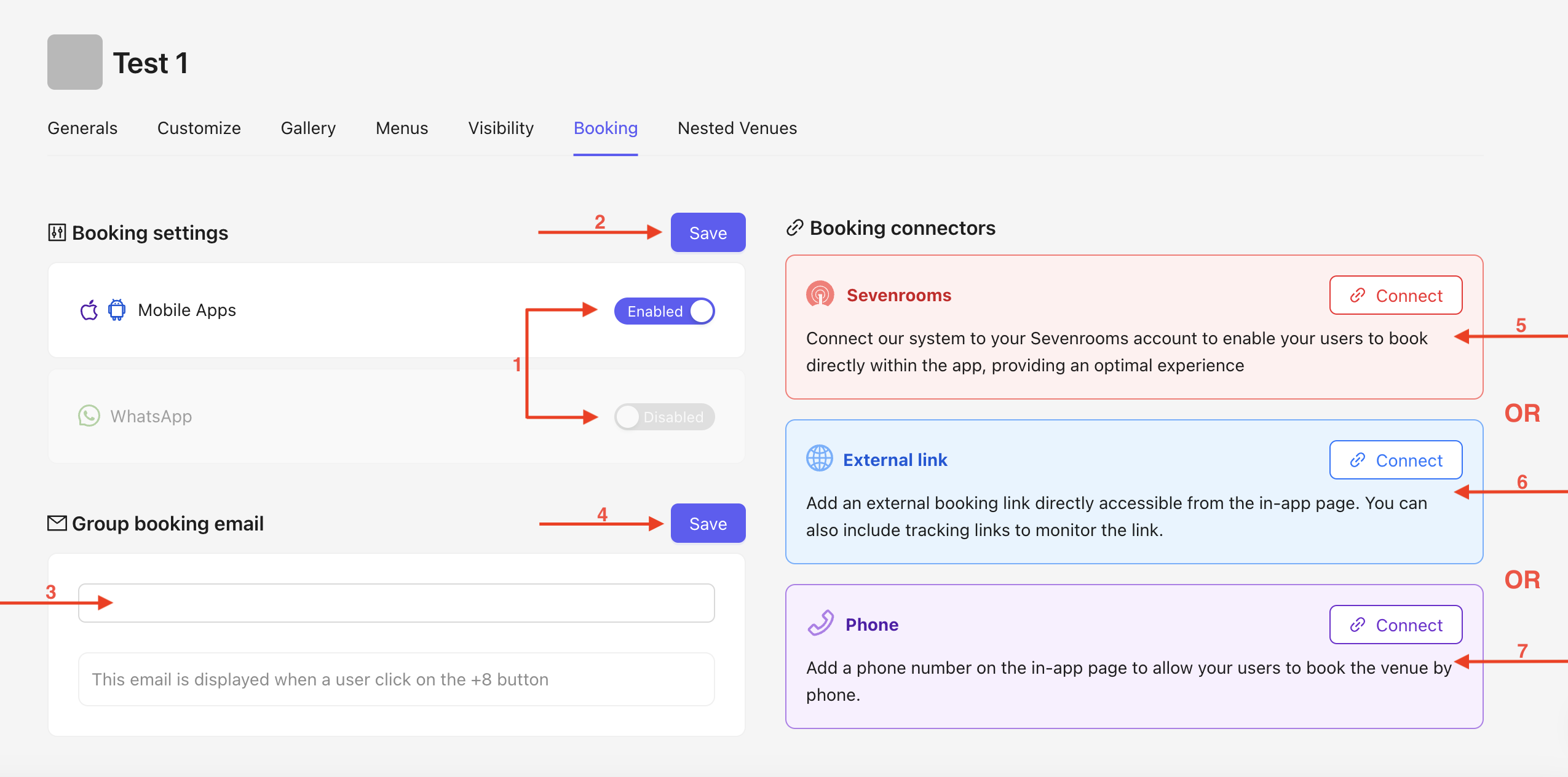
Click on connect in External Link section.
A pop-up will appear :

Enter the desired booking link in the field provided.
Click Save to confirm.
Your venue is now connected to your link.
Phone reservations provide an alternative for customers who prefer direct contact or have difficulties with digital tools. This channel complements others for better accessibility.
From the Booking section homepage :
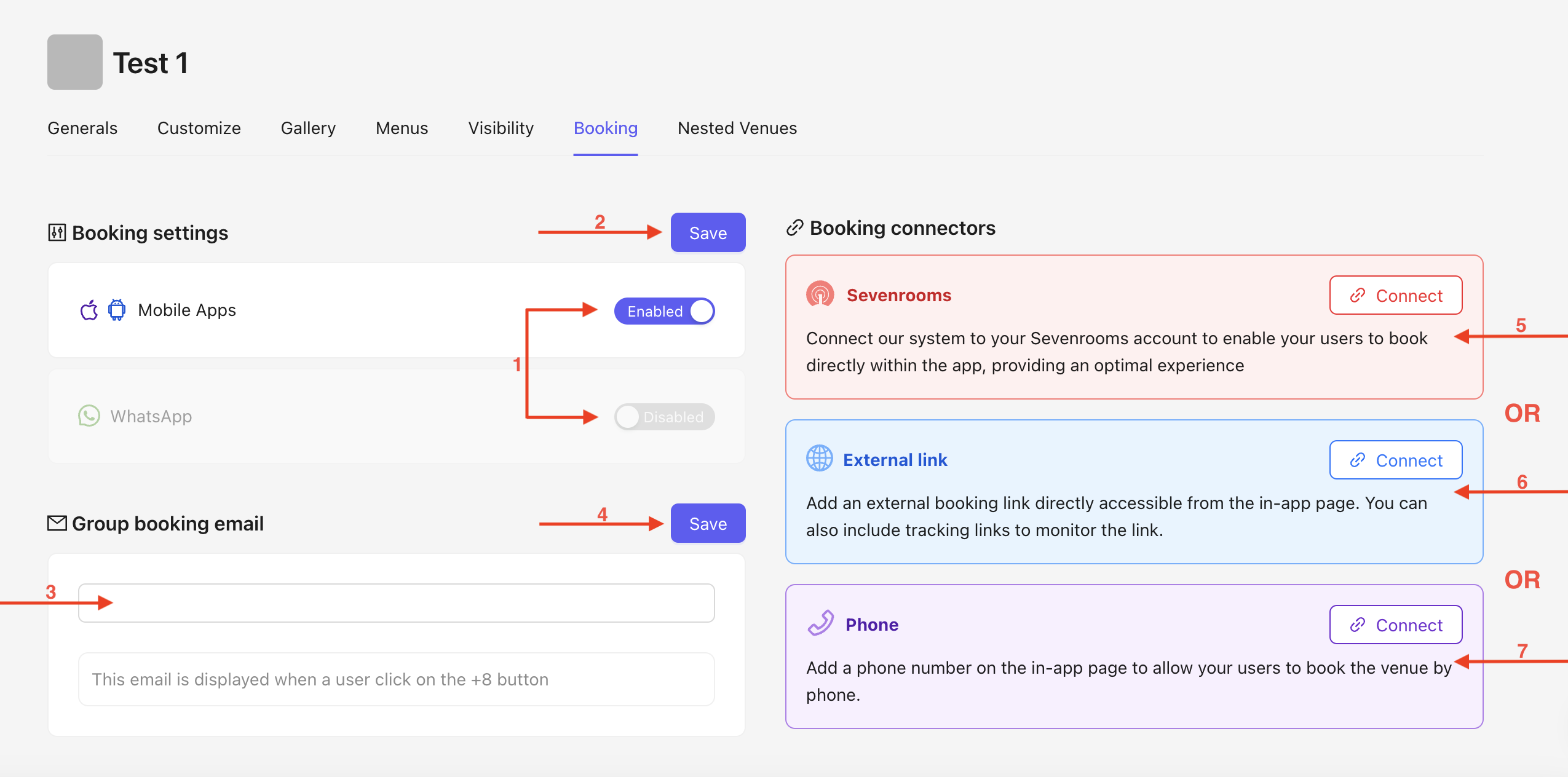
Click on Connect in Phone section.
A pop-up will appear :
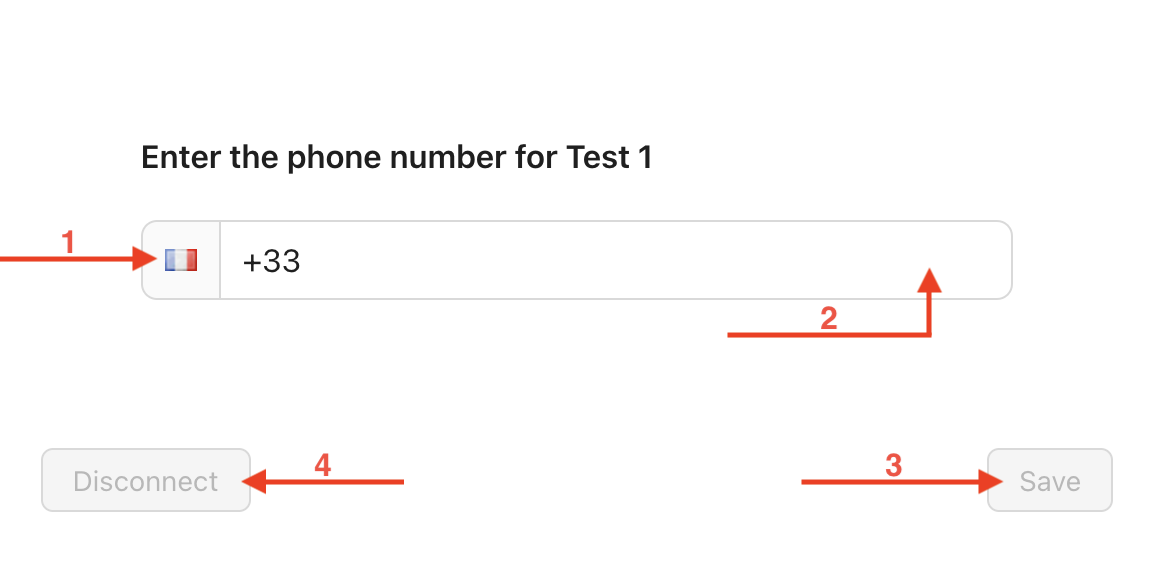
Select the country code using the dropdown menu
Enter the phone number, making sure not to include the country code again.
Click Save to confirm.
Your phone number is now linked.
To disconnect your number, go to the homepage, click the Edit button (previously Connect), and then click Disconnect (4).
By configuring the booking settings, you simplify the management of your venues while providing your visitors with a smooth and flexible booking experience. Whether connecting your venue to SevenRooms or to an external link, you can precisely define the available booking options. This approach ensures optimal management of your spaces while making it easier for users to discover your venues.
