This section explains how to add and manage attachments to enhance your venue’s content.
Learn how to upload photos to showcase your venue effectively.
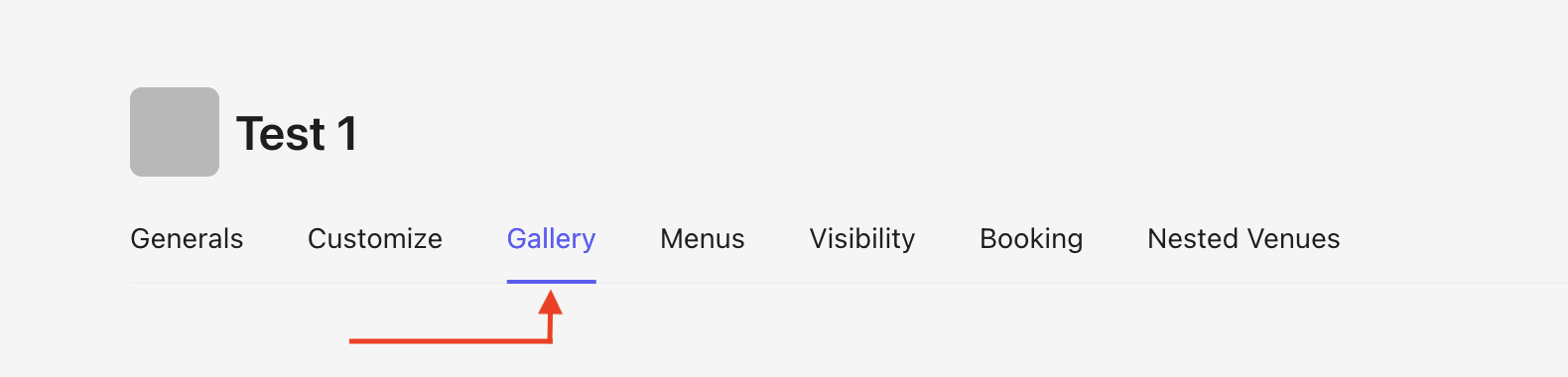
Click on Gallery.
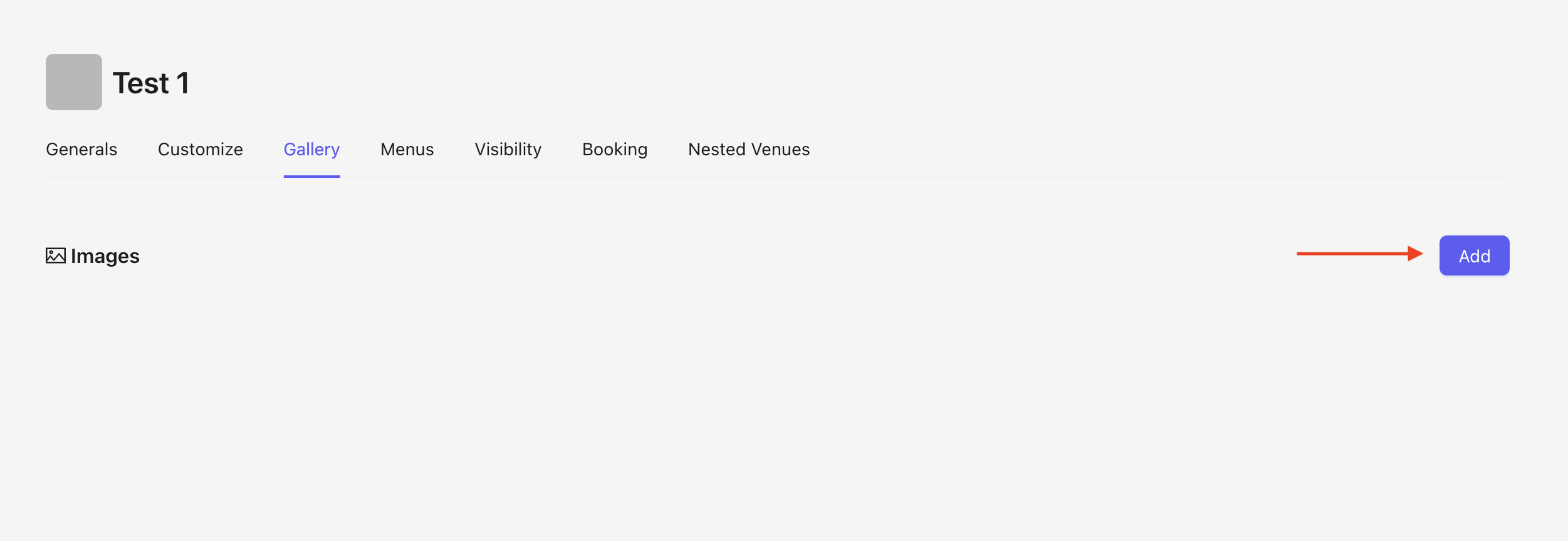
Click on Add
A pop-up will appear where you can upload your photos :
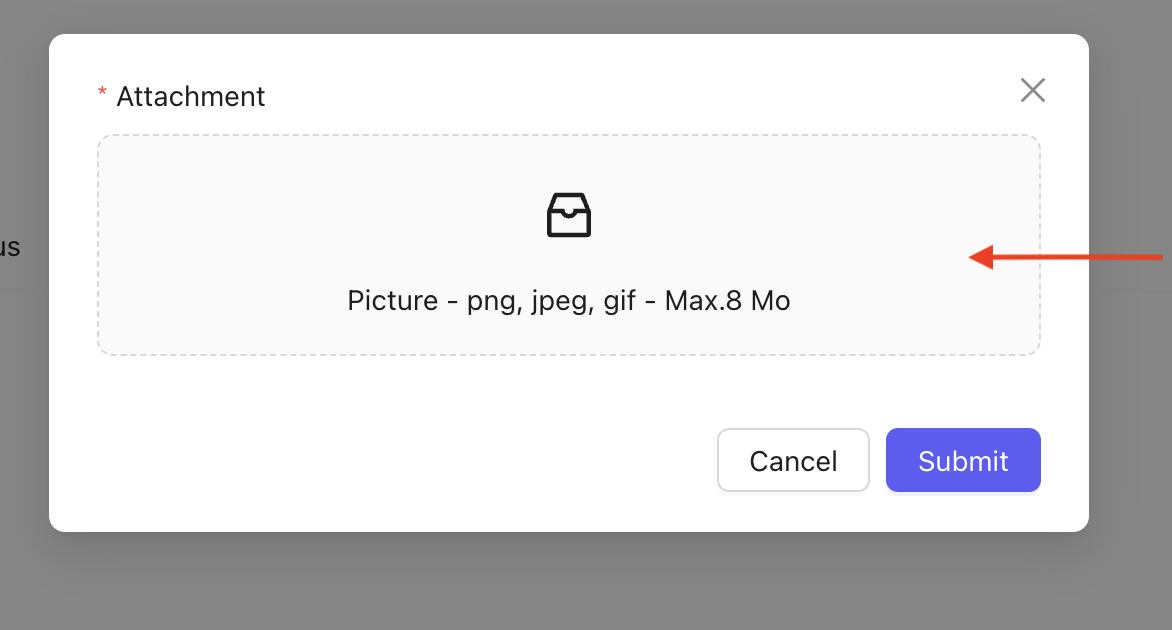
Click on the Picture attachment box.
Select the photo(s) you want to upload.

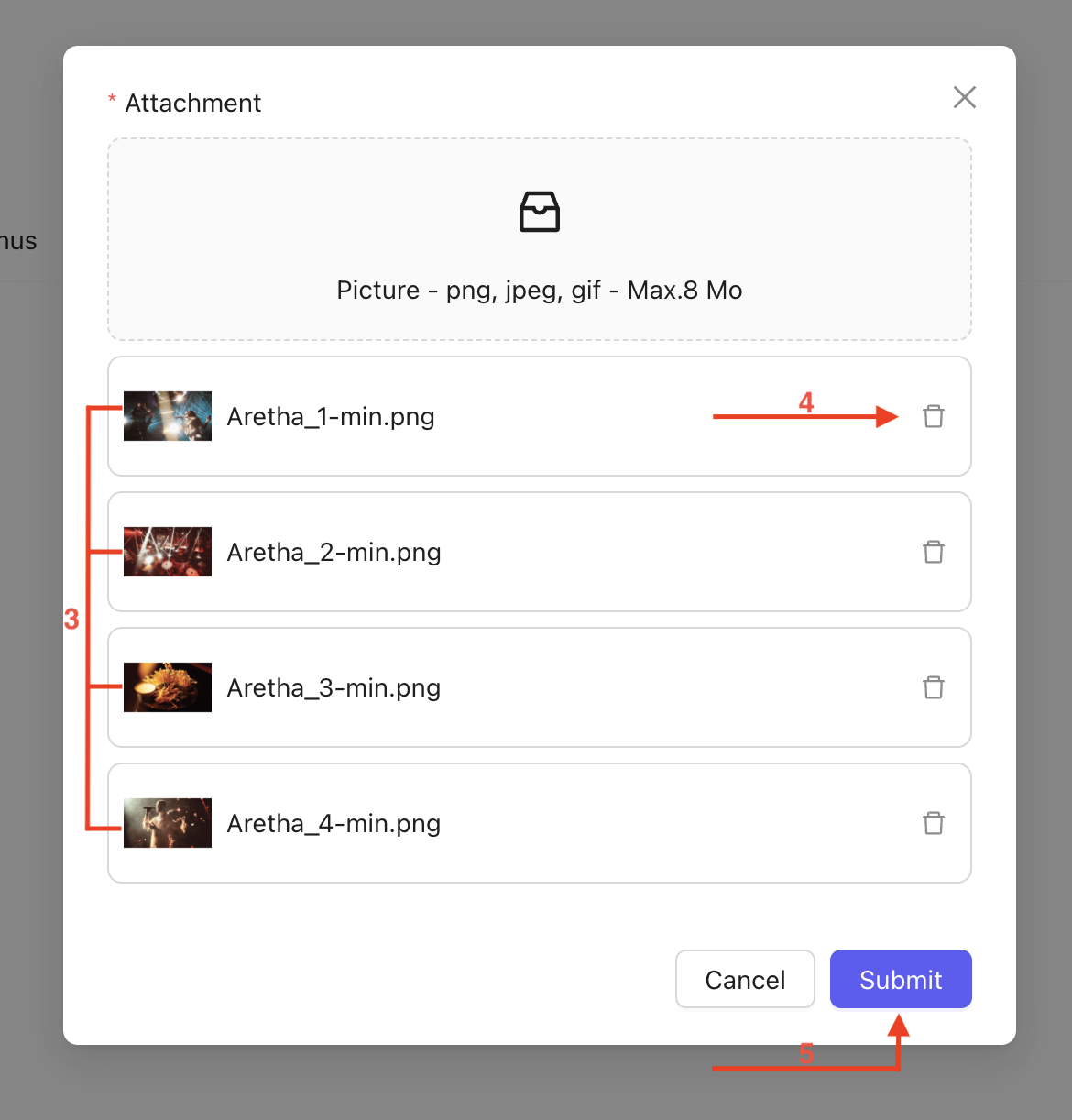
The selected photos will be displayed.
Use the trash icon to delete a photo if needed.
Click on submit to start the upload.
Discover how to edit, organize, and highlight your photos for optimal display.
After uploading, your photos will appear in the order they were uploaded.
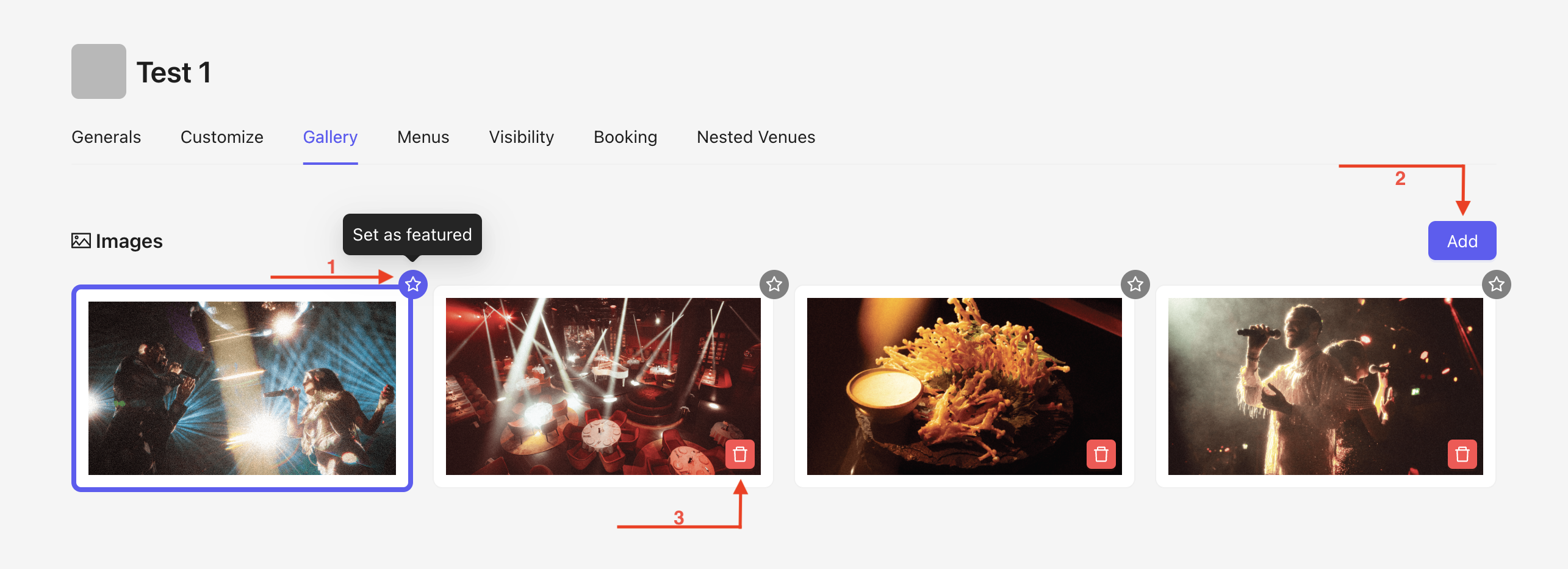
You can feature a photo as the main photo by clicking on the star icon.
You can add one or more photos at any time by clicking on Add.
You can delete a photo by clicking on the trash icon.
To change the order of your photos, simply drag and drop the photo to the desired position.

Click and hold photo 2.
Drag it to the desired spot, for example, position 3.
Release the photo in the chosen position.
This guide walks you through adding a menu to your venue in just a few steps.
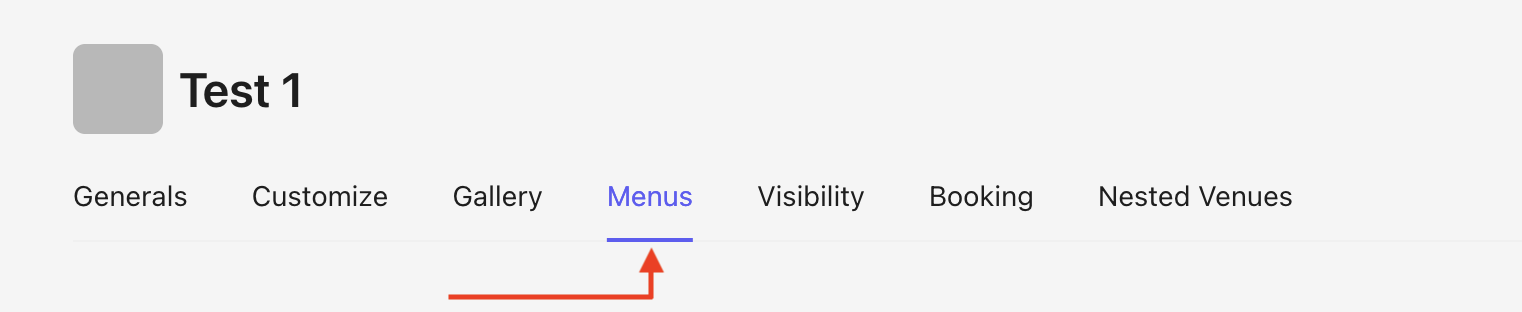
Go to the Menus section.
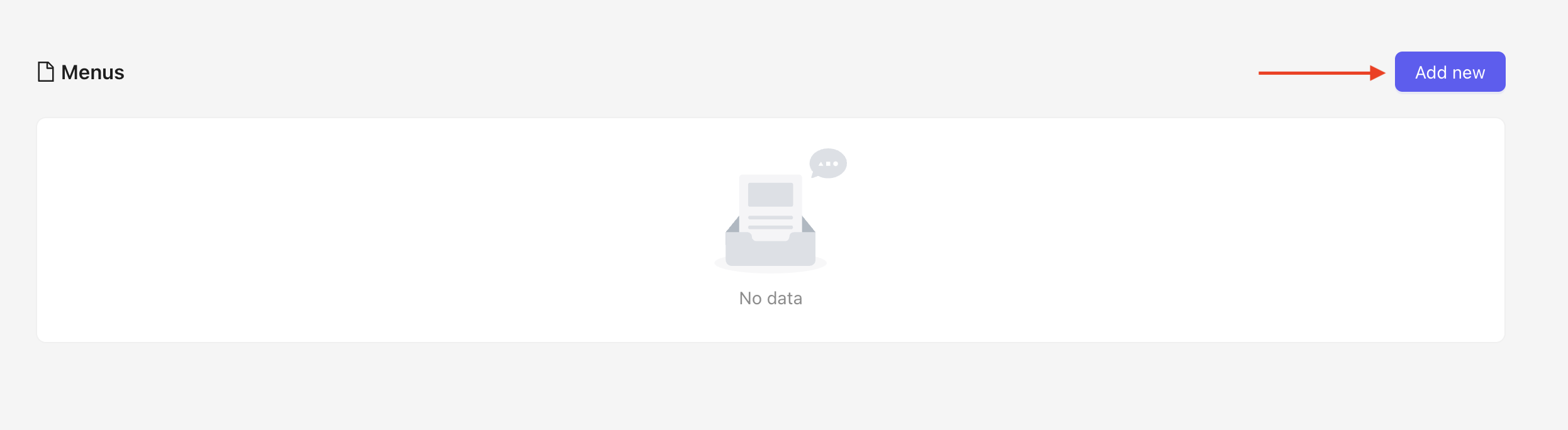
On the homepage, click on Add.
A pop-up window will open to upload your menus.
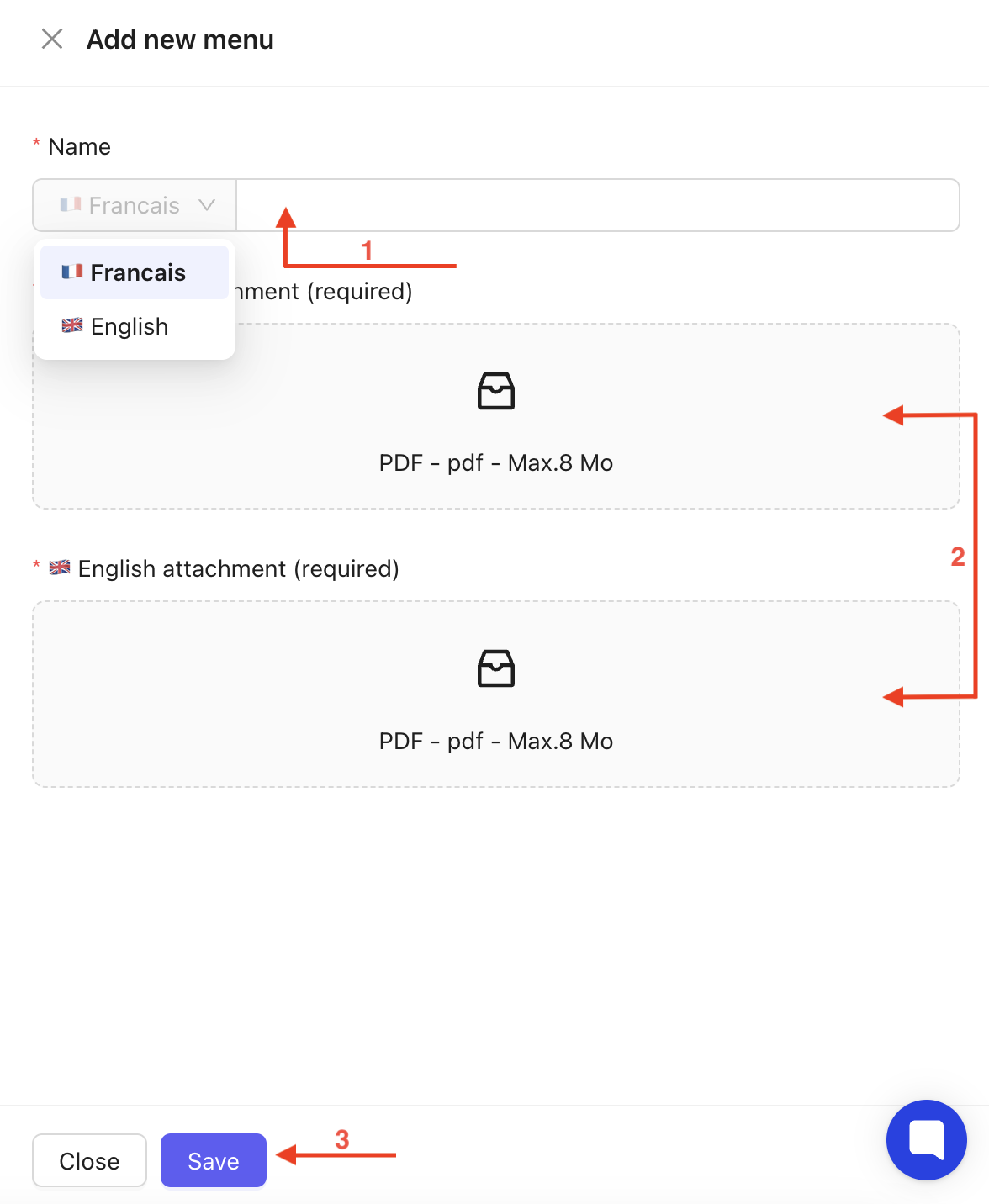
Choose your title in the selected languages.
Upload your attachment according to the language.
Save your changes.
Find out how to update, replace, or remove your venue’s menu easily.
Your menu is now added to the venue and can be found on the homepage :
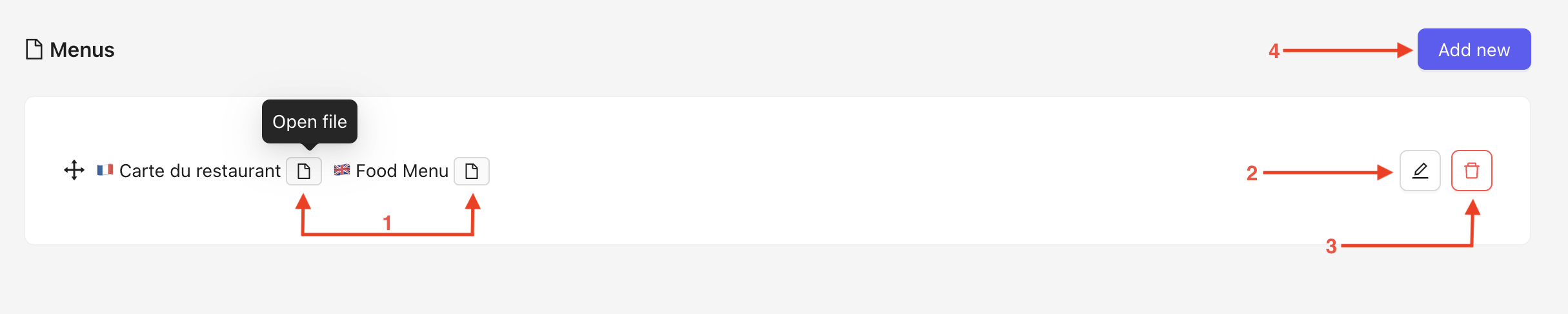
You can :
View your attachments based on the selected language by clicking on the file icon.
Edit your menu.
Delete the entire menu.
Add another menu to your venue.
By clicking on the edit icon, a pop-up window will open. This is the same as the one used during creation.

You can then edit the desired fields :
Upload a new attachment.
Delete an attachment.
Make sure to save your changes.

By following these instructions, you’ll be able to easily add, edit, and manage your venue’s photos and attachments. Don’t forget to save your changes regularly to ensure all updates are correctly applied and visible in the application.
