In order to make your venue bookable directly via our WhatsApp bot, you first need to connect your official WhatsApp Account to Pléthore on the right venue.
There are two possible ways to complete the connection:
Automatic (recommended) – fast and guided through Meta’s onboarding flow.
Manual – requires some setup directly in your Meta Business Portfolio.
This is the fastest and easiest way to connect your WhatsApp Account.
Step 1. In the Pléthore dashboard, go to the venue page you want to connect to your WhatsApp number.
Open the Booking tab.
In the WhatsApp section, click on Connect WhatsApp.
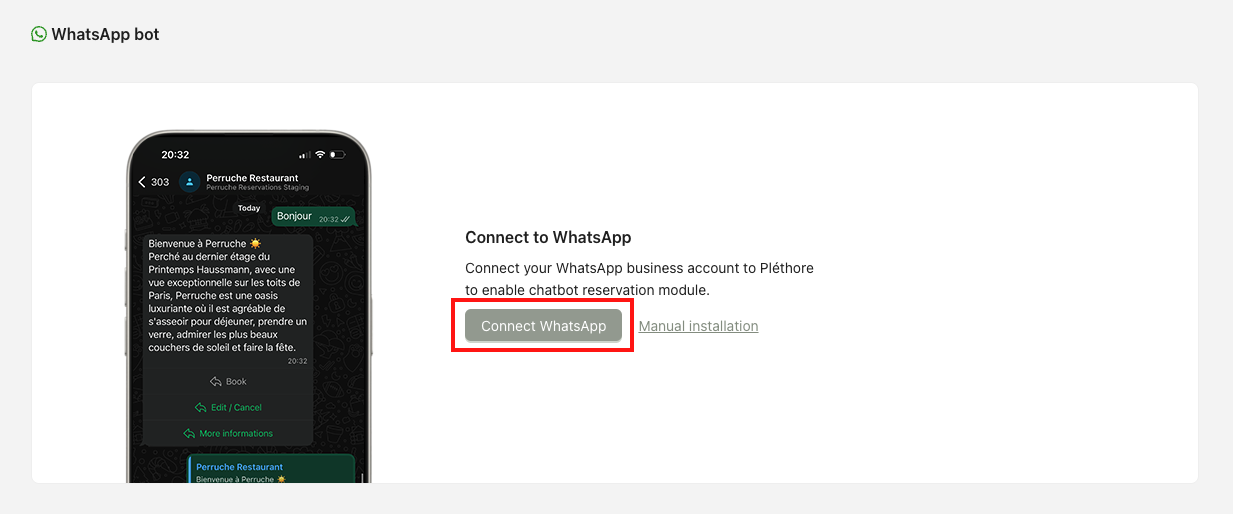
Step 2. A Meta onboarding window will open. Follow the on-screen instructions carefully to grant Pléthore access to your WhatsApp Business Account.
Select your Business Portfolio.
Choose or create a WhatsApp Business Account.
Enter your WhatsApp phone number and select a verification method (SMS or phone call).
Grant the required permissions (access to your business account, ability to send messages, etc.).
Step 3. Once you complete the onboarding, please allow up to 24 business hours for our team to validate your configuration. This verification ensures that your account is properly linked and authorized.
Step 4. Once validated, go back to the Pléthore dashboard and connect the SevenRooms integration. As in the automatic flow, you will need to:
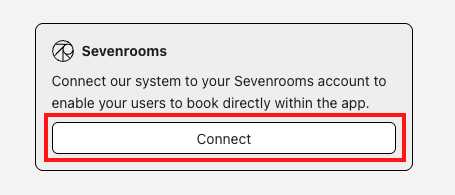
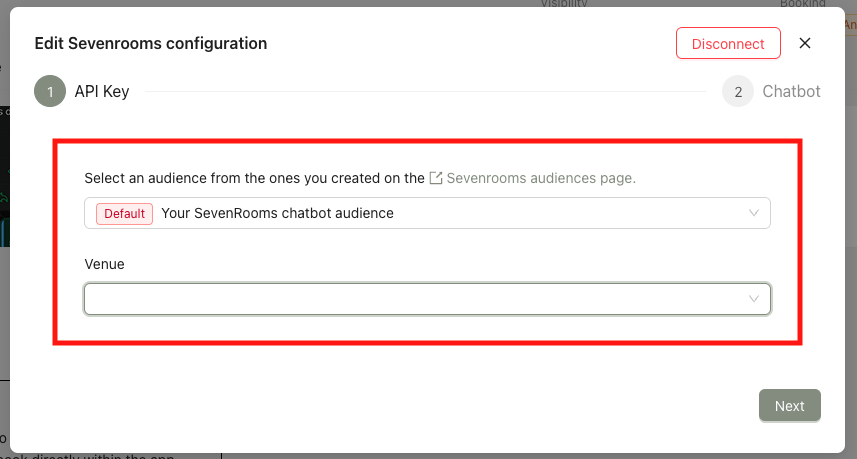
Select the correct SevenRooms audience for the bot.
Assign the restaurant from your SevenRooms account.
Step 5. (Optional) Customize the texts and automated messages to align with your brand voice and customer experience.
Step 6. Finally, activate Booking via Chat. This option makes your venue officially reservable through WhatsApp.
If the automatic flow does not work for you, you can connect your profile manually through the Meta Business Portfolio.
Before you begin, please ensure that:
You already have a Meta Business Portfolio account.
You have access rights to modify the profile and connect external partners.
Your WhatsApp Business Account must be verified, and a valid payment method must be added and active.
Step 1. Log in to your Meta Business Portfolio and click on this button :
Step 2. Select the WhatsApp Account you want to connect.
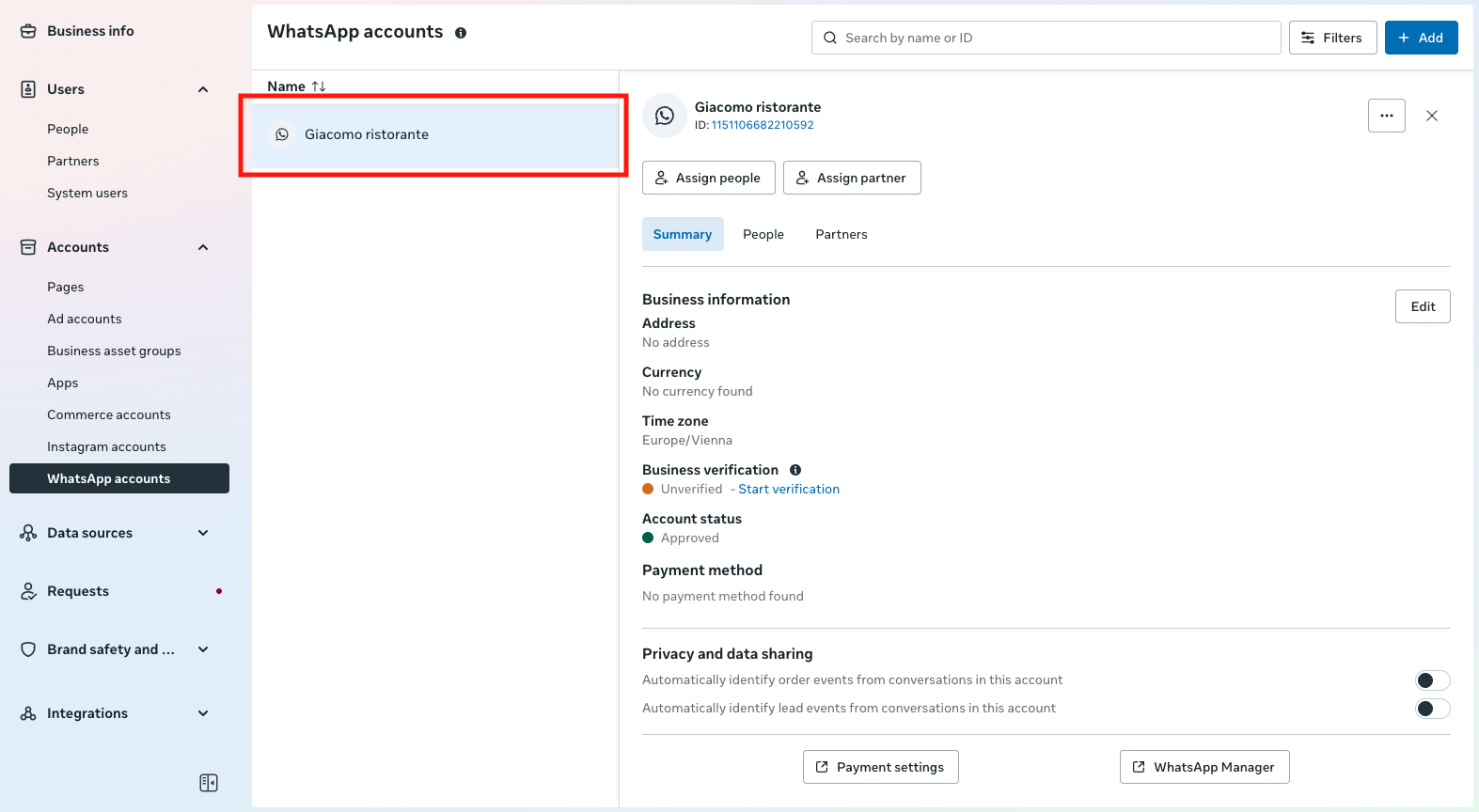
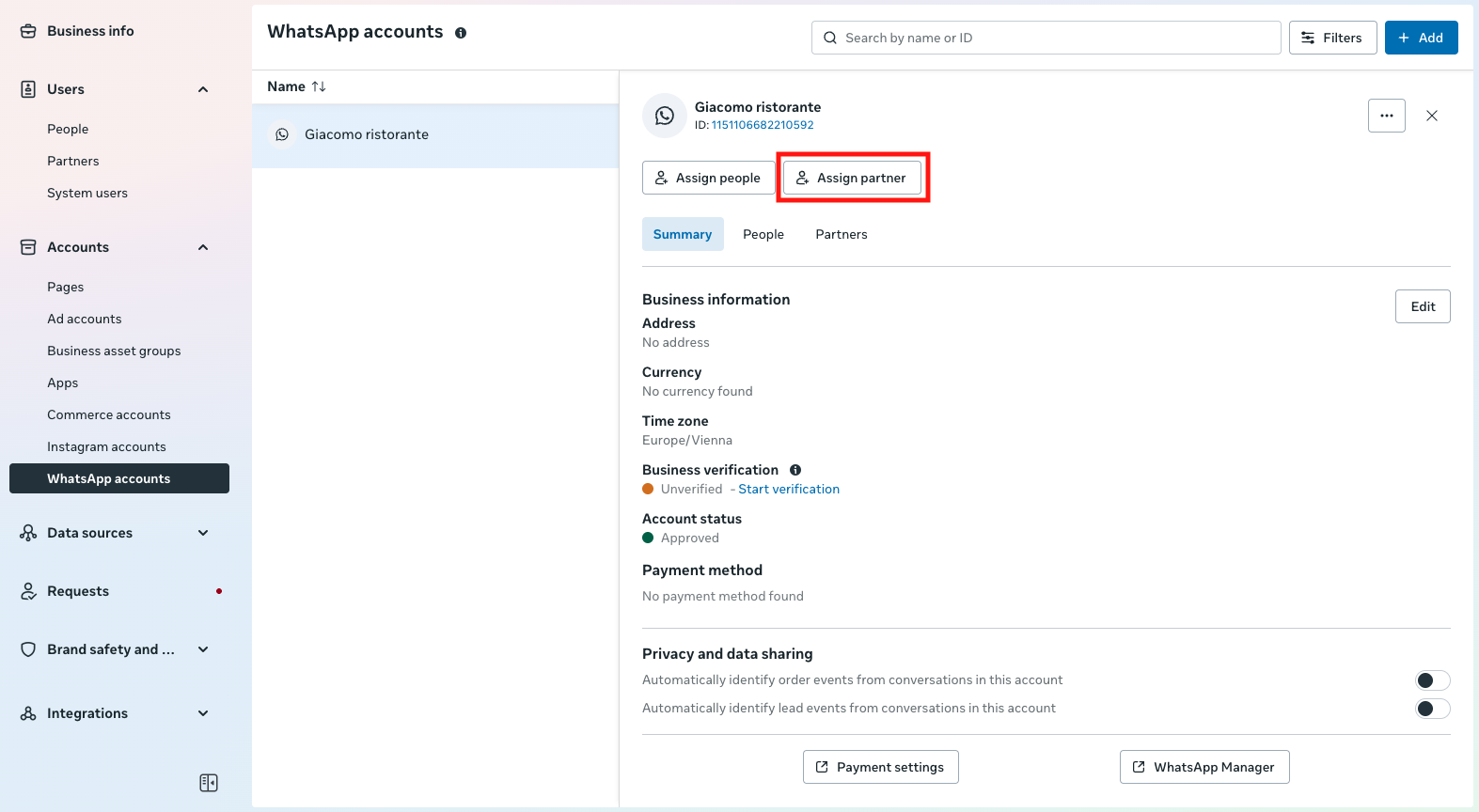
Step 3. Click on Add Partner and enter the Pléthore Meta Business ID: 1798623410863245
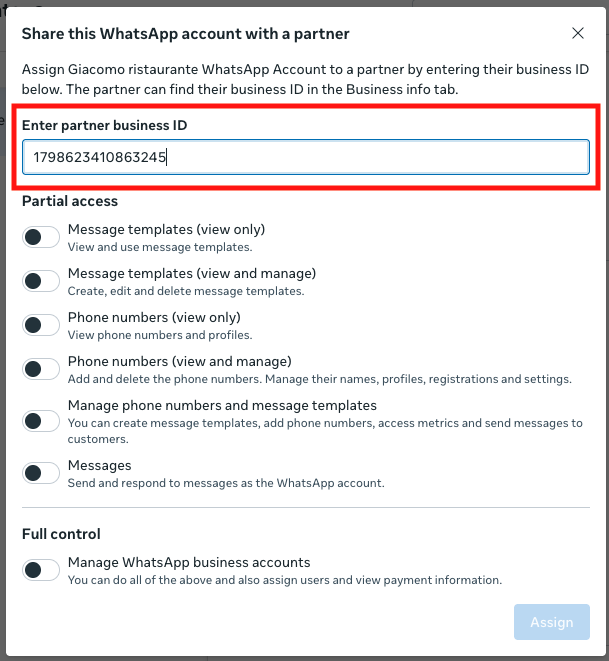
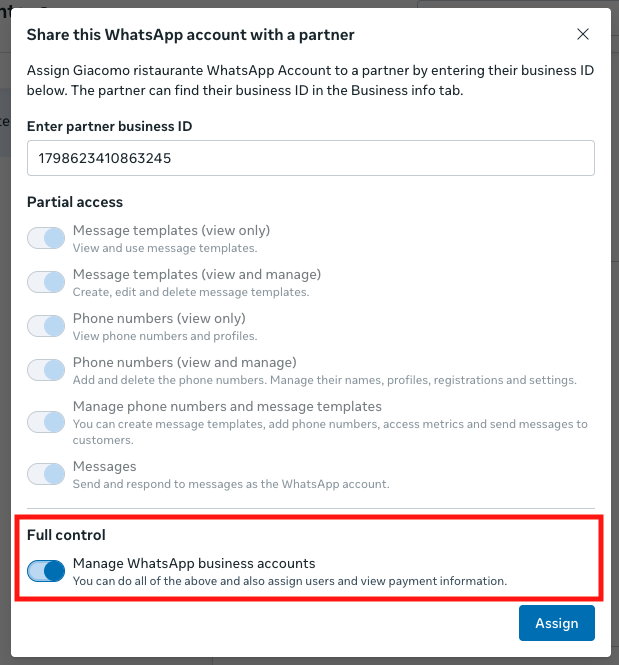
Step 4. When prompted, select Allow Full Access. This ensures Pléthore can manage reservations and send automated messages on your behalf. Without full access, the connection will not function correctly.
Step 5. Wait up to 24 business hours for our team to validate your configuration.
Step 6. Once validated, go back to the Pléthore dashboard and connect the SevenRooms integration. As in the automatic flow, you will need to:
Select the correct SevenRooms audience for the bot.
Assign the restaurant from your SevenRooms account.
Step 7. (Optional) Customize the texts and automated messages to align with your brand voice and customer experience.
Step 8. Finally, activate Booking via Chat. This option makes your venue officially reservable through WhatsApp.
 Tips & Best Practices
Always double-check that the WhatsApp number you connect is the right number used by your venue. Changing it later will require a new validation.
We recommend customizing the introduction texts to make the experience more personal and welcoming.
If you are unsure which SevenRooms audience to link, contact our support team before activating the connector.
