A cluster is a grouping of venues that are geographically close to each other. It helps organize the display of venues, making navigation more intuitive and assisting users in discovering relevant places.
The closest cluster refers to the grouping of venues located closest to the user at the time of viewing. It is automatically highlighted and displayed first in a vertical list, while the other clusters appear as horizontal lists.
From your homepage, ensure you are in the Venues section.

Click on Clusters
You will be directed to the homepage of this section.
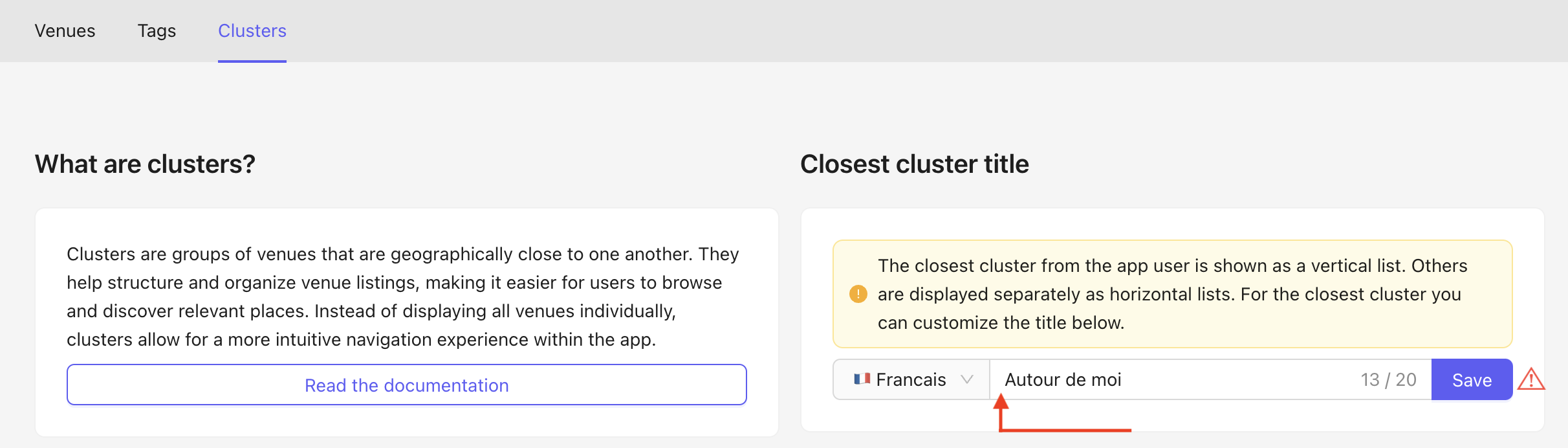
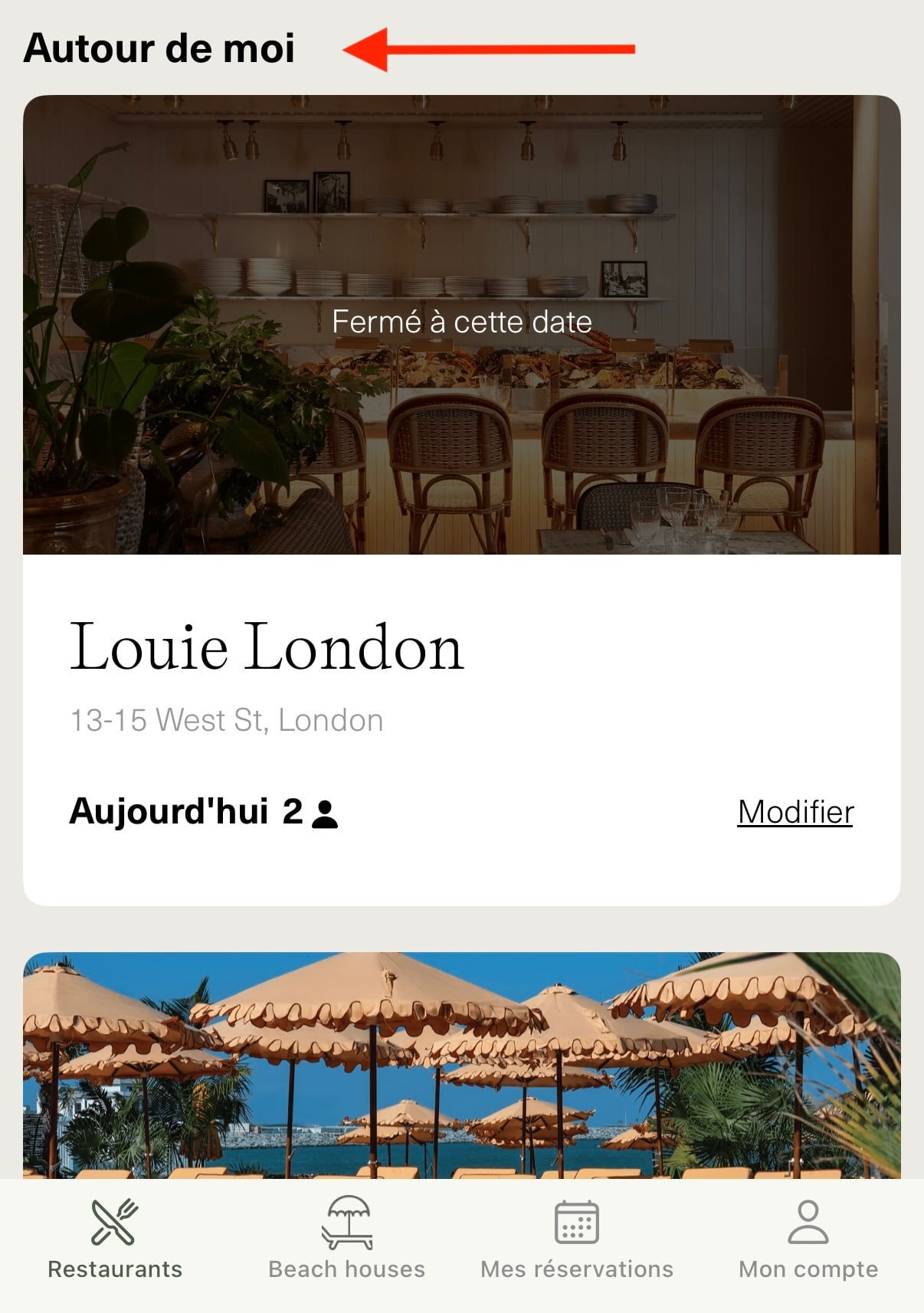
The closest cluster will automatically appear first and in a vertical format on your app. You need to choose the title in the selected language.
Make sure to save your changes.
Visual appearance of Closest Cluster in the App
Click on Add New to create a new cluster.

A pop-up will open with various fields to complete :
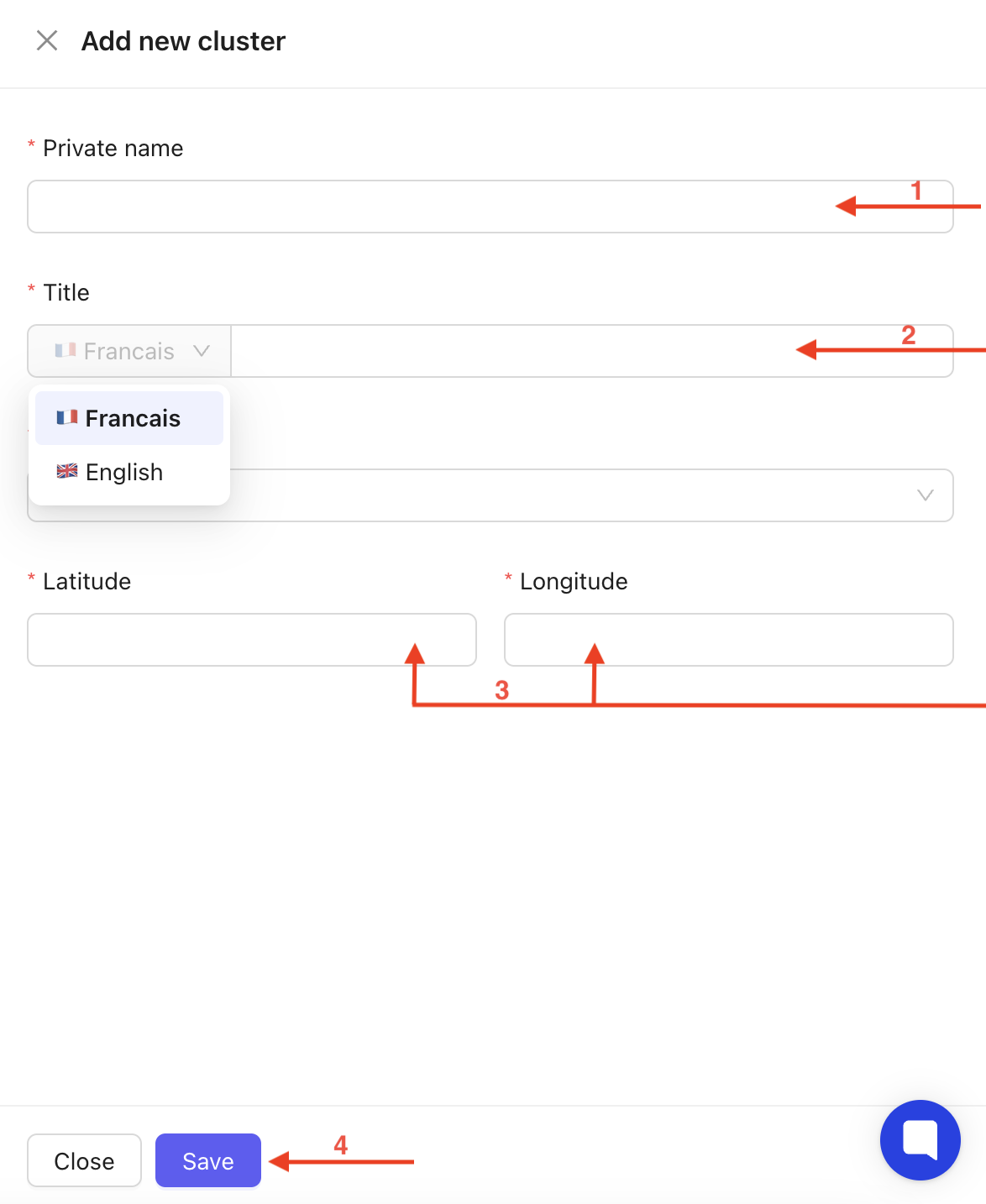
The private name is the name of the cluster, visible only in the Back Office.
Choose the title in the selected languages. This title will be visible in the App.
Fill in the geographic coordinates.
Click Save to confirm.
Your cluster will then be displayed on the homepage with the following elements :
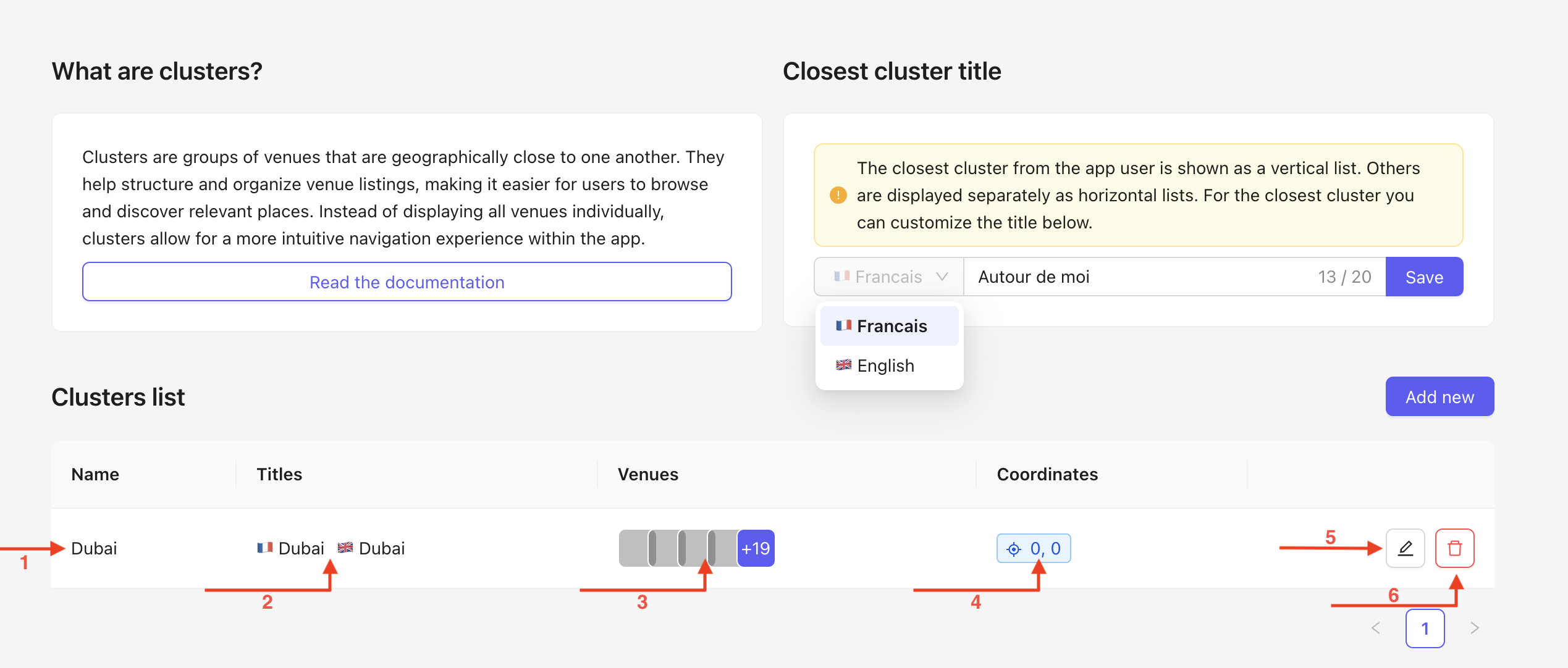
The private name chosen for the Back Office.
The titles that will appear in the app.
The list of venues attached to this cluster.
The geographic coordinates.
The option to edit your cluster.
The option to delete your cluster.
Click on the edit icon. A pop-up will open, which is the same as the one during creation, allowing you to edit the following fields :
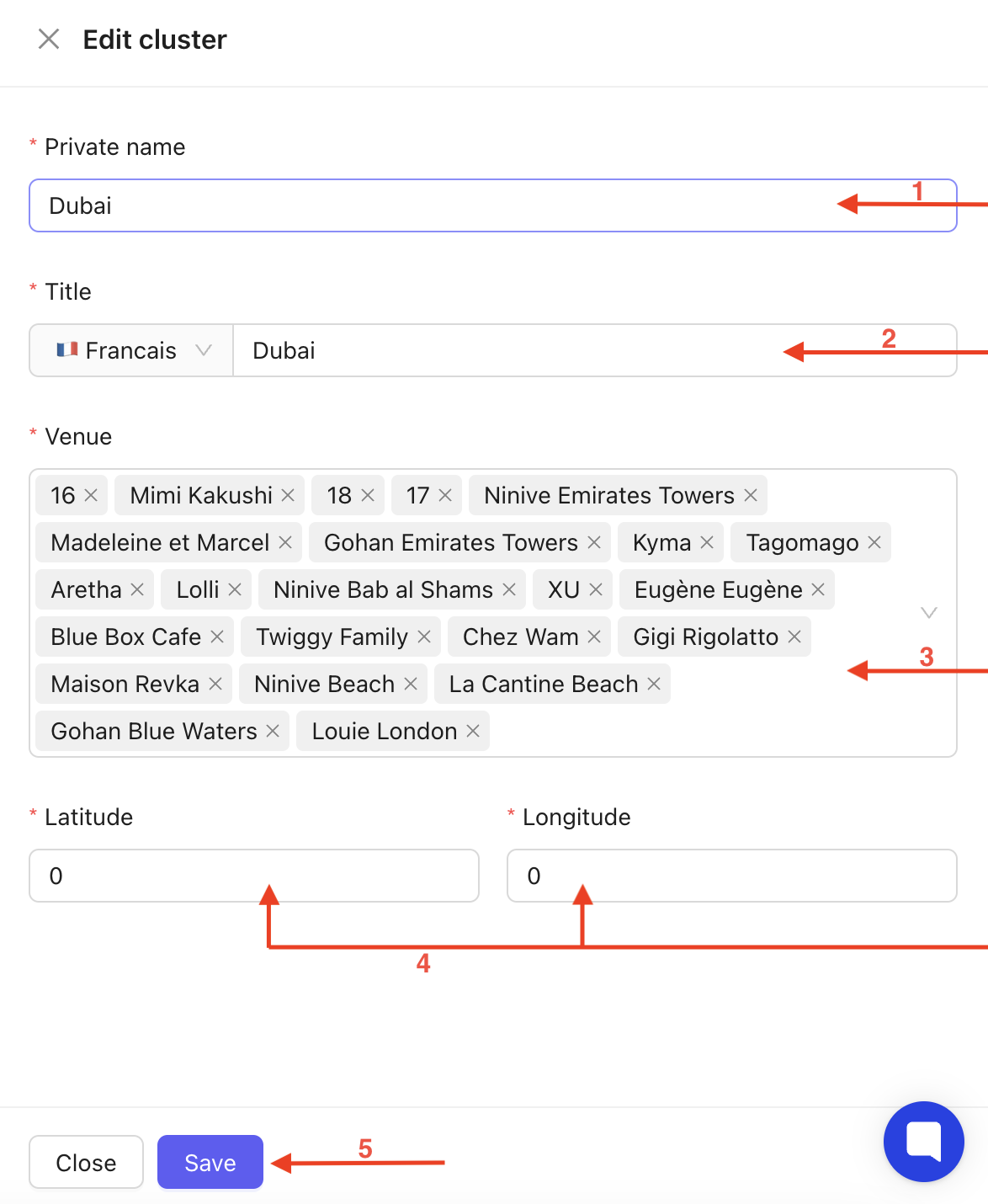
Edit the private name for the Back Office.
Edit titles that will appear in the App.
Select the venues affiliated with the cluster
Edit the geographic coordinates
Click Save to apply the changes.
To add or remove a venue during editing, you have several options :
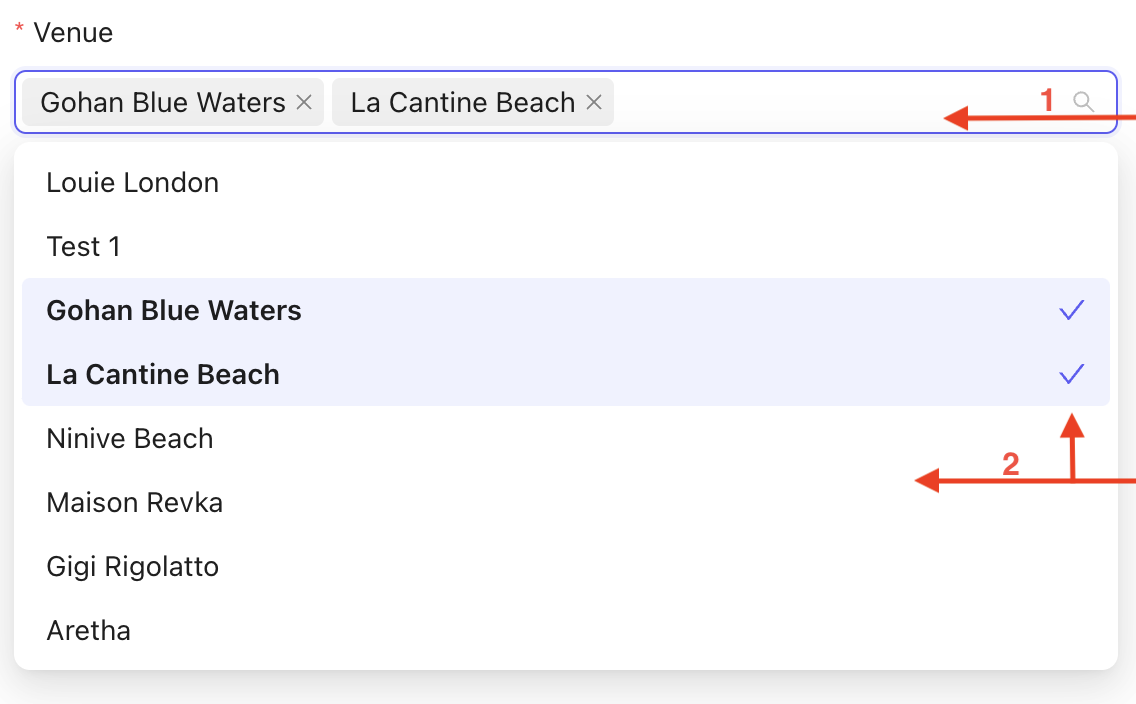
Click to display the dropdown menu.
You can directly remove a venue by clicking the cross.
Click on the venues you want to add. Once selected, they will be highlighted in blue and appear in the search bar.
You can remove a venue by clicking on it again in the dropdown menu.
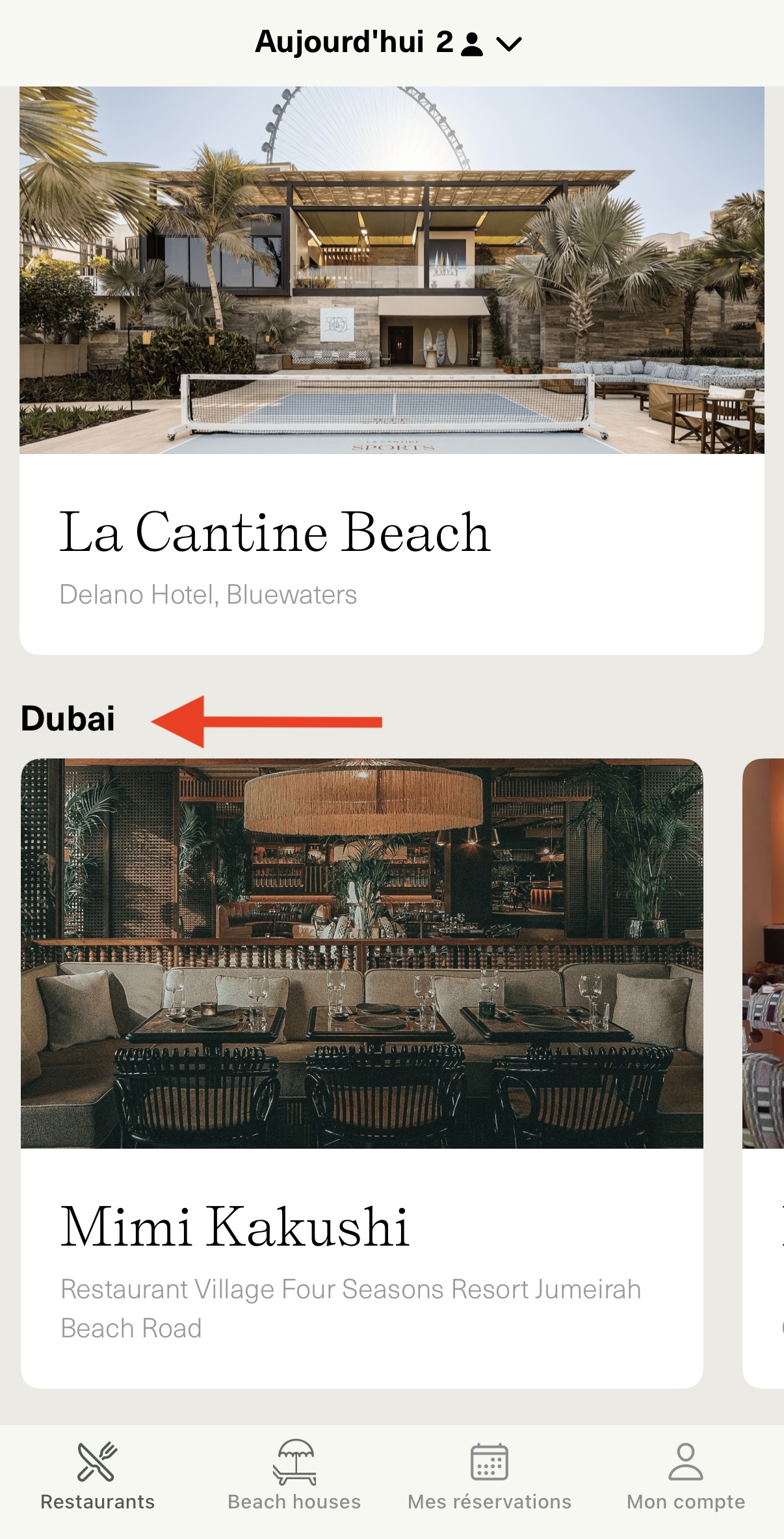
Visual appearance of a Cluster in the App :
Managing clusters groups venues by location, improving user experience by making nearby establishments easier to discover. By creating, editing, and managing clusters, you ensure venues are organized and displayed intuitively for users.

