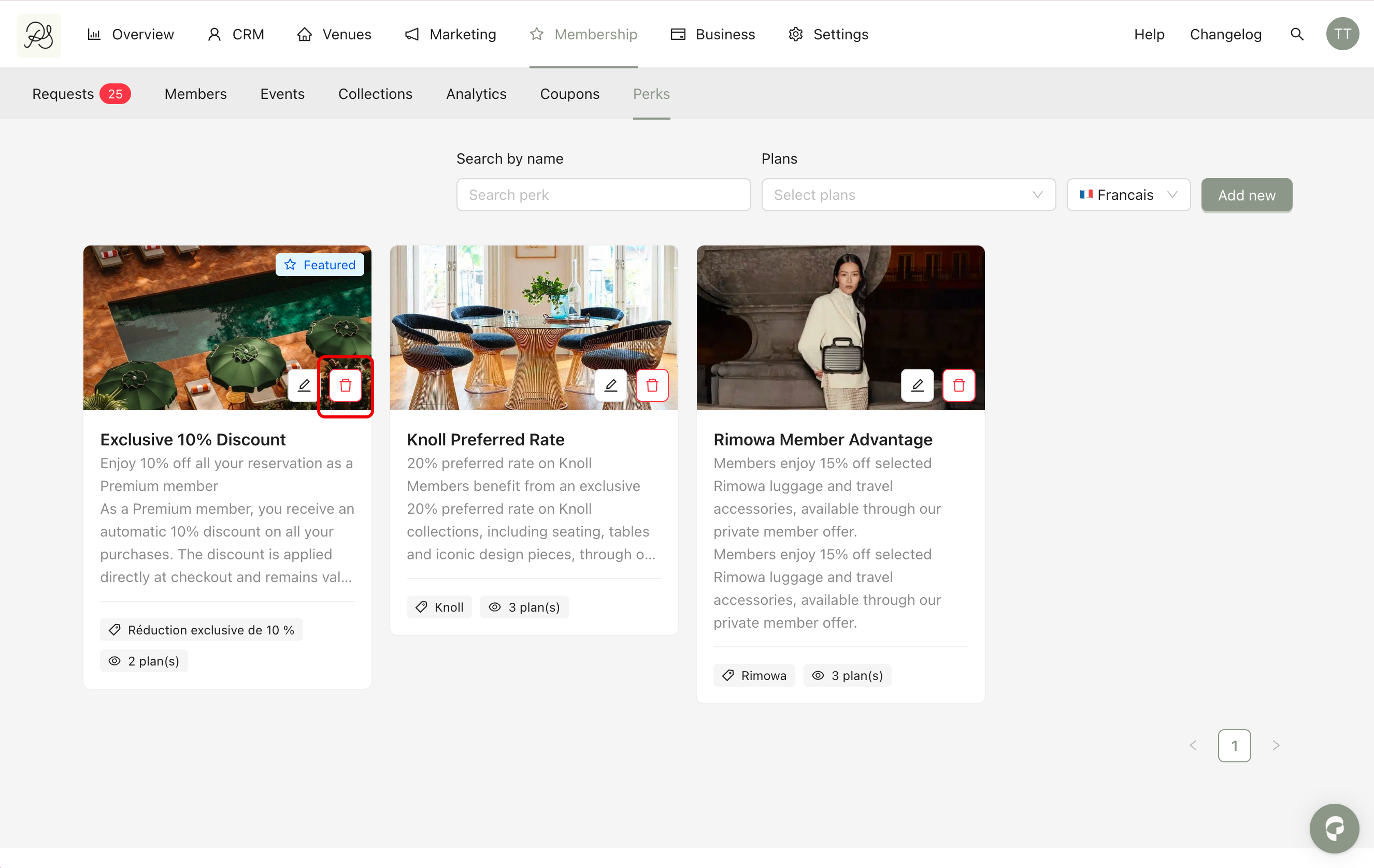
The Perks feature allows you to showcase the exclusive benefits included in a membership program. These perks are visible in the mobile application and help members understand the value of their subscription.
You can create perks, control which plans can see them, decide whether they are published, and choose whether they appear on the main membership screen.
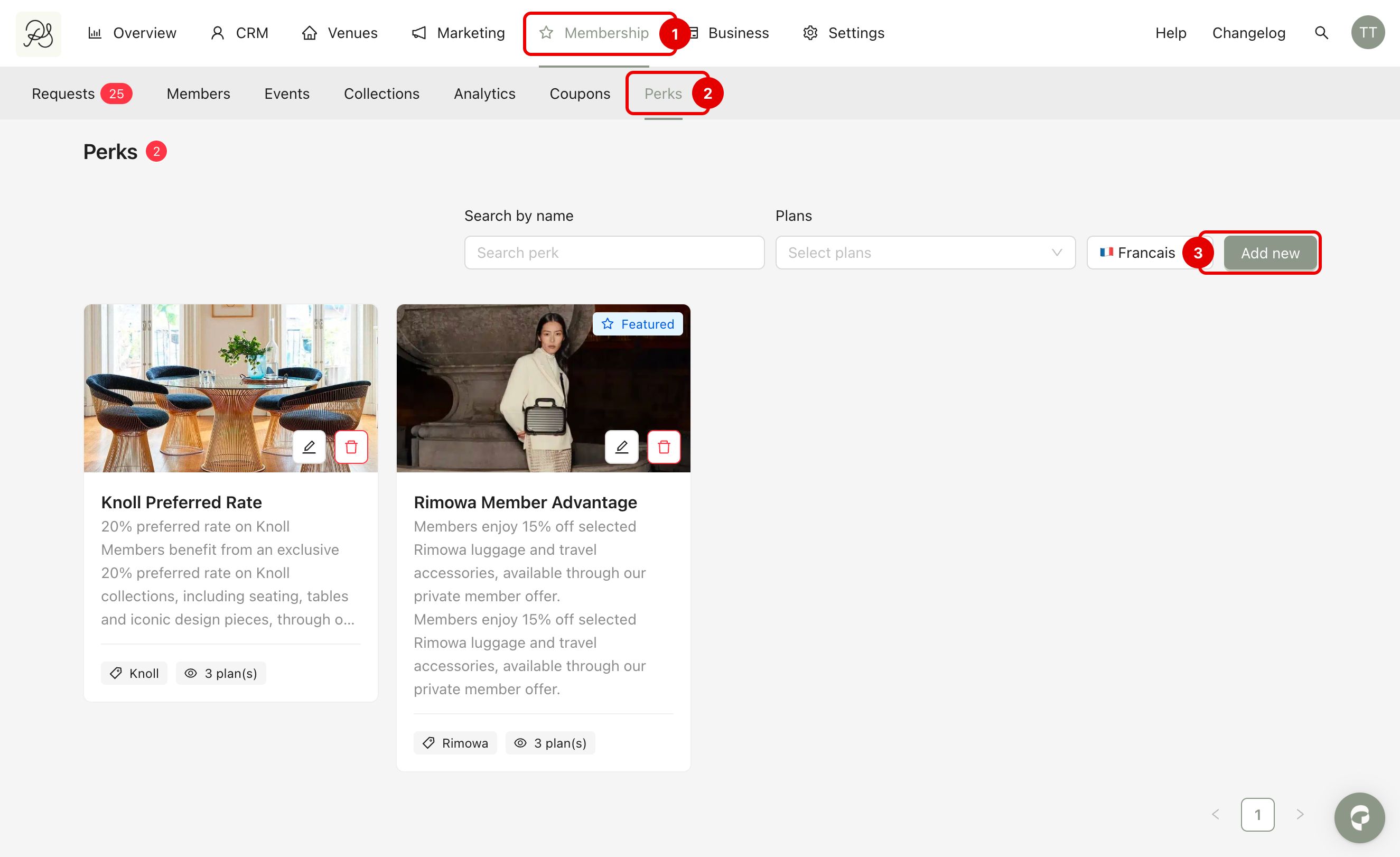
Step 1: Go to Membership (1) → Perks (2) and click Add new (3).
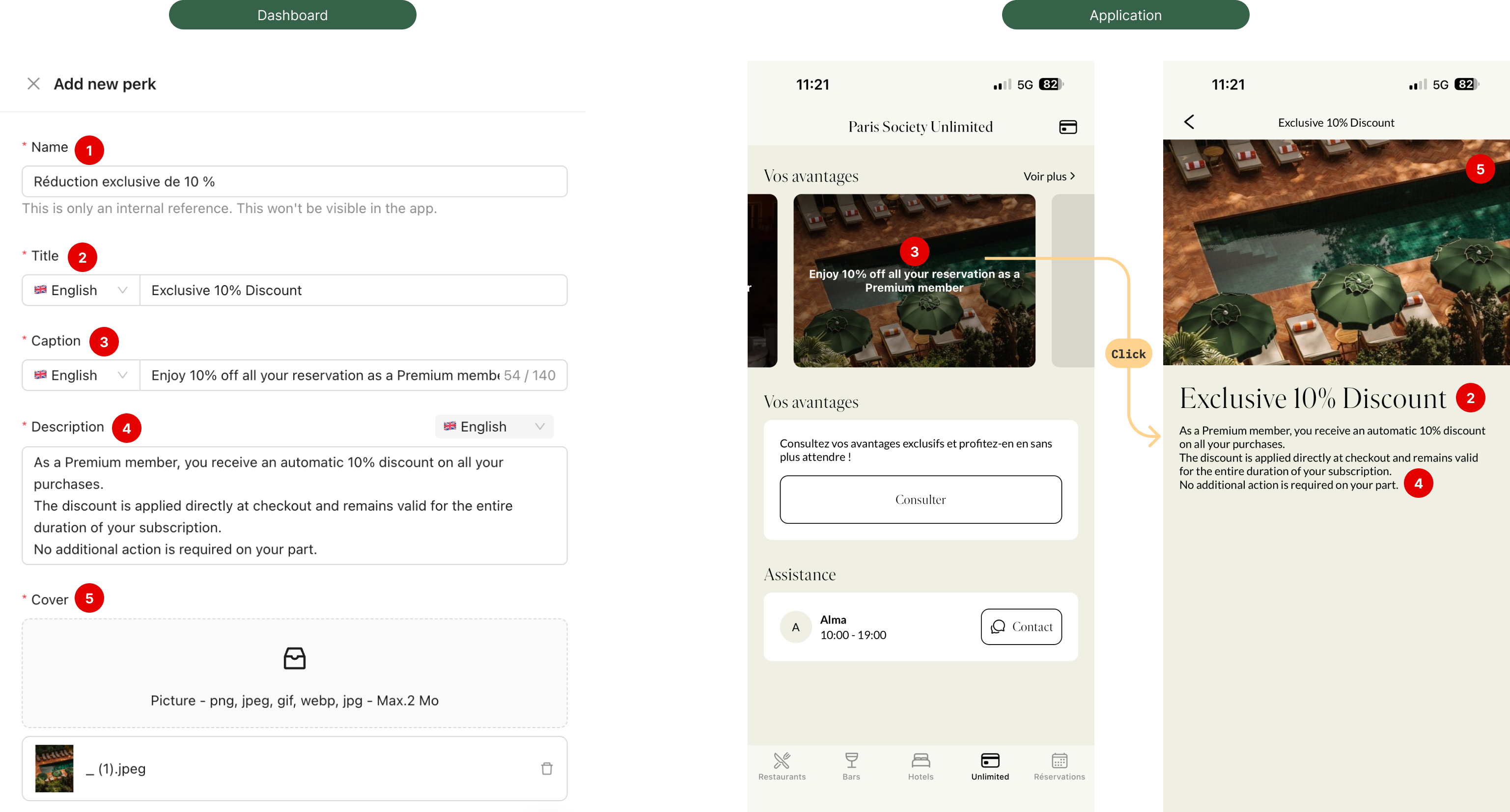
Step 2: A modal will appear where you can enter the perk details:
Name (1): Internal name used in the dashboard for management purposes.
Title (2): The title displayed to members in the application.
Caption (3): A short text displayed on the perk thumbnail in the main membership screen.
Description (4): The detailed content shown when a member clicks on the perk.
Cover (5): The main image of the perk shown in the application.
You can refer to the image below to see how each field in the dashboard corresponds to the display in the application.
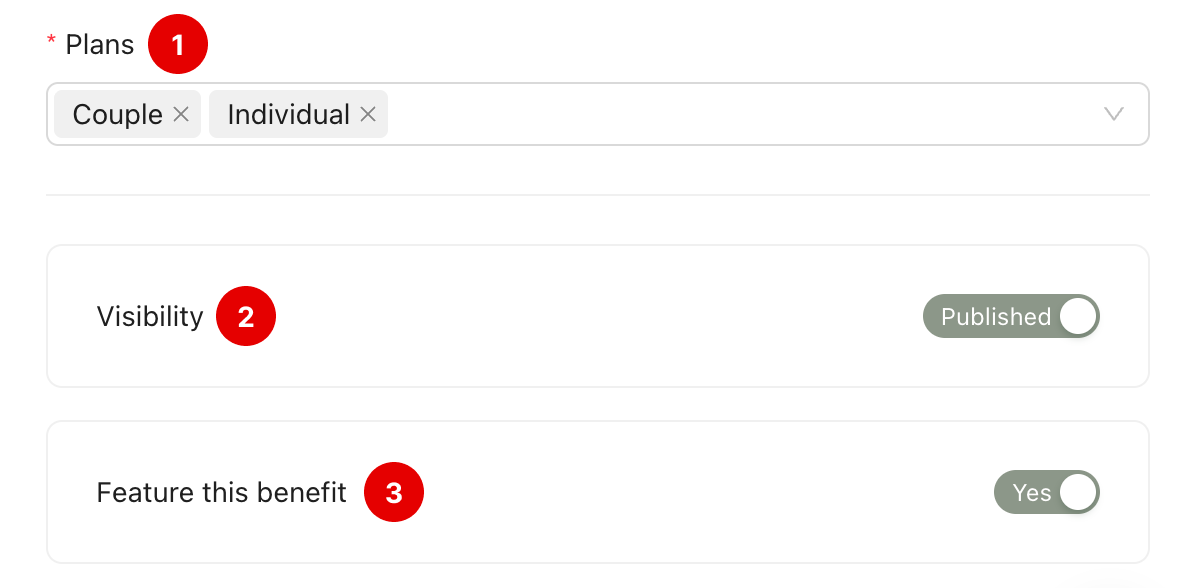
Step 3: After entering the main information, configure the visibility settings:
Plans (1): Select the membership programs and plans whose members can view the perk. Only members subscribed to the selected plans will see it.
Visibility (2): Choose whether to publish the perk. If the toggle is off, the perk remains in the dashboard but is not visible in the application.
Feature (3): Decide whether the perk thumbnail appears on the main membership screen.
If the toggle is off, the perk will only be visible when members click View more, but it will not appear on the main screen.

Step 4: Click Save to create the perk. If the perk is published, it will appear immediately in the application.
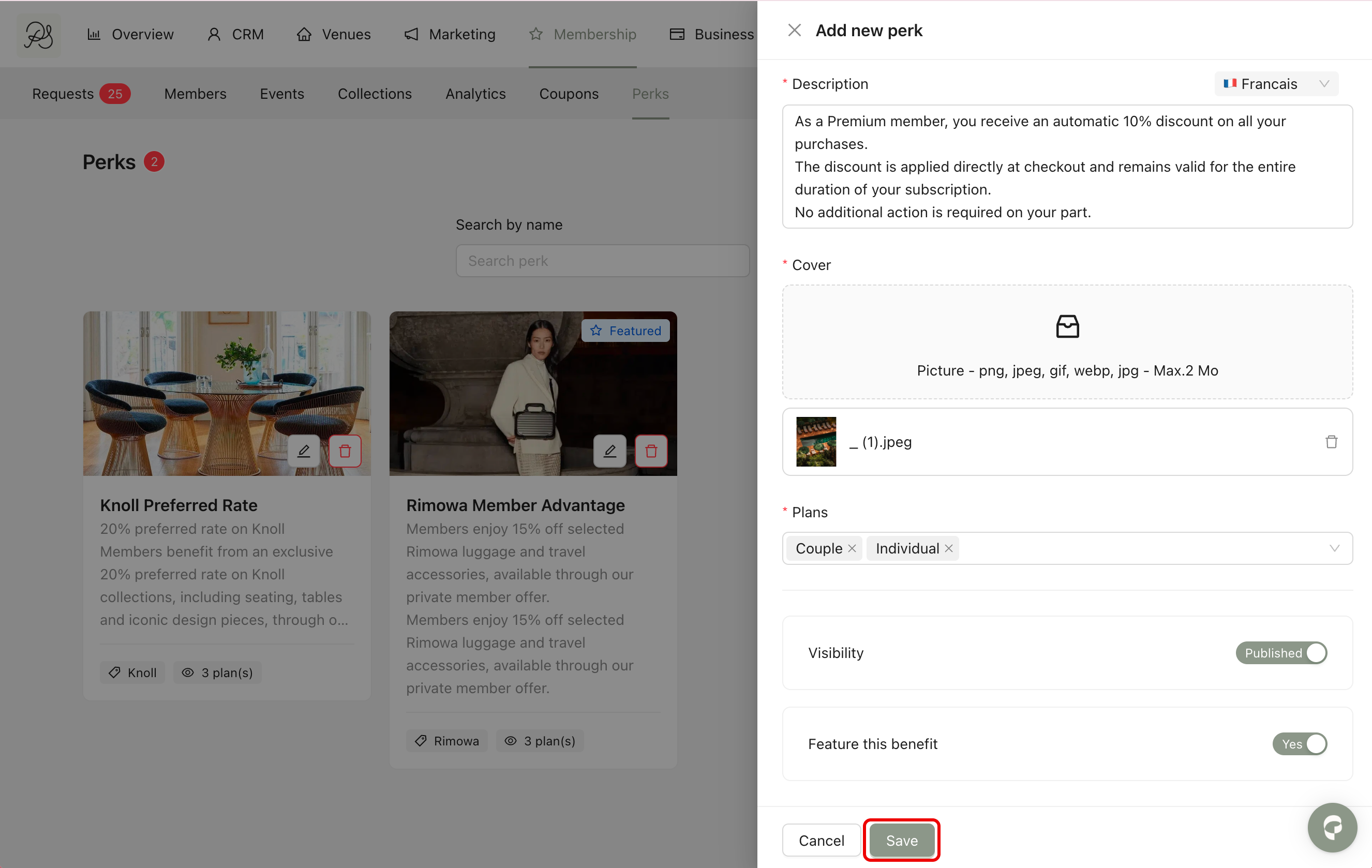
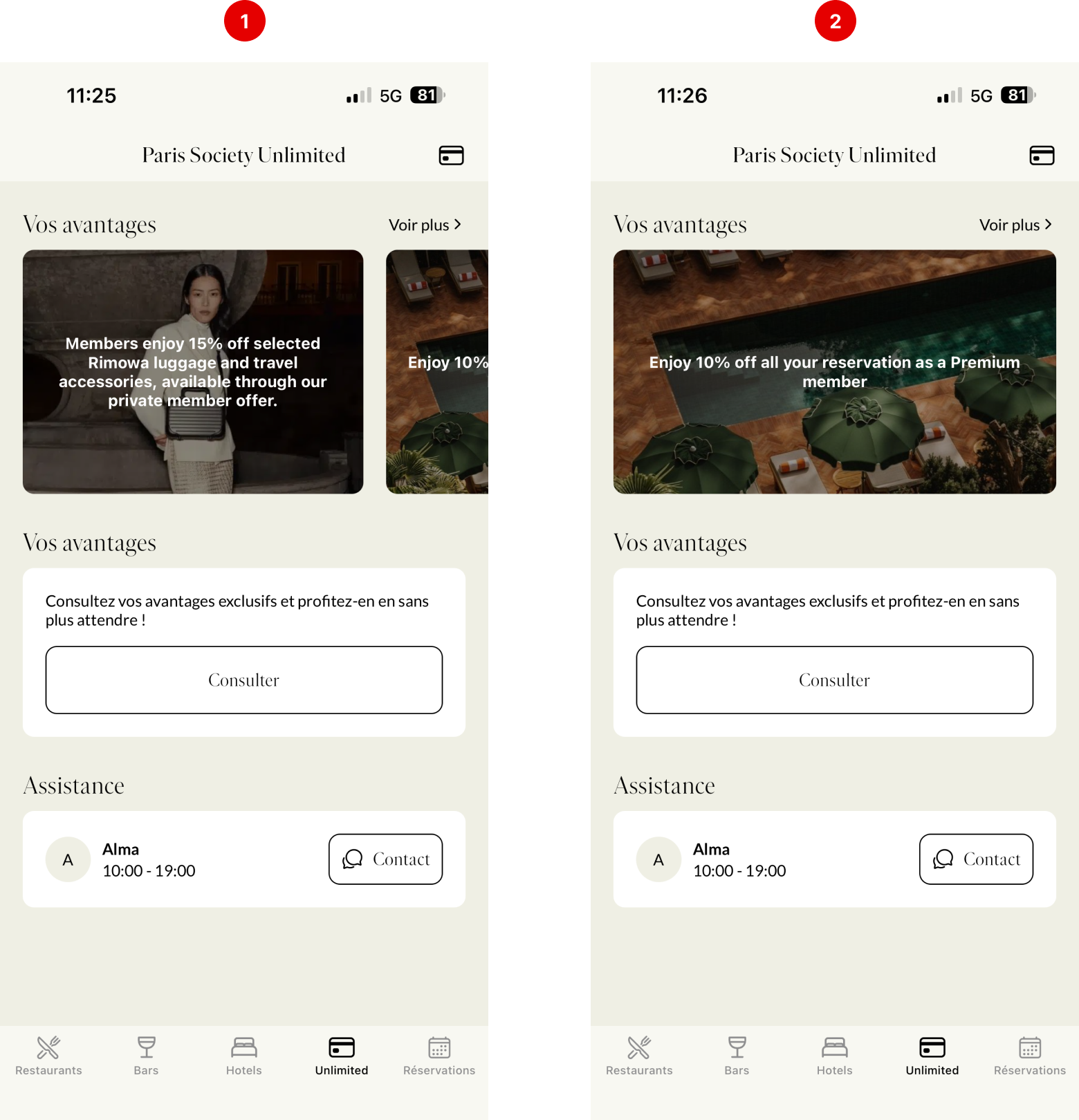
 Result: This is how the perks appear in the application.
If more than one perk is featured, they will be displayed in a carousel format on the main membership screen (1).
If only one perk is featured, members can view all available perks by clicking the View more button (2).
To edit a perk, click the pen icon. A modal will open where you can modify the information and settings. Click Save to apply the changes. Updates are reflected immediately in the application if the perk is published.
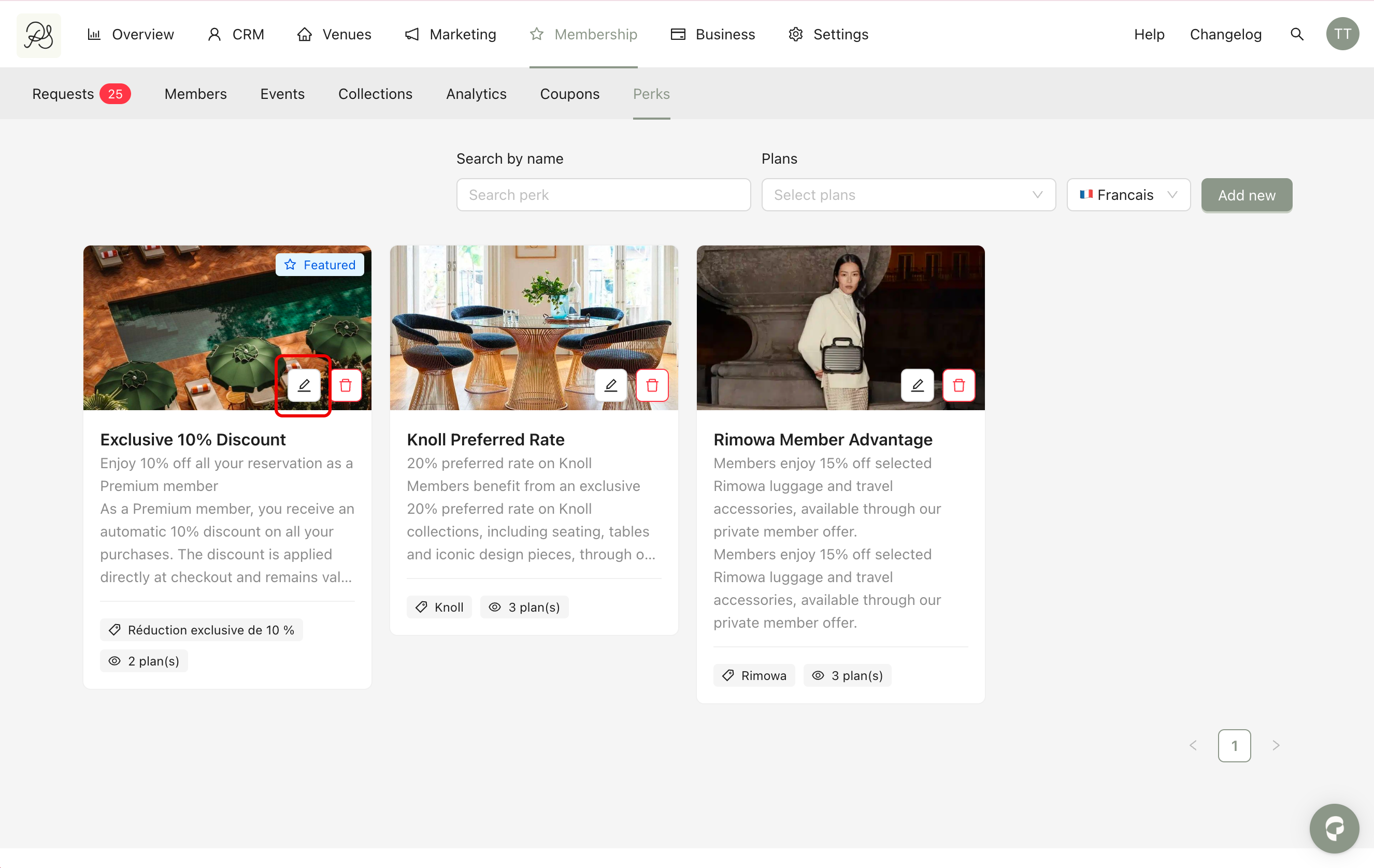
To delete a perk, click the bin icon. A confirmation modal will appear. Click Delete to permanently remove the perk from the dashboard.