The Back Office allows you to personalize your interface display. You can change the color theme and adjust the page width to better suit your preferences or screen size.
These changes only affect your personal view and do not impact other users.
You must be logged in to the Back Office.
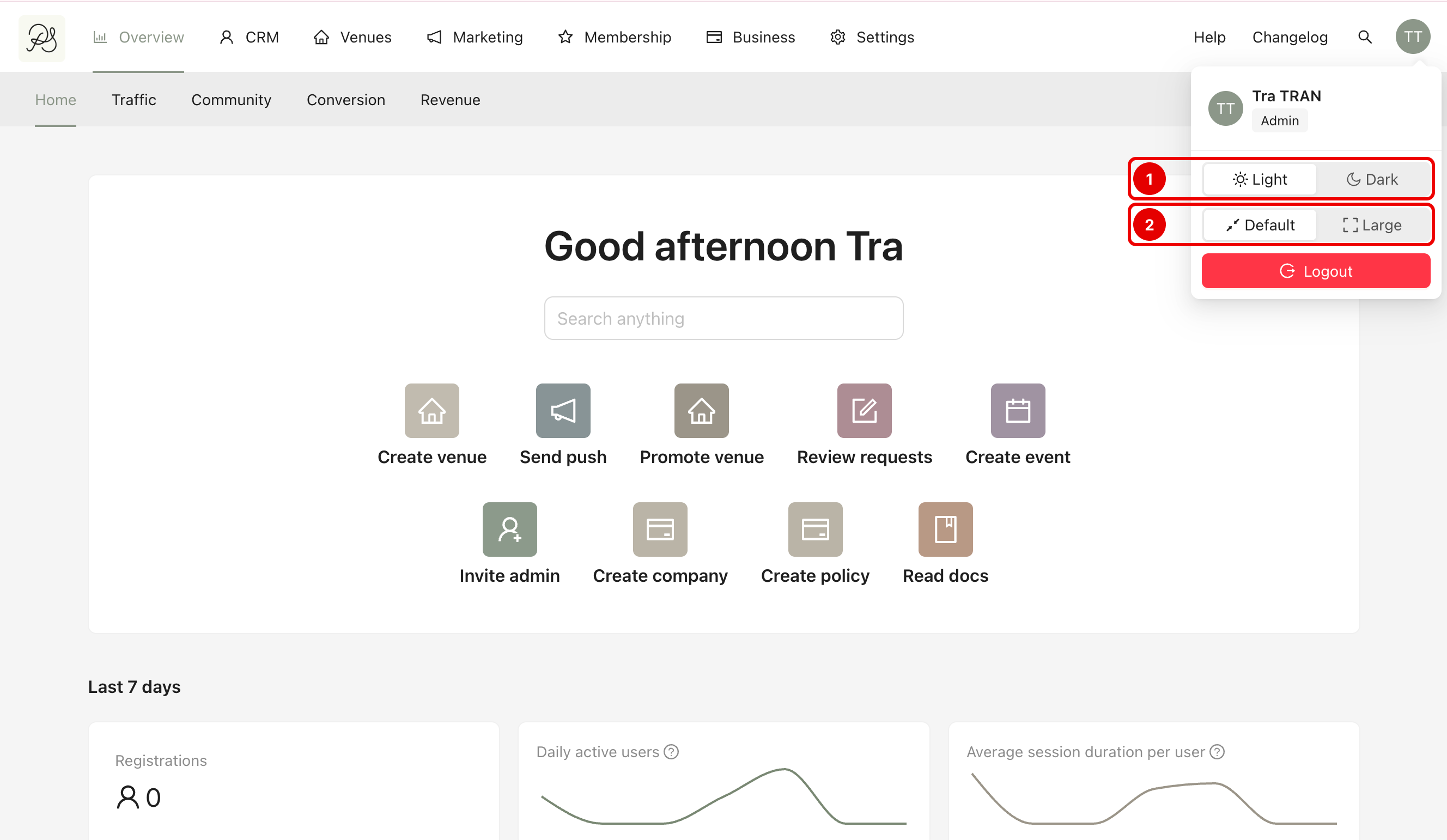
Step 1: Click on your account avatar in the top right corner of the page. A menu will appear with display options. You can configure:
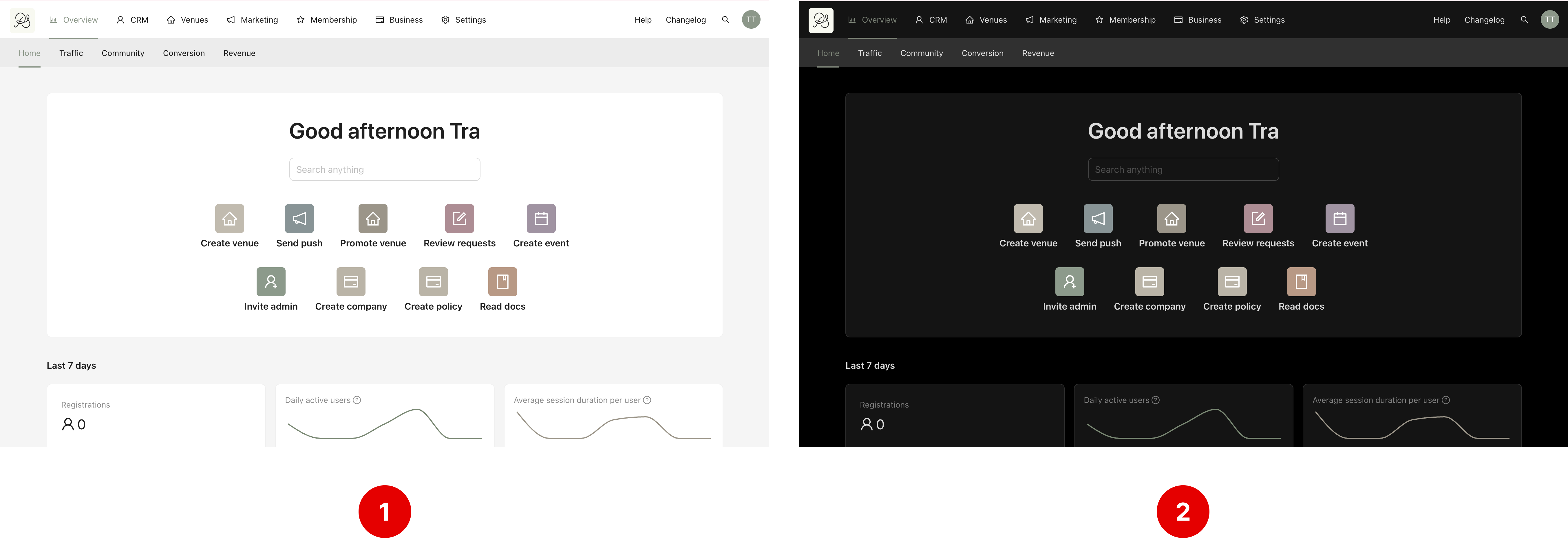
Dark mode / Light mode (1): Switch between light and dark interface themes.
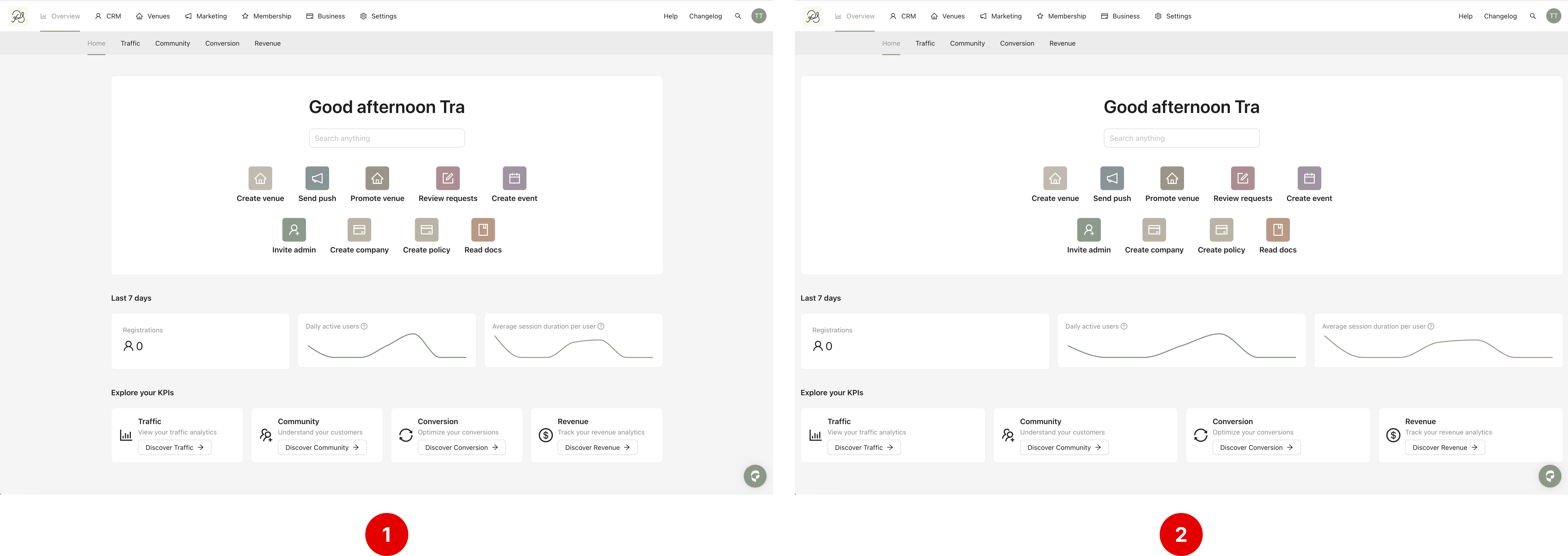
Default view / Large view (2): Adjust the width of the dashboard content
Light mode (1) displays a bright background. Dark mode (2) displays a darker background to reduce eye strain, especially in low-light environments.
Default view (1) keeps the page content within a fixed maximum width. Large view (2) expands the content width to use more space across your screen.
Step 2: Click on the mode you want to use. The toggle will switch automatically, and the change will be applied immediately. No need to refresh the page, the update happens instantly.
