Pléthore allows you to automate booking notifications related to reservations made in the application.
You can control when notifications are sent, customize their content, and connect certain actions with SevenRooms reservation statuses.
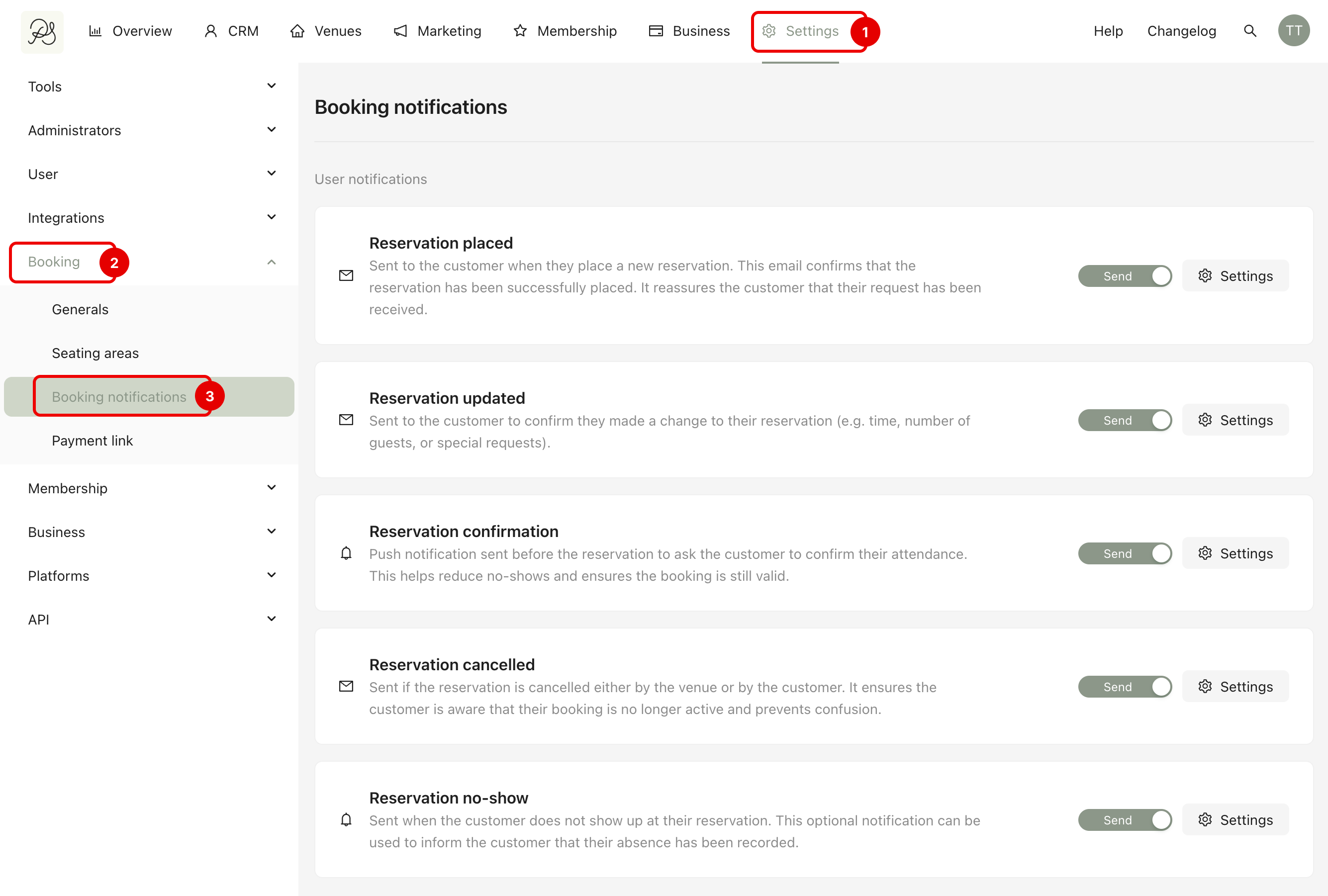
There are five main types of booking notifications:
Reservation placed: Email sent when a user successfully makes a booking in the app.
Reservation updated: Email sent when a user modifies their reservation.
Reservation confirmation: Push notification sent before the reservation to ask the customer to confirm their attendance.
Reservation cancelled: Email sent when a booking is cancelled by the user or by the venue.
Reservation no-show: Push notification sent when a customer does not show up for their reservation.
Go to Settings (1) → Booking (2) → Booking notifications (3). You will see the list of all notification types with activation toggles and configuration options.
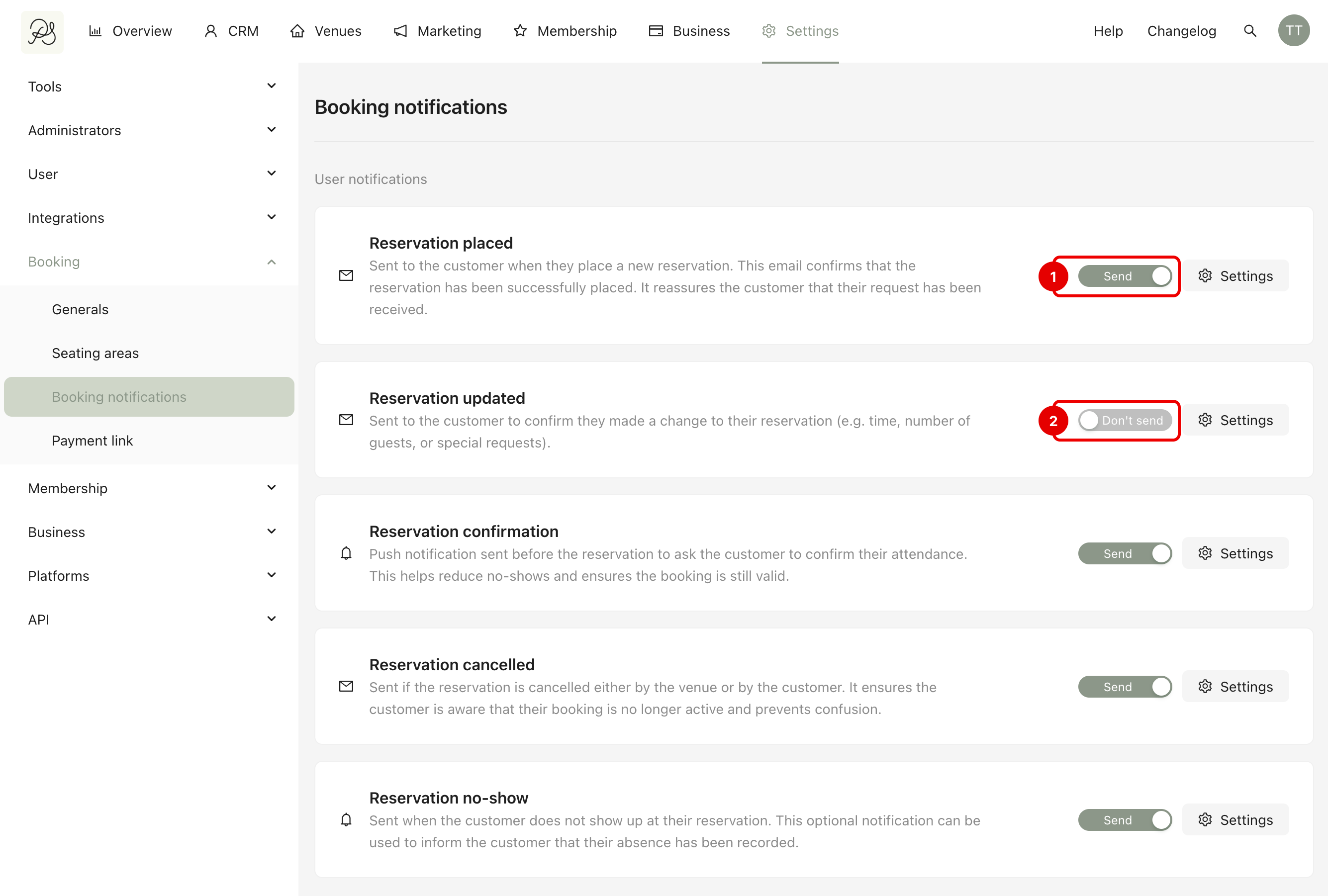
To activate a notification, turn on the toggle labeled Send (1) on the right side of the notification type. This enables automatic sending when the corresponding action occurs.
To deactivate a notification, switch the toggle to Don’t send (2). This disables automatic sending.
To configure a notification, click the Settings button on the right side of the corresponding notification type.
3.1. Reservation Placed, Reservation Updated, Reservation Cancelled (Email Notifications)
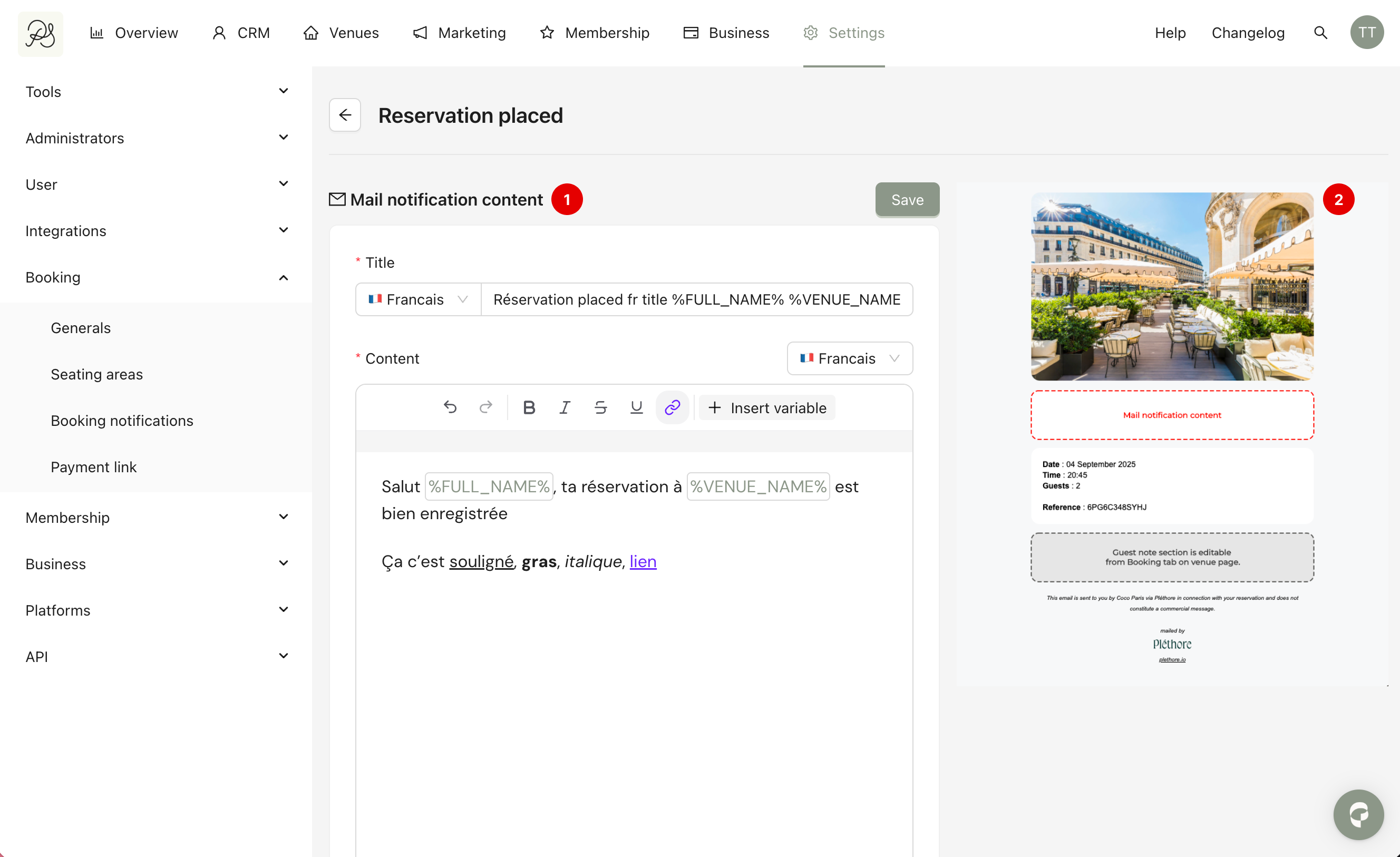
For these email notifications, you can customize the email content (1). You must enter the email subject (title) and write the email content. It’s required to provide content for all default languages.
On the right side of the screen, you can preview how the content will appear in the final email sent to customers (2).
After making changes, click Save.
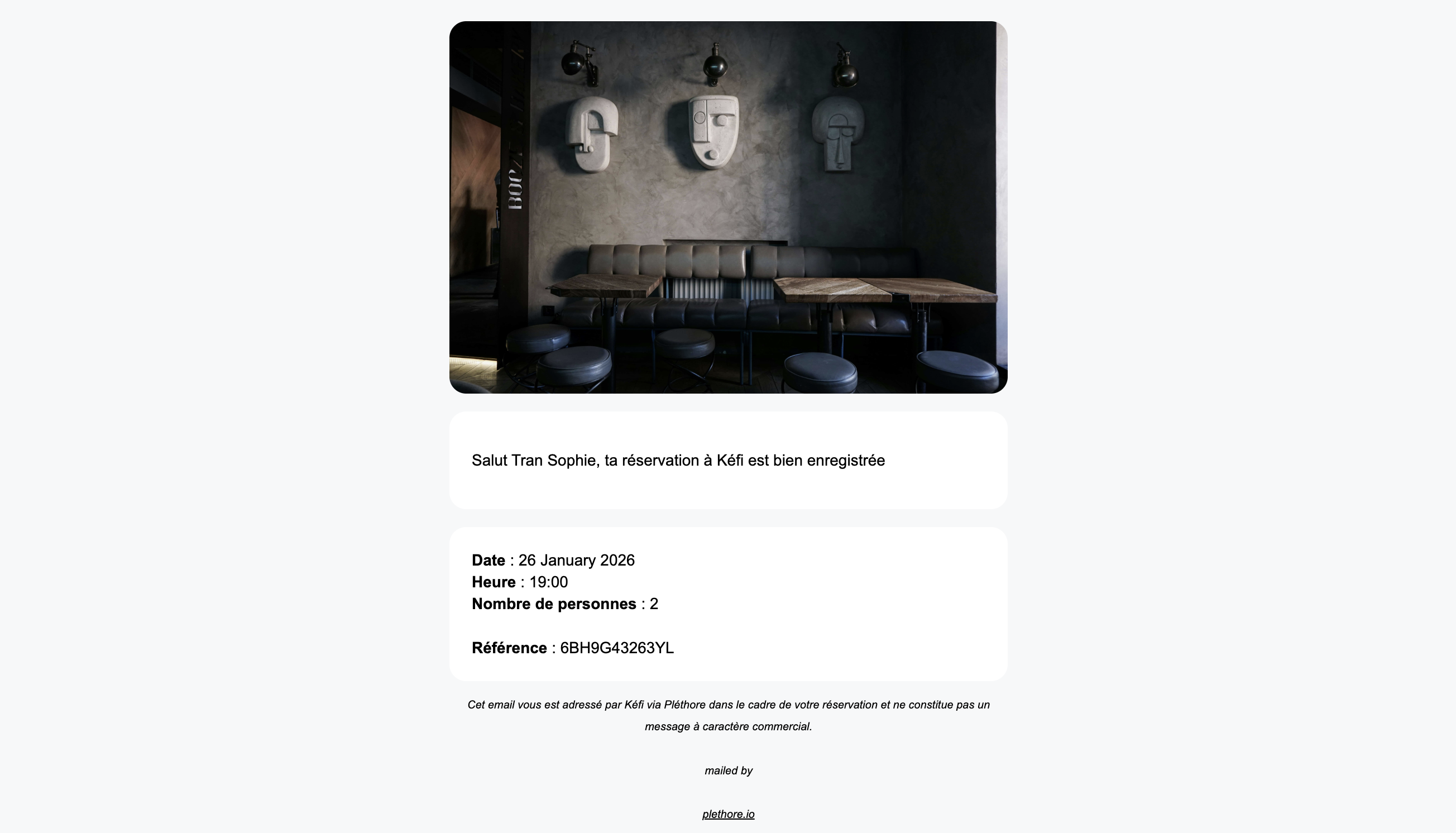
Result: Below is a preview of the email as received by the customer.
3.2. Reservation Confirmation (Push Notification)
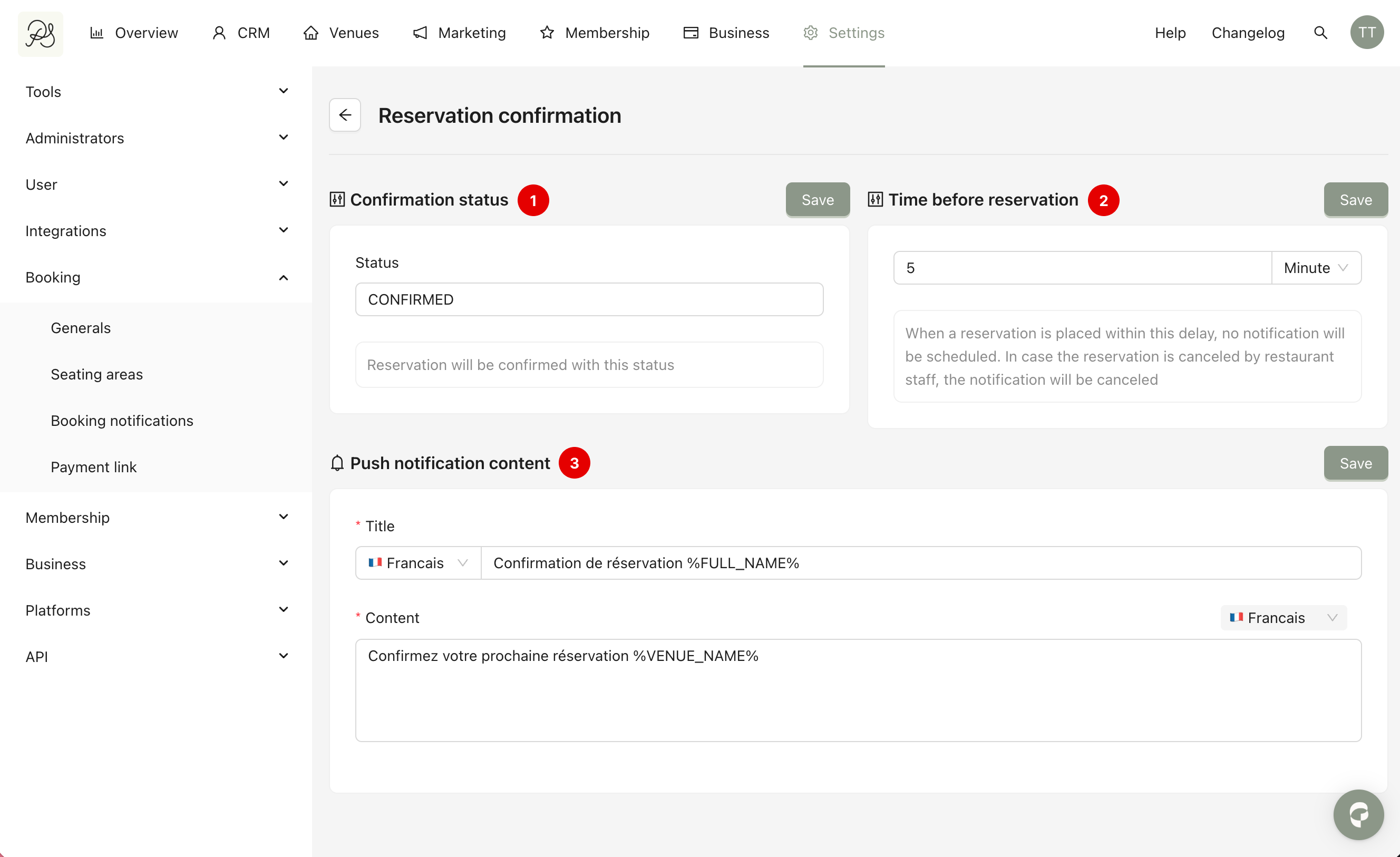
This notification reminds customers to confirm their attendance before the reservation. You can configure:
Confirmation status(1): This connects the confirmation action in the app with a status in SevenRooms. When a customer receives the notification and confirms in the app, the reservation status in SevenRooms will automatically update to the status you define here.
For example, if you configure the status as CONFIRMED, then when the customer clicks confirm in the app, the reservation status in SevenRooms will change to CONFIRMED.

Time before reservation (2): This defines how long before the reservation date the push notification is sent. If a reservation is created within this delay period, no confirmation notification will be scheduled. If the reservation is cancelled by the venue before the scheduled time, the confirmation notification will also be cancelled.
Push notification content (3): Customize the message that will be sent to the customer.
After configuring each section, click Save.
Result: Below is a preview of the confirmation notification as it appears in the customer’s application.
<à remplir>
3.3. Reservation No-Show (Push Notification)
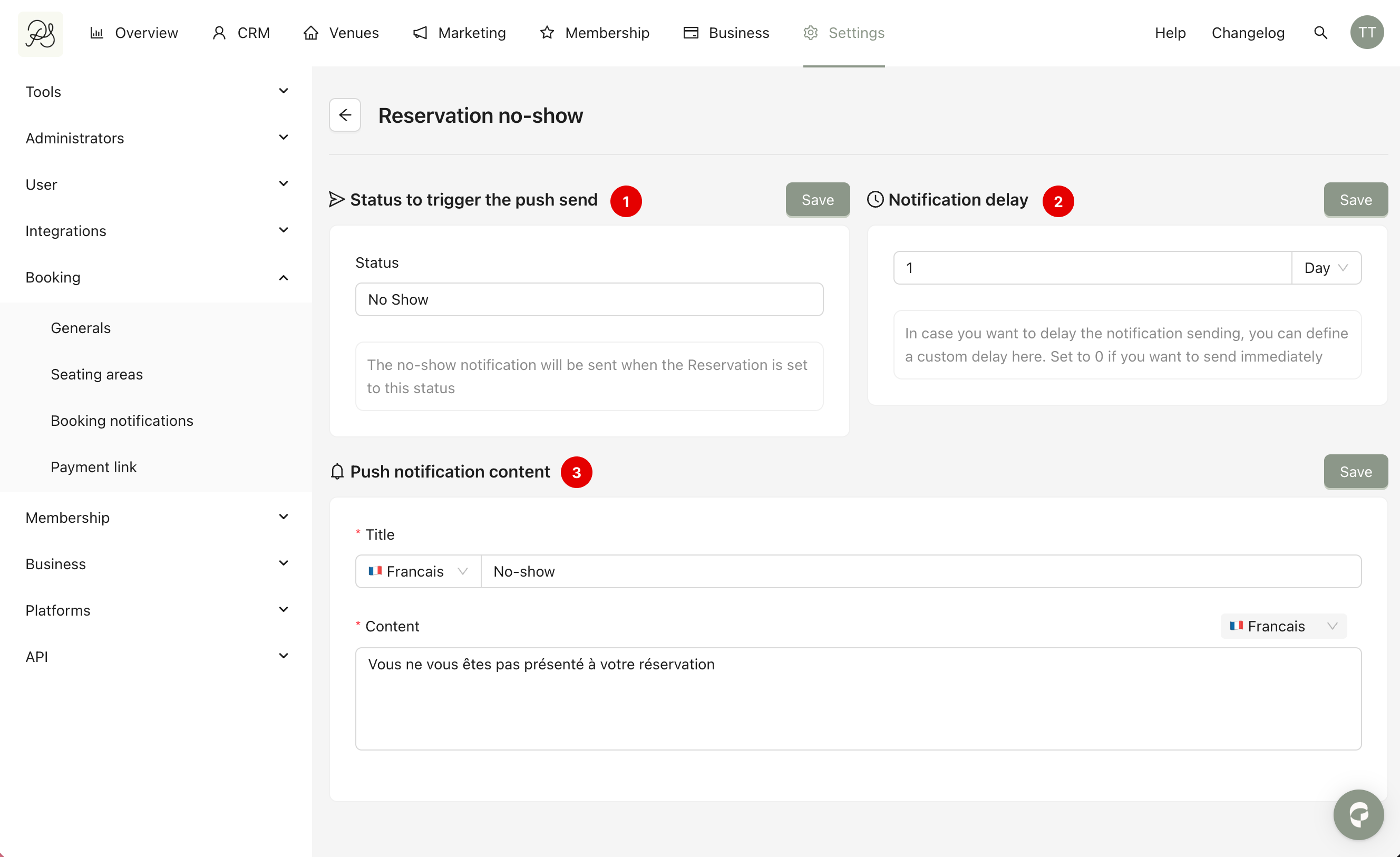
This notification is triggered when a reservation is marked as a no-show in SevenRooms. You can configure:
Status to trigger the push notification (1): Enter the exact reservation status used in SevenRooms that should trigger the notification (for example, “No Show”).
Notification delay (2): Define how long after the reservation reaches the no-show status the push notification should be sent.
Push notification content (3): Write the message that will be sent to the customer.
After making changes, click Save.
Result: Below is a preview of the no-show notification as it appears in the customer’s application.
<à remplir>
