Pléthore allows you to connect user profiles with third-party systems such as SevenRooms.
Linking a SevenRooms profile ensures that customer data, reservations, and CRM information are properly associated with the correct user in Pléthore.
Before starting, make sure:
You have one of the required roles: Admin or Head of Project
You have access to the SevenRooms Back Office
Only users with the appropriate permissions can edit Third Party profiles.
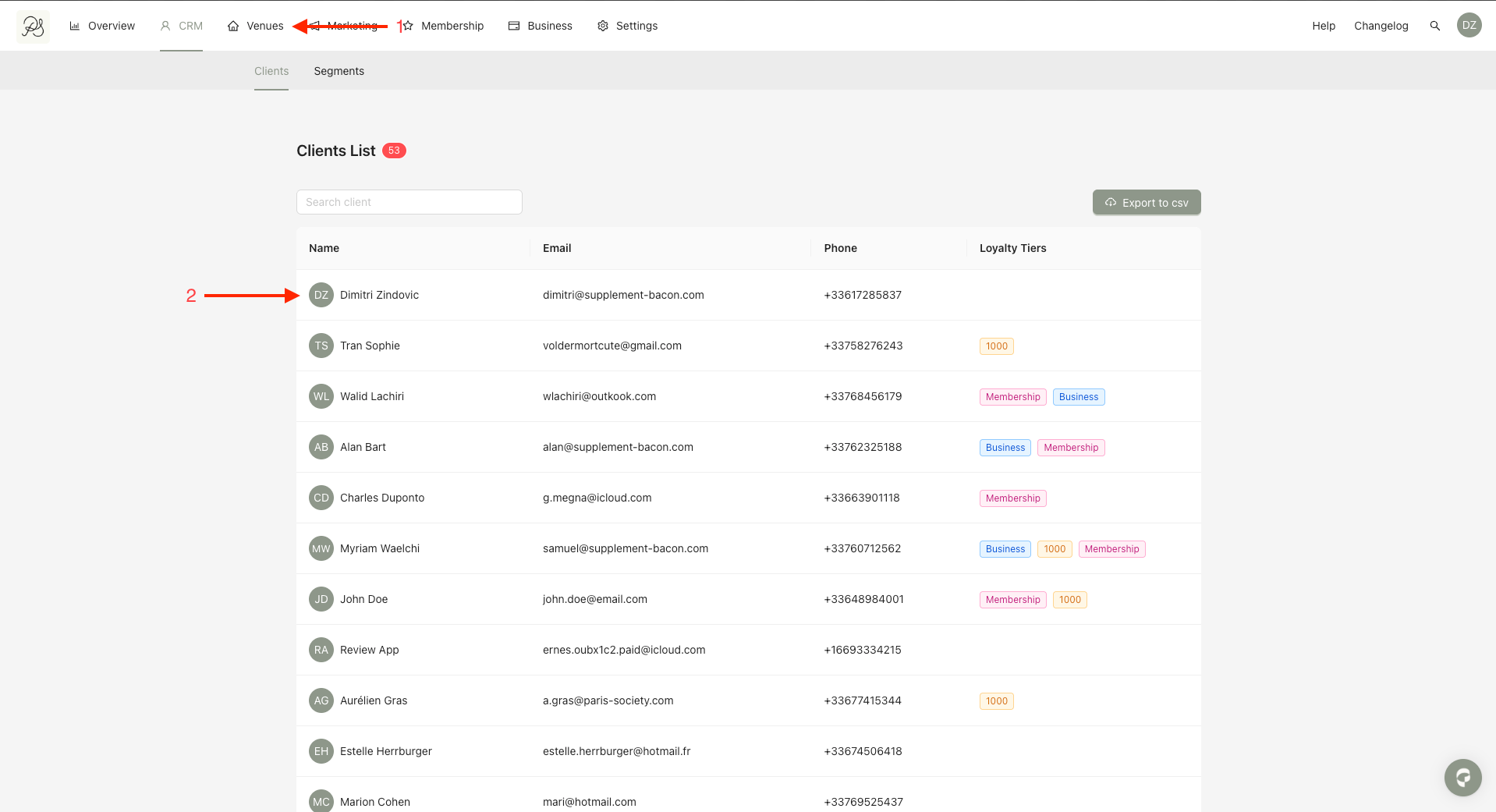
Step 1: From the homepage, click CRM (1). Then select the user you want to re-connect (2).
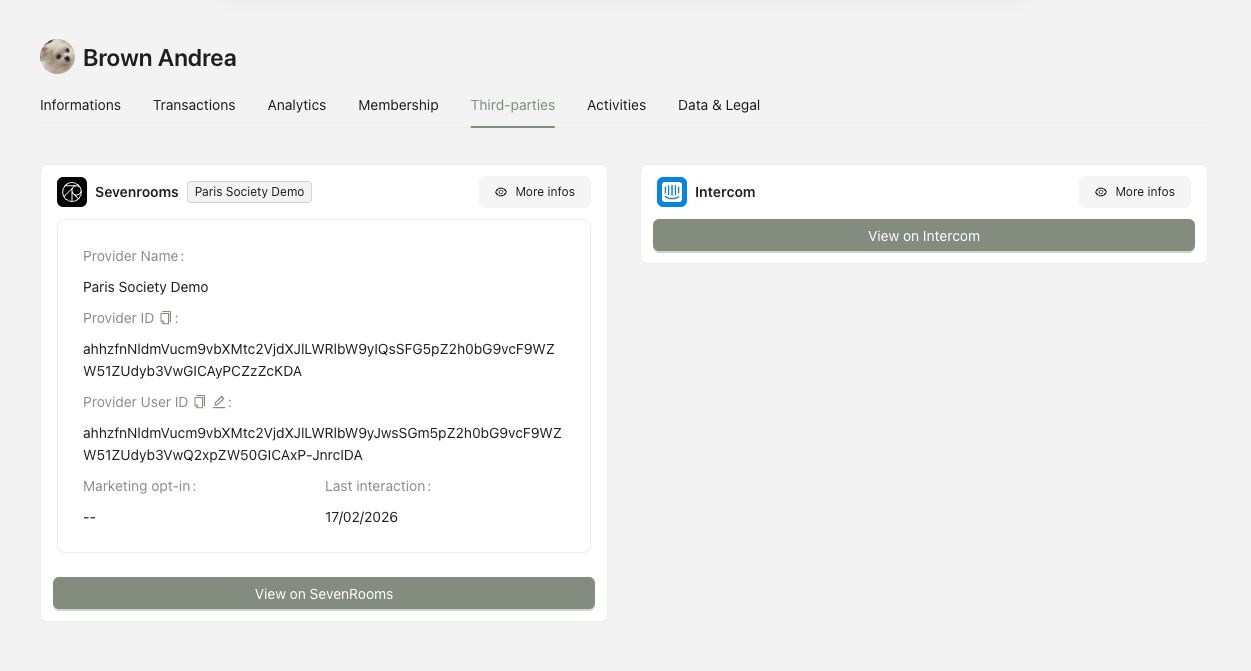
Step 2: Once inside the user profile, click on the Third Parties tab. This section shows all external systems currently linked to the user.
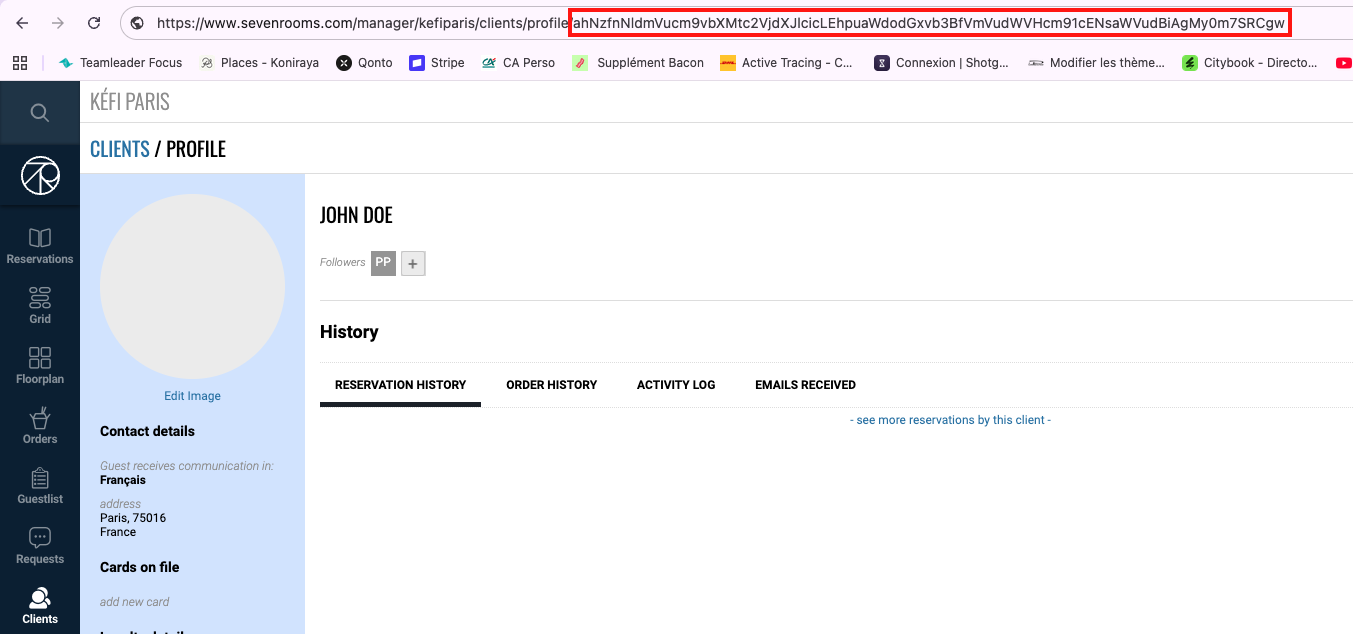
Step 3: Open SevenRooms in a separate tab.Navigate to the customer profile you want to link.
In the browser URL, locate the profile ID. It is the last segment of the URL, without the trailing “/”. Copy this ID carefully, as it will be used to connect the profile in Pléthore.
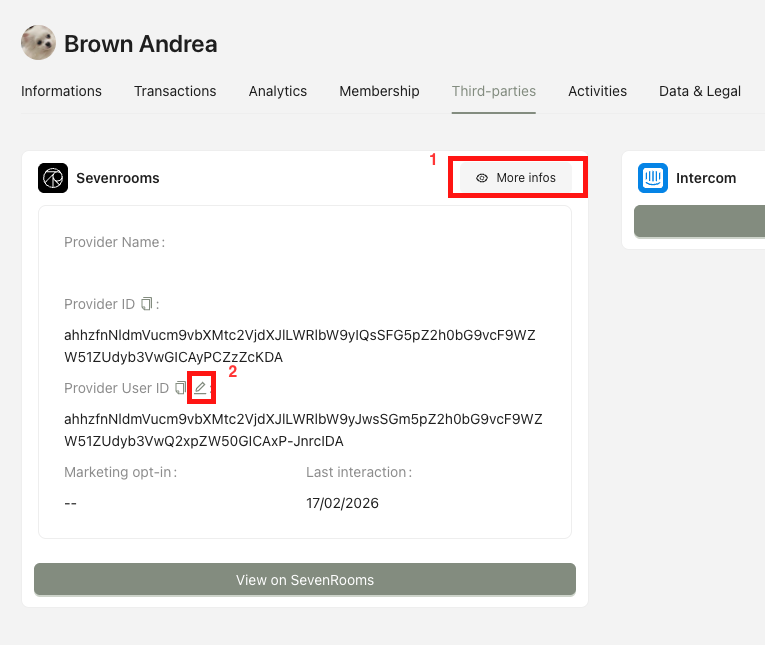
Step 4: Return to the user profile page in Pléthore CRM. In the Third Party section, click View More (1) → Click the edit (pencil) icon (2).
Paste the SevenRooms Profile ID into the appropriate field, then press Enter to confirm.
Final Result: The user profile in Pléthore is now successfully connected to the corresponding SevenRooms profile.
