Membership tags help you better manage subscriptions and members. Tags allow you to organize, filter, and categorize members or subscriptions according to your business needs.
There are 2 different types of tags:
Membership Profile Tags: Tags assigned to members.
Subscription Tags: Tags assigned to a member’s subscription.
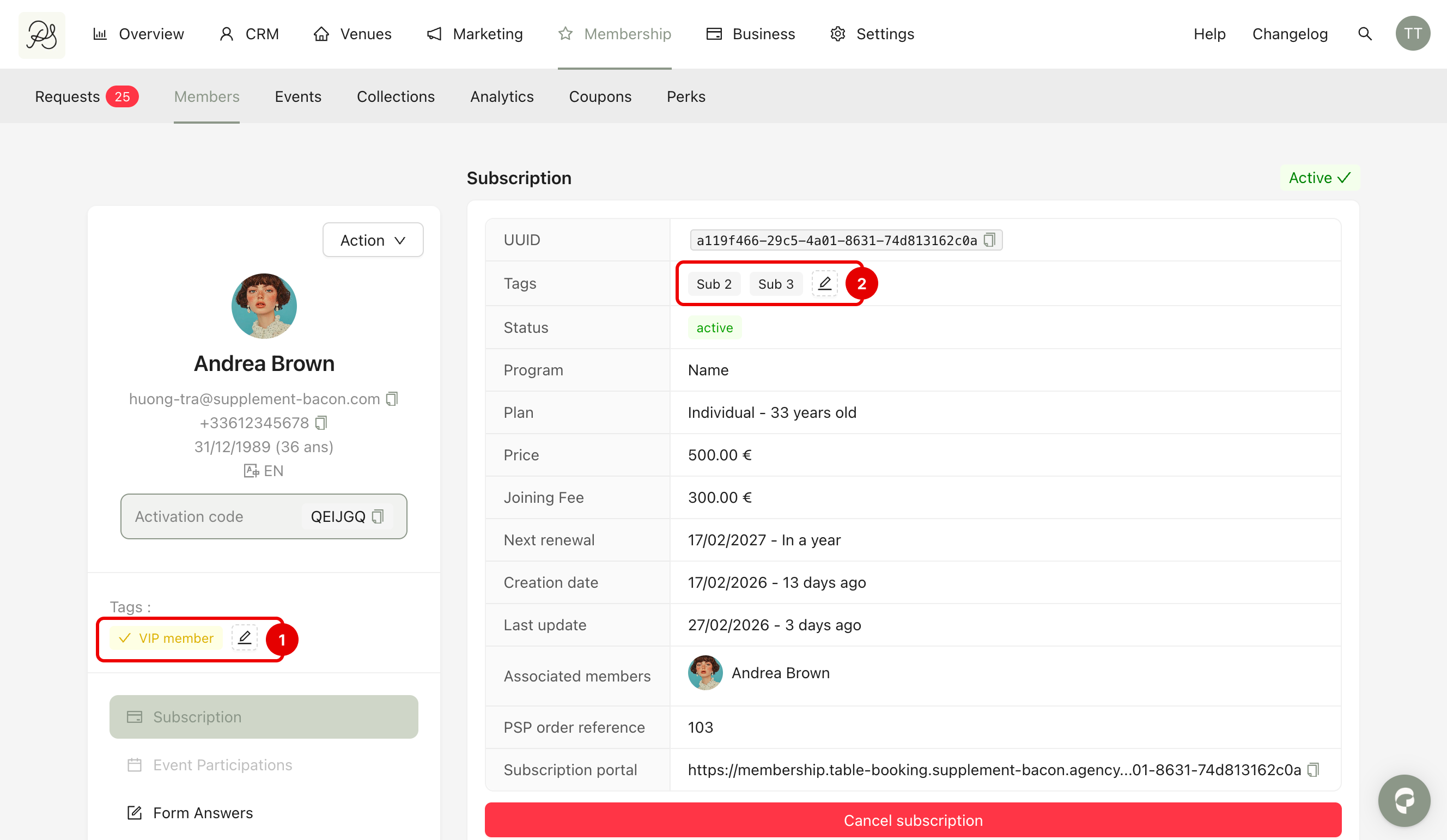
Both types function in the same way: Same configuration process, same customization options and same behavior. The only difference is that they are managed on two separate configuration pages and each type of tag can only be assigned to its corresponding type:
Membership Profile Tags can only be assigned to members (1).
Subscription Tags can only be assigned to subscriptions (2).
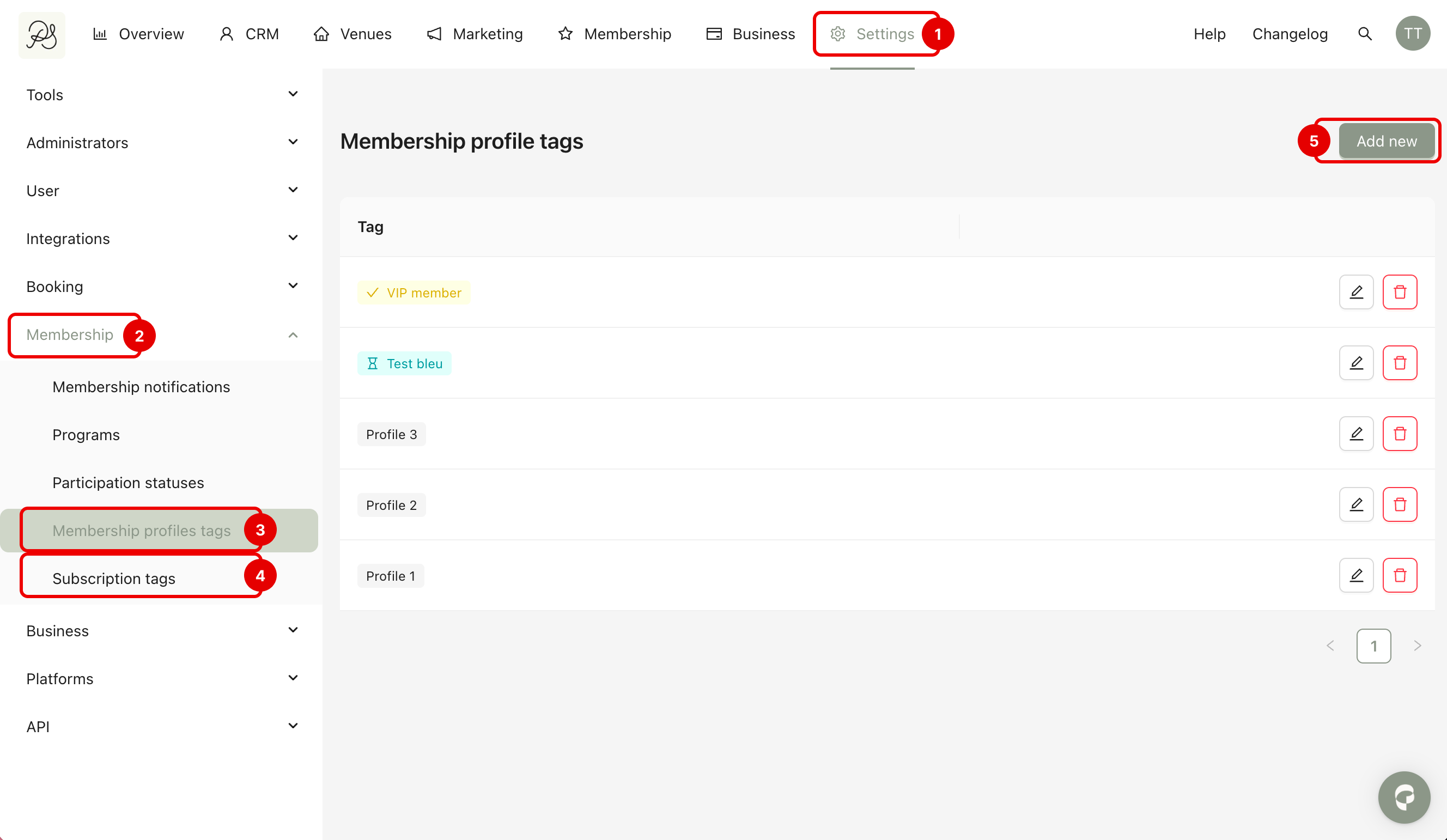
Step 1: Go to Settings (1) → Membership (2) → Membership Profile Tags (3) or Subscription Tags (4) (depending on which type you want to create). Click Add New (5).
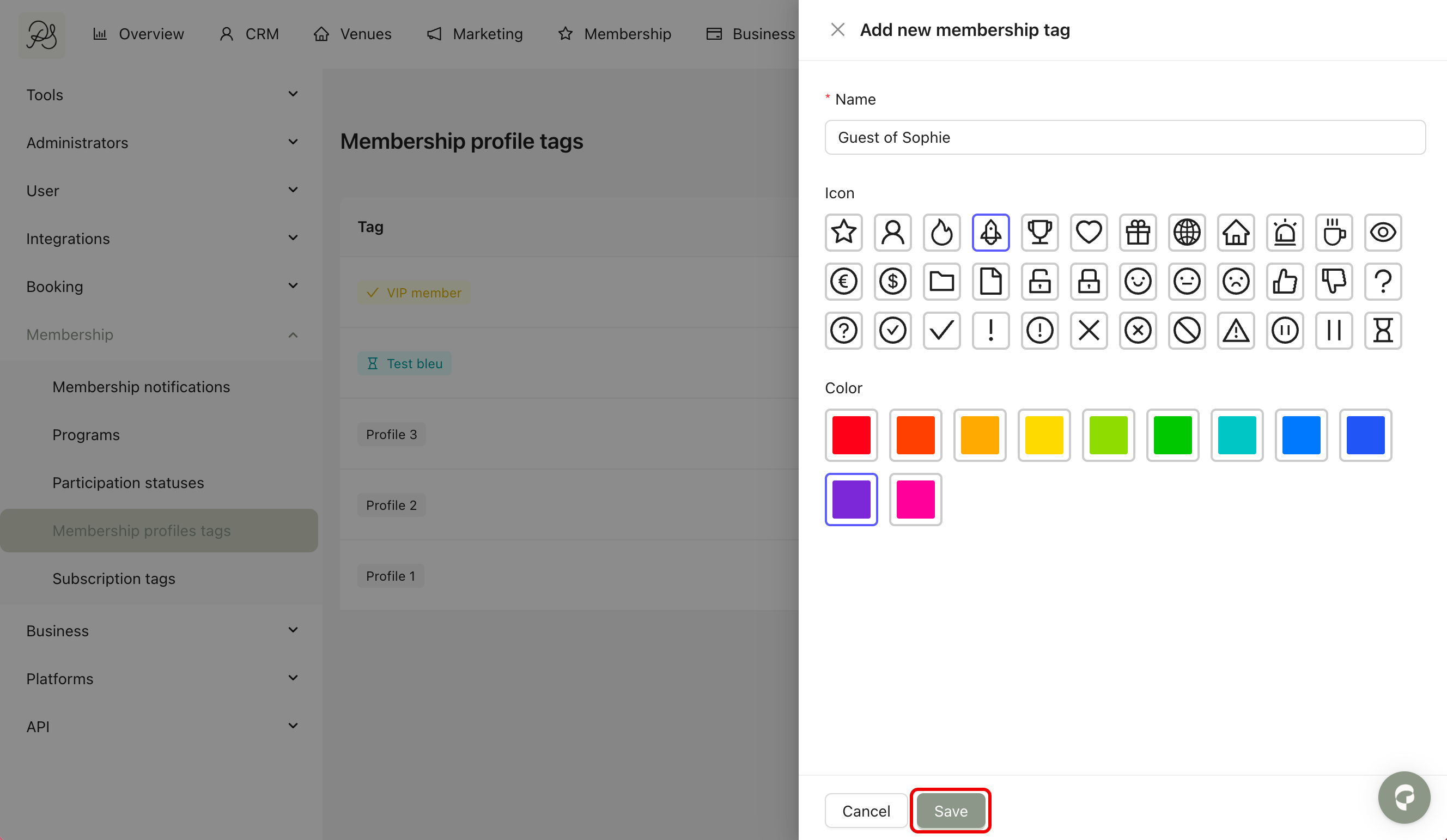
Step 2: A modal window will appear. Here you can enter the name of the tag, choose a color and select an icon. After configuring the tag, click Save.
The tag is now created and can be assigned to a member or a subscription.
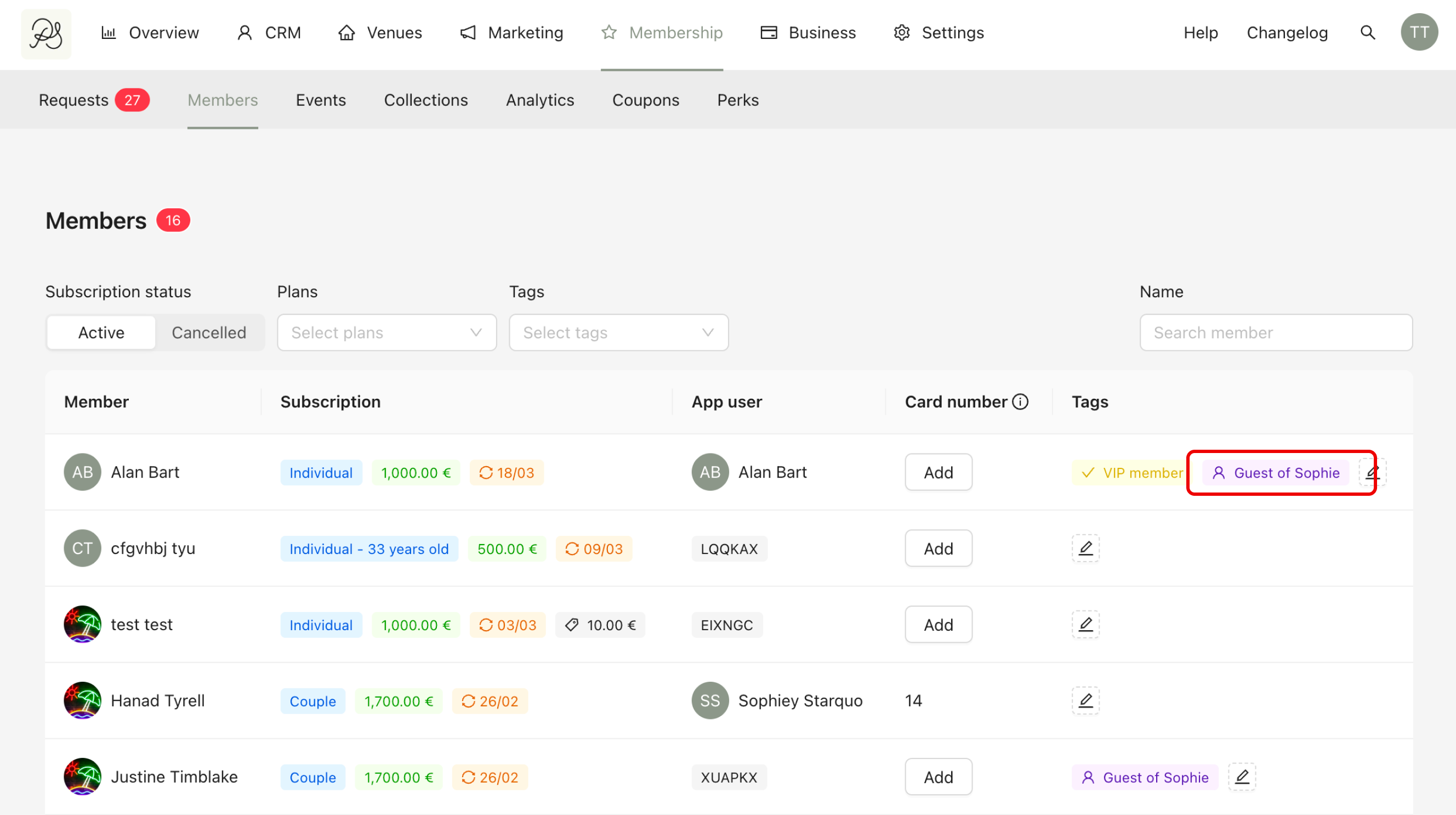
Click the Pen icon next to the tag you want to edit. Make your changes (name, color, icon) and click Save. The updated version will apply immediately.
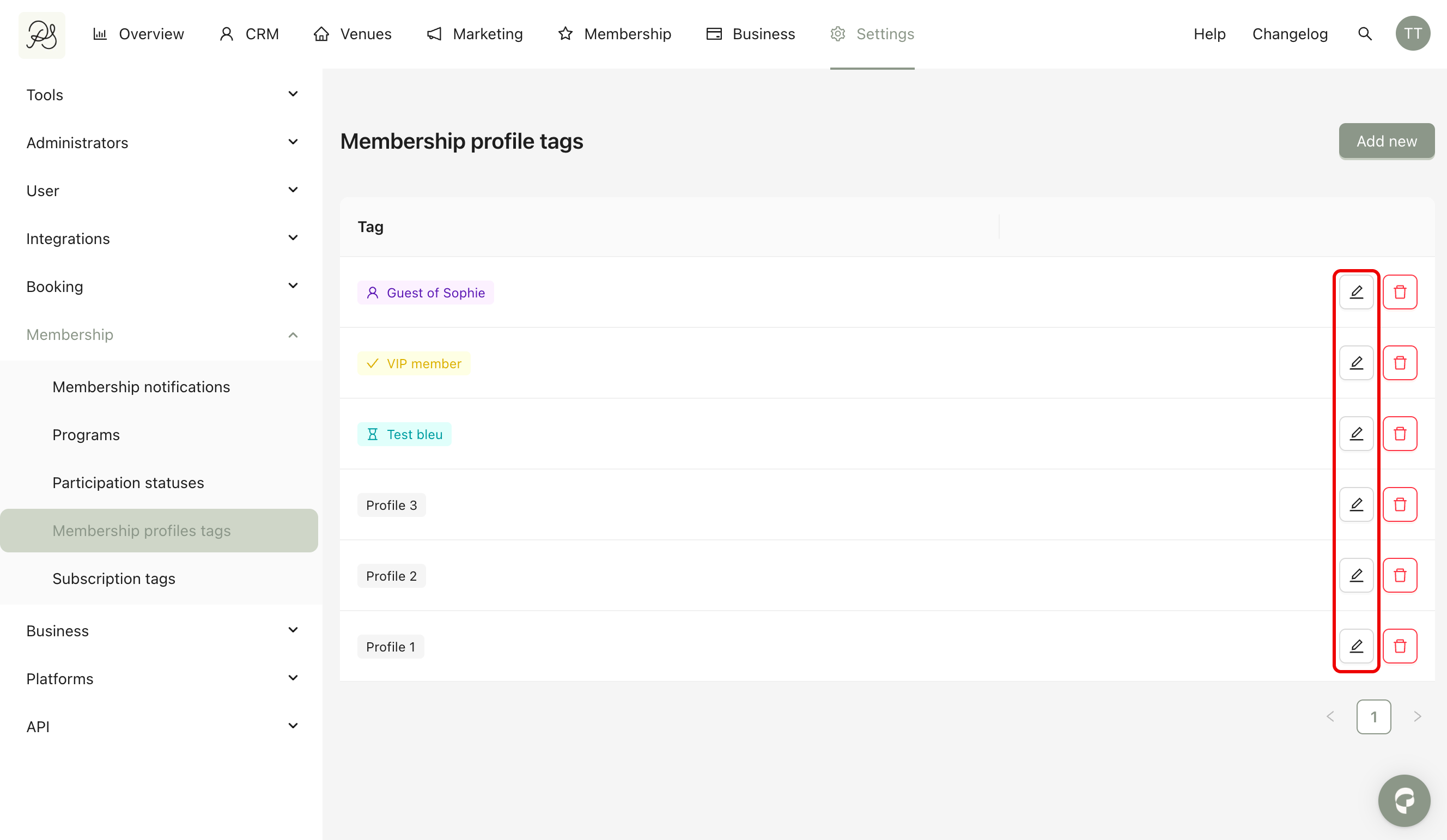
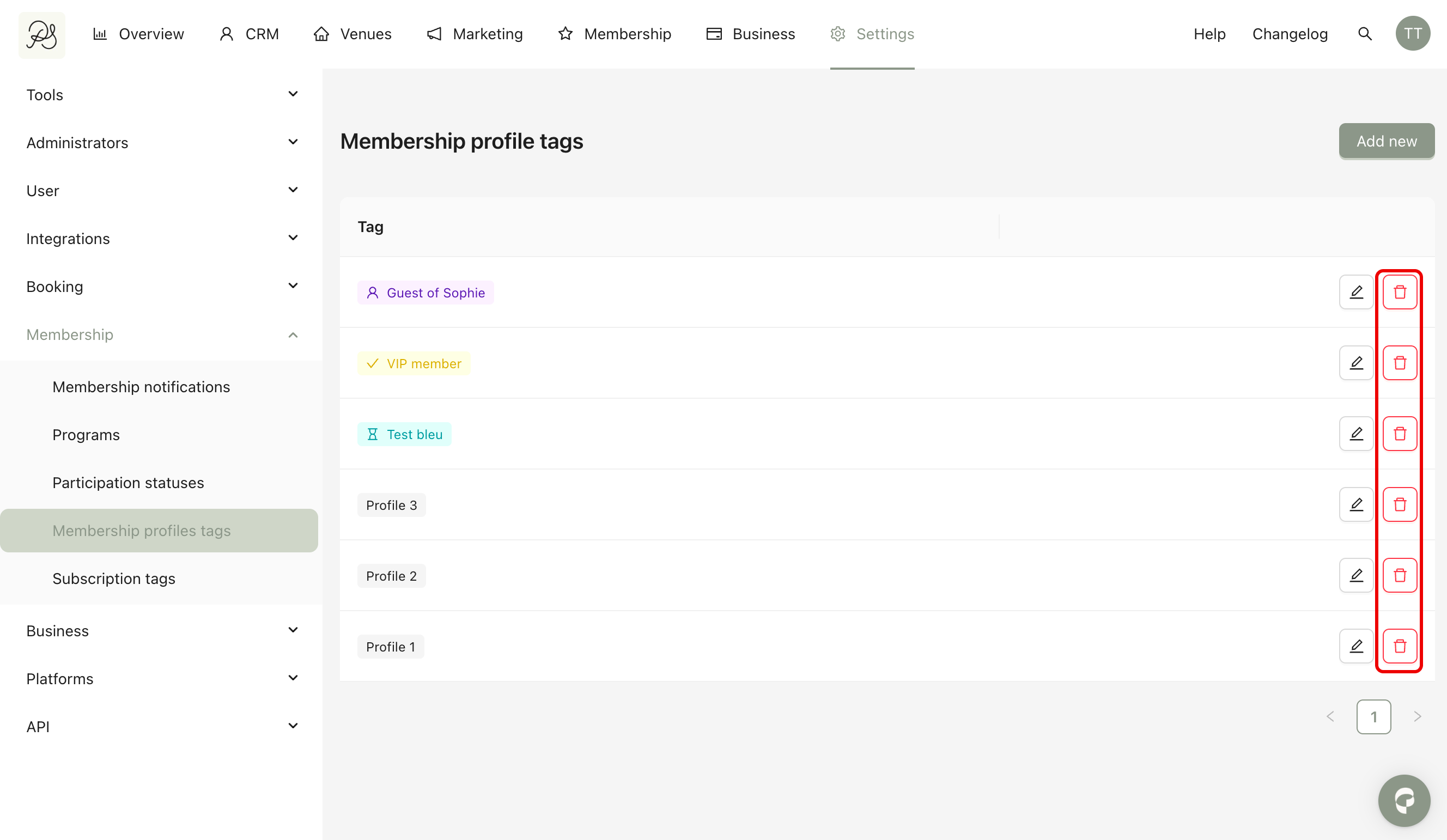
To delete a tag, click the Bin icon next to the tag you want to delete. After deleting, the tag will disappear from the list and you will no longer be able to assign it.