This guide assists you in managing and customizing Loyalty Tiers and Access Rules within your reservation system. By structuring loyalty levels and applying specific rules, you enhance the customer experience and control access to availability. Throughout this document, you will learn how to configure Loyalty Tiers, associate the right tags, and restrict certain availability based on the criteria you define.
A Loyalty Tier can be seamlessly linked to a client's app profile by automatically syncing with SevenRooms Client Tags. When a tag is assigned to a customer’s SevenRooms profile, the corresponding loyalty tier is updated accordingly, ensuring a smooth and automated experience.
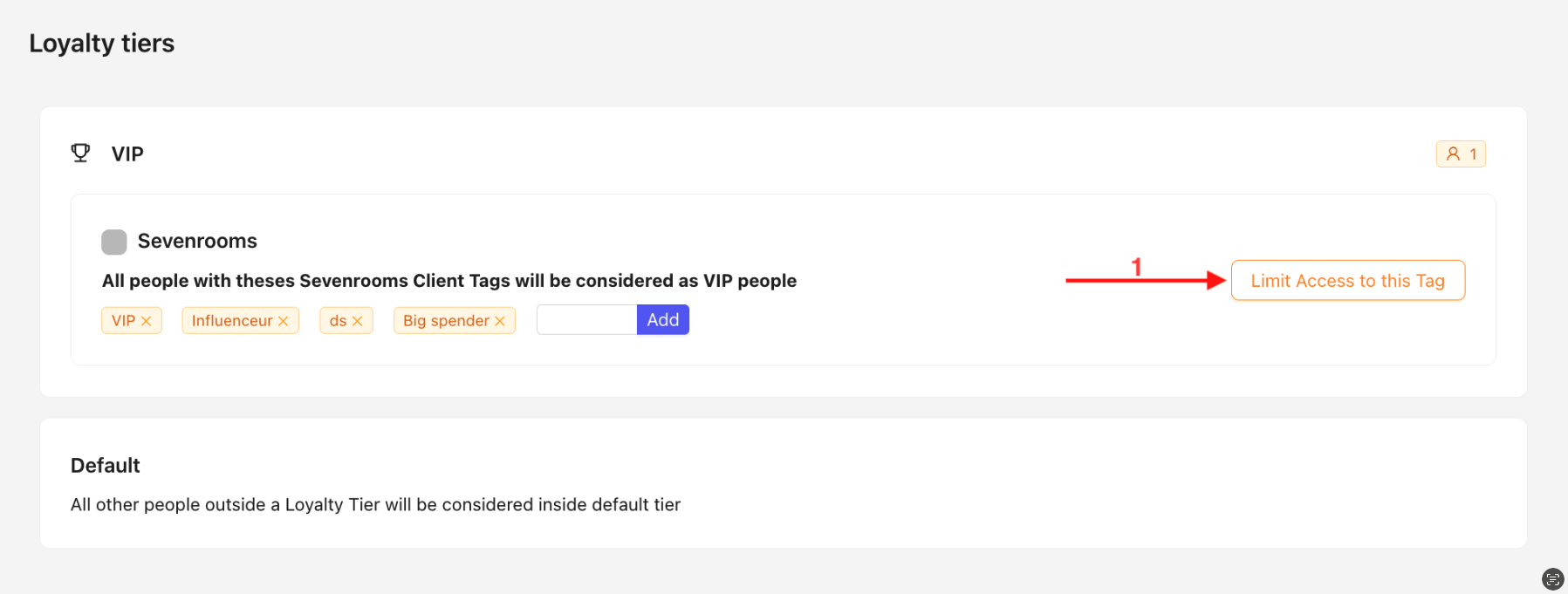
The "Limit Access to This Tag" (1) option restricts access to certain availabilities based on the Tags defined in SevenRooms. By associating a specific tag with an Access Rule, only users belonging to the corresponding Loyalty Tier will be able to book during these slots. This tool ensures precise access control and enhances the exclusivity of certain offers.
When you click on Limit Access to This Tag, a pop-up appears :
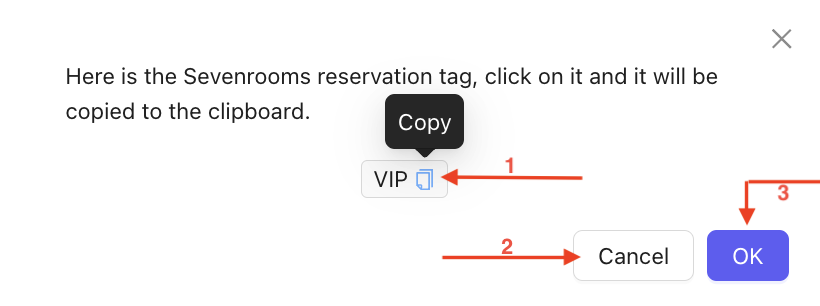
Click to copy the tag.
You can cancel at any time by clicking Cancel.
Click OK once the tag has been copied.
After copying the value, go to the SevenRooms dashboard and create a Reservation Tag based on it. This Reservation Tag will allow restricting an Access Rule to one or more Loyalty Tiers within the app or chatbot (e.g., VIP, Super VIP) by selecting it in the Access Rule.
Click on Reservation Tags in Settings.
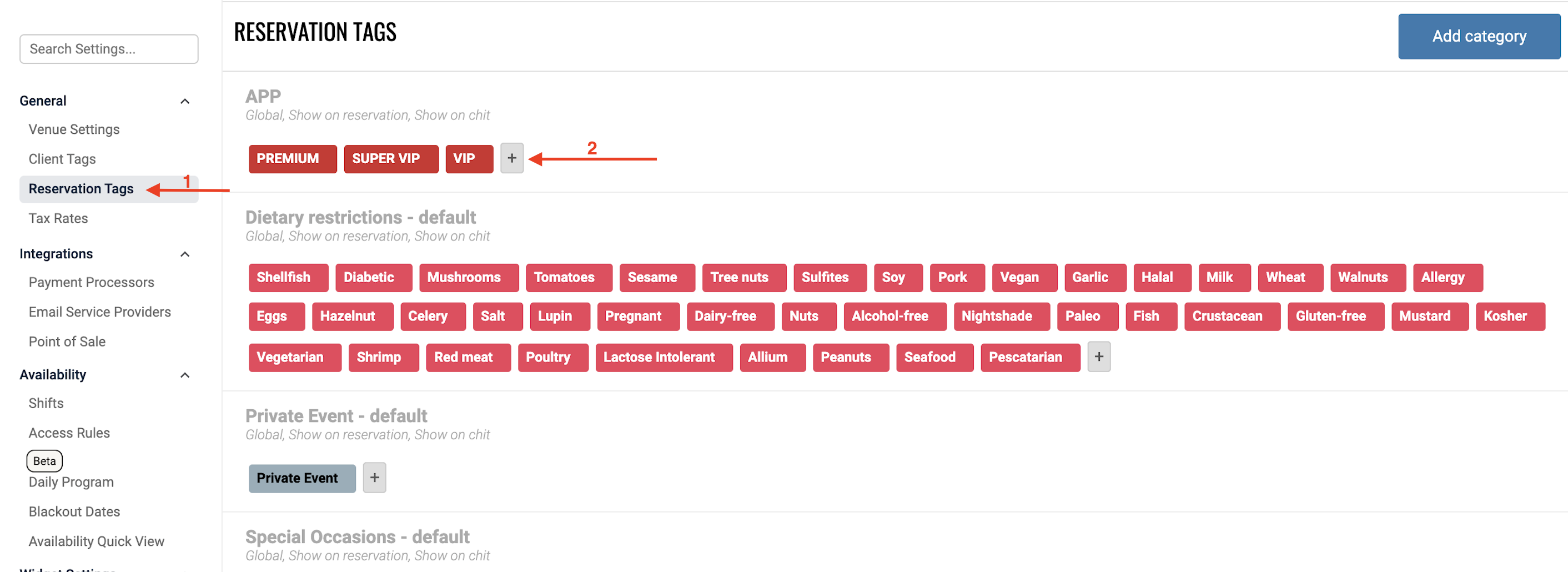
Ensure the tag is visible in Limit Access to This Tag. If it is missing, click + to add it by pasting the copied tag from the Back Office.
You can make an Access Rule available exclusively to a specific Loyalty Tier. For example, you can set 7:30 PM time slot to be available only to VIP and Super VIP users.
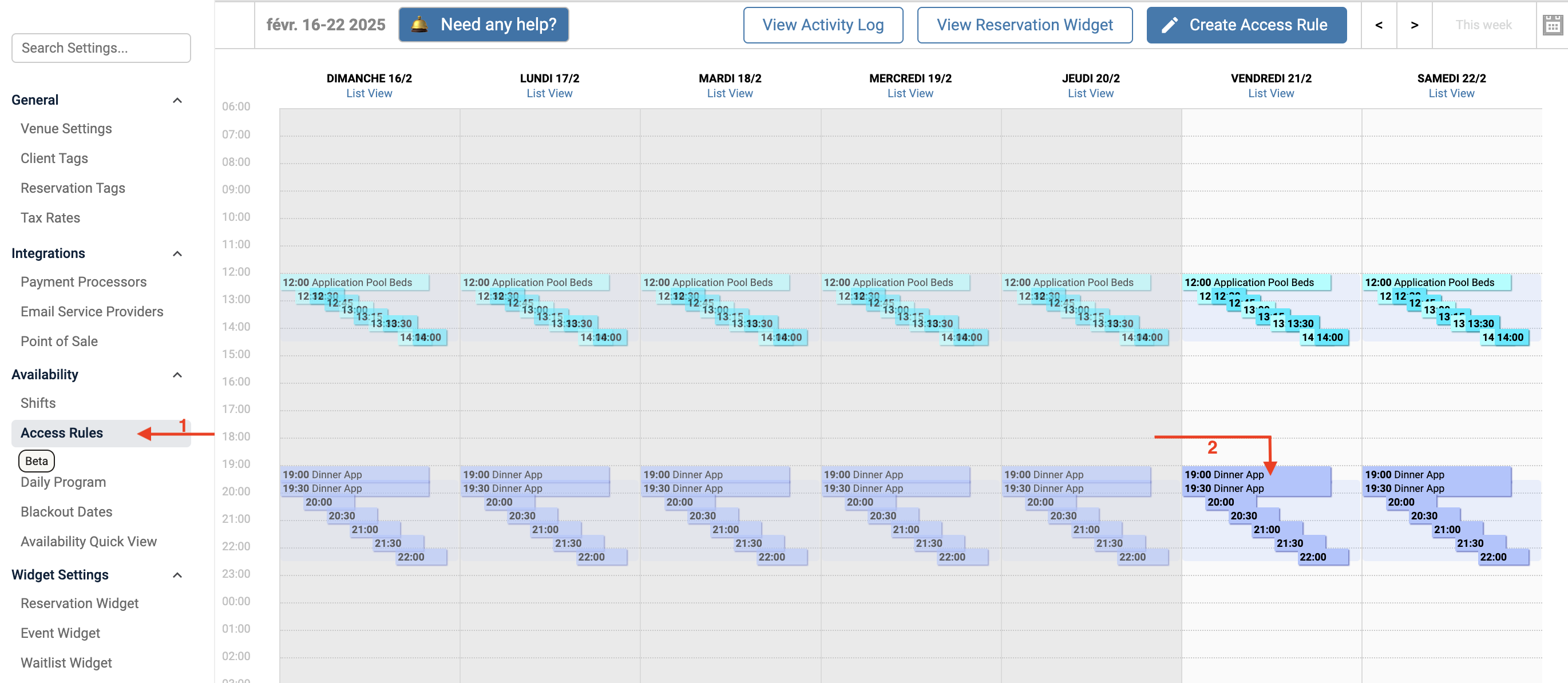
Access the Access Rules section in your settings.
Select the Access Rule you wish to modify (e.g., the 7:30 PM Access Rule on Friday, 02/21).
A pop-up with the Access Rule details will appear :
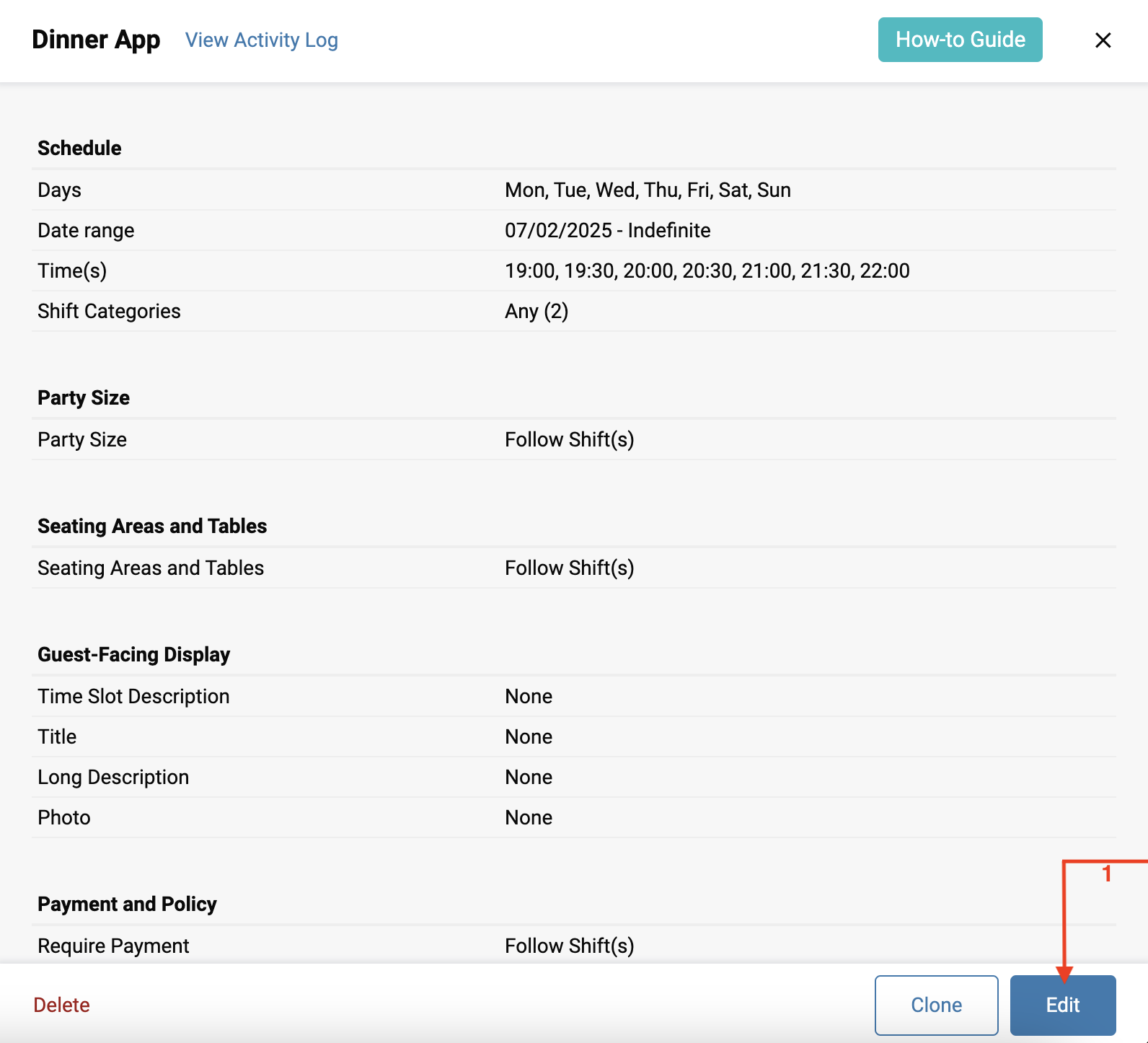
Click Edit to edit it.
A new pop-up will ask you to specify which Access Rule to modify :
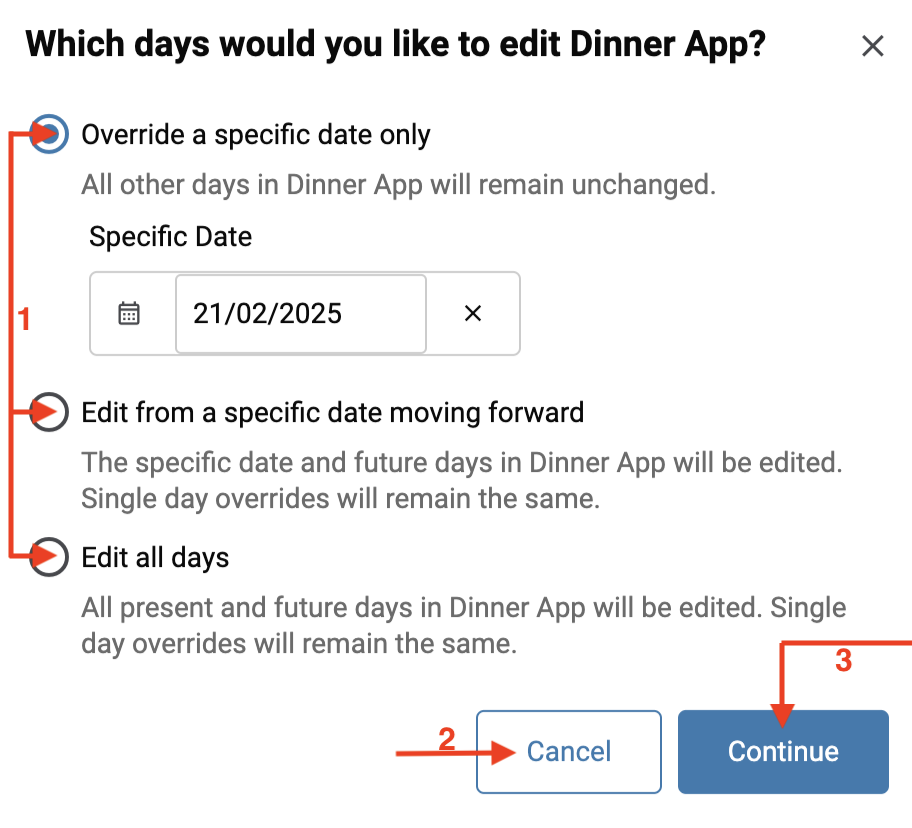
Choose whether you want to modify only the access rules for 02/21/2025, until a specific date of your choice, or all access rules.
You can cancel at any time by clicking on Cancel.
Click on Continue to confirm the modification.
Scroll down the pop-up to reach the Additional Settings section, then click on Reservation Tags :
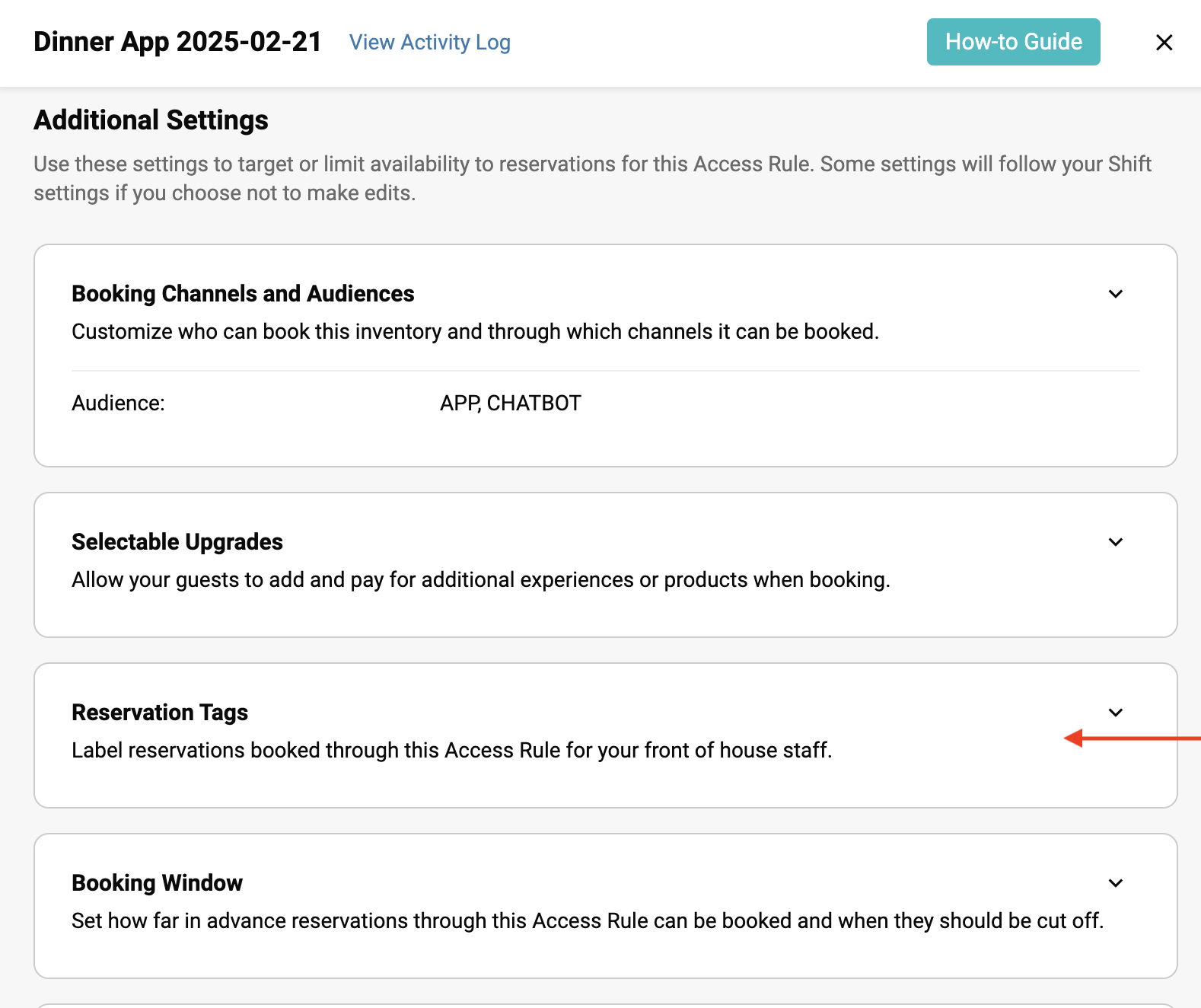
You can now edit your Access Rules :
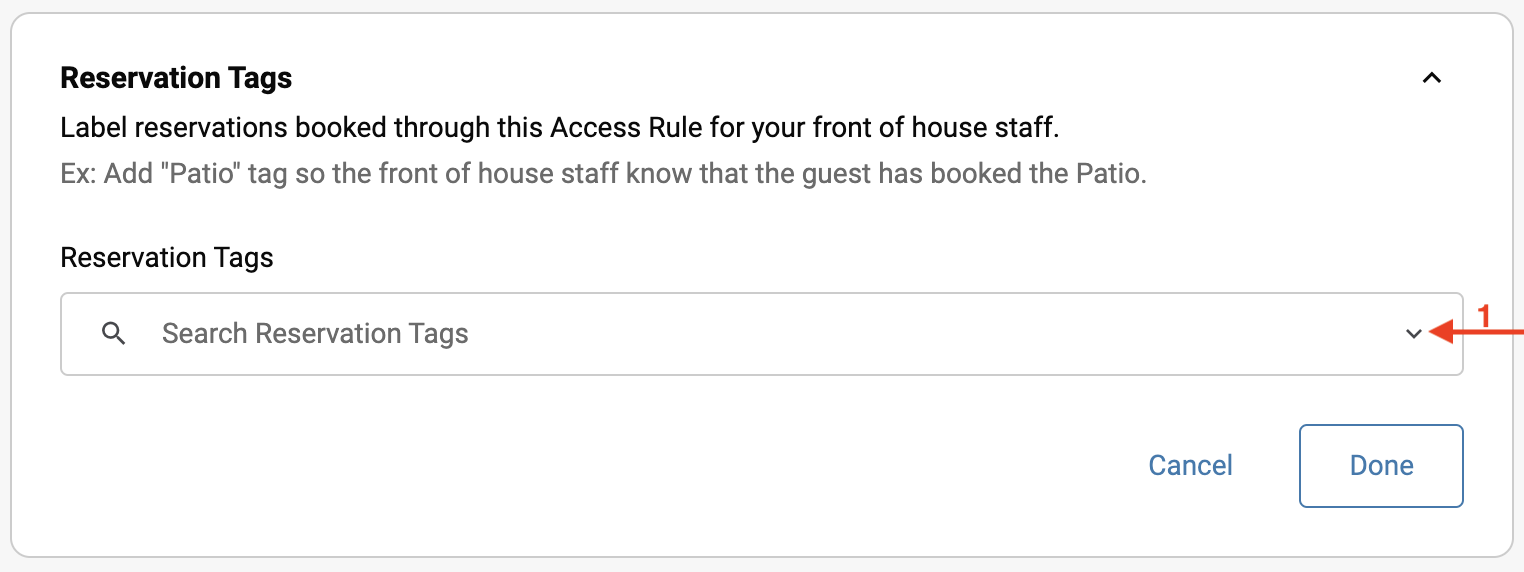
Click on the dropdown menu to access your Reservation Tags :
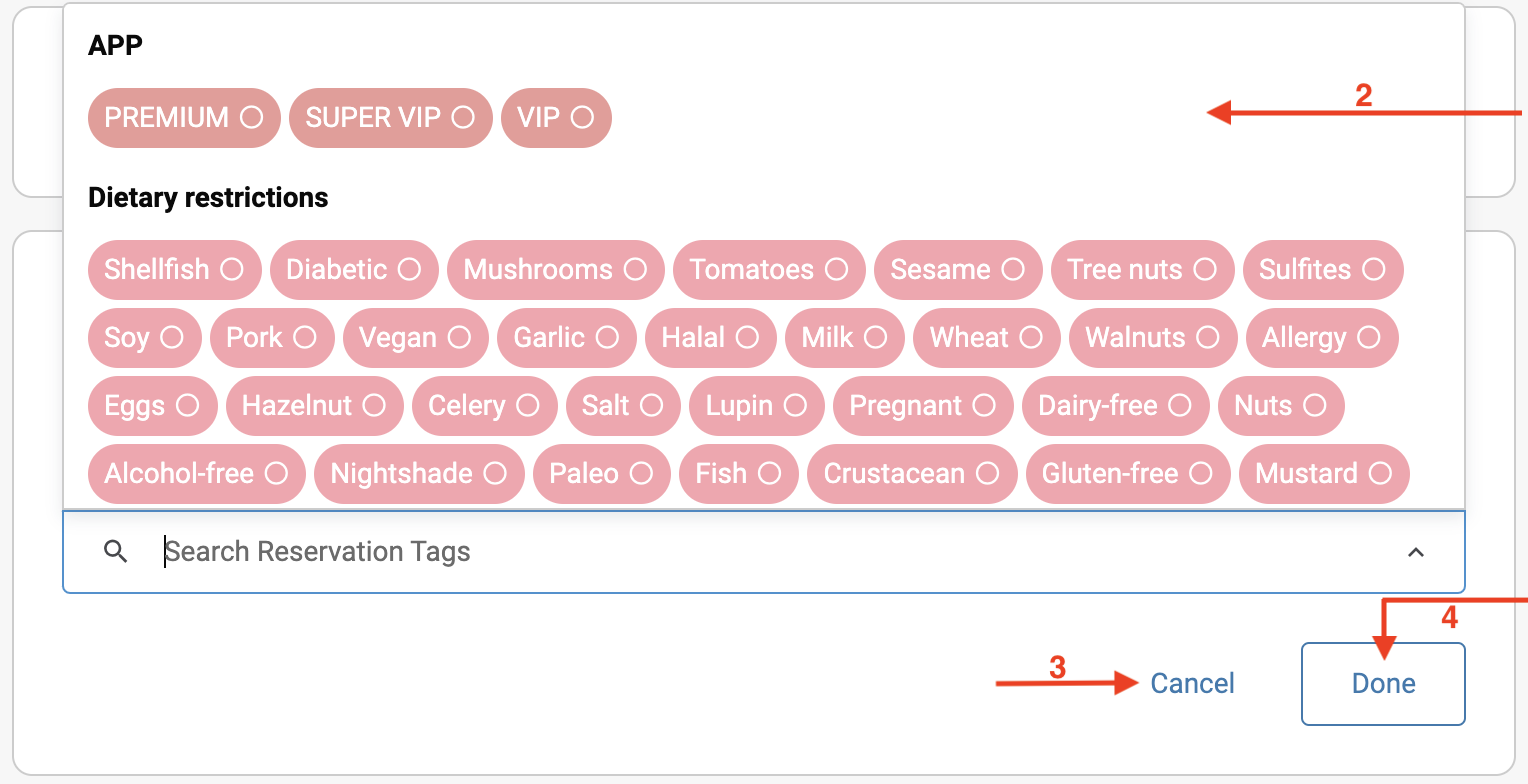
Select the desired tag. For example, if you want the Access Rule to be available only for SUPER VIP and VIP clients, you will select only these Reservation Tags.
You can cancel your modifications at any time.
Click on Done to confirm your modifications.
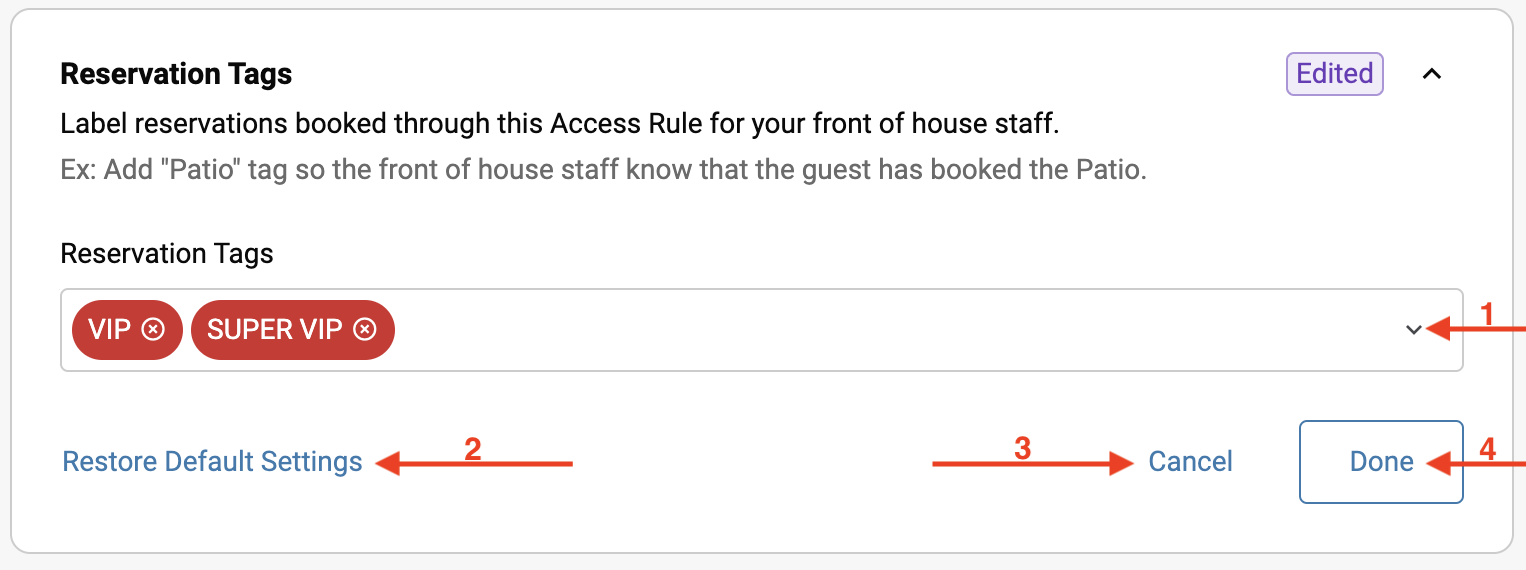
Your choices now appear in the section.
You can restore the initial settings at any time.
You can cancel at any time by clicking on Cancel.
Click on Done to save your modifications.
By customizing Loyalty Tiers and Access Rules, you provide an exclusive experience for your customers while ensuring efficient reservation management. Using Tags and Access Rules, you segment your audience and control availability distribution. Applying these principles optimizes operations and strengthens customer loyalty.
