This document is designed to provide a detailed guide on how to create and edit a venue. It covers all the necessary steps, from adding basic information to customizing visibility settings.
This section will guide you through the steps to add a new venue to the platform, from filling out basic information to saving your changes.
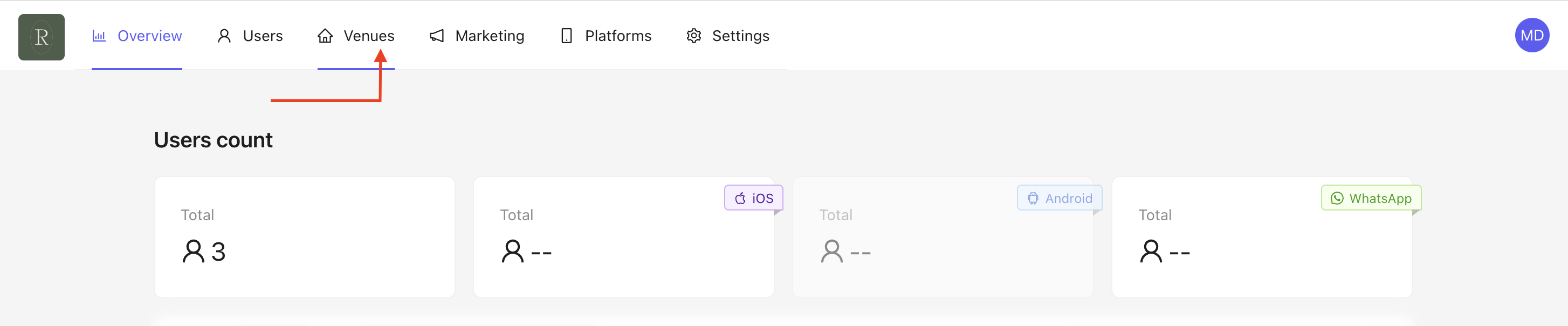
On the homepage, click on venues at the top left.
Click on Add New to create a new venue.

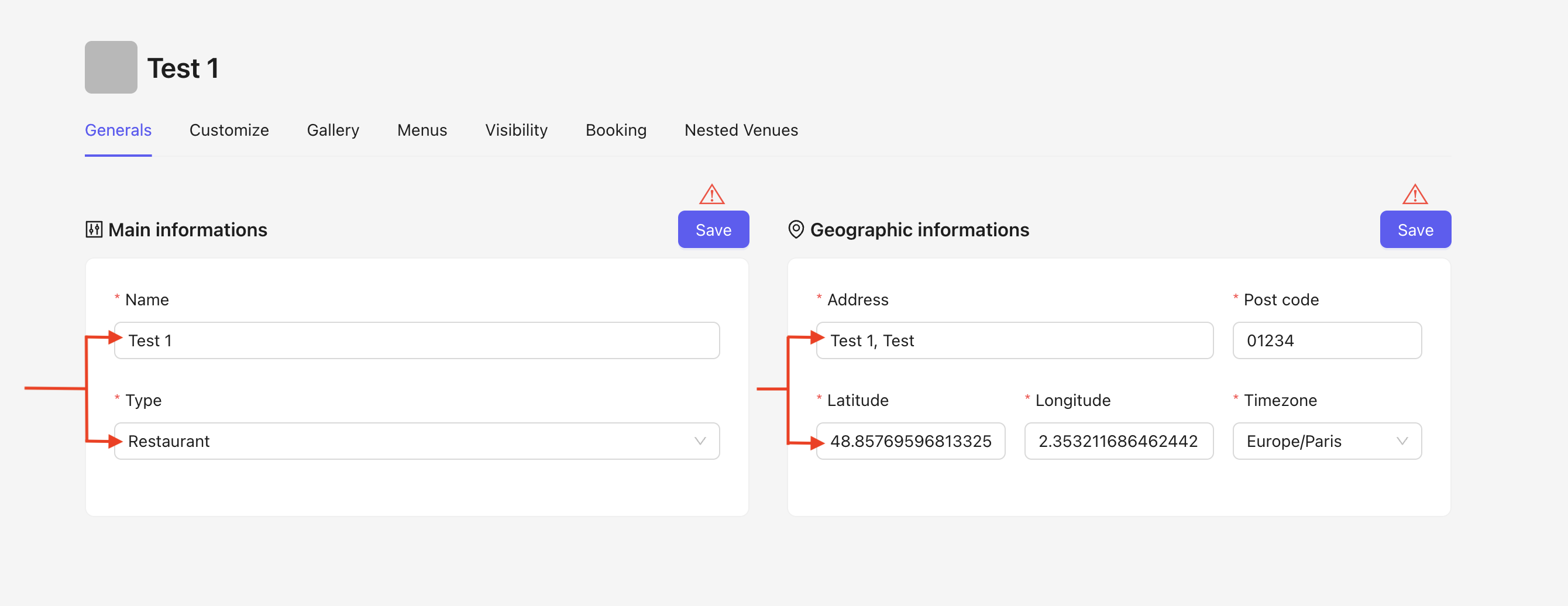
Fill in the following fields :

Name
Type
Address
Post Code
Geographic Coordinates
To find a venue's geographic coordinates :
Go to Google Maps.
Type the address in the search bar.
A red pin will appear to mark the location on the map.
Right-click on the location you are interested in (on the map).
A pop-up window will appear, showing the coordinates (latitude and longitude) in decimal format at the top of the page.
To copy the coordinates, click on the latitude and longitude values.
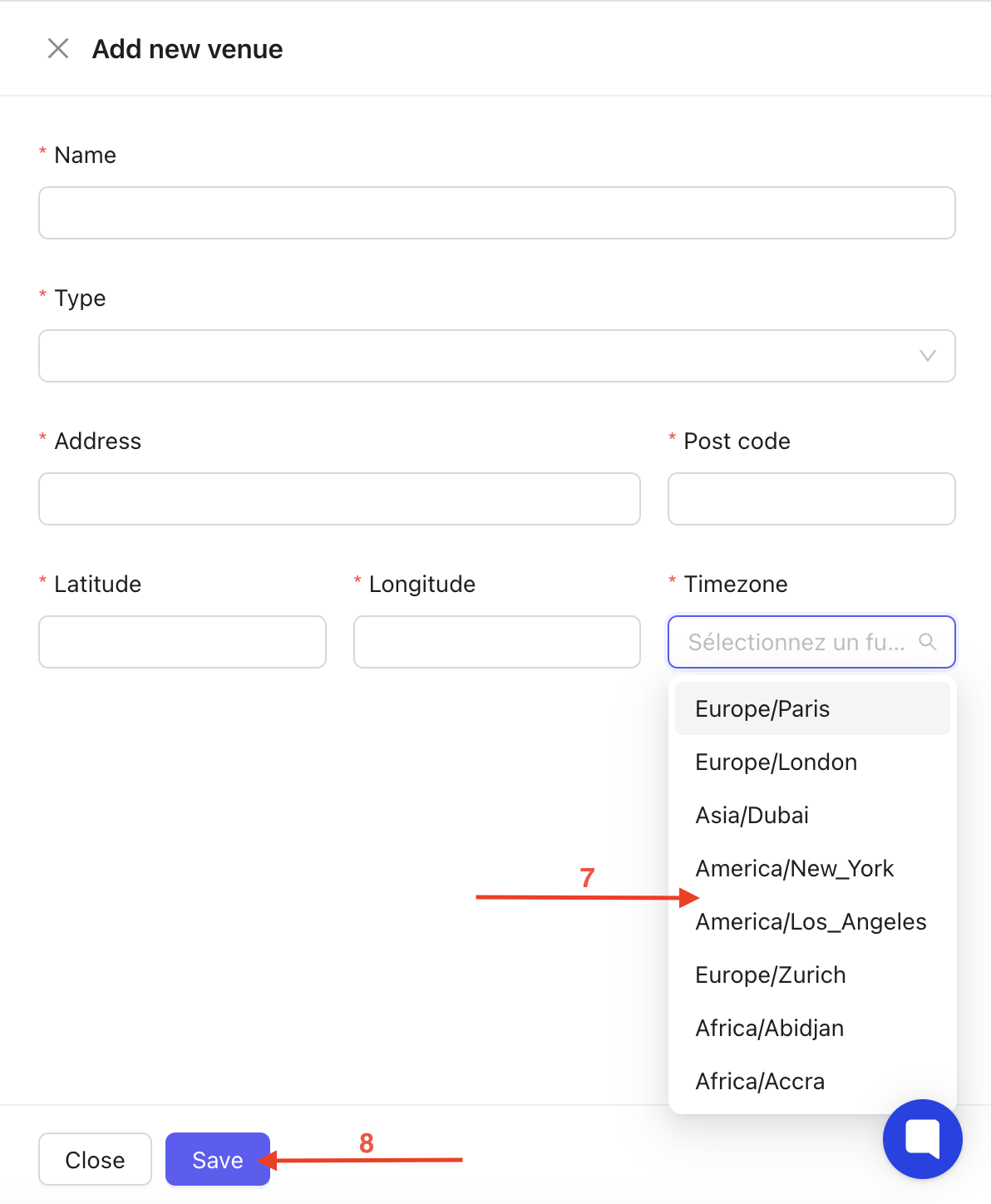
Select the Timezone from the dropdown menu with predefined options.
Save your changes by clicking on save.

Your venue is now created and appears on your homepage.
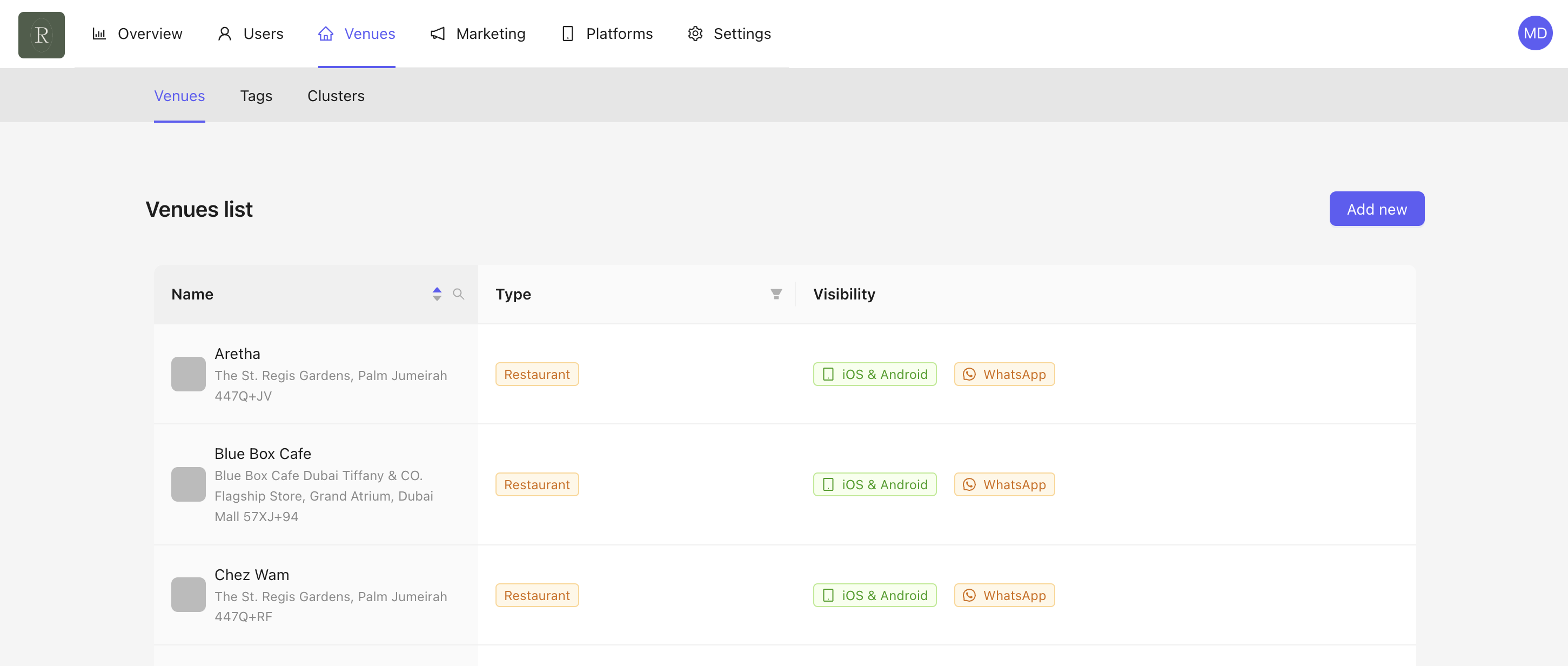
Learn how to quickly search for and sort through venues using different filtering options to find exactly what you need.
To easily find your venue, several sorting options are available :

By name in alphabetical order using the arrow.
Using the search bar with the magnifying glass icon.
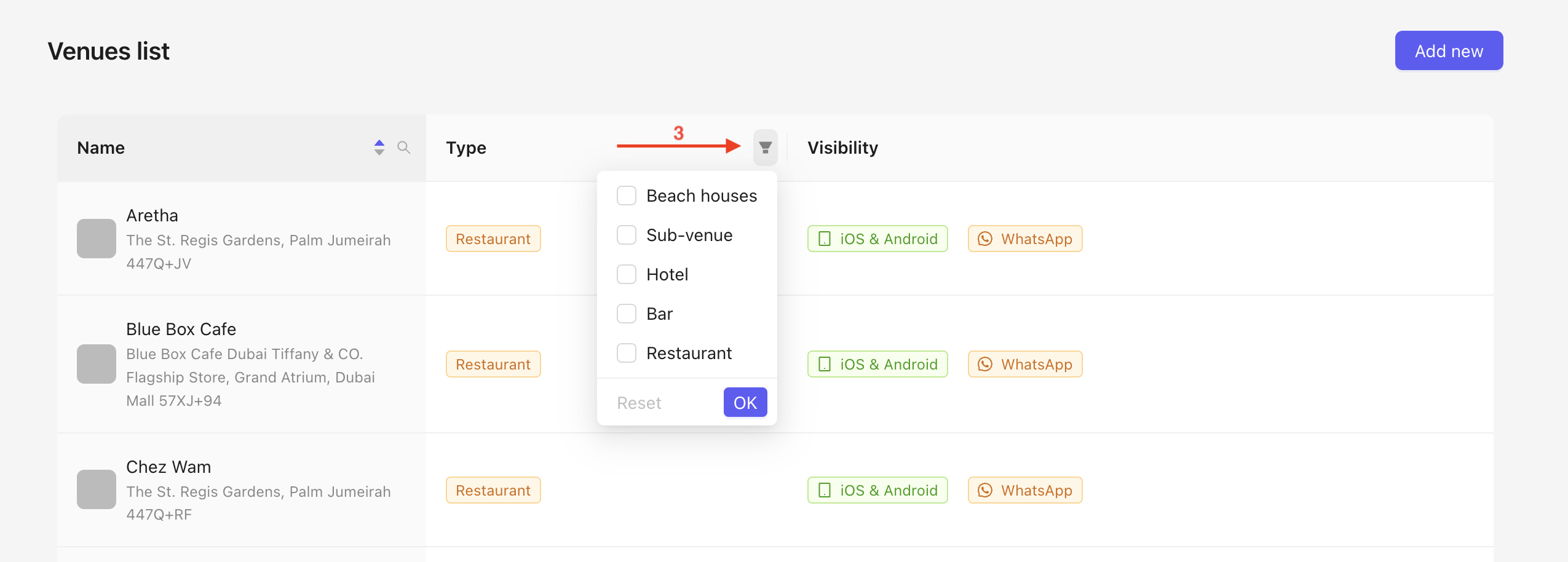
By venue type using the hourglass icon.
From the homepage, you can immediately see if venues are visible on the selected platforms :
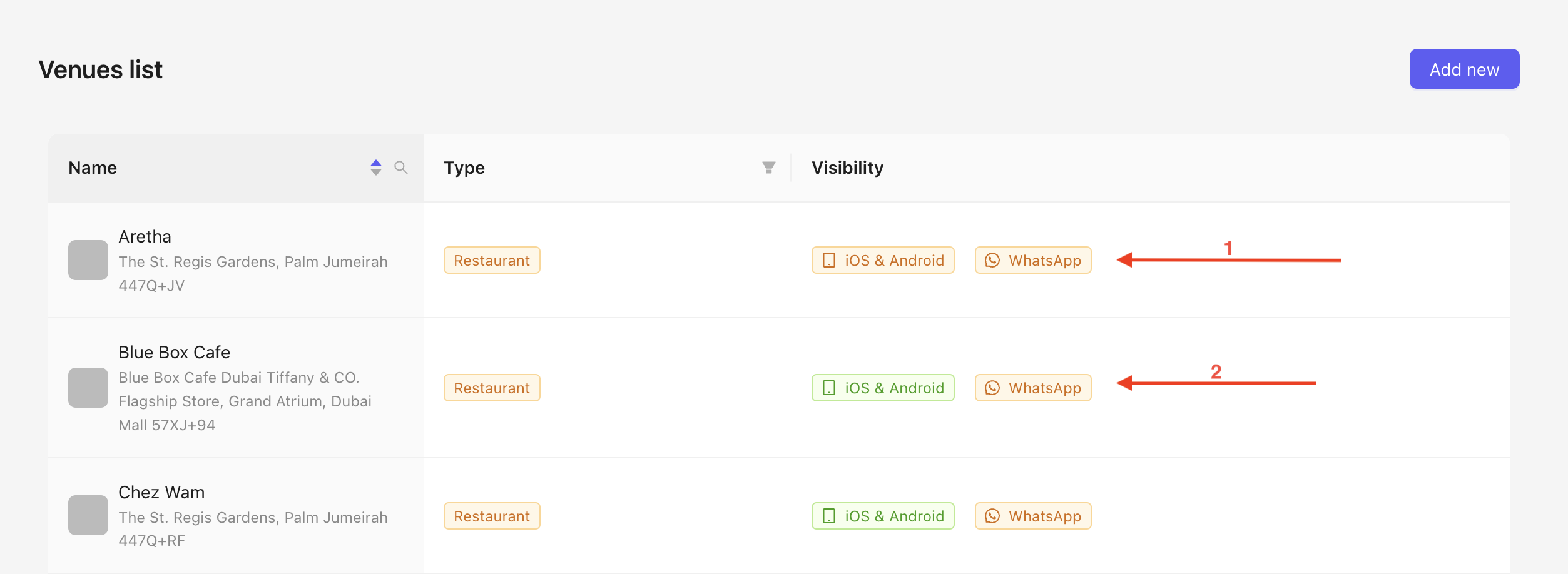
Aretha's visibility is orange for iOS, Android, and WhatsApp: the venue is not visible on any platform.
Blue Box Cafe's visibility is green for iOS and Android, and orange for WhatsApp : the venue is visible on the app but not visible on WhatsApp.
This section will show you how to make changes to an existing venue, including editing details, updating information, and saving your modifications.
From your homepage, click on the venue you want to edit.

You will be redirected to your venue's homepage, with the same fields as during the creation process.
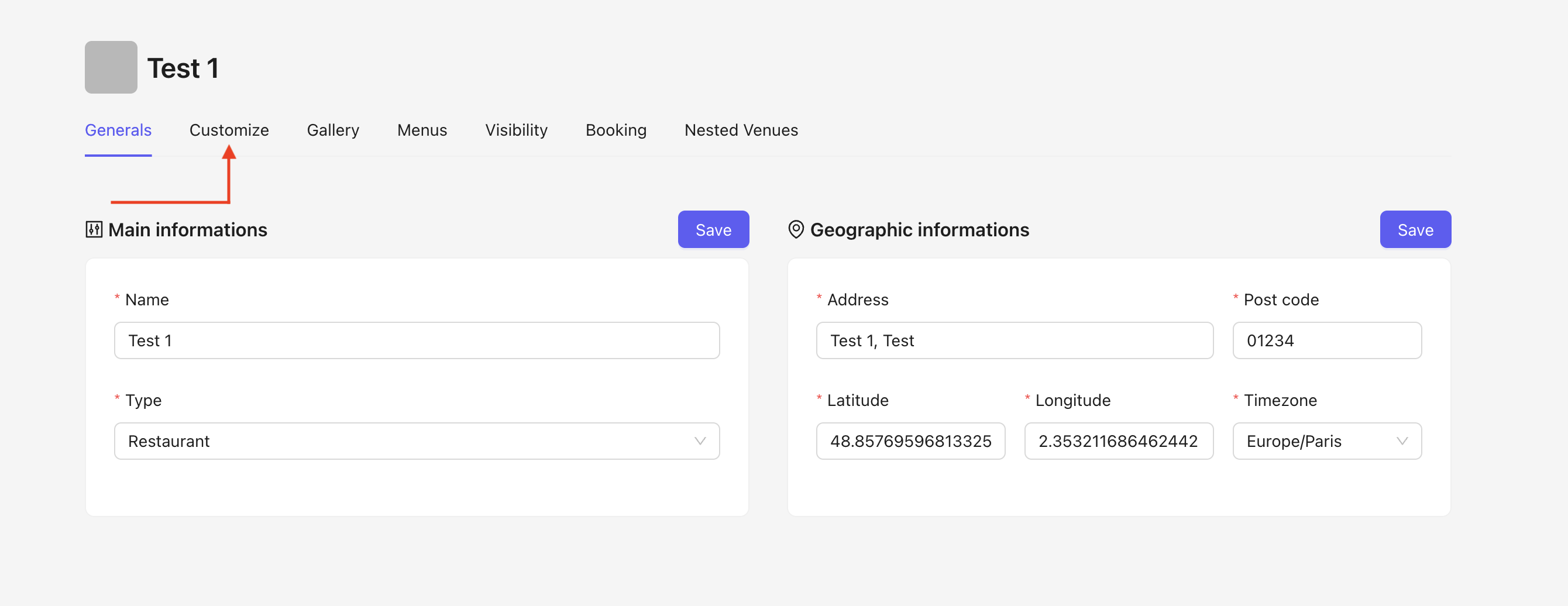
Click on Customize to expand the editing options.
You will be directed to the customization homepage :
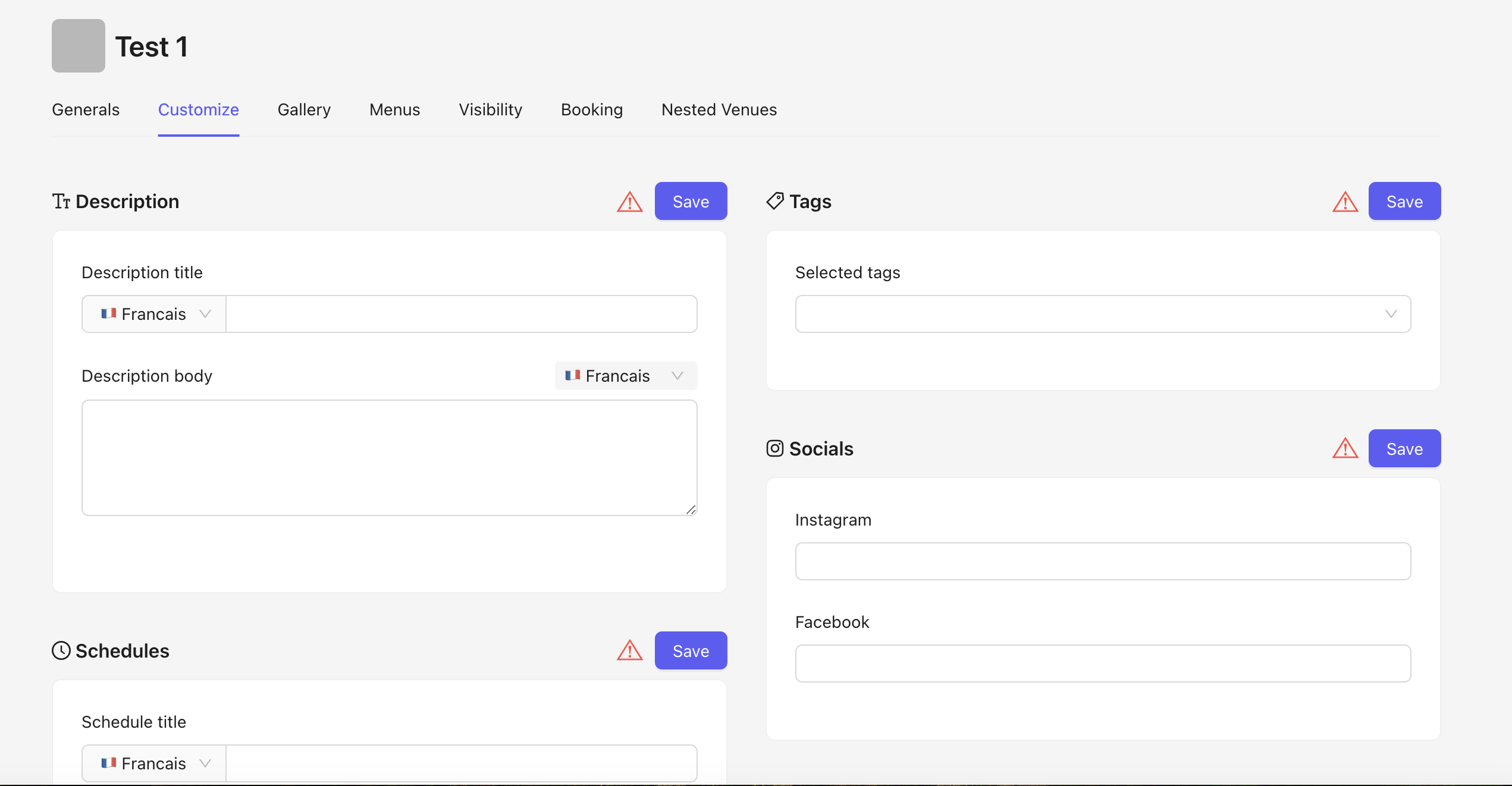
Here, all fields can be edited, but filling them out is optional.

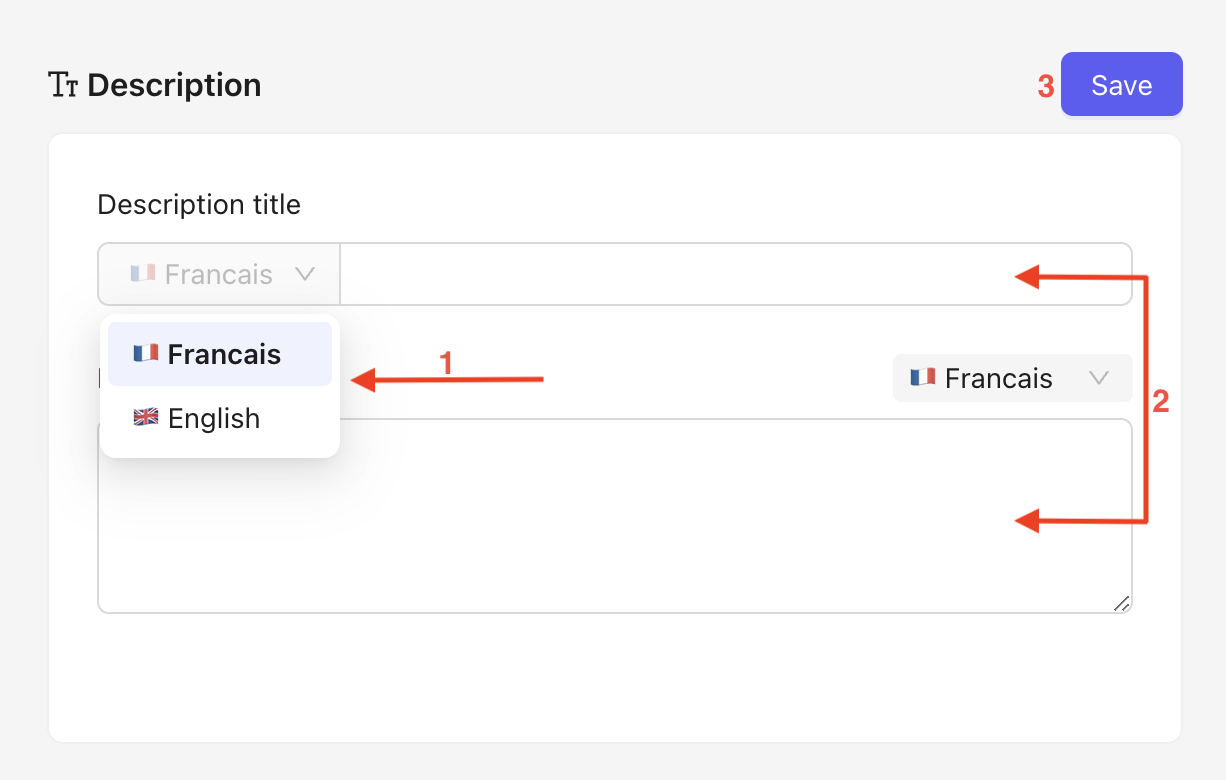
Select the language you want to use.
Fill in the title and description fields.
Save after each change.
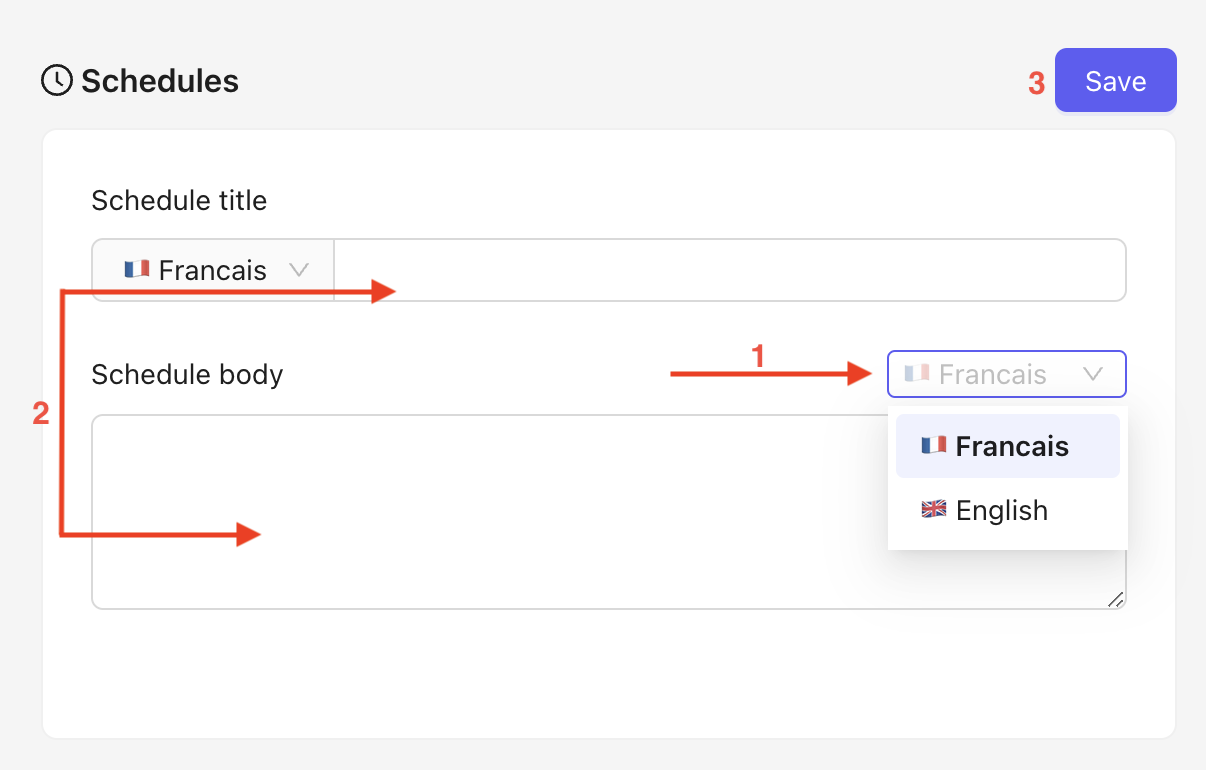
Just like when editing the description :
Select the language you want to use.
Fill in the title and description fields.
Save after each change.
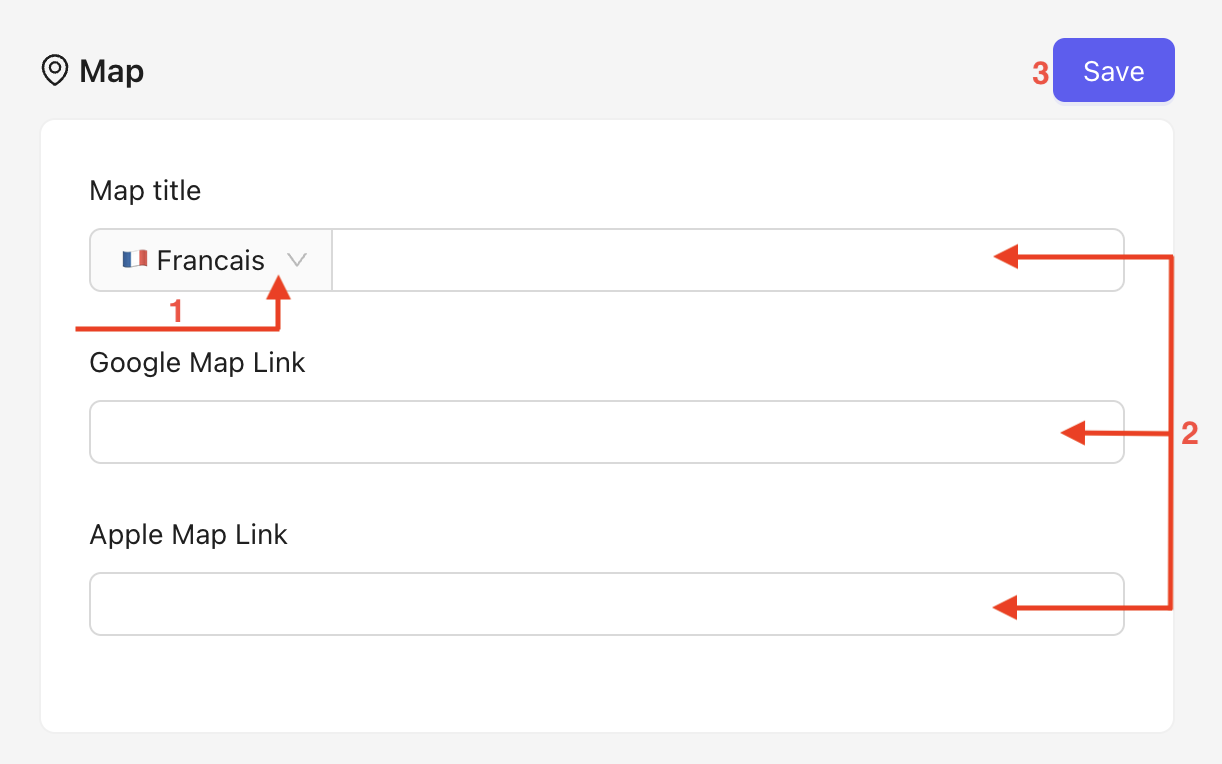
Select the language you want to use for the title.
Fill in the text fields with the appropriate links.
Make sure to save your changes.
How to Add the Google Maps Link URL
Go to http://maps.google.fr
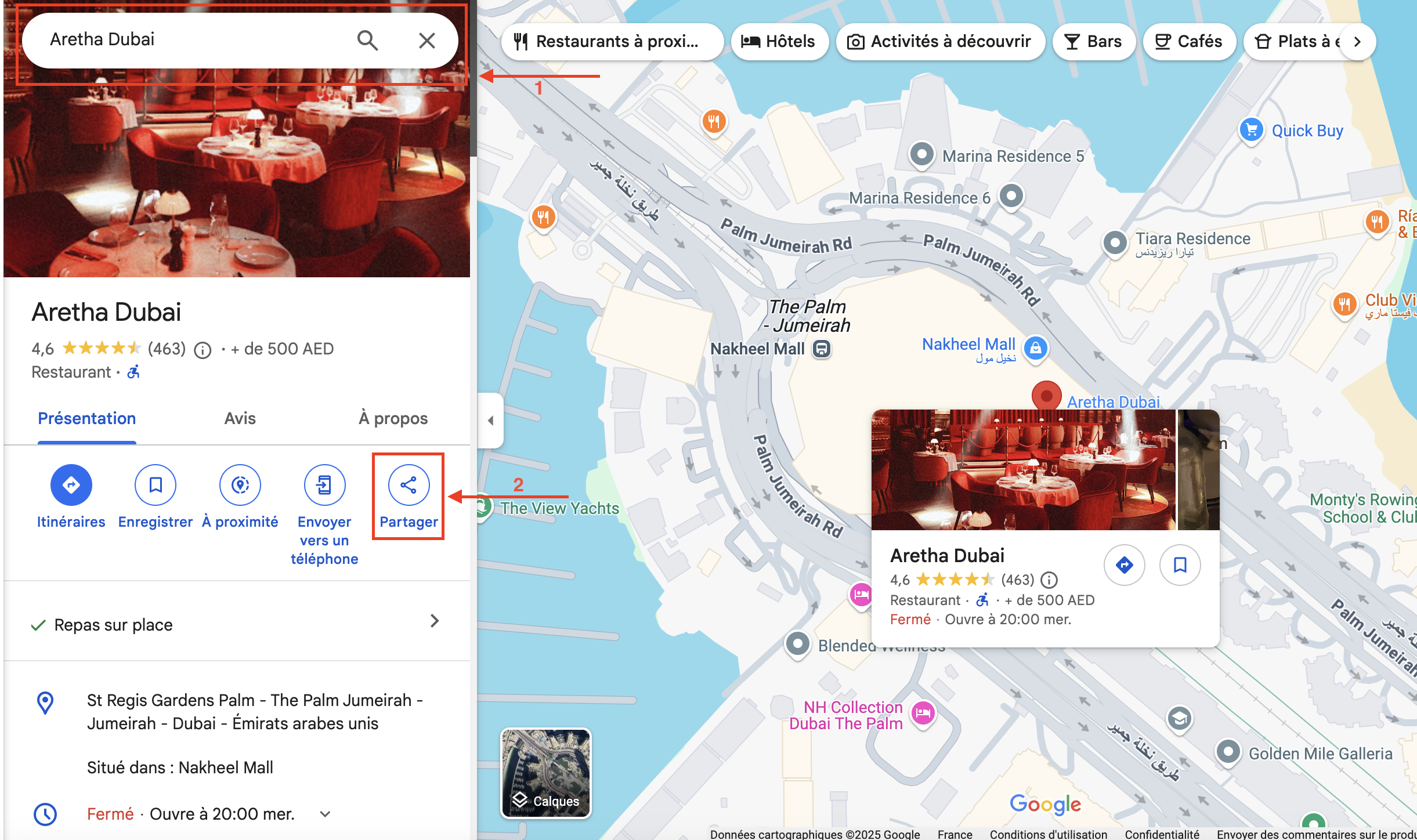
Use the search bar to find the desired venue.
Click on share.

A pop-up will appear, click on copy link.
Paste the URL into the Google Maps Link field.
Make sure to save your changes.
How to Add the Apple Maps Link URL
Open the Apple Maps app.
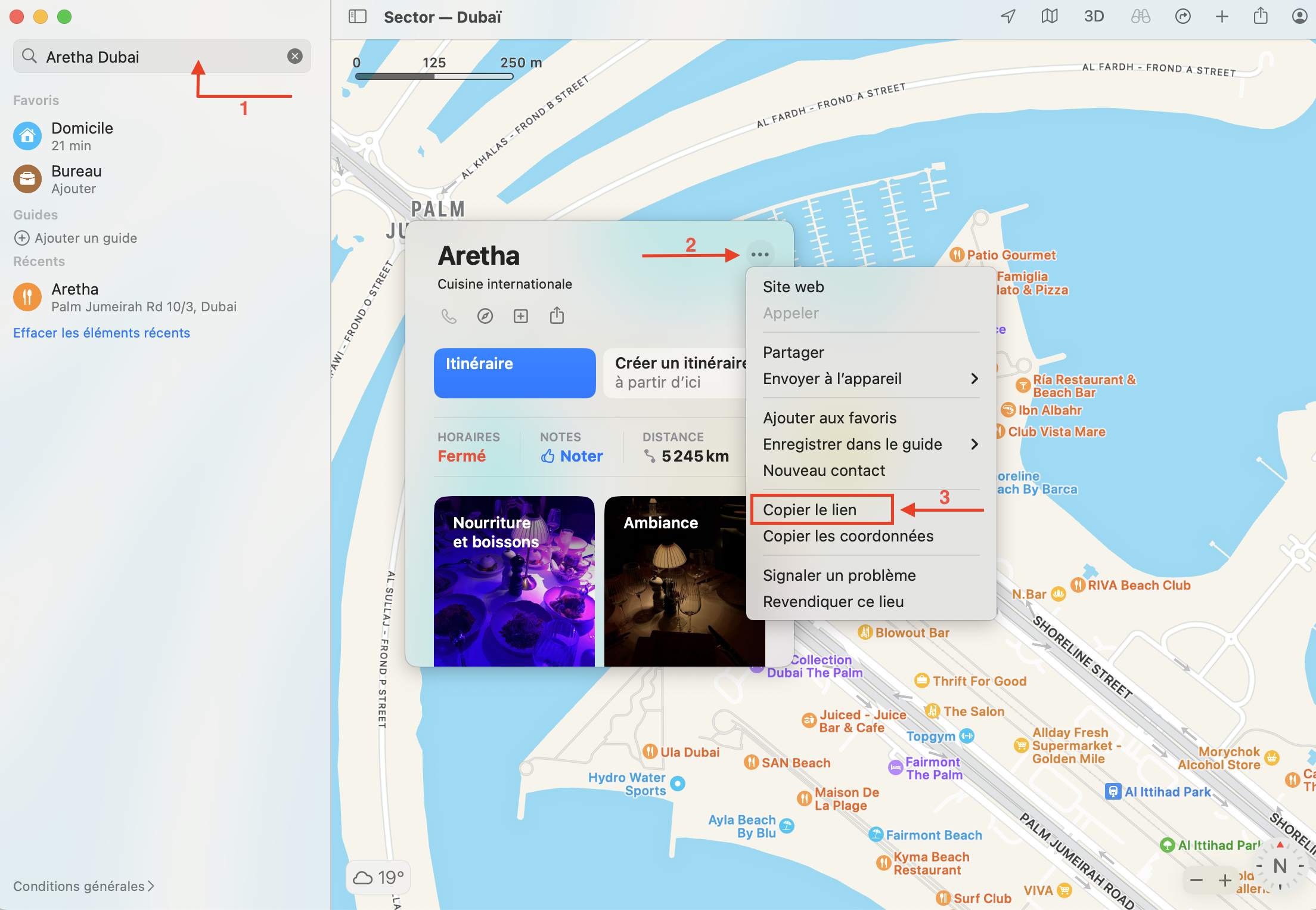
Use the search bar to find the desired venue.
Click on the ellipsis (three dots).
Click on copy link.
Paste the URL into the Apple Maps Link field.
Make sure to save your changes.
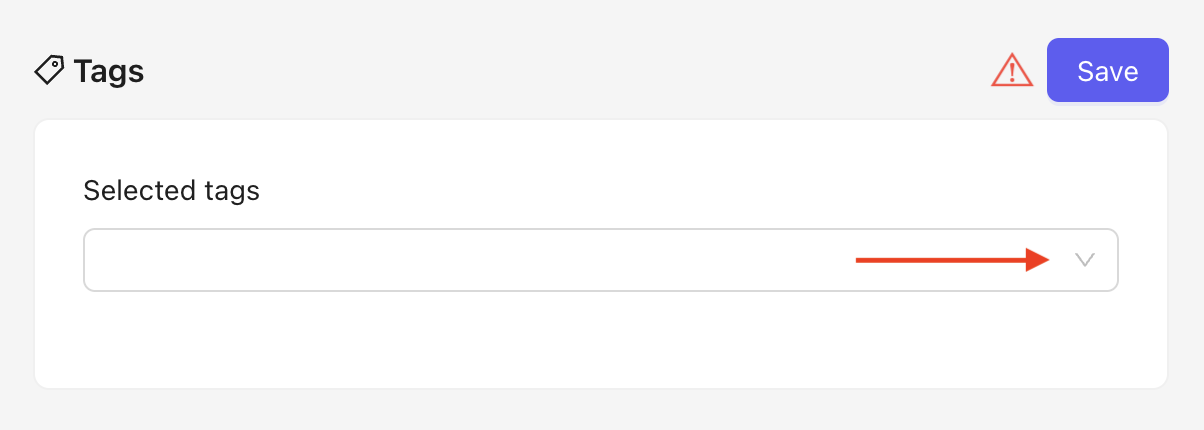
Select tags using the dropdown menu.
Make sure to save your changes.
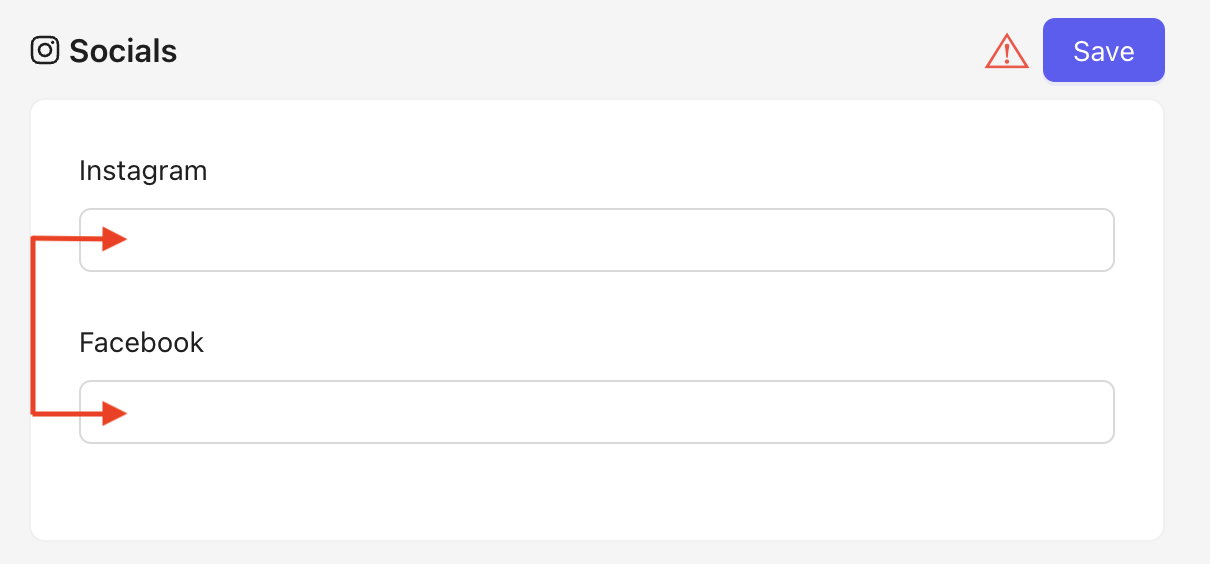
Enter the social media URLs in each field. exemple : https://instagram.com/gigi_beach_dubai
Make sure to save your changes.
Discover how to adjust the visibility settings for a venue, including selecting its status for both the mobile app and WhatsApp bot.
Click on the visibility tab.
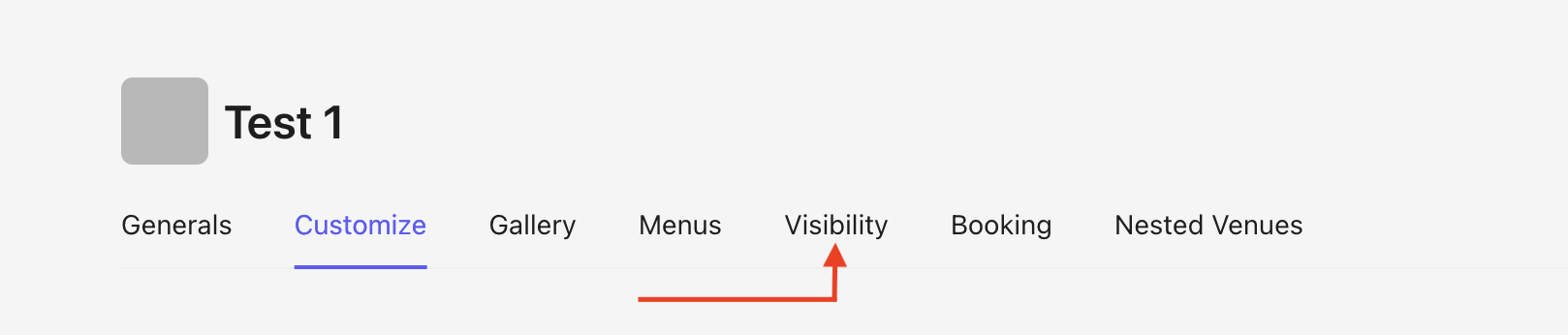
Select the status of your venue.

You can update the status for both the mobile app and the WhatsApp bot.
Make sure to save after each section update to apply the changes.
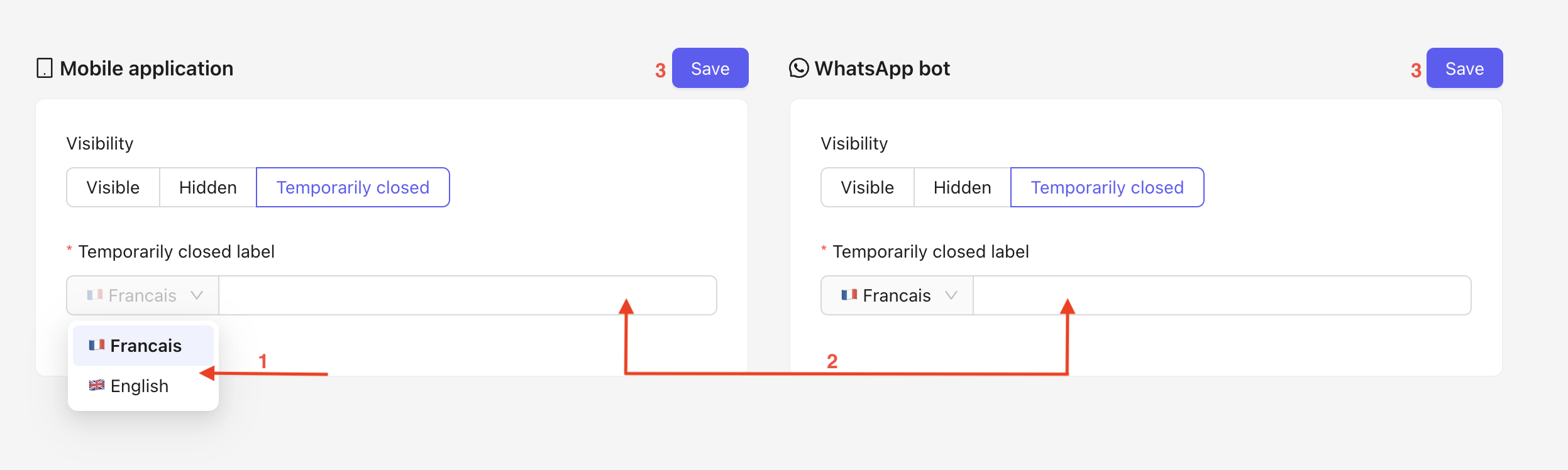
If the venue is temporarily closed, you must specify the message that will be displayed :
Select the language from the dropdown menu.
Fill in the text field with the message.
Make sure to save after each language change.
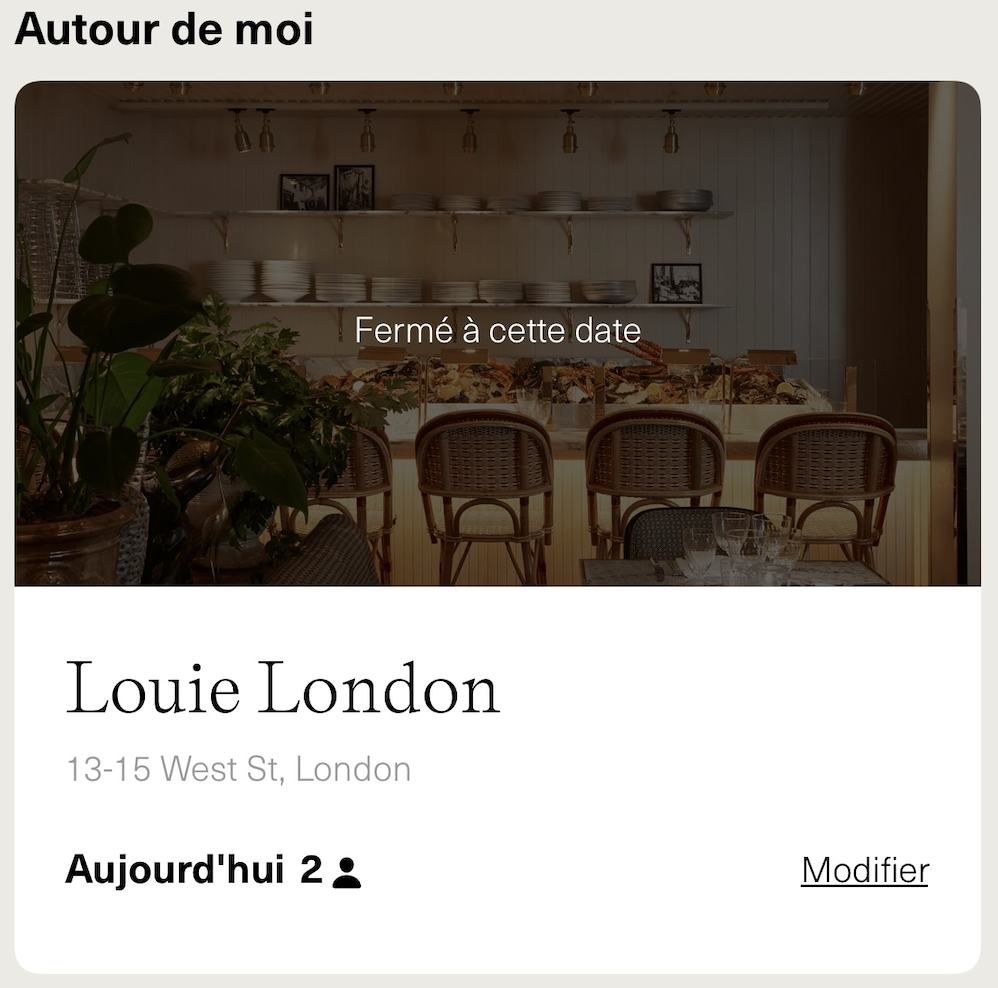
Visual appearance of a closed venue in the App :
By following these instructions, you’ll be able to efficiently manage your venues within the application. Don’t forget to save your changes regularly to ensure all updates are applied correctly.
